How to Set Up Email for a New Business: First Steps and Best Practices
Set up email for your new business from scratch — create a professional address on your domain, configure DNS records (MX, SPF, DKIM, DMARC), and connect one or multiple inboxes to Mailbird.



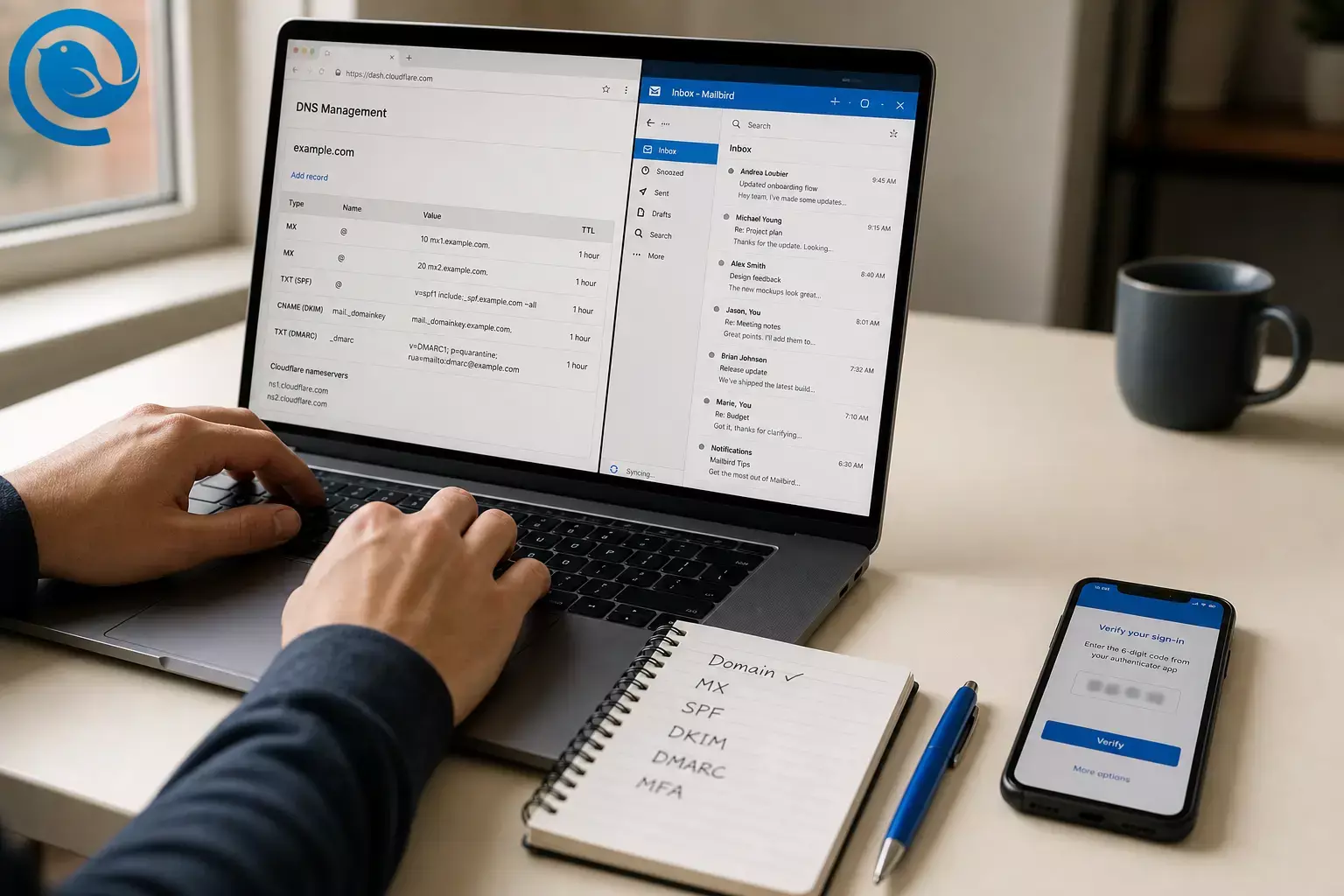
Need to set up email for a new business? This business email setup guide walks you through
creating a professional address
on your domain (like
you@yourcompany.com
), setting the key DNS records (MX, SPF, DKIM, and DMARC), and then connecting one or
multiple inboxes
to Mailbird so you can manage everything from a desktop app—including a Unified Inbox when you have more than one address. Most of the work is copy/paste plus a few verification checks.
On January 27, 2026, Microsoft updated its Exchange Online plan for SMTP AUTH: basic (password) authentication will be disabled by default for existing tenants at the end of December 2026, and new tenants created after December 2026 won’t have it available by default. What it means for you: set up your business email and any “send mail” tools (apps, scanners, forms) using modern sign-in methods now, so you don’t get stuck replacing a working setup later. 1
Key takeaways
- Your domain, email host, DNS records, and desktop email app are separate pieces—but they need to line up for delivery and authentication to work.
- Create mailboxes before switching MX records, so messages don’t arrive when “no mailbox exists.” 7
- Keep a single SPF TXT record (edit it instead of creating a second one) and expect DNS-related delays; SPF can take up to 48 hours to start working after changes. 7 3
-
Enable DKIM and publish a DMARC record (starting with
p=none) to help prevent spoofing and reduce spam placement issues. 2 3 - Lock down security early: MFA for admins first, then everyone, and store recovery methods safely.
- In Mailbird, Unified Inbox appears after you add more than one email account; Mailbird Free supports one connected account. 9 12
Quick map (so you don’t get lost):
-
Your domain
= the name after
@(example:yourcompany.com). - Your email host = the service that stores mailboxes and sends/receives mail for that domain (example: Google Workspace, Microsoft 365, Zoho, Fastmail, etc.).
- Your DNS records = the settings that connect your domain to your email host (MX/SPF/DKIM/DMARC).
- Your email app (like Mailbird) = the desktop client you use to read and send mail from one or many mailboxes.
At a glance:
-
Plan your addresses (personal + role-based like
support@). - Choose an email host and add your domain.
- Verify the domain, then switch MX so new mail arrives.
- Publish SPF, DKIM, and DMARC .
- Secure accounts with MFA, then connect everything to Mailbird.
Before you start
- Prerequisites: You own a domain (or you’re ready to buy one) and you can log in where that domain’s DNS is managed. You also need admin access to your chosen email host.
- Tools/ingredients: A laptop/desktop, a place to store passwords (a password manager is easiest), and a phone for multi-factor authentication (MFA).
- Time: A focused setup session, plus DNS waiting time. It can take up to 48 hours for SPF authentication to start working after changes. 3
-
Cost range (USD):
Domain registration is commonly about $9.70–$35/year for a standard
.com, depending on registrar and promos. Business email hosting ranges widely, but mainstream suites often start around $6/user/month (Microsoft 365 Business Basic) or $8.40/user/month on Google’s Flexible Business Starter plan (with lower pricing on annual commitments). 6 4 5 - Safety notes: DNS changes affect your whole domain. Before you edit anything, export/screenshot your current DNS page. Don’t paste passwords into email or chat. Turn on MFA for admin accounts before you invite the rest of the team.
New business email setup guide: step-by-step
New business email setup guide: step-by-step
-
Choose your domain and decide what addresses you need
-
Pick the domain you’ll use long-term (for example,
yourcompany.com). If you’re still naming your business, decide the domain first—your email addresses will be everywhere (invoices, logins, signatures). -
Write down your “must-have” addresses now (examples:
yourname@,support@,billing@,sales@). - Choose a consistent “From name” format (example: “Avery Patel, YourCompany”).
Check: You can log in to your domain registrar/DNS host and find the page where you add or edit DNS records.
-
Pick the domain you’ll use long-term (for example,
-
Pick an email host (this is separate from your domain)
- Decide whether you want email only or a full work suite (email + calendar + file storage + admin controls).
- Confirm the host supports custom domains and modern sign-in (OAuth/SSO), especially if you’ll connect desktop apps and devices.
- Create your admin account and keep its login info somewhere safe.
Check: You can sign in to the email host’s admin console.
-
Add your domain inside the email host’s admin console
- In your email host’s setup wizard, choose Add domain .
- When asked who manages DNS, select your current DNS provider (or choose “manual” if it’s not listed).
- Keep the setup screen open—you’ll copy records from it in the next steps.
Check: You see your domain listed in the admin console with a “Verify” or “Pending” status.
-
Verify domain ownership (usually a TXT record)
- Copy the verification TXT record Name/Host and Value from your email host.
- In your DNS settings, add a new TXT record and paste the value exactly.
- Go back to the email host and click Verify . If it fails, wait and try again.
Check: The domain shows as verified/active in your email host.
-
Create your mailboxes and role addresses
-
Create a dedicated admin mailbox (example:
admin@yourcompany.com) and your day-to-day mailbox (yourname@). -
Create role addresses based on how you work:
- If one person handles it: create an alias (support@ → yourname@).
- If multiple people handle it: create a shared mailbox or group (support@ goes to everyone who needs it).
- Set strong passwords and require MFA (you’ll lock this down more in Step 10).
Check: You can sign in to webmail for your main mailbox and send a message to yourself internally (if the host allows internal mail before MX changes).
-
Create a dedicated admin mailbox (example:
-
Route incoming mail to your new host (MX records)
- In your email host’s setup wizard, find the MX records it wants you to add.
- In DNS, remove old MX records that point to a previous email service (or follow your provider’s instructions to lower their priority).
- Add the new MX records exactly as shown (same host/name, priority, and destination).
- Tip: Create users/mailboxes before switching MX so mail doesn’t land in a “no mailbox exists” state during the changeover. 7
Check: A test email sent to
you@yourcompany.comarrives in the new inbox (if it doesn’t, see Troubleshooting). -
Authorize outgoing mail with SPF (one TXT record)
-
In DNS, look for an existing SPF record: a
TXT
record whose value starts with
v=spf1. - If one exists, edit it (don’t create a second SPF record). Microsoft’s DNS guidance also warns against creating a new SPF record when one already exists—keep a single SPF TXT record and add what you need to it. 7
- If you use only Google Workspace to send mail, Google’s example SPF record is: 3
v=spf1 include:_spf.google.com ~all- If you also send mail from other services (website forms, CRM, invoicing), add their SPF includes too—otherwise their messages can fail SPF and land in spam. 3
- Expect a delay: SPF authentication can take up to 48 hours to start working after DNS changes. 3
Check: Send an email to a personal mailbox and confirm the message headers show
spf=pass. -
In DNS, look for an existing SPF record: a
TXT
record whose value starts with
-
Turn on DKIM signing (so your mail is harder to spoof)
- In your email host’s admin console, generate DKIM keys for your domain.
- Add the DKIM DNS record(s) your provider gives you (often CNAME records, sometimes TXT ).
- Back in the admin console, click Enable (or similar) to start DKIM signing.
- If you ever send high-volume email to Outlook.com consumer addresses, Microsoft’s requirements include DKIM passing for those domains. 2
Check: Send a test message and confirm headers show
dkim=pass. -
Publish a DMARC policy (start simple)
-
Add a
TXT
record at
_dmarc.yourcompany.com. - Start with a monitoring policy while you confirm everything is aligned:
v=DMARC1; p=none-
If you send bulk email, both Gmail and Outlook.com have stricter expectations around SPF/DKIM/DMARC. Google notes bulk senders (more than 5,000 messages daily) must have SPF, DKIM, and DMARC. Microsoft’s Outlook.com requirements for high-volume senders also include DMARC with at least
p=noneand alignment with SPF or DKIM. 3 2
Check: Your email host’s admin panel shows DMARC detected (or your test headers show
dmarc=passafter everything is aligned). -
Add a
TXT
record at
-
Lock down security (admin first, then everyone)
- Enable MFA for admin accounts, then for all users.
- Store backup codes/recovery methods somewhere safe (not inside your email inbox).
- Limit who has admin roles. Use your admin mailbox for admin tasks—not day-to-day emailing.
- Decide what happens when someone leaves (disable account, transfer access to a manager, set up forwarding if needed).
Check: Admin login prompts for a second factor and recovery methods are set.
-
Connect your new business email to Mailbird (and add multiple inboxes)
- Install Mailbird, then open Menu → Settings → Accounts → Add . 8
- Add your first mailbox. Mailbird will try to auto-detect IMAP/SMTP settings; if detection fails, switch to manual and enter the settings from your email host. 10
- If you run into IMAP-related errors, confirm IMAP is enabled for your email account before trying again. 11
-
Add your other business addresses (for example,
support@andbilling@) one at a time. - Enable a Unified Inbox so you can read and reply without constant account switching. In Mailbird, the Unified Inbox only appears once you’ve added more than one email account. 9
- If you plan to connect more than one account, confirm your Mailbird plan supports multiple connected accounts (Mailbird Free supports one connected account). 12
Check: You can see new mail in each inbox, the Unified Inbox is visible, and your replies send from the correct “From” address.
-
Do a final end-to-end test and document your setup
- Send a message from each address (yourname@, support@, billing@) to an outside mailbox you can access, then reply back.
- Confirm: inbound works, outbound works, replies go out from the correct address, and attachments deliver.
-
Create a short “Business email setup” note with:
- Who owns the domain registrar login
- Where the email host admin console is
- Which DNS records you changed (MX, SPF, DKIM, DMARC)
- Which addresses are aliases vs shared mailboxes
Check: Two-way email works from your desktop (Mailbird) and from webmail, and you have your setup notes saved.
Why this works
Email isn’t “set up” until your domain points to the right mail servers (MX) and your outgoing mail is authenticated (SPF/DKIM/DMARC). Once those foundations are in place, an email client like Mailbird can connect to your mailboxes via IMAP/SMTP (or OAuth where required) and let you manage multiple accounts in one place.
Troubleshooting
| Symptom | Likely cause | Fix |
|---|---|---|
| Domain verification fails (“We can’t find your TXT record”) | TXT record name/value is wrong, saved in the wrong DNS zone, or hasn’t propagated yet |
Re-copy the TXT record from the email host, paste it again exactly, and wait. If your DNS host has both “Name” and “Host” fields, follow the provider’s exact format (some use
@
).
|
| You can send mail, but you can’t receive it | MX records still point to the old provider, or you have extra MX records | In DNS, remove old MX records (or set them to lower priority if your provider instructs that). Then send a new test email (old attempts won’t re-route). |
| You can receive mail, but sending fails (or mail sits in Drafts) | Outgoing server settings/auth method is wrong, or authenticated SMTP isn’t allowed | Use the email host’s recommended SMTP settings, and re-add the account using the provider’s modern sign-in flow (OAuth) if available. For managed work accounts, ask your admin whether SMTP auth is allowed for your mailbox. |
| Emails land in spam | Missing/incorrect SPF, DKIM not enabled, or DMARC not published |
Confirm you have one SPF record, DKIM is enabled, and DMARC exists at
_dmarc
. Also add any third-party senders to SPF and set them up for DKIM where possible.
|
| SPF shows “fail” even though you added it | Multiple SPF TXT records exist, or the SPF record doesn’t include every sender | Keep a single SPF TXT record and merge all required includes into it. Remove extra SPF TXT records. |
| Mailbird keeps asking for your password / “Authentication failed” | MFA is enabled and your provider requires OAuth or an app password; or IMAP access is disabled | Remove and re-add the account in Mailbird using the provider’s sign-in flow where offered. If your provider requires app passwords for IMAP, generate one. If it’s a work account, ask IT to enable IMAP/SMTP access for your mailbox. |
| Your scanner/printer/website form can’t send after the switch | The device/app only supports legacy SMTP username/password logins (basic auth) | Use your email host’s supported sending method (OAuth-enabled SMTP, SMTP relay/connector, or a transactional email service). If the device can’t be updated, plan a replacement or alternate sending path. |
| In a unified inbox, you almost replied from the wrong address | You’re viewing multiple accounts together | Before you hit Send, confirm the From field. In Mailbird’s Unified Inbox, replies are designed to send from the account that received the message—still, double-check when it matters (quotes, invoices, support threads). 9 |
If you send mail to Microsoft consumer addresses (Outlook.com/Hotmail/Live) and see bounce errors like
550 5.7.515
, Microsoft’s guidance focuses on meeting SPF/DKIM/DMARC requirements—especially for domains sending more than 5,000 messages per day.
2
If a legacy app or device depends on password-based SMTP AUTH against Microsoft 365, plan ahead: Microsoft’s updated timeline disables SMTP AUTH basic authentication by default for existing tenants at the end of December 2026, and new tenants created after December 2026 won’t have it available by default. 1
Common setups for small businesses
-
Solo business (simple):
Use one mailbox (
yourname@) and add aliases forsupport@andbilling@. -
Small team (shared addresses):
Use shared mailboxes or groups for
support@andsales@so multiple people can respond without sharing a password. - Budget starter: Use domain forwarding temporarily for low-volume “receive-only” needs, then upgrade to full mailboxes when you’re ready (and add SPF/DKIM/DMARC before you start sending seriously).
- Multiple brands: Host multiple domains under the same email platform, then connect each mailbox to Mailbird and manage everything in a Unified Inbox.
After setup: templates, storage, and scaling
Templates (do this once)
- Create a standard list of company addresses (support, billing, press, careers) so you don’t invent new ones every week.
- Create a signature template (name, title, phone, website) for consistent outgoing mail.
- Write down your DNS “source of truth”: where MX/SPF/DKIM/DMARC are managed and who has access.
Storage (keep it safe)
- Store admin logins and MFA backup codes in a password manager (or a secure offline method your company trusts).
- Save screenshots/exports of your DNS records after you finish setup.
Scaling (when you add people and mailboxes)
- Add new users in your email host first, then give them Mailbird access and help them connect their mailbox.
- Keep role-based addresses as shared mailboxes/groups so you can add/remove staff without changing what customers email.
- Use Mailbird’s Unified Inbox to keep multiple addresses visible without constantly switching accounts. 9
What can change
- Deprecation timelines and enforcement policies can shift. For example, Microsoft’s January 2026 update says it will announce a final removal date for SMTP AUTH basic authentication in the second half of 2027—so check current guidance before you buy devices that only support password-based SMTP sending. 1
- Pricing and plan names can change. Before you commit long-term, verify current pricing directly with your chosen provider.
Quick checklist (screenshot this)
- I own my domain and can edit DNS.
- I chose an email host and can log in as an admin.
- My domain is verified in the email host.
- Mailboxes are created (admin + daily use + role addresses as needed).
- MX records point to the new email host.
- SPF is set up (and there’s only one SPF record).
- DKIM is enabled and passing.
-
DMARC is published at
_dmarc. - MFA is enabled for admins (and ideally everyone).
- Mailbird is connected to my business mailbox(es).
- Unified Inbox is enabled (if I’m managing multiple accounts).
- I sent and received test emails successfully.
Frequently Asked Questions
Do I need a domain name to set up a business email?
To use an address like
name@yourcompany.com
, yes—you need to own the domain. If you’re not ready for a website yet, you can still buy the domain and use it only for email.
What’s the difference between an email host and an email client like Mailbird?
Your email host stores the mailbox and handles delivery. Mailbird is a desktop app that connects to one or more mailboxes so you can read, search, and reply in one place.
How long does it take for DNS changes (MX/SPF/DKIM/DMARC) to work?
Sometimes changes show up quickly, but DNS and authentication checks can take a while to fully apply. If you just updated SPF, allow up to 48 hours before assuming it “didn’t work.”
Sources: 3
Do I really need SPF, DKIM, and DMARC for a brand-new business?
Can two people share one address like support@?
Yes. The clean way is a shared mailbox or group that delivers messages to multiple people (and can allow “send as” so replies come from support@). Avoid sharing one password across a team.
Can I add multiple business email accounts to Mailbird?
My printer or app only supports “SMTP username + password.” What should I do?
Check your email host’s supported sending options (OAuth-based SMTP, SMTP relay/connectors, or a transactional email service). If you’re on Microsoft 365, plan ahead—password-based SMTP AUTH is being phased down and defaults are changing.
Sources: 1
If I change email providers later, will I lose my email address?
No—as long as you still own the domain. You can move to a different provider by changing your MX records. You may need to migrate old messages if you want your history in the new mailbox.
Sources
- Microsoft Exchange Team Blog — Updated Exchange Online SMTP AUTH Basic Authentication Deprecation Timeline (Jan 27, 2026)
- Microsoft Defender for Office 365 Blog — Outlook’s new requirements for high-volume senders (Apr 2, 2025)
- Google Workspace Admin Help — Set up SPF (includes bulk-sender authentication guidance; updated 2026-04-02 UTC)
- Microsoft — Microsoft 365 business plans and pricing
- Google Workspace Help — Compare Flexible and Annual/Fixed-Term payment plans (updated 2026-05-01 UTC)
- Wikipedia — Domain name registrar (typical .com retail cost range cited in article)
- Microsoft Learn — Connect your domain by adding DNS records (MX/SPF/DKIM guidance for Microsoft 365)
- Mailbird Support — Multiple Email Accounts in Mailbird
- Mailbird Support — Unified Inbox
- Mailbird Support — IMAP Support in Mailbird
- Mailbird Support — How to enable IMAP for your email account in Mailbird
- Mailbird — How to Combine Multiple Email Accounts Into One Inbox (published Mar 20, 2026; updated Mar 27, 2026)


