Email Providers Begin Limiting Background Sync for Third-Party Clients: What Changed and How to Maintain Reliable Email Access
Smartphone battery drain and missing email notifications plague millions in 2026 due to sweeping changes by major providers like Google, Microsoft, and Yahoo, combined with aggressive mobile battery-saving measures. This comprehensive guide explains the causes and provides solutions to restore reliable email communication.



If you've noticed your smartphone battery draining faster than ever, or if critical email notifications aren't arriving when you need them most, you're not alone. Millions of professionals and everyday users are experiencing the same frustrating problems in 2026, and the causes run deeper than a simple software bug or misconfigured setting.
The reality is that email infrastructure has fundamentally changed over the past year. Major email providers including Google, Microsoft, and Yahoo have implemented sweeping restrictions on how email applications connect to their servers, while mobile operating systems have simultaneously introduced aggressive battery-saving measures that often prevent email apps from working properly. These changes have created a perfect storm of synchronization failures, missing notifications, and battery drain issues that affect everyone from busy executives to students managing their academic correspondence.
According to research on Android email synchronization issues, the problems stem from multiple interconnected causes: critical notification delivery failures introduced by Android 16's redesigned notification architecture, IMAP connection restrictions that email providers have enforced to manage server load, authentication protocol transitions that broke existing email client configurations, and server-side rule changes that disrupted folder synchronization across devices.
This isn't just an inconvenience—it's a genuine crisis for professionals who depend on timely email communication. Missing a client's urgent request, failing to receive a meeting invitation, or discovering hours later that your entire team has been waiting for your response can have real consequences for your career and business relationships. The frustration is compounded by the fact that these failures often happen silently, without any error message or warning that something has gone wrong.
In this comprehensive guide, we'll break down exactly what's happening with email synchronization in 2026, why your notifications might be failing, what's causing your battery to drain so quickly, and most importantly—how to fix these problems and regain control of your email communication.
Understanding the Battery Optimization Crisis Affecting Your Email
The relationship between email synchronization and battery consumption has become one of the most contentious technical challenges in mobile computing. While everyone wants longer battery life, the aggressive optimization strategies implemented by Android and iOS have created unintended consequences that fundamentally break email functionality.
How Android's Battery Optimization Silently Breaks Email Notifications
Android's approach to background processing has evolved substantially since Android 8.0, with each major release introducing increasingly restrictive limitations on how applications maintain background connectivity. The problem is that these restrictions often operate invisibly, without providing clear feedback about what's being blocked.
Here's what's actually happening on your Android device: battery optimization features automatically classify email applications as "sleeping apps" or "deep sleeping apps" based on usage patterns, preventing background network activity even when you've explicitly enabled all notification permissions. As detailed in comprehensive analysis of Android email sync problems, this creates a situation where professionals miss critical client responses, time-sensitive proposals, and urgent team communications—not because they configured their devices incorrectly, but because Android's operating system architecture has fundamentally changed how email synchronization functions.
The frustration is particularly acute because the symptoms appear contradictory. You might have:
- Explicitly enabled notification permissions for your email application
- Disabled Do-Not-Disturb mode to receive alerts
- Configured maximum notification volume
- Verified that your email account is syncing properly
Yet despite all these correct configurations, battery optimization settings operating in the background silently prevent your email app from checking for new messages. This silent failure mode creates situations where you cannot determine why notifications have stopped working, as the responsible battery optimization settings operate invisibly without any user-facing indication that restrictions are active.
The iOS Mail Battery Drain Disaster
If you're an iPhone user, you're facing a different but equally severe problem. According to extensive research on iOS email battery consumption, hundreds of thousands of iPhone users across all models—from iPhone 12 through the newest iPhone 16 Pro Max—are reporting the exact same problem: their email apps are silently killing their batteries in the background, even when they're not actively using them.
Users report their Mail app consuming between 10% and 51% of total daily battery power despite minimal or zero actual usage, forcing them to charge their devices multiple times per day or carry power banks everywhere. The problem has persisted across every iOS 18 update from the initial release through iOS 18.5, and reports continue into 2026 with iOS 26 users describing "massive battery drain" that makes their expensive devices nearly unusable.
What makes the iOS situation particularly problematic is that the battery drain continues even after users disable background refresh, switch to manual fetch, and turn off push notifications. The Mail app simply ignores these settings and continues draining power relentlessly. Some users have watched their battery health deteriorate from 99% to 97% within just days of updating, suggesting this isn't merely a temporary performance issue but actual battery damage occurring under abnormal operating conditions.
Apple Support has explicitly confirmed that Mail application corruption occurs during updates, causing synchronization logic to malfunction and enter infinite loops. Users report their Mail apps displaying "checking for mail" status indefinitely without ever retrieving messages or completing the synchronization process, maintaining continuous processor activity and network connectivity that prevents the device from entering the low-power sleep states that preserve battery life.
Email Provider Infrastructure Changes That Broke Your Synchronization
While operating system battery optimization creates one set of problems, email providers themselves have simultaneously implemented sweeping infrastructure changes that have disrupted email access for millions of users. These changes happened with minimal advance notice, leaving professionals and everyday users scrambling to understand why their email clients suddenly stopped working.
IMAP Connection Limits: The Hidden Cause of Sync Failures
According to comprehensive analysis of email provider IMAP restrictions, between late 2025 and early 2026, major email providers implemented sweeping IMAP rate-limiting changes, connection restrictions, and authentication requirement updates that disrupted email access worldwide. December 2025 marked a particularly severe disruption period, when Comcast's IMAP infrastructure experienced widespread connectivity failures affecting users of third-party email clients including Outlook, Thunderbird, and mobile applications.
Here's the critical issue most users don't understand: different email providers enforce dramatically different IMAP connection restrictions, creating a fragmented landscape where what works perfectly with one account fails completely with another.
- Gmail permits up to fifteen simultaneous IMAP connections per account, establishing itself as relatively permissive. However, Google Workspace bandwidth limits still restrict IMAP downloads to 2,500 MB per day and uploads to 500 MB per day, meaning heavy email users can hit throttling even within connection limits.
- Yahoo Mail implements significantly more restrictive policies, limiting concurrent IMAP connections to as few as five simultaneous connections per IP address. This restrictive approach proves particularly problematic for users attempting to access accounts from multiple devices simultaneously.
- Microsoft Exchange Online implements session limits through throttling policies, with IMAP applications connecting to Exchange 2019 mailboxes facing session limits of approximately eight concurrent connections.
As explained in detailed research on email folder synchronization problems, IMAP connection limits represent a frequently overlooked but significant cause of email synchronization delays and folder organization failures. Each email client typically uses multiple IMAP connections simultaneously, with some clients using five or more connections by default. When users run multiple email applications across multiple devices—such as accessing email through webmail, desktop clients, and mobile applications simultaneously—they can quickly exceed their provider's connection limit, resulting in timeouts, delays, or complete synchronization failure.
Authentication Protocol Transitions That Broke Email Access
Perhaps even more disruptive than connection limits have been the coordinated transitions email providers implemented regarding authentication protocols. According to enterprise email compliance research, major email providers initiated enforcement beginning in February 2024, fundamentally transforming from educational warnings to active rejection at the protocol level.
Google and Yahoo synchronized their requirements for bulk senders, defined as those sending more than 5,000 messages per day to their respective users. Microsoft followed with consumer mailbox enforcement beginning May 5, 2025, for live.com, hotmail.com, and outlook.com addresses. These authentication transitions have directly disrupted email client synchronization because when Basic Authentication was disabled without OAuth 2.0 support, email clients suddenly could no longer establish connections to download messages, causing synchronization to fail completely.
The specificity of these requirements constitutes the critical innovation: providers now mandate that sender authentication must pass across all three mechanisms simultaneously—Sender Policy Framework (SPF), DomainKeys Identified Mail (DKIM), and Domain-based Message Authentication, Reporting and Conformance (DMARC)—with proper alignment between them. This binary compliance philosophy means organizations face clear pass or fail categories with no gradation for nearly-compliant configurations.
Google formally announced the start of an Enforcement Phase beginning November 2025, where messages failing to meet requirements introduced in February 2024 would no longer be routed to spam but actively rejected at the protocol level. This represented a fundamental shift from educational and warning phases to actively blocking non-compliant traffic.
Recent Synchronization Failures and Platform-Specific Issues
Real-world synchronization failures have demonstrated the severity of these infrastructure transformations, with specific incidents in early 2026 highlighting how widespread these problems have become.
The Microsoft-Gmail-Yahoo Sync Crisis of February 2026
According to official Microsoft documentation, Microsoft resolved an issue that was causing synchronization problems between classic Outlook and Gmail or Yahoo accounts. The issue affected Microsoft 365 users and started on February 26, 2026, with the bug preventing affected accounts from syncing and resulting in error codes 0x800CCC0F and 0x80070057.
Microsoft reports that the issue has been resolved on the Microsoft 365 service, however some users may still experience temporary problems due to the way authentication tokens behave. The company notes that Outlook may not prompt users to sign in again immediately after the fix, with syncing resuming once the OAuth token expires, which usually happens about an hour after a password change.
This incident perfectly illustrates how authentication protocol transitions can create cascading failures that affect millions of users simultaneously, even when the underlying email accounts remain accessible through other methods.
Android 16's Notification Architecture Failures
As documented in comprehensive analysis of the 2026 email sync crisis, between late 2025 and early 2026, multiple converging technical failures created widespread synchronization regressions affecting email infrastructure across the entire ecosystem. Google formally acknowledged a critical notification muting bug through its official Issue Tracker, confirming internal awareness and initiating remediation efforts.
The bug manifests in a particularly problematic way: when any notification already occupies a device's notification shade, all subsequent notifications from email and calendar applications arrive silently without any alert sound, vibration, or visual indication. This creates a scenario where you receive your first email of the day with a normal notification alert, but every subsequent email arriving throughout that day appears silently in the background.
For professionals who depend on timely email notifications to respond to clients, coordinate with teams, and manage time-sensitive projects, this silent notification failure represents a fundamental breakdown of communication infrastructure. You're not ignoring important messages intentionally—your device is simply not alerting you that they've arrived.
Practical Solutions: How to Fix Email Sync and Battery Problems
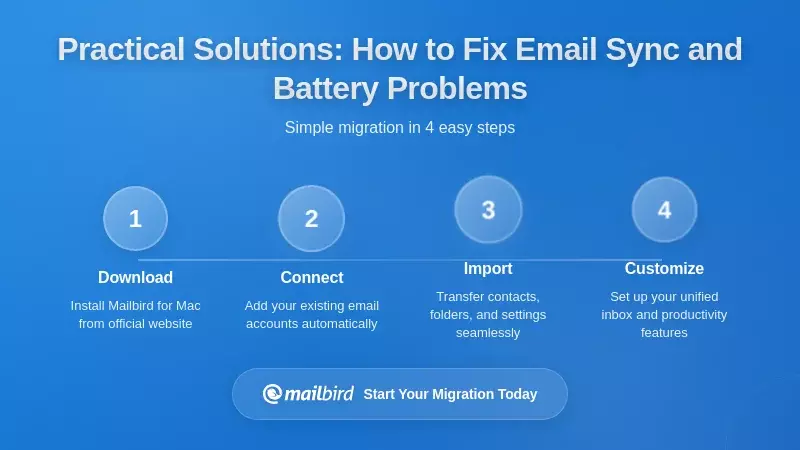
Understanding the causes of these problems is important, but what you really need are practical solutions that restore your email functionality. Here are comprehensive troubleshooting approaches that have proven effective for users experiencing these issues.
Fixing Android Email Notification Failures
For users experiencing Android email notification failures, follow these systematic steps:
Step 1: Verify Notification Permissions
Navigate to Settings → Notifications → App Settings → [Email App Name] and ensure that notification permissions are explicitly enabled. Many users discovered that platform updates reset notification permissions without warning, requiring manual re-enablement.
Step 2: Disable Battery Optimization
Navigate to Settings → Battery → Battery Optimization and change your email app to "Don't optimize" or "Unrestricted." Android's aggressive battery optimization can prevent email applications from checking for new messages in the background, causing notification delays or complete notification failure.
Step 3: Remove Email Apps from Sleeping Apps Lists (Samsung Devices)
On Samsung devices specifically, check Settings → Battery → Background usage limits and remove your email application from "Sleeping apps" and "Deep sleeping apps" lists. Samsung's additional battery management layers can override Android's base settings, creating device-specific notification failures even when Android's notification permissions appear correctly configured.
Step 4: Enable Background Data Access
Navigate to Settings → Apps → [Email App] → Mobile data & Wi-Fi and enable background data access. Many email applications require unrestricted background data to check for new messages and trigger alerts.
Step 5: Remove and Re-add Email Accounts
If these steps don't resolve notification issues, try removing your email account and re-adding it, which sometimes resolves permission conflicts or authentication issues that prevent notifications from functioning.
Resolving iOS Mail Battery Drain
For iOS users experiencing Mail battery drain, the primary cause is Apple's Mail application running corrupted or malfunctioning background synchronization processes. Here's how to address it:
Switch to Manual Fetch Mode
Navigate to Settings → Mail → Accounts → Fetch New Data → Manual and disable cellular data for Mail. However, understand these settings may not work due to iOS 18 architectural changes that allow Mail to bypass standard background refresh controls.
Disable Exchange Calendar Sync
For Exchange accounts appearing particularly problematic, try disabling calendar sync while maintaining mail sync: Settings → Mail → Accounts → [Exchange Account] → toggle off "Calendars". The Exchange-specific drain appears related to calendar synchronization rather than email alone, with users reporting that disabling Exchange calendar sync while maintaining email access significantly reduces battery consumption.
Delete and Reinstall Mail Accounts
Remove the problematic email account completely from iOS Mail, restart your device, and then re-add the account. This forces Mail to rebuild its database structures and cache files, potentially resolving the corruption causing infinite synchronization loops.
Addressing IMAP Connection Limit Violations
For IMAP synchronization failures caused by connection limits:
Verify IMAP Configuration
Check your email provider's official documentation for current IMAP server settings and compare them against your email client configuration. Providers sometimes change server addresses or port requirements during infrastructure migrations.
Reduce Connection Load
Close unnecessary email applications across devices. If you're accessing email through webmail, a desktop client, and multiple mobile applications simultaneously, you may be exceeding your provider's connection limits. Temporarily close applications you're not actively using to free up connection slots.
Use Email Clients with Configurable Connection Management
Consider switching to email clients that allow you to configure the number of simultaneous IMAP connections. This flexibility prevents connection exhaustion when multiple devices access the same account simultaneously.
How Mailbird Addresses Modern Email Infrastructure Challenges
While the troubleshooting steps above can help resolve immediate problems, the fundamental issue is that modern email infrastructure has become too complex and restrictive for many email clients to handle effectively. This is where choosing the right email client becomes critical.
Intelligent Connection Management
According to analysis of email folder synchronization solutions, Mailbird addresses IMAP connection limit violations by providing configurable connection settings that allow reducing connection counts to respect provider limits while maintaining functionality. Mailbird uses five connections by default but allows users to reduce this to two, one, or other values based on their provider's connection limit constraints.
This flexible configuration approach prevents the connection exhaustion that creates sync failures when multiple devices access the same account simultaneously. For users managing multiple email accounts across multiple devices, this connection management capability proves essential for maintaining reliable synchronization.
Automatic OAuth 2.0 Authentication Support
Mailbird implements automatic OAuth 2.0 support across multiple providers including Microsoft, Google, Yahoo, and others, addressing the authentication protocol transitions that disrupted email access during 2025-2026. This implementation ensures compatibility with the new authentication requirements email providers enforce, preventing the authentication failures that characterized the February 2026 synchronization crisis.
Unified Inbox Architecture for Multiple Accounts
As detailed in comprehensive email client comparison research, Mailbird implements sophisticated unified inbox architecture that enables users to connect multiple email accounts from various providers—Gmail, Outlook, Yahoo Mail, and standard IMAP servers—into one seamless interface.
The unified inbox implementation consolidates multiple accounts into a single seamless interface, eliminating the context switching that disrupts productivity. This architecture proves particularly valuable when managing personal, professional, and project-specific email addresses, as it reduces the total number of IMAP connections required across your devices.
Efficient Resource Management
Mailbird maintains typical memory usage between 200 and 500 megabytes for multi-account configurations—dramatically more efficient than competing applications. This efficient native architecture maintains memory usage between 200-500MB even with multiple accounts connected, preserving system resources for other applications and contributing to better overall battery performance.
Desktop-First Architecture Avoids Mobile Battery Issues
One of the most significant advantages of using Mailbird as your primary email client is that it operates on your desktop or laptop computer, completely avoiding the battery optimization restrictions and notification failures that plague mobile email applications. While mobile email apps must constantly negotiate with aggressive battery management systems, Mailbird runs on devices with continuous power and unrestricted background processing capabilities.
This doesn't mean you can't access email on your mobile device—it means you can configure your mobile email apps for minimal battery consumption while relying on Mailbird for your primary email management and notification delivery. This hybrid approach gives you the best of both worlds: reliable desktop email functionality with Mailbird, and battery-efficient mobile access when you need it.
The Future of Email Synchronization: What to Expect
Email infrastructure management has evolved from a relatively straightforward process of selecting an email client and configuring account settings to a complex landscape requiring deep understanding of provider-specific connection limits, authentication protocols, server-side rule changes, and platform-specific battery optimization behaviors.
Continued Provider Restrictions
Email providers show no signs of relaxing the connection limits and authentication requirements they've implemented. If anything, these restrictions are likely to become more stringent as providers continue prioritizing server efficiency and security over backward compatibility with older email clients.
As providers continue implementing restrictions, email clients with configurable connection settings and intelligent connection pooling become increasingly valuable. The ability to adapt to provider-specific requirements will separate functional email clients from those that simply stop working as infrastructure changes.
Mobile Operating System Battery Optimization
Both Android and iOS will likely continue implementing aggressive battery optimization strategies, as device manufacturers face constant pressure to improve battery life metrics. This means the notification reliability problems affecting mobile email applications in 2026 represent the beginning of a trend rather than a temporary issue.
For professionals who depend on reliable email communication, this trend suggests that desktop email clients will become increasingly important as the primary interface for email management, with mobile applications serving as secondary access points rather than primary communication tools.
Authentication and Security Requirements
The authentication protocol transitions that disrupted email access in 2025-2026 represent a permanent shift in how email security functions. Organizations and individuals must prioritize implementing SPF, DKIM, and DMARC authentication for all domains sending more than 5,000 emails daily.
Email clients that automatically handle OAuth 2.0 authentication and adapt to changing provider requirements will provide significantly more reliable service than those requiring manual configuration updates for each protocol change.
Frequently Asked Questions
Why do my email notifications work sometimes but not other times on Android?
Based on the research findings, this intermittent notification failure is caused by Android 16's notification architecture bug where the first notification of the day arrives normally, but all subsequent notifications arrive silently when any other notification already occupies your notification shade. Additionally, Android's battery optimization system may be automatically classifying your email app as a "sleeping app" during periods of inactivity, preventing background synchronization even when you've explicitly enabled notification permissions. To resolve this, you need to explicitly disable battery optimization for your email application and remove it from Samsung's "Sleeping apps" and "Deep sleeping apps" lists if you're using a Samsung device.
Why is my iPhone Mail app draining my battery so quickly in 2026?
The research indicates that iOS Mail application corruption occurs during updates, causing synchronization logic to malfunction and enter infinite loops. Your Mail app displays "checking for mail" status indefinitely without ever completing the synchronization process, maintaining continuous processor activity that prevents your device from entering low-power sleep states. This affects iPhone users across all models from iPhone 12 through iPhone 16 Pro Max, with users reporting Mail consuming between 10% and 51% of total daily battery power despite minimal actual usage. The problem persists even after disabling background refresh and switching to manual fetch because iOS 18's architectural changes allow Mail to bypass standard background refresh controls. The most effective solution is to delete and reinstall your email accounts, which forces Mail to rebuild its database structures and potentially resolve the corruption.
What are IMAP connection limits and how do they affect my email?
According to the research findings, IMAP connection limits represent the maximum number of simultaneous connections your email provider allows per account. Gmail permits up to fifteen simultaneous connections, Yahoo Mail restricts this to as few as five connections per IP address, and Microsoft Exchange Online implements approximately eight concurrent connections. Each email client typically uses multiple IMAP connections simultaneously—some use five or more by default. When you access email through webmail, desktop clients, and mobile applications simultaneously across multiple devices, you can quickly exceed your provider's connection limit, resulting in timeouts, delays, or complete synchronization failure. The research shows this is a frequently overlooked but significant cause of email synchronization delays and folder organization failures, with connection limit violations producing error messages indistinguishable from genuine server problems.
How do I know if authentication protocol changes are affecting my email?
The research findings indicate that major email providers initiated enforcement of new authentication requirements beginning in February 2024, with Google and Yahoo synchronizing requirements for bulk senders and Microsoft following with consumer mailbox enforcement beginning May 5, 2025. If your email client suddenly stopped connecting in late 2025 or early 2026, authentication protocol transitions are likely the cause. Specifically, when Basic Authentication was disabled without OAuth 2.0 support, email clients could no longer establish connections to download messages. You'll typically see authentication error messages or connection failures when trying to sync. The solution is to use an email client like Mailbird that implements automatic OAuth 2.0 support across multiple providers, ensuring compatibility with the new authentication requirements email providers now enforce.
Should I use a desktop email client or mobile app as my primary email interface?
Based on the comprehensive research findings, desktop email clients offer significant advantages in the current infrastructure environment. Mobile email applications must constantly negotiate with aggressive battery optimization systems that silently prevent background synchronization and notification delivery, while desktop clients like Mailbird operate on devices with continuous power and unrestricted background processing capabilities. The research shows that Android's battery optimization automatically classifies email apps as "sleeping apps" preventing background activity, while iOS Mail enters infinite synchronization loops that drain battery by up to 51% of total daily power. Desktop email clients avoid these mobile-specific restrictions entirely while providing configurable IMAP connection management, automatic OAuth 2.0 authentication support, and unified inbox architecture for managing multiple accounts efficiently. This suggests using a desktop client as your primary email interface while configuring mobile apps for minimal battery consumption provides the most reliable email experience in 2026.
What should I do if I'm experiencing email sync failures with multiple accounts?
The research findings indicate that managing multiple email accounts creates compounding connection limit challenges, as each account consumes IMAP connections and each additional device multiplies the total connection load. First, verify your IMAP configuration matches each provider's current requirements, as providers sometimes change server addresses or port requirements during infrastructure migrations. Second, reduce connection load by closing unnecessary email applications across devices—if you're accessing email through webmail, desktop clients, and multiple mobile applications simultaneously, you're likely exceeding provider connection limits. Third, consider using an email client like Mailbird that provides configurable connection settings allowing you to reduce connection counts to respect provider limits while maintaining functionality. Mailbird's unified inbox architecture consolidates multiple accounts into a single interface, reducing total connection requirements and simplifying workflow across personal, professional, and project-specific addresses. The research shows this approach prevents the connection exhaustion that creates sync failures when multiple devices access the same accounts simultaneously.
How can I prevent future email synchronization problems as providers continue changing requirements?
According to the research findings, email infrastructure will continue evolving with increasingly restrictive connection limits and stricter authentication requirements. To future-proof your email setup, invest in email clients with configurable connection management and intelligent connection pooling capabilities, as these become increasingly valuable as providers implement restrictions. Use unified inbox capabilities to manage multiple accounts efficiently, reducing total connection requirements. Stay informed about provider changes by monitoring industry news about upcoming authentication and protocol changes, since proactive migration prevents the sudden access loss that affected many users during 2025-2026 transitions. Organizations should prioritize implementing SPF, DKIM, and DMARC authentication for all domains, with DMARC policies progressing from monitoring-only through quarantine toward complete rejection of non-authenticated messages. Choose email clients like Mailbird that automatically handle OAuth 2.0 authentication and adapt to changing provider requirements, providing significantly more reliable service than those requiring manual configuration updates for each protocol change.


