How to Migrate from Thunderbird to Mailbird
This Thunderbird to Mailbird guide helps you migrate without losing access to important email: add your accounts, handle local archives, and move your contacts.



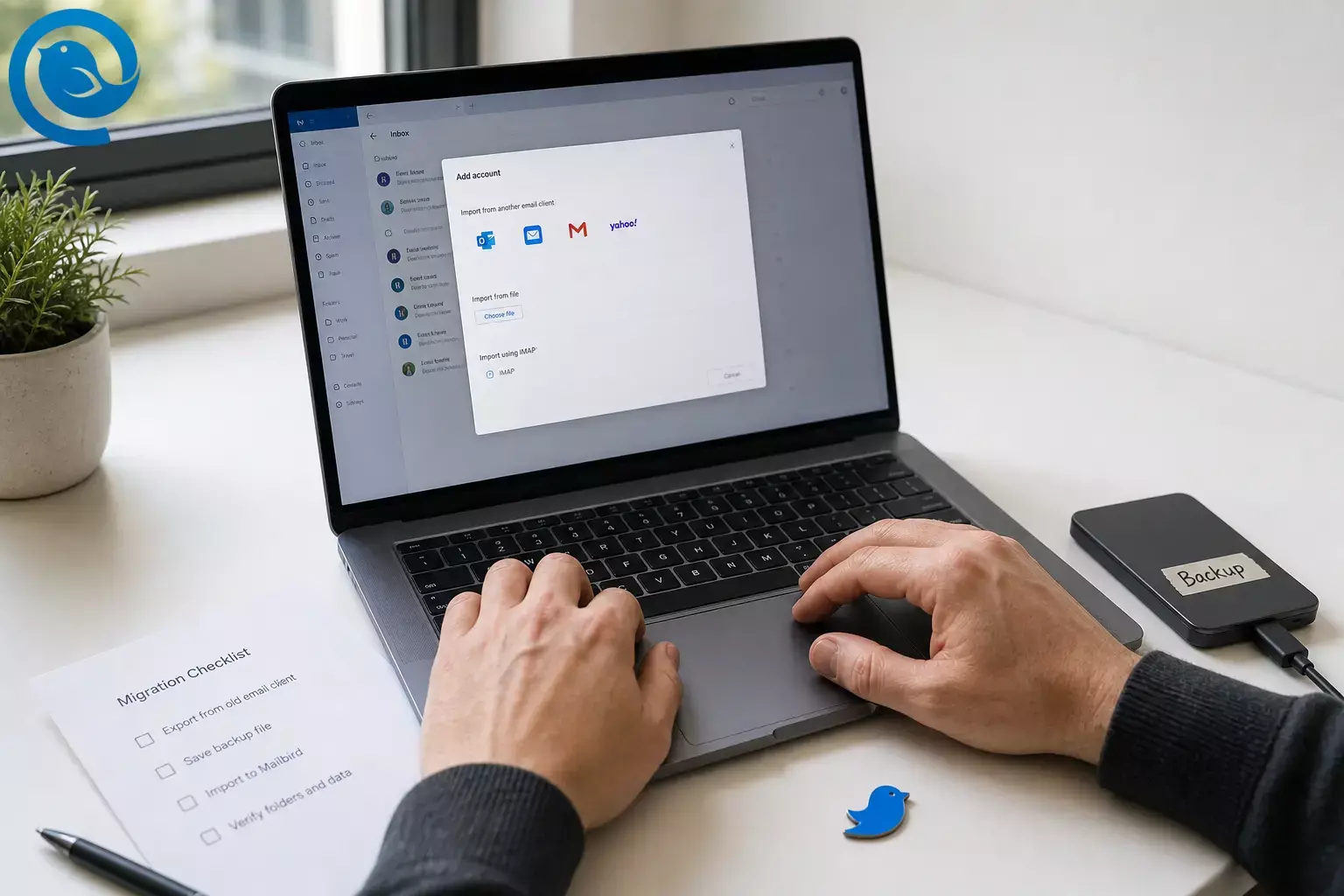
This Thunderbird to Mailbird guide helps you migrate from Thunderbird to Mailbird without losing access to important email: you’ll add your accounts, handle any local-only archives, and move your contacts. If your account is IMAP , most of your mail is already on the server—so Mailbird mainly needs to sync it after you sign in. [13]
On Windows, you can use Mailbird’s import option to import Thunderbird to Mailbird for supported accounts and email. [5] If you have POP accounts or Thunderbird Local Folders , plan an extra step to upload those folders to an IMAP account in Thunderbird (so Mailbird can sync them) or import them into Mailbird for Windows. [6] [13]
Plan about 20–40 minutes for the core setup, plus background sync time for large mailboxes. [2] Mailbird for Mac is available via the Apple App Store, but POP3 accounts aren’t currently supported on Mac. [1] [9]
What’s new
Updated : Mailbird for Mac is available via the Apple App Store, but POP3 accounts aren’t currently supported on Mac. [1] [9]
Key takeaways
- If your account is IMAP, most of your mail is already on the server—Mailbird mainly needs to sync after you sign in. [13]
- On Windows, you can use Mailbird’s import option for supported Thunderbird accounts and email. [5]
- POP accounts and Thunderbird Local Folders usually need an extra step: upload to IMAP in Thunderbird or import locally in Mailbird for Windows. [6]
- Back up your Thunderbird profile before you start (copy the profile folder, or export it). [3] [4]
- Mailbird for Mac doesn’t currently support POP3 accounts. [9]
- Export Thunderbird contacts as a vCard (.vcf) and import them in Mailbird Contacts. [7] [8]
- Run a send/receive test in Mailbird before importing anything else.
- Keep Thunderbird installed (and keep your backup) for at least a week of normal email use after switching.
Before you start (2-minute checklist)
- Know your account type: IMAP syncs mail from the server; POP3 typically keeps more mail on the device, which is why POP/local archives need extra handling during a migration. [13]
- Back up first: Copy your Thunderbird profile folder to a safe location, or export it as a ZIP. Close Thunderbird before copying so files aren’t in use. [3] [4]
- Have ready: Email addresses, passwords (or app passwords if required), and access to any multi-factor prompts.
- Platform note (Mac): POP3 accounts aren’t currently supported in Mailbird for Mac. [9]
- Time: About 20–40 minutes for setup, plus initial sync/upload time (bigger mailbox = longer wait). [2]
- Mailbird plans: Mailbird offers a Free plan and paid options; the migration steps below don’t require add-ons. [10]
IMAP vs POP: what needs to move
| Account type | Where your mail usually lives | What to do when switching to Mailbird |
|---|---|---|
| IMAP | Messages are stored on the mail server and synced to your email client. [13] | Add the account in Mailbird and let it sync. If you have Thunderbird Local Folders you still need, upload them to the IMAP account in Thunderbird first so Mailbird can sync them from the server. [5] [6] |
| POP3 | Messages are downloaded to your computer; older mail may exist only in Thunderbird (Local Folders). [13] | On Windows, import local mail into Mailbird after account setup. On Mac, POP3 isn’t currently supported—switch the mailbox to IMAP if possible, or keep that POP archive elsewhere. [5] [9] |
Thunderbird to Mailbird guide: step-by-step migration
Thunderbird to Mailbird guide: step-by-step migration
-
Identify each account as IMAP or POP (and list what must move)
In Thunderbird, open Account Settings and check each account’s Server Type (IMAP or POP). Also note whether you’ve used Local Folders in Thunderbird for archives—anything stored there is local-only until you upload or import it.
If you’re switching on a Mac, flag any POP accounts now: POP3 accounts aren’t currently supported in Mailbird for Mac, so you’ll need to use IMAP for that mailbox (or keep that POP archive in a different setup). [9]
Check: You have a short list like “work@ (IMAP), personal@ (IMAP), old@ (POP), Local Folders = yes.” -
Back up your Thunderbird profile (your “undo button”)
In Thunderbird, open ≡ → Help → Troubleshooting Information , then click Open Folder / Show in Finder on the Profile Folder row. Close Thunderbird completely, then copy the entire profile folder to an external drive or a “Thunderbird Backup” folder you won’t delete. [3] Thunderbird also includes an export option that saves your profile to a ZIP (for large profiles, copying the folder is a good fallback). [4]
Check: Your backup location contains a non-empty profile folder (or ZIP) created today. -
Confirm what’s already on the server (IMAP) vs. only on your computer (POP/local)
Open each mailbox in webmail (Gmail, Outlook.com, iCloud web, or your provider’s webmail). Confirm you can see your key folders (Inbox, Sent, Archive) and spot-check a few older messages.
Check: You can find at least one older message in webmail for each IMAP account you plan to use in Mailbird. -
Decide what to do with Thunderbird “Local Folders” (this is the make-or-break step)
If you want Local Folders inside an IMAP account in Mailbird: Mailbird can’t import offline files/folders into an IMAP account directly. Upload those folders to your IMAP server using Thunderbird: drag a local folder and drop it onto your IMAP account in Thunderbird, then keep Thunderbird open until the upload finishes. Verify in webmail that the folder appears and message counts look right. [5] [6]
If you’re on POP and keeping mail local (Windows): In Thunderbird, right-click Local Folders → Settings , then copy the Local Directory path somewhere safe. You’ll use that path when you import those folders into Mailbird later. [6]
Check: You either (a) see your Local Folders uploading to an IMAP account in Thunderbird, or (b) saved the Local Directory path for later import. -
Export your Thunderbird contacts (address book) to a vCard (.VCF)
In Thunderbird, open Address Book . Select the address book you want (for example, “Personal Address Book”), then export it to a file (look for an Export option in the address book controls/menu). Save as vCard (.vcf) to a folder you can find easily (like Documents). [8]
Check: You have a .vcf file saved, and it’s not 0 KB. -
Open Mailbird and go to the Accounts screen
Open Mailbird and navigate to your Accounts settings:
- Windows: Mailbird menu (three horizontal lines) → Settings → Accounts .
- Mac: Open Settings → Accounts .
Check: You can see an Add button (or similar) and a list of accounts (even if empty). -
Import Thunderbird to Mailbird (Windows) or add accounts manually (Mac)
Windows: In Settings → Accounts , click Add → Import , choose the Thunderbird account, enter your password, and wait for the import to finish. Make sure the account you’re importing is not already added to Mailbird, or it may not appear in the import list. [5]
Mac: Add the mailbox by selecting your provider (or “Other”) and completing the sign-in prompts. If Mailbird for Mac reports that your provider doesn’t support OAuth2, retry with the correct provider flow or use manual IMAP/SMTP settings from your provider. [11]
Check: The account appears in Mailbird and opens an Inbox view without errors. -
Run a basic send/receive test in Mailbird (before importing anything else)
In Mailbird, wait until new messages stop streaming in. Then send yourself a test email from each account and confirm: (1) it arrives, and (2) the reply sends successfully from the same account.
Check: For each account, you can send and receive at least one test message. -
Import local email archives (POP / Local Folders) into Mailbird (Windows only)
If your older mail lives only on your computer (common with POP and Local Folders), import it into Mailbird on Windows: go to Settings → Accounts , double-click your POP3 account, click Import messages , then choose the source/files you’re importing (for example, supported .pst or .eml files). [5]
To import Thunderbird Local Folders specifically, use the Local Directory path you saved in Step 4. During import, browse to that folder and select the “Local Storage Folder…” file that matches the local folder you want. Repeat for each local folder file you need. [6]
Check: In Mailbird, you can open the imported folder(s) and see older messages (not just placeholders).Note: If your account is IMAP and you want local archives to show up there, upload them to the IMAP server in Thunderbird (Step 4) and let Mailbird sync—don’t rely on offline imports to IMAP. [5] -
Import your contacts into Mailbird
Open Mailbird’s Contacts . Click the gear icon in the contacts column and choose Import contact from vCard , then select your exported .vcf file. [7]
Check: You can search for a known contact in Mailbird and see their email address. -
Turn on Unified Inbox (optional) and verify folders
If you added more than one account, enable Mailbird’s Unified Inbox so you can triage everything in one place. After you enable it, open the Unified Inbox and confirm you’re seeing mail from the accounts you expect. [14]
Check: You can open Unified Inbox and see messages from at least two accounts (if you added two+). -
Do a final “switch-over” and keep Thunderbird as your safety net
Before uninstalling anything, verify the essentials: open 3–5 important old threads, open a couple attachments, and search for a keyword you know exists in older mail. Once you’re confident, start using Mailbird as your daily client—but keep Thunderbird installed (and keep your backup) until you’ve had a full week of normal email use without surprises.
Check: You can (1) find older mail, (2) send reliably, and (3) access your contacts in Mailbird.
Why this works
Most “switching email clients” is really just reconnecting to the same mailbox: with IMAP, your messages live on the mail server and your email client syncs them down. POP works differently (it downloads mail to a device), which is why POP/local archives must be imported or uploaded before you can see them in a new app. [13]
Troubleshooting
| Symptom | Likely cause | Fix (do this now) |
|---|---|---|
| Mailbird importer shows “Nothing to import” or no Thunderbird profile is detected. | Mailbird can’t find your Thunderbird profile (often because the profile was moved), or the account is already added in Mailbird. | Remove the account from Mailbird (if already added), then retry: Settings → Accounts → Add → Import. If you moved your Thunderbird profile in the past, put it back to its default location and try again. [5] |
| You can’t import Local Folders into an IMAP account in Mailbird. | Offline files/folders can’t be imported into an IMAP account in Mailbird. | Upload those Local Folders to the IMAP server in Thunderbird (drag-and-drop from Local Folders to your IMAP account), then let Mailbird sync from the server. [5] |
| Mailbird for Mac won’t let you add a POP account. | POP3 accounts aren’t currently supported on Mailbird for Mac. | Switch that mailbox to IMAP (if your provider supports it), or keep using Thunderbird for that POP archive (or handle the POP import on Windows). [9] |
| Mailbird for Mac says the host doesn’t support OAuth2. | You selected a sign-in method your provider doesn’t offer (or chose the wrong provider flow). | Retry setup using the correct provider type, or choose manual setup (IMAP/SMTP) and enter the exact server settings from your provider. If 2FA is enabled, generate and use an app password if required. [11] |
| Folders show up, but older messages are missing. | Either the initial IMAP sync isn’t finished, or the missing mail was never on the server (POP/local-only). | Leave Mailbird open to finish syncing. If the mail never appears in webmail, treat it as local-only and import it (Windows) or upload it to IMAP via Thunderbird. [13] |
| Imported local folders show strange names (e.g., “Local Storage Folder…”). | That’s how Thunderbird stores local folders on disk. | Complete the import, then rename folders inside Mailbird to something human (like “2019 Archive” or “Receipts”). Import one local folder file at a time so you can identify it easily. [6] |
| Contacts imported, but you don’t see them where you expect. | Mailbird adds imported contacts as a group, and syncing depends on the provider (some providers sync automatically; others may need vCard import). | In Mailbird Contacts, look for the newly created imported group, then search for a known contact. If needed, re-export from Thunderbird as vCard and import again (avoid importing the same file multiple times). [7] |
| Mailbird won’t connect because IMAP is disabled at the provider. | Your email provider blocks IMAP by default or requires you to enable it in settings. | Enable IMAP in your provider’s settings, then remove and re-add the account in Mailbird. [12] |
Variations
- Fast IMAP switch (most common): Skip local imports. Add your IMAP accounts in Mailbird and let it sync. Only export/import contacts if you don’t rely on provider contact syncing.
- “I have years of Local Folders” (IMAP approach): Upload Local Folders to your IMAP server in Thunderbird first (in smaller chunks), then sync in Mailbird. [6]
- POP archive you want to keep local (Windows approach): Import Thunderbird Local Folders into a POP3 account in Mailbird for Windows using the Local Directory path. [6]
- Switching computers at the same time: Back up the Thunderbird profile from the old computer, restore it on the new one (or open it via Thunderbird first), then run the Mailbird import/add steps. [3] [4]
Prep, backup, and big mailboxes
Make-ahead (prep that saves time)
- Create a folder named Mail migration and store: your Thunderbird backup, your exported .vcf contacts file, and a plain-text note listing each account as IMAP/POP.
- Sign into each mailbox in a browser once and resolve any forced password resets before you add accounts in Mailbird.
- If you’ll upload Local Folders to IMAP, check your mailbox storage limit first so uploads don’t fail halfway through.
Storage & backups (keep your history safe)
- Keep at least one full Thunderbird profile backup somewhere outside your computer (external drive or a secure storage location you manage). Frequent backups are recommended for protecting email data. [3]
- Don’t delete your Thunderbird profile backup after the switch. Keep it as a long-term archive.
Scaling (many accounts, huge archives)
- Add accounts one at a time, and wait for each inbox to populate before adding the next.
- Upload/import in small batches (a few folders at a time). After each batch, verify in webmail or Mailbird that the folder is complete.
- For very large uploads, keep your computer awake and Thunderbird/Mailbird open until the operation finishes.
Frequently Asked Questions
Do I need to export my emails from Thunderbird before switching?
If your account is IMAP and your mail is already on the server, you usually don’t need to export anything—just add the account in Mailbird and let it sync. If your mail is POP/local-only (or in Thunderbird Local Folders), you’ll need to import it (Windows) or upload it to an IMAP server first. [13]
Can I import Thunderbird to Mailbird automatically?
On Windows, Mailbird includes an import option that can pull in supported Thunderbird accounts and email. [5] On Mac, you’ll add accounts using the normal account setup screens.
Why are some of my Thunderbird folders missing in Mailbird?
Does Mailbird for Mac support POP3 accounts?
Not currently. If your mailbox is POP-only, you’ll need to switch that account to IMAP (if your provider offers it) or keep that POP archive in another setup. [9]
How do I move my Thunderbird contacts into Mailbird?
Will my Thunderbird filters, tags, and saved searches transfer?
Usually not cleanly. Expect to recreate Thunderbird-only items inside Mailbird (or keep Thunderbird around as a reference while you rebuild your workflow).
Can I keep using Thunderbird and Mailbird at the same time?
Yes—especially with IMAP accounts, since both clients will sync with the same server mailbox. If you use POP, be cautious about settings that remove mail from the server. [13]
Quick checklist (screenshot this)
- List each Thunderbird account as IMAP or POP (and note any Local Folders)
- Back up your Thunderbird profile (copy the profile folder or export it)
- Confirm your IMAP mail is visible in webmail (folders + older messages)
- If you need Local Folders in Mailbird: upload them to IMAP (or plan a Windows import)
- Export Thunderbird contacts to .vcf (vCard)
- In Mailbird, add/import your account(s)
- Send a test email from each account (send + reply)
- Import local archives (Windows POP/local-only mail) if needed
- Import contacts into Mailbird (vCard)
- Enable Unified Inbox (optional) and verify the accounts included
- Keep Thunderbird installed + keep your backup for at least a week
Sources
- Mailbird — “Why We’re on the Apple App Store — And What It Means for You” (published Sept 9, 2025). https://www.getmailbird.com/mailbird-apple-app-store-launch-mac/
- Mailbird — “Manage Multiple Email Accounts in One Place With Mailbird” (time estimate for setup). https://www.getmailbird.com/manage-multiple-email-accounts-in-one-place/
- Mozilla Support (Thunderbird) — “Profiles: Where Thunderbird stores your messages and other user data”. https://support.mozilla.org/en-US/kb/profiles-tb
- Mozilla Support (Thunderbird) — “Export your Thunderbird Profile”. https://support.mozilla.org/en-US/kb/thunderbird-export
- Mailbird Support — “How to Import Accounts and Emails to Mailbird”. https://support.getmailbird.com/hc/en-us/articles/220108247-How-to-Import-Accounts-and-Emails-to-Mailbird
- Mailbird Support — “How to import Local Folders from Thunderbird to Mailbird”. https://support.getmailbird.com/hc/en-us/articles/7649524412439-How-to-import-Local-Folders-from-Thunderbird-to-Mailbird
- Mailbird Support — “Importing and exporting a contact group and individual contacts”. https://support.getmailbird.com/hc/en-us/articles/115006251928-Importing-and-exporting-a-contact-group-and-individual-contacts
- Mozilla Support Forum — “Thunderbird Address Book” (export guidance). https://support.mozilla.org/en-US/questions/1403482
- Mailbird for Mac Support — “How to Check if Your Email Account Is Using IMAP or Exchange in Mailbird for Mac” (POP3 not supported note). https://nextsupport.getmailbird.com/hc/en-us/articles/7861067284375-How-to-Check-if-Your-Email-Account-Is-Using-IMAP-or-Exchange-in-Mailbird-for-Mac
- Mailbird — Pricing. https://hub.getmailbird.com/pricing
- Mailbird for Mac Support — “What to Do When Your Email Provider Does Not Support OAuth2 in Mailbird for Mac”. https://nextsupport.getmailbird.com/hc/en-us/articles/39674918463383-What-to-Do-When-Your-Email-Provider-Does-Not-Support-OAuth2-in-Mailbird-for-Mac
- Mailbird Support — “How to enable IMAP for your email account in Mailbird”. https://support.getmailbird.com/hc/en-us/articles/39932264536087-How-to-enable-IMAP-for-your-email-account-in-Mailbird
- Mailbird Support — “What is the difference between IMAP and POP3?”. https://support.getmailbird.com/hc/en-us/articles/20469571644183-What-is-the-difference-between-IMAP-and-POP3
- Mailbird Support — “Unified Inbox”. https://support.getmailbird.com/hc/en-us/articles/220108147-Unified-Inbox


