PDF Attachment vs Link in Email: Best Practices & Checklist
Need to choose between a PDF attachment and a link in email? This guide shows when to use each, what to write, and how to test it before you send.



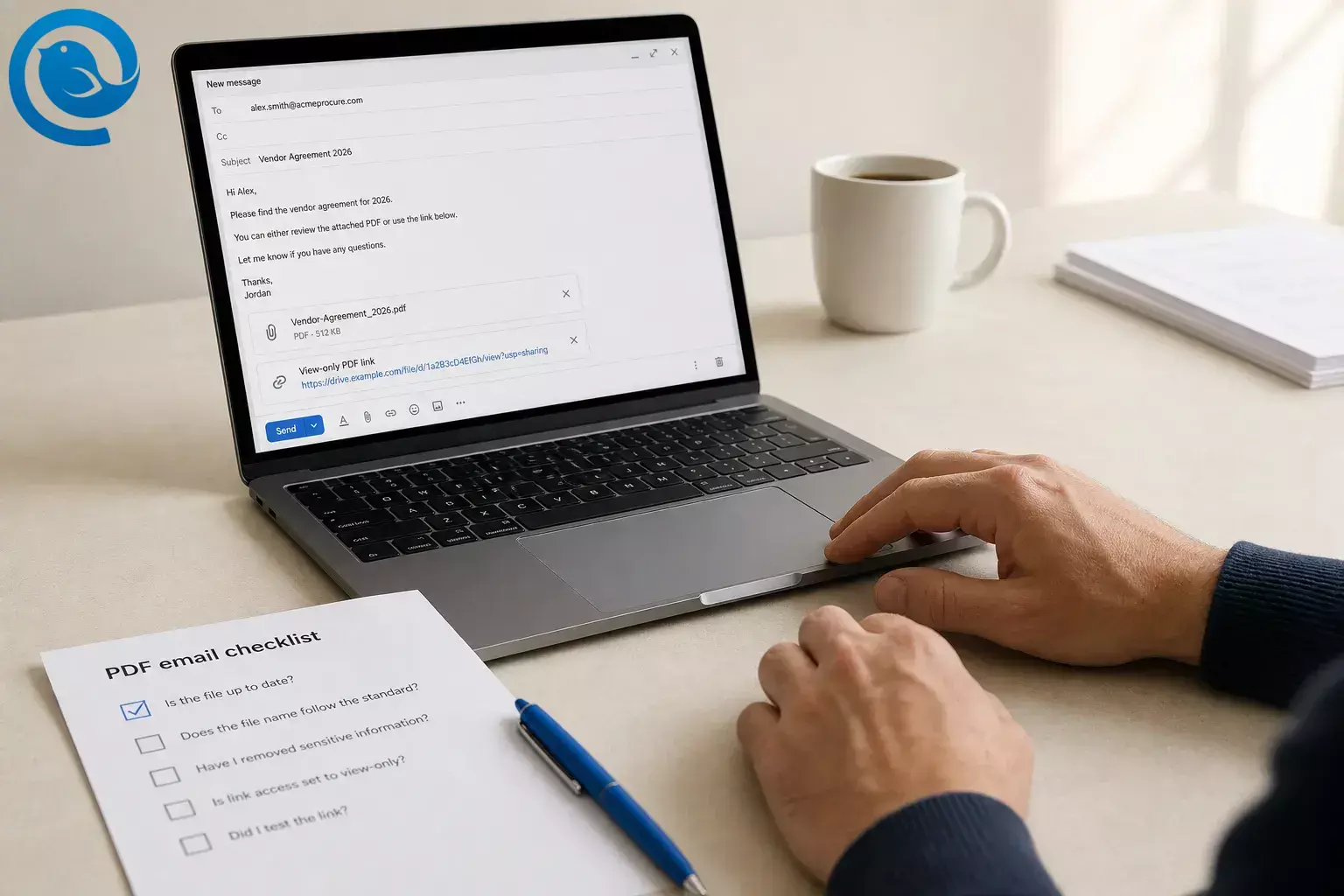
Need to choose between a PDF attachment and a link in email? This guide shows when to use each, what to write, and how to test it before you send.
What’s new
In April 2026, Microsoft reported that malicious PDF payloads rose 38% in February and another 50% in March, reaching their highest monthly volume in over a year. That makes clarity matter: a legitimate PDF email should name the file clearly, state whether it is attached or linked, and make the next step obvious. [1]
TL;DR
Short answer: attach a PDF in email when it is small, final, and should stay exactly as sent. Send a PDF link when the file is large, may change, or needs controlled access, comments, or expiration settings. [4] [8]
- Attach a small, final PDF that should stay exactly as sent.
- Send a link for a large file, a file that may change, or anything that needs comments or access controls.
- If the PDF is near your provider’s limit, switch to a link or compress it before sending.
- Set the least access the job needs before you paste a link.
- Name the document clearly and say whether it is attached or linked in the first sentence.
- Put the summary, action, and deadline in the email body.
- Test the message from the recipient’s point of view.
- Save the exact PDF you sent, or keep one master linked file.
When to attach a PDF vs send a link
Before you send a PDF
Prerequisites
A finished or near-finished PDF, the right recipient address, and permission to share the document.
Tools
Your email client, the PDF itself, and file storage or a PDF-sharing service if you plan to send a link.
Time
A few minutes for one draft plus one self-test.
Cost
Usually none if you already have email and file storage or a sharing service.
Safety notes
Unexpected links and attachments are common phishing lures. Label the file clearly, avoid public links for sensitive PDFs, and double-check the recipient before you send. [2] [8]
How to send a PDF as an attachment or a link
How to send a PDF as an attachment or a link
-
Decide what the PDF needs to do
Answer one question before you write the email: does the recipient need a frozen copy or the newest version every time they open it? Use an attachment for a fixed snapshot. Use a link for a live file, shared review, or any document you may update after sending. Check: you can finish the sentence “The recipient needs a fixed copy” or “The recipient needs the current version.” [4] [8]
-
Check the PDF’s file size before you compose
Look at the PDF’s actual file size first. If you are close to your provider’s limit, stop and switch to a link or compress the file before you write anything. Microsoft says internet email accounts in Outlook can hit a 20 MB message limit, and Apple’s Mail Drop can send files up to 5 GB but keeps them available for 30 days. [3] [5]
-
Clean the PDF and name it like a human
Rename the PDF so the recipient immediately knows what it is: use the document name, a date, and a version if needed. Open it once, scan the first page, and remove draft comments, stale pages, or anything you would not want forwarded. If the file is confidential, use restricted access or protect the PDF before you send it, not a public link. [8] [9]
-
Set sharing permissions before you paste the link
If you chose a link, open the sharing settings first. Set the least access the job needs: view-only for reference, comment access for review, edit access only when someone should change the file. In Outlook and OneDrive you can limit access to recipients and set expiration dates; in Acrobat review links you can choose public, organization-only, or invited-people-only access, and reviewers sign in to comment. Check: you know exactly who can open the file and what they can do. [4] [8]
-
Label the PDF clearly in the message
Whether you attach or link, name the document in plain words. For an attachment, write something like “Attached: 2026 vendor agreement (PDF).” For a link, use descriptive text such as “Review the 2026 vendor agreement (PDF, updated July 2026)” instead of “click here.” Accessibility guidance says link text should stand on its own, and Digital.gov recommends adding file information such as type, size, or update date for downloadable PDFs. Check: the file label still makes sense if someone reads it out of context. [6] [7]
-
Put the important facts in the email body
Write the short summary the reader needs even if they never open the PDF: what it is, why you are sending it, what action to take, and any deadline. Section 508 guidance says emails with attachments should include accessible attachments or include the attachment’s information in the body, and it specifically warns that scanned image PDFs may not work for screen readers. Check: the recipient can decide what to do before opening the file. [6]
-
Make the subject line and first sentence match the PDF
Use a subject line that names the document and purpose, such as “Signed lease attached” or “Proposal review link — comments requested.” In the first sentence, state whether the PDF is attached or linked. That small sentence lowers confusion at a time when phishing emails often try to push people into opening attachments or clicking links. [2]
-
Give one action and one fallback
Tell the recipient exactly what to do next: review, sign, pay, print, comment, or approve. Then add one fallback line, such as “If access fails, reply and I’ll send a fixed copy.” Check: the reader has a clear task and a simple backup plan.
-
Test the PDF email exactly the way the recipient will see it
Send yourself a copy. Open it on desktop and phone. If it is a link, test it in a private window or with a second account so you can see the same permission screen your recipient will see. Outlook can warn you when recipients may not be able to open a linked file, but a self-test catches problems faster. Check: the PDF opens, the permissions are right, and nothing looks suspicious or broken. [4]
-
Send, then save the right version
If you send an attachment, save the exact PDF you sent in a folder such as “Sent PDFs.” If you send a link, keep one master file and update that version only. Microsoft notes that attached copies do not stay synchronized with the source file, while linked files keep collaboration around the current version. Check: after sending, you can still answer “Which version did I send?” [4]
Why these PDF email best practices work
These steps solve the three most common PDF email problems: size limits, permission mistakes, and recipient uncertainty. When the file is clearly named, the email body explains it, and the sharing method matches the job, people know what they are opening and what to do next. [2] [4] [6] [8]
PDF email troubleshooting
- Message bounces or stalls. Likely cause: the total message is too large. Fix: compress the PDF, split it, or switch to a link before resending. [3] [5]
- Recipient gets “you need permission.” Likely cause: the link is restricted to the wrong audience or the access expired. Fix: reset the share settings, choose the right recipient scope, and resend the link. [4] [8]
- Reviewer can open the file but cannot comment. Likely cause: you sent a view-only link or comment mode is off. Fix: turn comment access on and tell reviewers to sign in if the review tool requires it. [8]
- Recipient is unsure whether the email is real. Likely cause: a vague subject line, generic link text, or a surprise attachment. Fix: rewrite the subject with the document name, say “attached” or “view-only link” in the first sentence, and use descriptive link text. [2] [7]
- Text cannot be searched, copied, or read by a screen reader. Likely cause: the PDF is a scanned image, not an accessible document. Fix: run OCR, export an accessible version, and put the key facts in the email body. [6]
- The wrong version keeps circulating. Likely cause: you attached separate copies at different times. Fix: replace the thread with one master link or clearly mark the newest attachment as the final copy. [4]
- A sensitive PDF spread too widely. Likely cause: you used a public link or broad permissions. Fix: switch to invite-only or named-recipient access, use view-only where possible, or protect the PDF before sending. [8] [9]
Common use cases
- Final one-off document: attach the PDF when the recipient needs a fixed copy that should not change after sending, such as a signed form, receipt, or invoice. [4]
- Shared review: send a comment-enabled link instead of serial attachments so everyone comments on the same file. [8]
- Sensitive file: avoid public links; use invite-only access or protect the PDF before you send it. [8] [9]
- Large handbook, brochure, or manual: send a descriptive link with the file type and a short summary in the body so the reader knows what will open. [7]
Versioning, storage, and sending at scale
- Prepare ahead: keep one master editable file and one exported final PDF ready to send.
- Store clearly: save sent snapshots in one folder and linked masters in one shared location so you can tell which copy went out.
- Scale carefully: for many recipients, one view-only link often works better than many separate attachments because it keeps everyone on the current file and makes access rules easier to manage. [4] [8]
A cleaner cross-platform desktop client for managing PDF attachments
If you handle lots of PDFs, Mailbird is a cross-platform desktop client for Windows and Mac. Its Attachment Search feature can help you filter files by name or size and jump back to the original conversation, which is useful when you need the right contract, brochure, invoice, or signed PDF fast. [10] [11]
You can also try Mailbird on the Free plan with one email account and add attachments in compose by clicking the paperclip or dragging files in. If you want a simpler desktop workflow for PDF attachments, see Mailbird or download it and try it with your next message. [12] [13]
PDF email checklist before you send
Screenshot this before you hit send. [2] [4] [6] [7] [8]
- I picked an attachment for a fixed copy, or a link for a large, changing, or access-controlled PDF.
- The PDF file name is clear and human-readable.
- If I used a link, the access setting is correct and not accidentally public.
- The email body says what the PDF is and what the recipient should do.
- If I used a link, the link text says “PDF” and names the document.
- The PDF is accessible, or the essential information is repeated in the email body.
- I tested the attachment or link from the recipient’s point of view.
- I can tell later exactly which version I sent.
FAQ: PDF attachment vs link in email
Is it better to attach a PDF or send a link in email?
What PDF size is too large for email?
Are PDF attachments safer than links?
Should I repeat the PDF contents in the email body?
Put the essential summary, action, and deadline in the email body. That helps with context, accessibility, and trust.
Sources: [6]
How should I label a PDF link in email?
When should I use a public link?
Use a public link only when the file is meant for broad sharing and is not sensitive. Otherwise, use invited recipients or another restricted option.
Sources: [8]
Can I send confidential PDFs by email?
What to recheck before sending
Email size limits, default sharing permissions, review sign-in rules, and, if you use Mailbird, plan features can change. Before you send a large or sensitive PDF, recheck your current email provider, your link settings, and any Mailbird plan details that apply to you. [3] [4] [5] [8] [13]
To verify: send yourself a test copy, open it on desktop and phone, and if you used a link, test it in a private window or with a second account before you email anyone else.
Sources
- Microsoft Security Blog: Email threat landscape — Q1 2026 trends and insights
- FTC Consumer Advice: Protect yourself from phishing scams
- Microsoft Support: Reduce attachment size to send large files with Outlook
- Microsoft Support: Add pictures or attach files to emails in Outlook
- Apple Support: Mail Drop limits
- Section508.gov: Accessible Email Messages
- Digital.gov: Links — accessibility best practices for hyperlinks to PDFs
- Adobe Acrobat Help: Share PDFs for review in Acrobat
- Adobe Acrobat Help: Protect PDFs
- Mailbird: Desktop Email Client for Windows and Mac https://www.getmailbird.com/desktop-email-client/
- Mailbird Support: Attachment Search https://support.getmailbird.com/hc/en-us/articles/220106787-Attachment-Search
- Mailbird Next Support: How to Add Attachments in Mailbird Next https://nextsupport.getmailbird.com/hc/en-us/articles/30229466958231-How-to-Add-Attachments-in-Mailbird-Next
- Mailbird Support: Is Mailbird free? https://support.getmailbird.com/hc/en-us/articles/360026807893-Is-Mailbird-free


