Gmail Inbox Tabs: Stop Important Emails Going to Promotions
A practical guide to controlling Gmail inbox tabs so important emails reach Primary instead of Promotions, with step-by-step filter instructions and troubleshooting for common categorization issues.



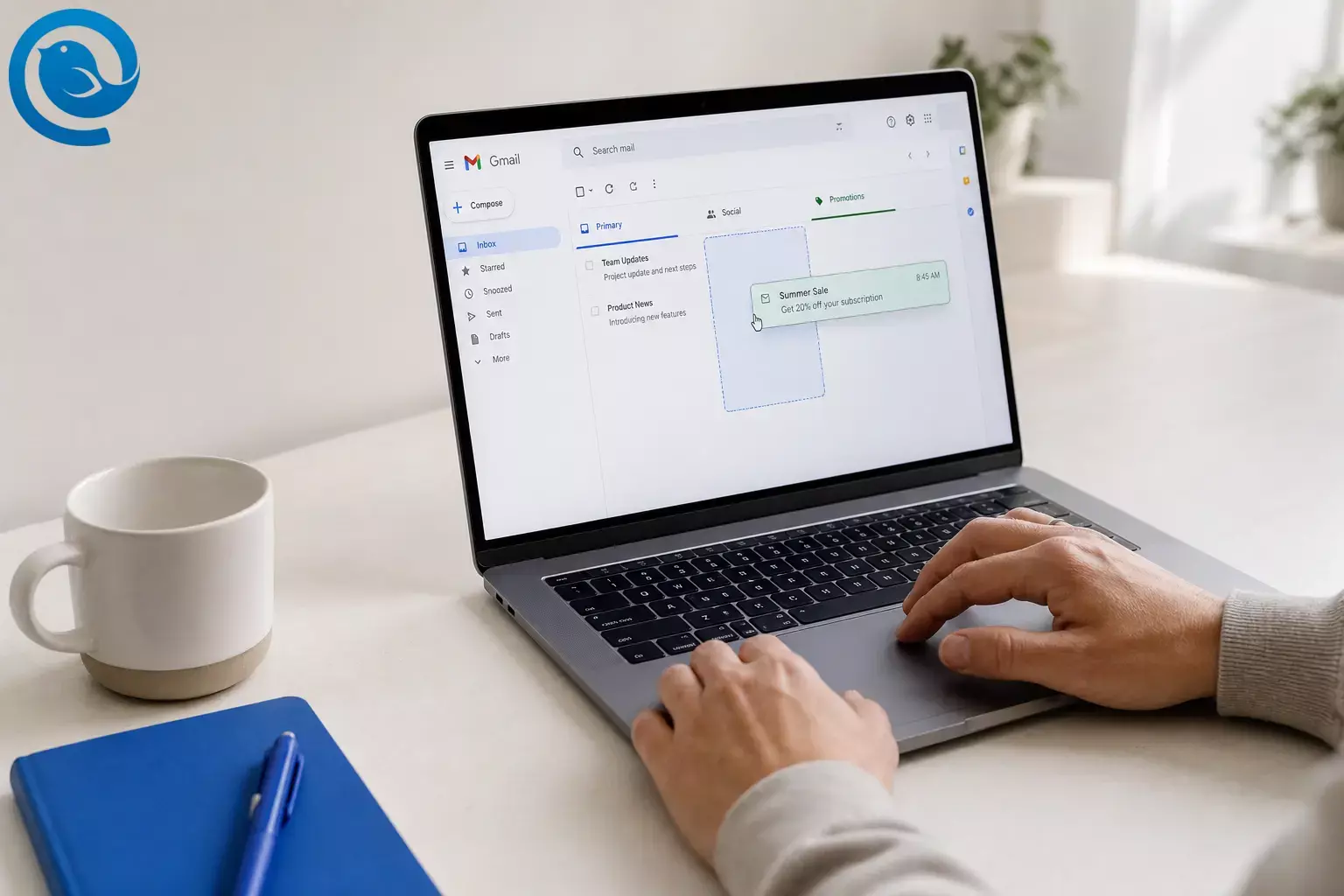
Gmail inbox tabs (also called inbox categories )—Primary, Social, Promotions, Updates, and Forums—are meant to keep your inbox tidy. But when Gmail puts a client email, appointment reminder, or school message in Promotions , it’s easy to miss it. 2
Plan for about 10–15 minutes on a computer: you’ll turn on the tabs you want, retrain Gmail by moving a few messages, and create 1–2 filters to make the sorting stick.
What’s new
In , Google launched a “Manage subscriptions” view that groups subscription senders and lets you unsubscribe in one place. 1 It’s a fast way to cut down the volume—then you can use the steps below to control where the remaining mail lands (Primary vs Social vs Promotions).
Quick fix (best first step)
On Gmail web, drag a message from Promotions to Primary and click Yes when Gmail asks to do this for future messages from that sender. If the sender uses multiple addresses (or it still doesn’t stick), create a filter and set Categorize as → Primary . 2 3
Quick clarification: Gmail tabs/categories are built-in. They’re separate from labels and filters , which you create and manage yourself. 2
Key takeaways
- Gmail’s inbox categories are built-in (Primary, Social, Promotions, Updates, Forums). You can show or hide them, but you can’t create custom tabs.
- Plan for about 10–15 minutes on a computer to choose tabs, retrain Gmail by moving messages, and create 1–2 filters.
- Dragging a message to a different tab can “train” Gmail for that sender, but filters are the best way to make the sorting stick.
- If a sender rotates addresses, use a domain-based filter (for example, @brand.com ).
- If your account has it, “Manage subscriptions” can reduce subscription volume quickly. 1
- If categorization stops, check whether Smart features in Gmail, Chat, and Meet is turned off. 5
- Back up your setup by exporting filters to an .xml file you can re-import later. 3
- In many email clients (including Mailbird), tabs are not shown as Primary/Social/Promotions—set rules in Gmail on the web, then work with labels/folders in your client.
Before you start
- Prerequisites: A Gmail account you can open in a desktop browser (Chrome, Edge, Safari, Firefox).
- Tools/ingredients: None. (Optional: a second Gmail account if you want to test.)
- Time: Plan for about 10–15 minutes for setup, plus 2 minutes the next day to confirm results.
- Cost: US$0.
- Safety notes: When creating filters, avoid actions like Delete it until you’ve tested a rule with one sender. If this is a work/school Google Workspace account, some inbox settings may be restricted by your admin.
Gmail inbox categories (tabs) explained
With the Default inbox type, Gmail can sort new messages into these built-in categories. You can show or hide categories, but you can’t create custom tabs. 2
| Tab (category) | What you’ll typically see there | How most people use it |
|---|---|---|
| Primary | Person-to-person mail and anything that doesn’t fit the other tabs. | Your “don’t miss it” inbox. |
| Social | Messages from social networks and similar services. | Check in batches (or disable if it’s noise). |
| Promotions | Deals, offers, and marketing messages. | Keep clutter out of Primary; review when you have time. |
| Updates | Confirmations, receipts, bills, statements, and similar updates. | Useful for tracking purchases and accounts. |
| Forums | Messages from online groups, discussion boards, and mailing lists. | Keep group mail out of your main workflow. |
Step-by-step: Control Gmail inbox tabs (Primary, Social, Promotions)
You’ll do three things: (1) choose which Gmail tabs you want, (2) “train” Gmail by moving a few messages, and (3) create filters that force key senders into the right category going forward. 2
Step-by-step: Control Gmail inbox tabs (Primary, Social, Promotions)
- Open Gmail on a computer (recommended). If you only have a phone, open Gmail in a mobile browser and request Desktop site so you can access the full settings.
- Set your inbox type to Default (the tabbed inbox). In Gmail, click the Settings (gear) icon. In the Quick settings panel, set Inbox type to Default . If you don’t see that option in Quick settings, go to Settings → See all settings and look for inbox layout settings there. 4
- Pick the tabs you actually want to see (and save). Click Customize , check the categories you want (for example, Promotions and Social ), then click Save . Optional: if you want starred messages from other tabs to also show in Primary, enable Include starred in Primary in the same customize panel.
- Find one message that Gmail put in the wrong tab. Example: a receipt in Promotions, or a coupon in Primary.
- Train Gmail by dragging the message to the correct tab. Drag the conversation to Primary or Promotions . When Gmail asks whether to do this for future messages from that sender, click Yes .
- Repeat training for 2–3 high-impact senders. Start with the senders you most hate missing (or most hate seeing in Primary).
- Create a “hard rule” with a filter (best for newsletters and businesses). Open a message from the sender → click More (three dots) → Filter messages like these → Create filter → choose Categorize as Primary (or Promotions) → Create filter . Optional: enable the option to apply the filter to matching conversations if you also want to tidy existing mail. 3
- Use a domain-based filter for senders that rotate addresses. If a brand emails you from multiple addresses, set the filter’s From field to something like @brand.com so related senders follow the same rule.
- Add a label (optional) for “read later” mail. In the same filter, add a label like Newsletters or Coupons . (Labels help you find mail; tabs decide where it shows in your inbox.)
- Use starring for the occasional exception. If you’ve enabled Include starred in Primary , you can star a time-sensitive thread (even if it’s categorized elsewhere) so it also appears in Primary.
- Reduce the volume: use Gmail’s “Manage subscriptions.” If your account has it, “Manage subscriptions” groups subscription senders so you can unsubscribe faster from high-volume lists. 1
- Back up your setup by exporting filters. Go to Settings → See all settings → Filters and blocked addresses . Check the filters you want, then click Export to download an .xml file you can re-import later. 3
Quick reality check
Gmail categories are fixed—you can choose which ones show, but you can’t create custom tabs. Use labels if you need your own “buckets.”
Why this works (in plain English)
Gmail’s tabs are automatic until you give Gmail clear, repeatable instructions. Dragging a message to another tab teaches Gmail what you want for that sender, and filters make that choice explicit so it doesn’t drift later.
Troubleshooting
| Symptom | Likely cause | Fix |
|---|---|---|
| There’s no Promotions tab (or all tabs are gone). | Your inbox type isn’t set to Default , or the Promotions category is unchecked. | Click the gear icon → set Inbox type to Default → Customize → check Promotions → Save . 4 2 |
| Gmail says you can’t use inbox categories, or categories stop working after a privacy change. | Smart features in Gmail, Chat, and Meet is turned off, which can disable automatic Primary/Social/Promotions categorization. | Settings → See all settings → General → Smart features → turn on Smart features in Gmail, Chat, and Meet (if you want categorization), then reload Gmail. 5 |
| You dragged an email to Primary, but future emails still land in Promotions. | You didn’t click “Yes” on the “Do this for future messages…” prompt, or the sender uses multiple From addresses. | Drag again and watch for the confirmation prompt; if the sender rotates addresses, create a filter using @domain.com instead of a single address. |
| Your filter exists, but messages still go to the wrong tab. | The filter criteria is too narrow (misses the sender), or another filter is catching the message first. | Settings → See all settings → Filters and blocked addresses → edit the filter. Simplify criteria (start with From only), then test with the next incoming message. 3 |
| You’re only getting new-email notifications for Primary. | With a tabbed inbox, Gmail notifies you about new mail in Primary only. | Move that sender to Primary (best), or use the Include starred in Primary option and star the occasional time-sensitive thread so it appears in Primary too. 2 |
| Default inbox (tabs) won’t turn on. | Your inbox has too many emails; Gmail limits the Default inbox type if you have more than 250,000 emails in your inbox. | Archive or delete older mail to reduce the inbox count, or switch to another inbox type (like Unread first) until you’re ready to clean up. 2 |
| A message “disappeared” after you moved it between tabs. | It may have been archived (archived email doesn’t appear in categories). | Check All Mail , then move it back to Inbox if needed. 2 |
| You’re reading Gmail in Mailbird and can’t find Primary/Social/Promotions tabs. | Tabs are a Gmail inbox view; many email clients show a single inbox and use labels/folders instead. | Do your tab training and filters in Gmail on the web, then use labels/folders to stay organized in Mailbird. If you manage multiple accounts, Mailbird’s Unified Inbox can combine folders across accounts into one view. And if you’re connecting Gmail to Mailbird, make sure IMAP is enabled in Gmail. 6 7 |
Variations (pick the workflow that fits your day)
- “No-tabs” mode: Disable everything except Primary so all new mail lands in one list. (Settings → Inbox type: Default → Customize → uncheck Promotions/Social/Updates/Forums.) 2
- “Deep work” mode: Keep Promotions on, but only check it at set times (e.g., 11:30 a.m. and 4:30 p.m.). If you need an occasional promo to show in Primary too, enable Include starred in Primary and star it. 2
- “Receipts are not promos” mode: Create a filter for receipt senders (or a store’s domain) and force them to Primary, then add a Receipts label so you can pull them up instantly. 3
- “One screen for everything” mode (Mailbird): Keep Gmail’s sorting rules on the server (filters + labels) and use Mailbird’s Unified Inbox to review messages across accounts in one place. 6
Make-ahead / storage / scaling
- Make-ahead: Build your “core” set of filters once (VIP senders → Primary; marketing domains → Promotions).
- Storage: Export filters to an .xml file and store it in a safe folder (or cloud drive) labeled with the date, like gmail-filters-2026-05-19.xml . 3
- Scaling: If you run multiple Gmail accounts, import the same filter file into each account, then adjust only the few sender-specific rules that differ (work vs personal). 3
Quick checklist (screenshot this)
- ☐ Open Gmail on a computer
- ☐ Set Inbox type to Default
- ☐ Turn on Promotions (and disable tabs you don’t use)
- ☐ (Optional) Enable Include starred in Primary
- ☐ Drag 2–3 key senders to the right tab and click “Yes” for future messages
- ☐ Create at least 1 filter that forces a sender/domain to Primary
- ☐ Create at least 1 filter that forces a sender/domain to Promotions
- ☐ Use Manage subscriptions to unsubscribe from high-volume senders
- ☐ Export your filters to an .xml backup
Tip: Give it one business day. Some senders only email weekly, so you may need a few real messages to confirm the new behavior.
What can change
Gmail’s settings labels and menu locations can shift over time, and some features roll out gradually. For example, Google’s “Manage subscriptions” view launched as a rollout (not everyone saw it immediately). 1
Frequently Asked Questions
How do I move an email from Promotions to Primary so future emails follow?
Can I turn off the Promotions tab completely?
Yes. Keep the Default inbox type, click Customize, and uncheck Promotions. Mail that would have gone to Promotions will show up in Primary instead. 2
Can I create custom Gmail inbox tabs?
No. Gmail’s categories are fixed (Primary, Social, Promotions, Updates, Forums). You can show or hide them, but you can’t make your own new tabs. If you need custom organization, use labels. 2
Why do I only get notifications for Primary?
With inbox categories turned on, Gmail notifies you about new mail in Primary only. If you need alerts for a sender, move them to Primary. For occasional exceptions, you can enable “Include starred in Primary” and star a message so it also appears there. 2
Does adding a label change whether an email goes to Promotions?
Can I create Gmail filters from the mobile app?
This guide uses the Gmail web settings to create filters. If you’re on mobile, open Gmail in a browser and switch to the desktop view so you can follow the same filter steps. 3
Where is Gmail’s “Manage subscriptions” feature?
If the feature is available for your account, you’ll see “Manage subscriptions” in Gmail’s navigation. If you don’t see it yet, it may still be rolling out. 1
Why did my tabs stop working after I turned off Smart features?
Gmail’s automatic Primary/Social/Promotions sorting is tied to the Smart features setting. If you turn that off, categorization can stop. Turn it back on if you want the tabbed sorting to work. 5
If I use Mailbird, can I still benefit from Gmail’s sorting rules?
Yes. Set up Gmail filters and labels on the Gmail web app, then read and work through the organized mail in Mailbird (for example, using Unified Inbox if you have multiple accounts). 6
Sources
- Google Blog (The Keyword) — “Declutter your inbox with Gmail’s newest feature” (Manage subscriptions), Jul 8, 2025
- Gmail Help — “Organize your emails into categories”
- Gmail Help — “Create rules to filter your emails” (includes export/import filters)
- Gmail Help — “Change your Gmail inbox layout”
- Gmail Help — “Learn about smart features & controls for Google Workspace & other Google products” (includes automatic email filtering/categorization)
- Mailbird Support — “Unified Inbox”
- Mailbird Support — “Enabling IMAP for Gmail”


