Outlook Template Email: How to Create, Save, and Reuse Business Email Templates
Use this guide to create an Outlook template email for follow-ups, internal updates, announcements, and other business email templates across new Outlook, classic Outlook, Outlook on the web, and Mac.



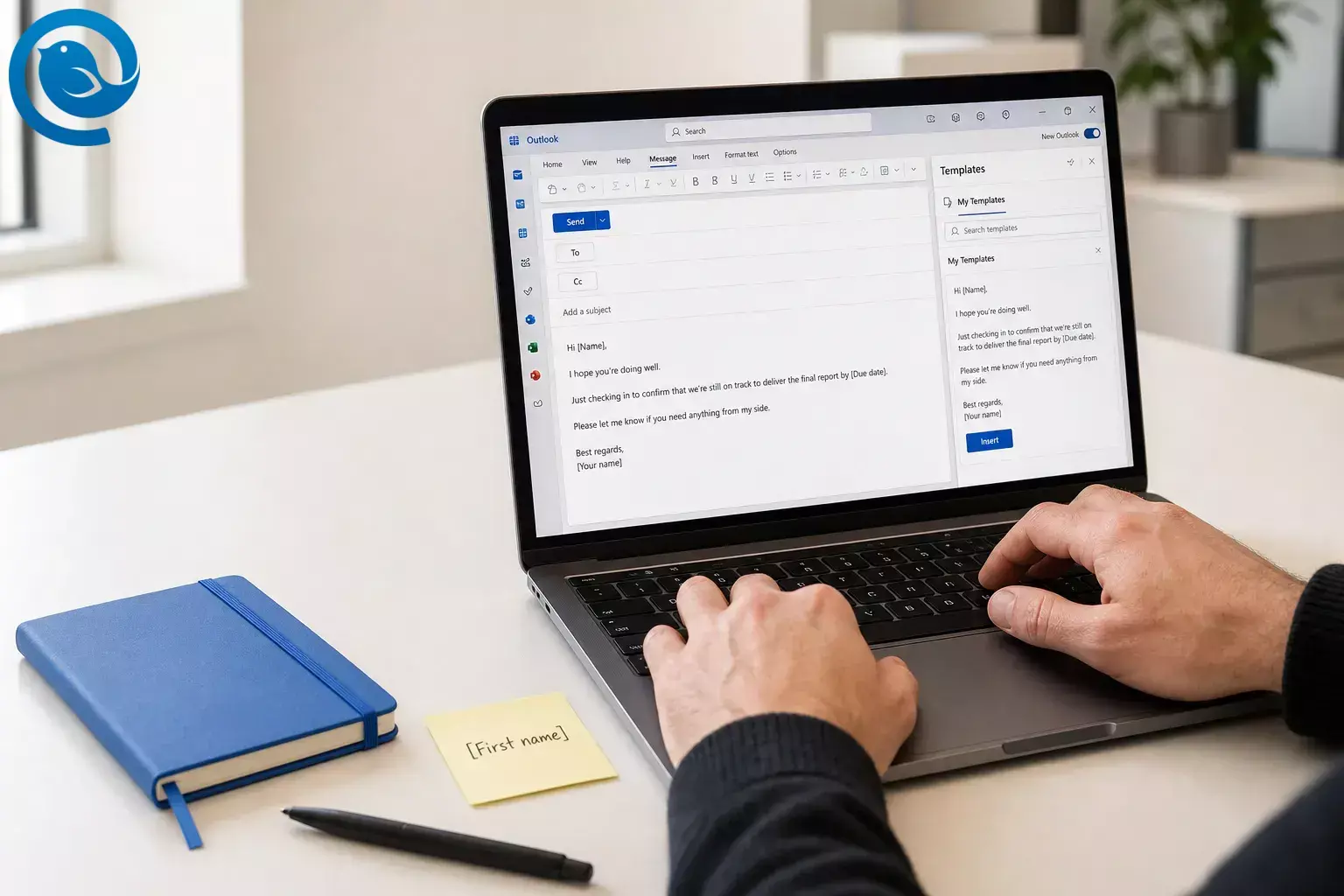
Outlook templates how-to
Use this guide to create an Outlook template email for follow-ups, internal updates, announcements, and other business email templates across new Outlook, classic Outlook, Outlook on the web, and Mac.
If you're creating an email template in Outlook, the right method depends on your version and what you want to reuse.
TL;DR
- Draft the message once, replace changeable details with placeholders, and save it with the template option shown in your version of Outlook. 1 5
- Use a full template for the whole message, and use My Templates for short reusable text. 1
- Use a shareable .oft file if coworkers need the same draft. 5
- Classic Outlook for Windows uses File > Save As > Outlook Template , and Outlook for Mac uses File > Save As Template . 3 4
- New Outlook and Outlook on the web use the template tools in the compose window or Mail > Templates . 1 5
- Reopen the template and send yourself a test copy before using it with real recipients. 1 3 4 5
To create an Outlook template email, draft the message once, replace changeable details with placeholders, and save it with the template option shown in your version of Outlook. Use a full template for the whole message, My Templates for short reusable text, and .oft if you need a file you can share with coworkers. 1 5
In classic Outlook for Windows, the standard path is File > Save As > Outlook Template . On Mac, use File > Save As Template . In new Outlook and Outlook on the web, use the template tools available in the compose window or under Mail > Templates . Then reopen it and send yourself a test copy before using it with real recipients. 1 3 4 5
Before you start
- Prerequisites: access to the Outlook version you actually send from: new Outlook, classic Outlook for Windows, Outlook on the web, or Outlook for Mac. The template commands differ by version. 1 4
- Tools: a sample message, your normal signature , any logo or file that should appear every time, and a safe test address.
- Time: plan one short setup session for the first template, then do a quick test send for each new one.
- Access: Microsoft says some template features in new Outlook or Outlook on the web, including Mail Templates, My Templates, and .oft handling, require a qualifying Microsoft 365 subscription. 1 5
- Safety notes: do not store passwords, personal IDs, or one-off confidential attachments in a reusable template. Always re-check the To, Cc, Bcc, and attachment list before you send.
Choose the right Outlook template method first
An Outlook template email is not just one feature. Microsoft splits this into full message templates, My Templates text snippets, and shareable .oft files, so the best option depends on what you want to reuse and which Outlook version you have. That matters when you build email templates for business, because not every option saves the full message. 1 5
Use My Templates
when you only need short reusable text, like a greeting, approval note, handoff line, or quick reply. 1
Use a shareable .oft file
when teammates need the same draft in classic Outlook, new Outlook, or Outlook on the web. 5
If your company gives you both classic Outlook and new Outlook, Microsoft says you can run them side-by-side while you transition; see our classic Outlook transition guide . That is useful when a coworker’s template steps do not match what you see on screen. 6
Step-by-step: creating an email template in Outlook
How to create an Outlook template email
-
1) Open a blank message and find the template option you actually have
Start a new email and look for the command available in your copy of Outlook. Common clues are Mail template , My Templates or View Templates , File > Save As > Outlook Template in classic Outlook for Windows, and File > Save As Template on Mac. Use the branch that matches your screen, not a screenshot from another version. 1 4
-
2) Decide whether this should be a full email or just a reusable text block
If the message should reopen with the same subject, body, formatting, and maybe attachments, build a full template. If you only reuse a paragraph or two, save time and use My Templates instead. 1
-
3) Draft the message once, as if you were ready to send it
Write the subject line, opening, body, closing, and call to action. Add images, tables, or attachments only if they truly belong every time. Replace anything that changes with placeholders such as [First name], [Due date], [Order number], or [Next step].
-
4) Save the template using the correct menu for your Outlook
- New Outlook / Outlook on the web: use the Mail template option in the compose window to save the message as a template.
- Classic Outlook for Windows: File > Save As > Outlook Template .
- Outlook for Mac: File > Save As Template .
- Snippet only: open My Templates , choose +Template , paste the text, and save.
Save only what should repeat every time. If a recipient or attachment changes often, leave it out and add it when you send. 1 4
-
5) Name it so you can find it in two seconds
Use a plain naming pattern, such as Team – Purpose – Version. Good examples: “Sales – Quote Follow-up – v1” or “HR – Interview Confirmation – v2.” Save it, then verify that it appears in the template list, task pane, or folder for your version of Outlook. 1 4
-
6) Reopen it immediately and send yourself a test copy
- New Outlook / Outlook on the web: open the saved template from the template tools in the compose window, or use Mail > Templates if you saved or added an OFT file.
- Classic Outlook for Windows: New Items > More Items > Choose Form > User Templates in File System .
- Outlook for Mac: File > New > Email From Template .
Open the template, replace one placeholder, send it to yourself, and check the subject line, formatting, links, and attachments before you trust it for real work. 1 3 4 5
-
7) Build a matching short reply in My Templates
Take the core sentence or paragraph from the full email and save a shorter version in My Templates. This is one of the fastest ways to build email templates for business approvals, reminders, scheduling replies, and support answers without opening a full draft every time. 1
-
8) Share the actual template file if teammates need the same draft
In new Outlook or Outlook on the web, open Settings > Mail > Templates , then use Save as OFT to download the draft or Forward as OFT to send it. Teammates using new Outlook or Outlook on the web can add that file from Settings > Mail > Templates > Add > Add OFT . 5
-
9) Create three business email templates before you stop
Save one client follow-up, one internal project update, and one announcement or email blast template. That gives you a usable starter library of business email templates instead of one polished draft you never reopen.
-
10) Keep one master version and one live version
Leave the master untouched. When wording changes, update that master first, then create the live copy you actually send. This simple habit keeps your business email templates consistent and prevents version drift.
Why this Outlook template workflow works
Creating an email template in Outlook works best when you first decide what needs to repeat. Full templates bring back the whole message, My Templates speeds up short replies, and .oft files make sharing easier when coworkers need the same draft. 1 5
Troubleshooting
My Templates or View Templates is missing
Symptom: My Templates or View Templates is missing.
Likely cause: add-ins are off, or you were affected by the Outlook issue Microsoft documented for missing My Templates.
Fix: ask your admin to check add-ins and related admin settings, or use a full template or .oft workflow while you troubleshoot. 1 2
The saved template opens without attachments or full formatting
Symptom: the saved template opens without attachments or full formatting.
Likely cause: you saved a My Templates snippet instead of a full email template.
Fix: rebuild it as a full template, not a snippet. 1
The original template did not change after you edited it
Symptom: you edited the message, but the original template did not change.
Likely cause: Outlook opens the template as a draft, and edits to that draft do not update the saved template.
Fix: save a new template or intentionally replace the old one. 3
A coworker cannot use the template you sent
Symptom: a coworker cannot use the template you sent.
Likely cause: they received copied text instead of the actual .oft file, or they did not add the file inside new Outlook or Outlook on the web.
Fix: send or forward the .oft file and have them add it from Mail > Templates > Add OFT . 5
The template does not show up on another device or account
Symptom: the template does not show up on another device or account.
Likely cause: Outlook stores different template types in different places. Mail Templates save to the composing account, My Templates save to the primary mailbox, and local .oft files stay local unless shared.
Fix: build or open the template from the right account, and share the .oft file when you need a portable copy. 1 5
Shared mailbox users do not see the same templates
Symptom: shared mailbox users do not see the same templates.
Likely cause: shared-mailbox behavior differs by platform, and Outlook for Mac does not offer My Templates in shared mailboxes.
Fix: use a shared .oft workflow or follow Microsoft’s shared-mailbox method for the version your team uses. 1 4 5
My Templates is missing on Mac
Symptom: My Templates is missing on Mac.
Likely cause: the add-in is for Microsoft Exchange accounts, add-ins may be turned off, or you are working inside a shared mailbox.
Fix: use Save As Template instead, or ask your admin to enable the add-in on a supported account. 4
Classic Outlook steps do not match your PC
Symptom: classic Outlook steps do not match your PC.
Likely cause: you are in new Outlook, or classic Outlook is not installed on that machine.
Fix: confirm your version first. Microsoft also says you can run classic Outlook and new Outlook side-by-side, and it provides install instructions for classic Outlook on supported Windows PCs. 6 7
Business email templates to save next
These starter outlines are simple business email templates you can turn into full Outlook drafts right now. They also work as email templates for business teams that need approved follow-ups, internal updates, or small email blast templates for announcements. 1
Client follow-up
Subject: Quick follow-up on [topic]
Body starter: Hi [Name], I’m following up on [topic]. The next step is [next step] by [date]. Reply here if you want me to send [document or quote].
Internal project update
Subject: Weekly update — [project]
Body starter: Current status: [status]. Completed this week: [items]. Next up: [items]. Blockers: [items]. Needed from the team: [action].
Announcement or email blast template
Subject: [Event, policy, or product] update for [audience]
Body starter: Hi [Audience], here is the update: [main point]. Why it matters: [impact]. Action needed: [call to action]. Deadline: [date].
Tip: Use Outlook to store the approved draft. If your company sends true bulk mail through another platform, move the final copy there after review.
Support or handoff reply
Subject: Re: [issue or request]
Body starter: Hi [Name], thanks for reaching out about [issue]. The fastest next step is [step]. If that doesn’t solve it, reply with [needed info] and I’ll take it from there.
How to organize, store, and scale your templates
Make-ahead
Build the master version once, then duplicate it when wording changes. That keeps your approved copy clean and makes future edits faster.
Scaling
Start with one base template, then save versions by team, region, or use case. When coworkers need the same draft, share the .oft file instead of forwarding an old sent message. 5
Want a cleaner cross-platform desktop template workflow?
Mailbird is a cross-platform desktop email client that handles templates well. It has an Email Templates feature, lets you save a draft as a template from Quick Reply and Compose, and offers downloads for Windows and Mac. If Outlook’s version-by-version template menus slow you down, it is a practical next step to try to migrate from Outlook to Mailbird . 8 9 10
Frequently Asked Questions
What is the difference between Mail Templates and My Templates in Outlook?
Mail Templates are for full reusable emails. My Templates is for short reusable text you insert into a message.
Sources: 1
Can I create an Outlook template email in new Outlook?
Where are Outlook email templates stored?
How do I edit an Outlook template email?
Open the saved template, make your changes, then save it again as a new template or intentionally replace the old one. Editing the draft that opens does not automatically update the original template.
Sources: 3
Can I share an Outlook template with coworkers?
Yes. The cleanest way is to share the .oft file so other people can add or open the same draft instead of copying old sent emails.
Sources: 5
Why is My Templates missing from Outlook?
Can I use classic Outlook and new Outlook at the same time?
Yes. Microsoft says you can run them side-by-side while you transition.
Sources: 6
Quick checklist for your Outlook template email
Save or screenshot this before you go.
- I know whether I am in new Outlook, classic Outlook, Outlook on the web, or Outlook for Mac.
- I chose the right method: full template, My Templates snippet, or .oft file.
- I replaced changeable details with [placeholders].
- I saved a clear name and kept one master version.
- I reopened the template and sent myself a test copy.
- I checked the final recipients, links, formatting, and attachments.
- I saved at least three business email templates I will actually reuse.
- I decided whether Outlook is enough or whether I want to try Mailbird next.
Sources
- Microsoft Support — Create email templates in Outlook
- Microsoft Support — My Templates are missing from Outlook
- Microsoft Support — Send an email message based on a template
- Microsoft Support — Can I create email templates in Outlook for Mac?
- Microsoft Support — Download, add, and share templates as .oft files in Outlook
- Microsoft Support — Run new Outlook and classic Outlook side-by-side
- Microsoft Support — Install or reinstall classic Outlook on a Windows PC
- Mailbird Support — Email Templates
- Mailbird — Best Email Client for Windows and Mac
- Mailbird — Download Mailbird for Windows and macOS


