How to Migrate from Outlook to Mailbird: Step-by-Step Guide
This guide walks you through an Outlook-to-Mailbird transfer for both server-synced accounts (IMAP/Exchange) and local mail archives (POP3 and .pst files).



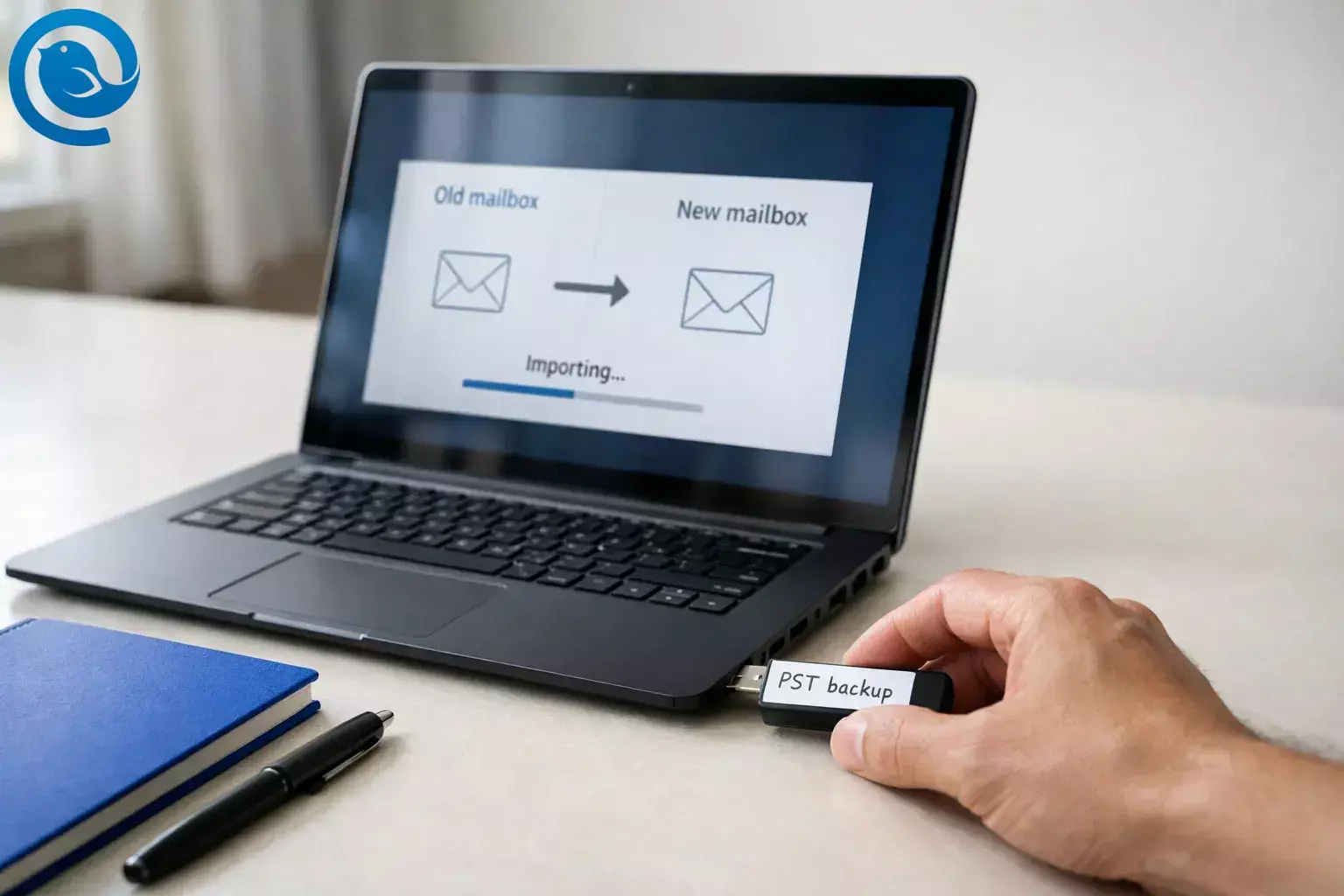
If you’d rather switch on your own timeline, this guide walks you through an Outlook-to-Mailbird transfer that covers both cases: server-synced accounts (IMAP/Exchange) and local mail archives (POP3 and .pst files).
Key takeaways
- IMAP/Exchange: add the account in Mailbird and let it sync your folders and messages. [2]
- POP3/local archives: export a backup .pst from Outlook, then import messages into Mailbird. [2] [4]
- Keep .pst backups local: Microsoft notes OneDrive blocks automatic syncing for Outlook .pst files. [4]
- Contacts: contacts may sync (Gmail/Outlook), or you can import a .vcf vCard file. [5]
- Calendar: enable calendar sync for the connected account(s). [6]
- Some Outlook settings won’t transfer: rules/blocked senders and similar settings typically don’t come through a .pst export. [4]
- Timing: expect a quick setup, then background syncing/importing time—especially with larger mailboxes. [2]
Overview
Expect a quick setup, then background syncing/importing time—especially with larger mailboxes. [2]
Quick choice: do you need to “transfer” mail?
If your account is IMAP/Exchange , your mail already lives on the server—Mailbird syncs it. If your account is POP3 , your older mail may be stored locally—plan to import messages from Outlook or a .pst file.
Important safety note
If you export or handle .pst files, save them to a local folder (not OneDrive-synced folders); Microsoft notes OneDrive blocks automatic syncing for Outlook .pst files. [4]
At a glance: Outlook to Mailbird migration
- IMAP/Exchange: add the account in Mailbird and let it sync your folders and messages. [2]
- POP3/local archives: export a backup .pst from Outlook, then import messages into Mailbird. [2] [4]
- Contacts: contacts may sync (Gmail/Outlook), or you can import a .vcf vCard file. [5]
- Calendar: enable calendar sync for the connected account(s). [6]
- Plan to recreate: Outlook rules/blocked senders and similar settings typically don’t come through a .pst export. [4]
Before you start
- Prereqs: A Windows PC with Outlook available (classic or new), and your email login details (password or Microsoft sign-in).
- Tools: Mailbird installed; optional: a backup .pst from Outlook and/or a contacts .vcf (vCard) file.
- Time: Expect a quick setup, then background syncing/importing time (large mailboxes can take longer). [2]
- Cost: Free to paid (depends on the Mailbird plan you choose and how many accounts you add).
- Safety: Exporting to .pst creates a copy of your data (it doesn’t remove anything from Outlook). Keep the file local and back it up somewhere safe. [4]
- Work/school Microsoft 365 note: IMAP access can be controlled by your organization’s admin; if it’s disabled, you may need them to enable it. [3]
Step-by-step: how to switch from Outlook to Mailbird
How to switch from Outlook to Mailbird
-
Confirm how your Outlook account is set up (IMAP/Exchange vs POP3)
In Outlook (classic), go to File → Account Settings → Account Settings , then look at the Type column. Write down each account as IMAP/Exchange (server-synced) or POP/POP3 (often local).
Done when: You know which accounts will “sync” vs which need an “import.”
-
Install Mailbird and open it
Install Mailbird (if you haven’t already), then open it and keep Outlook open in the background so you can compare folders as you go.
Done when: Mailbird is running and ready to add an account.
-
(Recommended) Create a backup .pst from Outlook before you change anything
In classic Outlook , use File → Open & Export → Import/Export → Export to a file → Outlook Data File (.pst) , choose the account, check Include subfolders , and save the file to a local folder (not OneDrive).
In new Outlook , follow Microsoft’s export steps from the app’s Settings area (look for Files and Export ). [4]
Done when: You can see a .pst file saved locally.
Tip: If your account is IMAP/Exchange and you only want to switch email clients, this backup is optional—but it’s a solid safety net.
-
Import Outlook to Mailbird (fast path)
In Mailbird, go to Menu (three lines) → Settings → Accounts → Add → Import . Choose Outlook , enter the password/sign-in info when prompted, and wait for the import to finish. [2]
Done when: Your account appears in Mailbird’s account list.
-
If “Import” isn’t an option, add the account normally (fallback)
Use the regular Add flow instead of Import and sign in to your email provider. Import is designed for specific clients; if your account isn’t listed, it may not be set up as IMAP/POP3, or it may already be in Mailbird. [2]
Done when: The account is added and begins syncing.
-
Fix the common Outlook.com “IMAP access is disabled” problem
If Mailbird shows an IMAP-disabled error for an Outlook.com/Hotmail/Live account, enable IMAP in Outlook on the web: open Outlook settings → View all Outlook settings → Mail → Forwarding and IMAP and turn Let devices and apps use IMAP to Yes , then Save . Remove and re-add the account in Mailbird; the change can take a few minutes to take effect. [3]
Done when: The account connects and begins syncing folders.
-
Let Mailbird complete the first sync, then spot-check your mailbox
Open your Inbox, Sent, and a few custom folders. Search for an older message you know exists. If you use multiple devices, compare Mailbird to what you see on your phone or webmail (that’s the server “source of truth” for IMAP/Exchange accounts).
Done when: Your folders are present and you can find a few known emails.
-
If you used POP3 or you have local archives, import messages from a .pst
In Mailbird, go to Menu → Settings → Accounts , double-click your POP3 account, then click Import messages . Choose what you want to import—Mailbird supports .pst , .eml , and .msf —and wait for the import to finish. [2] Your imported mail will show in an Imported folder inside that account.
Done when: You can open the Imported folder and see older messages.
Note: Importing offline files/folders into an IMAP account isn’t currently supported, so use the POP3 import method for local archives. [2]
-
Bring over contacts (sync or import)
In Mailbird’s Contacts app, first check whether your contacts appear automatically. Mailbird supports automatic contact syncing for Gmail and Outlook accounts. If you’re using another provider (or you prefer a file import), import a vCard ( .vcf ) via the gear icon in the contact list column → Import contact from vCard . [5]
Done when: You can search a few key contacts and see their email addresses.
-
Connect your calendar
Open Mailbird’s Calendar settings and enable syncing for the accounts you want by checking them in the Accounts tab. For Microsoft accounts, Mailbird requires the email account to be connected before the calendar can function. [6]
Done when: Your next few upcoming events appear in Mailbird.
-
Recreate the Outlook-only items that don’t transfer cleanly
If you exported to .pst , remember that Outlook doesn’t include everything in that export—things like message rules and blocked senders lists don’t transfer via .pst . Copy/paste your signature(s), and rebuild any rules/filters you rely on inside Mailbird. [4]
Done when: A test reply uses the correct signature and lands in the right sent folder.
-
Set Mailbird as your default email app and run a real-world test
In Mailbird, go to Menu → Settings → Advanced , enable the default email application option, then click Set as default . Send a test email to yourself, reply to it, and confirm it appears in both Mailbird and your webmail. [9]
Done when: Clicking an email address link opens a new message window in Mailbird.
Why this Outlook to Mailbird transfer works
If your mailbox is IMAP/Exchange-based, switching from Outlook to Mailbird is mostly “connect and sync”—your messages live on the server and Mailbird pulls them down. If you used POP3 or kept local archives, exporting and importing a .pst moves the local history into Mailbird while leaving the original data intact in Outlook as a backup. [2] [4]
Troubleshooting
-
Symptom: Mailbird says “Nothing to import.”Likely cause: Mailbird can’t find your Outlook profile in the default Windows profile folder.Fix: Move the Outlook profile back to the default location (as shown in Mailbird’s guide), then run the import again. [7]
-
Symptom: Outlook.com account shows “IMAP access is disabled” or “User is authenticated but not connected.”Likely cause: IMAP is turned off in Outlook on the web, or the change hasn’t propagated yet.Fix: Turn IMAP on in Outlook settings (Mail → Forwarding and IMAP), then remove and re-add the account in Mailbird and wait a few minutes. [3]
-
Symptom: Your work/school account won’t connect via IMAP.Likely cause: Your Microsoft 365/Exchange admin has IMAP disabled for your mailbox.Fix: Ask your admin to enable IMAP for your mailbox (Mailbird documents where to check this in the Exchange admin center). [3]
-
Symptom: Your Outlook export contains only the last year of emails.Likely cause: Outlook exported only what was in its current cache/offline download window.Fix: Change Outlook’s sync/download setting to All (or disable Cached Exchange Mode), let it finish downloading, then export the .pst again. [4]
-
Symptom: Your .pst won’t stay in OneDrive, or OneDrive shows sync errors.Likely cause: OneDrive blocks automatic syncing for Outlook .pst files.Fix: Export and store the .pst locally; copy it to an external drive for backup instead of a OneDrive-synced folder. [4]
-
Symptom: Imported mail is in one “Imported” folder instead of your exact Outlook folder structure.Likely cause: You imported into a POP3 account (Mailbird places imported mail in an Imported folder) or your export didn’t capture what you expected.
-
Symptom: Your contacts are missing in Mailbird.Likely cause: Contact sync isn’t enabled for the account, or you need a vCard import for your provider.Fix: For Gmail/Outlook accounts, use contact syncing; for other providers, import a .vcf via the Contacts gear icon → “Import contact from vCard.” [5]
-
Symptom: You can receive email, but sending fails or messages get stuck in Drafts.Likely cause: Incorrect SMTP settings or security software blocking outgoing connections.Fix: Confirm you can send from webmail; then in Mailbird run “Test Connection” and verify SMTP server/port/encryption, and temporarily disable security software to test (then whitelist Mailbird if that’s the cause). [8]
Variations
Variation 1: IMAP/Exchange account (no mailbox export needed)
If your mail is already server-synced, you can usually skip exporting/importing old messages. Add the account to Mailbird and let it sync folders.
Variation 2: POP3 account with years of local mail
Export a .pst from Outlook, then use Mailbird’s import tools to bring those messages into your POP3 account (they’ll appear under Imported). [2] [4]
Variation 3: Outlook.com account where IMAP is off
Turn IMAP on in Outlook on the web, then remove/re-add the account in Mailbird. If you use two-factor authentication, follow the Microsoft sign-in prompts; Mailbird notes no app password is required for Outlook.com when using OAuth2 sign-in. [3]
Variation 4: Multiple accounts (personal + work + shared)
Add accounts one at a time, and verify each before moving to the next. If you need to import archives, import them into the matching POP3 account so they stay organized by mailbox.
Backups, rollback, and moving to a new PC
Make-ahead (5 minutes)
- List every address you use in Outlook (personal, work, aliases).
- Note which are POP3 vs IMAP/Exchange (Step 1).
- Export a backup .pst if you have local mail you can’t lose. [4]
Storage & rollback
- Store .pst backups locally; Microsoft warns OneDrive blocks automatic syncing for .pst files. [4]
- Keep Outlook installed until you’ve verified: folders, contacts, calendar, and sending.
- If something looks off, pause and compare to Outlook/webmail before deleting anything.
Moving to a new PC (or multiple PCs)
- For IMAP/Exchange accounts: install Mailbird and add the same accounts again—mail will sync down.
- For POP3/local archives: copy your backup .pst to the new computer (local drive), then import it into Mailbird. [2]
What can change
- Outlook’s rollout schedule and feature set can shift; Microsoft updates its new Outlook migration roadmap over time. [1]
- IMAP availability can be toggled by your provider (or your organization for Microsoft 365). If Mailbird can’t connect, check IMAP settings first. [3]
- What Mailbird can import depends on the source client/account type; Mailbird documents which clients and file formats are supported for imports. [2]
Frequently Asked Questions
Do I need to export a PST to switch from Outlook to Mailbird?
Can I import an Outlook PST file into Mailbird?
Yes—Mailbird can import messages from a PST into an existing POP3 account, and the imported messages appear in an Imported folder inside that account. [2]
Why does my Outlook export only include the last year of email?
Outlook may export only what’s currently downloaded in its cache. Adjust the sync/download window to include all mail (or disable Cached Exchange Mode), let it finish downloading, then export again. [4]
Where did my Outlook rules, blocked senders, and other settings go?
Those usually don’t transfer through a PST export. Plan to recreate rules/filters and blocked sender lists in Mailbird. [4]
Mailbird says “IMAP access is disabled” for my Outlook.com account
Enable IMAP in Outlook on the web (Mail settings), then remove and re-add the account in Mailbird. It can take a few minutes for the change to take effect. [3]
Will my contacts and calendar come over?
Can I keep Outlook installed while I test Mailbird?
Yes. Many people run both for a short time: use Mailbird day-to-day, and open Outlook only if you need to double-check an archive or a setting during the transition.
I can receive emails in Mailbird, but sending fails or stays in Drafts
First, confirm you can send from webmail. Then verify your outgoing (SMTP) settings and test the connection in Mailbird. Security software can also block outgoing connections. [8]
Quick checklist (screenshot this)
- ☐ Confirm each account type in Outlook (IMAP/Exchange vs POP3)
- ☐ Install and open Mailbird
- ☐ (Optional) Export a backup .pst to a local folder
- ☐ In Mailbird: Settings → Accounts → Add → Import (from Outlook)
- ☐ If Outlook.com won’t connect: enable IMAP in Outlook web settings, then re-add the account
- ☐ Let Mailbird sync; spot-check Inbox, Sent, and a few custom folders
- ☐ If POP3/local mail: import messages from .pst into your POP3 account
- ☐ Confirm contacts (sync or import vCard)
- ☐ Enable calendar sync for the right account(s)
- ☐ Recreate rules/blocked senders/signatures as needed
- ☐ Set Mailbird as default and test send + receive
- ☐ Keep Outlook installed until you’re fully confident nothing is missing
Sources
- Microsoft Learn — “Stages of migration to new Outlook for Windows”
- Mailbird Support — “How to Import Accounts and Emails to Mailbird”
- Mailbird Support — “How to enable IMAP for your email account in Mailbird”
- Microsoft Support — “Export emails, contacts, and calendar items to Outlook using a .pst file”
- Mailbird Support — “Importing and exporting a contact group and individual contacts”
- Mailbird Support — “All about calendar settings”
- Mailbird Support — “Error when Trying to Import an Email Account”
- Mailbird Support — “Emails fail to send / Sending error/ Emails stay in drafts”
- Mailbird Support — “Set Mailbird as Default Email Client”


