How to View Multiple Gmail Accounts in One Inbox
This guide shows how to combine multiple Gmail accounts into one inbox on desktop using Mailbird Unified Inbox, with mobile alternatives, troubleshooting, and a practical setup checklist.


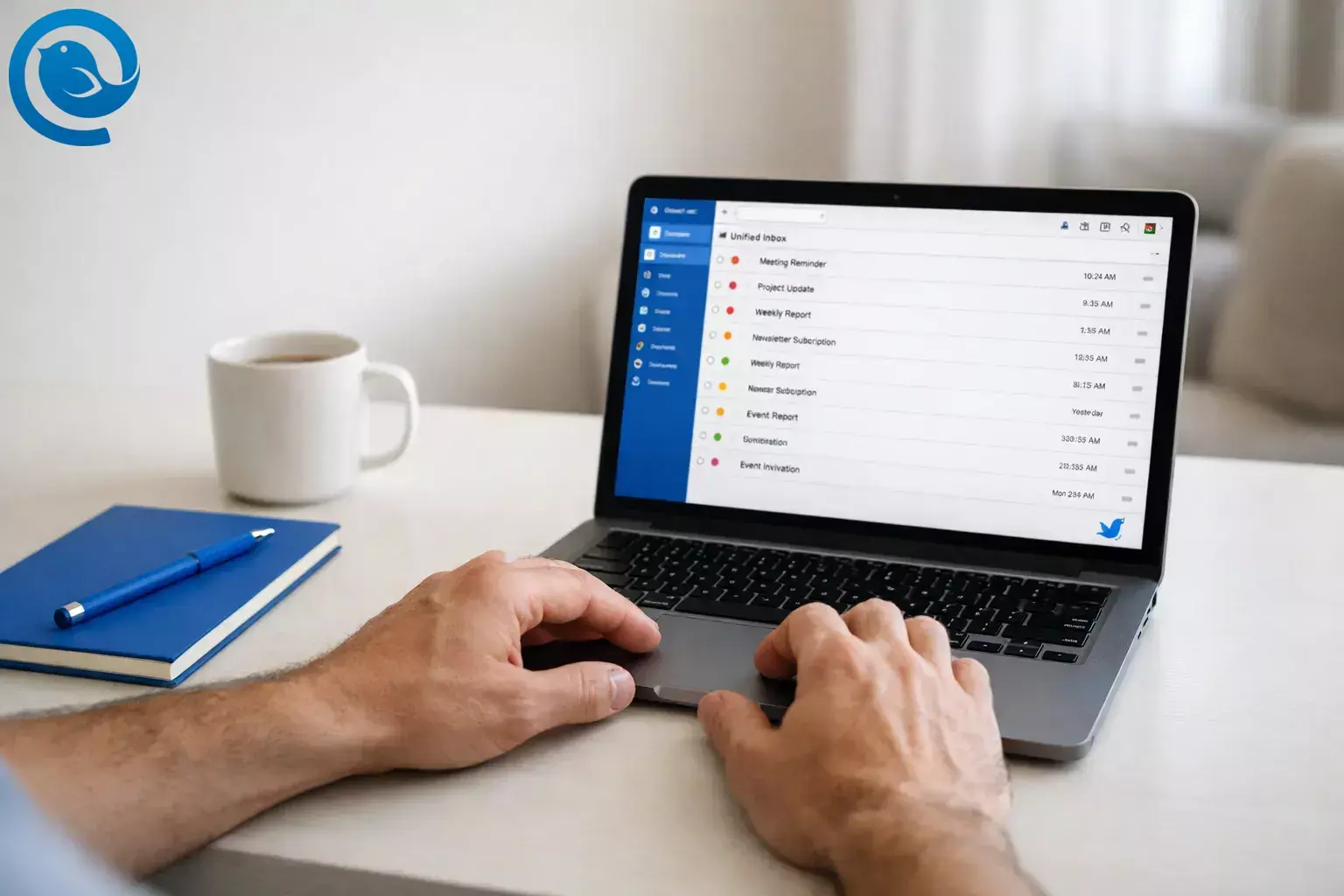
To view multiple Gmail accounts in one inbox on a computer, connect each Gmail account to Mailbird and enable Unified Inbox. You’ll get one combined message list, while each account stays separate so replies go out from the correct address—ideal if you manage multiple email accounts.
Plan for about 10–15 minutes for setup, plus extra time if you have a lot of email to sync.
Key takeaways
- Desktop (true combined inbox): Add each Gmail account in Mailbird, then turn on Unified Inbox.4
- Mobile: Gmail app → Menu → All inboxes (Google notes you can add up to 5 addresses).2
- Gmail on the web only: Forward mail from secondary accounts into one “main” Gmail inbox.
- Only sign in through the official Google sign-in flow (OAuth 2.0 / “Sign in with Google”).6
- Unified inbox views keep each message tied to its original account so replies go out from the right address; run a quick test to confirm your From address is correct.4
- If you rely on a filter/rule for incoming mail triage, keep Mailbird running during the hours you expect it to act; for “always-on” sorting, use Gmail’s server-side filters.7
Quick answer (choose your device)
Table of Contents
Before you start
- Prerequisites: You can sign in to each Gmail account you want to combine (including any 2-step verification prompts).
- Tools: A computer with Mailbird installed (recommended for a unified desktop inbox).
- Time: About 10–15 minutes for setup, plus sync time.
- Cost: Depends on your Mailbird plan and the features you use.
- Safety notes: Only sign in through the official Google sign-in flow. If you use a work/school Google account, follow your organization’s security policy before connecting any email apps.
Step-by-step: View multiple Gmail accounts in one inbox on desktop (Mailbird)
This method gives you one combined inbox view while keeping each Gmail account separate (so you can still reply from the correct address). If your app labels look slightly different, follow the closest matching settings name. It’s the typical setup used in a desktop email client workflow.
-
Confirm you can access every Gmail account. In a browser, sign in to each address you plan to add and open the Inbox.
Check: You can read at least one message in each account without password reset prompts.
-
Open Mailbird. Launch the app and make sure you’re online (Wi-Fi/Ethernet).
Check: Mailbird opens and you can reach Settings.
-
Start adding your first Gmail account. In Mailbird, open the menu (☰) → Settings → Accounts → Add, then enter your Gmail address.3
Check: You see an “Add account” flow and your Gmail address is accepted.
-
Use Google sign-in (OAuth) when asked. Choose OAuth 2.0 / Sign in with Google and finish the sign-in steps.6
Check: Your Gmail account appears in Mailbird’s account list without an “Authentication failed” error.
-
Add your second (and third, fourth…) Gmail account. Repeat the add-account and Google sign-in steps for each additional address you want in the combined view.
Check: You can click each account and see its Inbox load (and begin syncing).
-
Enable the Unified Inbox. Go to menu (☰) → Settings → Accounts and check Enable unified account. Close Settings and click Unified Inbox in the left sidebar.4
Check: Your message list now includes emails from multiple accounts.
-
(Optional) Include only specific accounts in the combined view. If you don’t want every account in your Unified Inbox, open Settings → Accounts and look for an Include in unified account checkbox/toggle for each account. Turn it on/off, then save.8
Check: Unified Inbox shows mail only from the accounts you selected.
-
Add color indicators (highly recommended). In Settings → Accounts, click the color indicator next to each Gmail account and choose a different color for each.5
Check: Messages in Unified Inbox display a color cue so you can tell accounts apart at a glance.
-
Make Unified Inbox your default view. In Settings → Accounts, enable Select on startup for Unified Inbox.4
Check: When you restart Mailbird, it opens straight into Unified Inbox.
-
Run a quick “reply from the right address” test. Send a short test email to each Gmail account. In Unified Inbox, open each test message and click Reply.4
Check: The From address matches the Gmail account that received the message.
-
(Optional) Add one simple rule so the combined inbox stays readable. Go to menu (☰) → Settings → Filters → Add, then create one rule you can verify (example: “Subject contains ‘unsubscribe’” → “Mark as read”).7
Check: New matching emails are processed while Mailbird is running.
Why this works
A unified inbox doesn’t “merge” your Gmail accounts—it connects to each mailbox and then shows one combined view. That’s why you can triage everything in one list while still keeping the right sender address attached to each conversation.
Troubleshooting
Find your symptom, then apply the fix. Each fix ends with something you can verify.
References: Unified Inbox setup4, Gmail authentication help6, filters/rules behavior7, and Google sign-in issues in Mailbird9.
| Symptom | Likely cause | Fix (then verify) |
|---|---|---|
| Unified Inbox doesn’t appear anywhere. | Only one account is connected, or Unified Inbox is turned off. | Add at least one more Gmail account, then enable Enable unified account. Verify: “Unified Inbox” shows in the left sidebar and contains messages. |
| One Gmail account’s messages aren’t showing in Unified Inbox. | The account isn’t included in the unified view, or initial sync hasn’t finished. | Open Settings → Accounts and ensure the account is included (if your version offers that toggle). Verify: a new test email to that address appears in Unified Inbox. |
| You see “Authentication failed” when adding Gmail. | Wrong auth method selected, VPN/security tools interfering, or credentials mismatch. | Retry setup and choose OAuth 2.0 / Sign in with Google. Temporarily turn off VPN and retry. Verify: account adds successfully and Inbox loads. |
| Google sign-in says: “You are trying to sign in from a browser or app that doesn’t allow us to keep your account secure.” | Google blocks some sign-in windows in certain cases. | Complete the sign-in using the normal browser flow when prompted. Verify: you return to Mailbird and the Gmail account finishes connecting. |
| Replies are coming from the wrong Gmail address. | You’re composing from the wrong account/identity, or you’re not replying from the original message thread. | Open the original email in Unified Inbox and use Reply (not New Message). Verify: the “From” field matches the account that received the email. |
| Your filter/rule didn’t run while you were away. | Mailbird rules apply when mail arrives in Mailbird (and typically require the app to be running). | Keep Mailbird running during the day, or use Gmail’s server-side filters for critical sorting. Verify: a new matching email gets processed while Mailbird is open. |
| Gmail’s “Check mail from other accounts” isn’t available on your computer anymore. | Google is deprecating POP-based fetching into Gmail on desktop. | Switch to a unified inbox client (desktop) or set up forwarding from the other provider/account. Verify: new mail still lands in a single place you check daily. |
| “All inboxes” is missing (or empty) in the Gmail mobile app. | You may only have one account added, or you’re viewing a single-account label. | Add another account in the Gmail app, then open the left menu and select All inboxes. Verify: messages from more than one account appear in the list. |
Unified Inbox doesn’t appear anywhere.
Likely cause: Only one account is connected, or Unified Inbox is turned off.
Fix (then verify): Add at least one more Gmail account, then enable Enable unified account. Verify: “Unified Inbox” shows in the left sidebar and contains messages.
One Gmail account’s messages aren’t showing in Unified Inbox.
Likely cause: The account isn’t included in the unified view, or initial sync hasn’t finished.
Fix (then verify): Open Settings → Accounts and ensure the account is included (if your version offers that toggle). Verify: a new test email to that address appears in Unified Inbox.
You see “Authentication failed” when adding Gmail.
Likely cause: Wrong auth method selected, VPN/security tools interfering, or credentials mismatch.
Fix (then verify): Retry setup and choose OAuth 2.0 / Sign in with Google. Temporarily turn off VPN and retry. Verify: account adds successfully and Inbox loads.
Google sign-in says: “You are trying to sign in from a browser or app that doesn’t allow us to keep your account secure.”
Likely cause: Google blocks some sign-in windows in certain cases.
Fix (then verify): Complete the sign-in using the normal browser flow when prompted. Verify: you return to Mailbird and the Gmail account finishes connecting.
Replies are coming from the wrong Gmail address.
Likely cause: You’re composing from the wrong account/identity, or you’re not replying from the original message thread.
Fix (then verify): Open the original email in Unified Inbox and use Reply (not New Message). Verify: the “From” field matches the account that received the email.
Your filter/rule didn’t run while you were away.
Likely cause: Mailbird rules apply when mail arrives in Mailbird (and typically require the app to be running).
Fix (then verify): Keep Mailbird running during the day, or use Gmail’s server-side filters for critical sorting. Verify: a new matching email gets processed while Mailbird is open.
Gmail’s “Check mail from other accounts” isn’t available on your computer anymore.
Likely cause: Google is deprecating POP-based fetching into Gmail on desktop.
Fix (then verify): Switch to a unified inbox client (desktop) or set up forwarding from the other provider/account. Verify: new mail still lands in a single place you check daily.
“All inboxes” is missing (or empty) in the Gmail mobile app.
Likely cause: You may only have one account added, or you’re viewing a single-account label.
Fix (then verify): Add another account in the Gmail app, then open the left menu and select All inboxes. Verify: messages from more than one account appear in the list.
Other ways to handle multiple Gmail inboxes
1) Fastest on mobile: use Gmail’s “All inboxes” view
If you only need a combined view on your phone or tablet, add your accounts in the Gmail app, then open the left menu and tap All inboxes. Google’s help docs note you can add up to 5 email addresses in the Gmail app.2
2) Gmail-on-the-web only: forward mail into one “main” Gmail account
- In each secondary Gmail account, turn on forwarding to your main Gmail address (Settings → Forwarding).
- In your main account, create a filter that applies a label like “From: Work Gmail” based on the forwarding headers or sender patterns.
- Send a test email to each secondary account and confirm it lands in the main inbox with the correct label.
Tip: Forwarding is simple, but replying from the secondary address may require extra setup or a unified inbox client if you want to manage multiple email accounts cleanly.
3) No unified inbox needed: keep accounts separate with browser profiles
- Create one browser profile per Gmail account (Chrome, Edge, or Firefox).
- Sign in once per profile, then pin each Gmail tab.
- Turn on desktop notifications in each profile if you want alerts per account.
4) Want multiple “From” addresses without multiple inboxes? Use identities
If your goal is sending from different addresses rather than reading multiple inboxes, Mailbird can also set up email identities so you can choose a sender address when composing.3
Make-ahead, maintenance, and scaling
Make-ahead (set it once)
- Turn on Unified Inbox + “Select on startup,” so the combined view is always your default.
- Assign a unique color to each Gmail account before your inbox gets busy.
- Create one rule at a time and test it with a new email before adding the next.
Maintenance (5 minutes once a month)
- If an account stops syncing, remove and re-add that account to refresh the sign-in (especially after password or security changes).
- Review your “noise” sources (newsletters, notifications) and unsubscribe or filter what you don’t read.
Scaling (adding more accounts)
- Add accounts one-by-one and let each finish its initial sync before adding the next.
- If you only want some accounts in the combined view, double-check the “include in unified” toggles after you add new ones.
Frequently Asked Questions
Can Gmail combine multiple Gmail accounts into one inbox on a computer? — unified inbox
Gmail lets you sign in to multiple accounts, but a true “one list for all accounts” desktop experience is easiest with a unified inbox email client, or by forwarding mail into one main account.
How many accounts can I add to the Gmail app? — up to 5
Google’s help documentation states you can add up to 5 email addresses in the Gmail app.2
Where is “All inboxes” in the Gmail app? — choose All inboxes
Open the Gmail app, tap the menu (three lines) on the top left, then choose All inboxes.2
Will Mailbird reply from the correct Gmail address in Unified Inbox? — right address
Unified inbox views are designed to keep each message tied to its original account so replies go out from the right address. If your reply uses the wrong sender, double-check the From/sender selection.4
What happens to emails I already pulled into Gmail using “Check mail from other accounts” (POP)? — stay in Gmail
Google says messages synced before the deprecation will stay in Gmail.1
Why did “Check mail from other accounts” disappear from Gmail settings on my computer? — Gmail changes
Google is changing how Gmailify and POP work in Gmail, including turning down POP-based fetching, so the options may no longer appear as before.1
Google blocks the sign-in window—how do I connect Gmail to Mailbird? — try again
If Google flags the sign-in as insecure, follow the normal browser sign-in flow when prompted and try again.9
Do Mailbird filters work if Mailbird is closed? — keep Mailbird running
If you rely on a filter or rule for incoming mail triage, keep Mailbird running during the hours you expect it to act. For “always-on” sorting, use Gmail’s server-side filters.7
Quick checklist (screenshot this)
- I can sign in to every Gmail account I want to combine.
- I added each Gmail account in Mailbird (Settings → Accounts → Add).
- I used Google sign-in (OAuth 2.0 / “Sign in with Google”) for Gmail accounts.
- I enabled Unified Inbox (Settings → Accounts → Enable unified account).
- Unified Inbox shows messages from all the accounts I chose.
- I assigned a unique color indicator per account (optional, but recommended).
- I set Unified Inbox to open on startup (optional).
- I sent test emails to each account and verified replies use the correct From address.
- If I need a mobile-only combined view, I know where Gmail’s “All inboxes” is (Menu → All inboxes).
Sources
- Google Gmail Help: Learn about upcoming changes to Gmailify & POP in Gmail
- Google Gmail Help: Add another email account in the Gmail app
- Mailbird Help Center: Connecting Accounts and Adding Identities in Mailbird
- Mailbird Help Center: Unified Inbox
- Mailbird Help Center: Unified Inbox Color Indicator
- Mailbird Help Center: Authentication Failed — Unable to add email account
- Mailbird Help Center: Setting up Filters and Rules
- Mailbird Help Center (macOS): Unified Inbox in Mailbird for Mac
- Mailbird Help Center: Unable to sign into Google’s app in Mailbird


