Mailbird vs Microsoft Outlook: Which Email Client for Windows Is Better? (2026)
If you’re choosing an email client for Windows -especially a Windows Mail alternative -this guide compares Mailbird and Microsoft Outlook (new Outlook and classic Outlook) on what changes your day: unified multi-account workflow, Microsoft 365/Exchange fit, offline/PST needs, and cost.



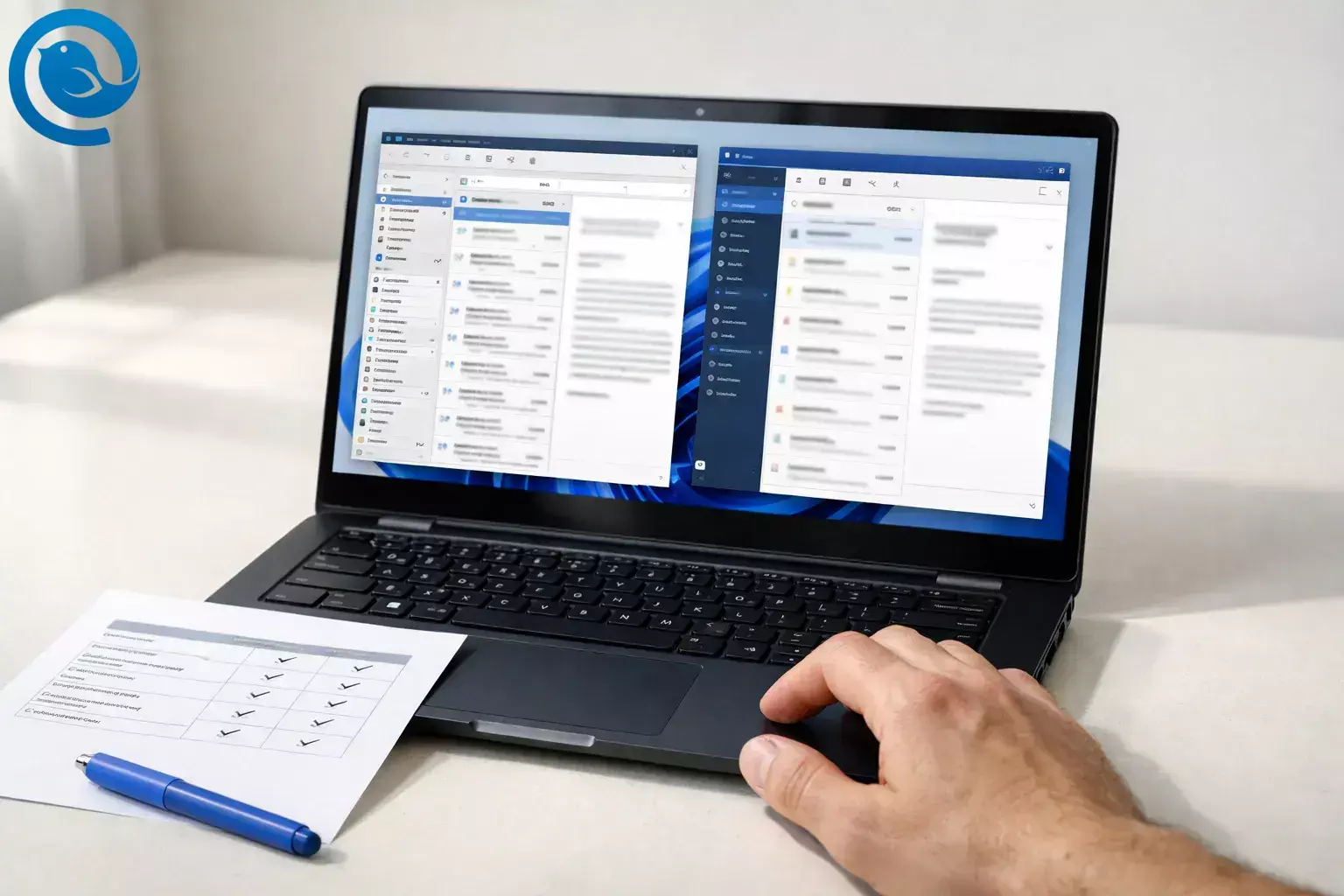
If you're still comparing different apps, see our full guide to the best email client for Windows.
What’s new
Microsoft says support for the built-in Windows Mail, Calendar, and People apps ended on
, and recommends moving to the new Outlook for Windows (or Outlook.com).
[1]
Key takeaways
- Windows Mail support ended on , and Microsoft recommends moving to the new Outlook for Windows (or Outlook.com). [1]
- Mailbird’s Unified Inbox combines mail from multiple connected accounts into one view (after you add more than one account). [8]
- Mailbird’s free plan is 1 account per device; Premium is the upgrade path for multi-account use and (per the plan listing) Microsoft Exchange support. [7]
- The new Outlook for Windows can be used without a subscription for personal email accounts; classic Outlook is commonly accessed via Microsoft 365 subscriptions. [4] [5]
- For public folders, Microsoft notes the new Outlook only partially supports them and recommends classic Outlook for heavy public-folder use. [2]
- If PST archives are part of your workflow, Microsoft’s new Outlook notes show PST/offline capability is evolving (including offline caching expanding up to 30 days). [3]
- Microsoft notes subscriptions continue to be charged unless canceled. [5]
If you're evaluating Outlook but want to see how it compares to a wider range of desktop email apps, you may also want to explore our guide to choosing an Outlook alternative.
Verdict snapshot
Mailbird is the better fit when:
Outlook is the better fit when:
- You’re in a Microsoft 365/Exchange workplace with Outlook-standardized policies and support.
- Your day is driven by calendar + meetings and shared scheduling.
- You rely on Outlook-specific workflows (Microsoft notes limitations around public folders in the new Outlook and points heavy users to classic Outlook). [2]
Mailbird vs Outlook for Windows: at-a-glance comparison
| What actually separates them | Mailbird | Microsoft Outlook |
|---|---|---|
| Best daily workflow | One place to read and reply across multiple personal and work accounts. | Microsoft-centric hub: email plus calendar and collaboration in Microsoft 365-first setups. |
| Unified, multi-account view | Built around a Unified Inbox that combines messages across connected accounts into one view (after you add more than one account). [8] | Supports work/school accounts and third-party accounts via IMAP, but it’s typically mailbox-first rather than “everything in one inbox.” [2] |
| Integrations | Positioned as an inbox + app workspace ( pricing page lists app integrations and ChatGPT integration on Premium). [7] | Strongest inside Microsoft 365 (desktop Outlook alongside core Office apps and Microsoft cloud features). [5] |
| Work/IT fit | Premium lists Microsoft Exchange support, which can be enough for many self-managed business setups. [7] | Common workplace standard; Microsoft notes the new Outlook only partially supports public folders and recommends classic Outlook for heavy public-folder use. [2] |
| Offline + PST archives | Best when your mail lives on the server (IMAP/Exchange) and you want a lighter client experience. | Better legacy compatibility: Microsoft’s new Outlook updates mention expanding offline caching (up to 30 days) and growing .pst capabilities over time. [3] |
|
Cost & ownership
US list prices shown on source pages; can change |
|
|
| Quick dealbreaker check | A bad pick if your org mandates Outlook-only workflows—or if you need multiple accounts but won’t upgrade (free is single-account). [7] | A bad pick if you want a unified, multi-account inbox-first workflow and you don’t want Microsoft-first complexity or subscriptions. [4] [5] |
Clarification: “Outlook” on Windows can mean the new Outlook for Windows app or classic Outlook ; the feature set differs, especially for some enterprise workflows (like heavy public-folder usage). [2]
What they are
- Mailbird: a desktop email client for Windows that consolidates multiple accounts into one app and emphasizes an integrated workspace. [7] [8]
- Microsoft Outlook: Microsoft’s email-and-calendar client on Windows, available as the newer “new Outlook for Windows” app and the traditional “classic Outlook” desktop app.
Where they’re meaningfully different
1) Multi-account workflow: Unified Inbox vs mailbox-first
Mailbird’s Unified Inbox combines messages across connected accounts into a single view, so you can read, search, and reply without bouncing between inboxes all day. [8]
Choose Mailbird if you routinely touch 2+ inboxes (personal + work + clients) and context switching is the problem. Choose Outlook if one mailbox is your “home base” and your workflow is built around that single identity.
2) Email triage productivity: reduce repetition vs run the whole day
Mailbird Premium highlights “get through email faster” features —templates, snippets, send later, snooze, undo send, dark mode, and rules/filters—so you can cut repetitive inbox work. [7]
Outlook is more of a command center: it’s strongest when email is tightly coupled to meetings, scheduling, and Microsoft-led collaboration. If your bottleneck is replying and sorting quickly, Mailbird tends to feel leaner; if your bottleneck is coordinating people and calendars, Outlook tends to feel more complete.
3) Ecosystem fit: “your apps” vs Microsoft 365
Mailbird is positioned as an inbox + tools workspace: the Premium plan lists app integrations and a ChatGPT integration, so email can sit next to the tools you use instead of living in separate browser tabs. [7]
Outlook’s advantage is the Microsoft bundle: Microsoft 365 Personal includes desktop Outlook plus the core Office apps, which matters if your email workflow is tied to Office documents and Microsoft cloud features. [5]
4) Work accounts and IT reality: “supported” isn’t the same as “supported well”
Outlook is the safer choice when your employer’s identity, policies, and help desk are all Microsoft-based. Microsoft states most accounts are supported in the new Outlook (including work/school and third-party accounts connecting through IMAP), but it also notes a limitation: public folders are only partially supported, and classic Outlook is recommended if you depend heavily on public-folder features. [2]
Mailbird can be a strong day-to-day option for self-managed users who want “one inbox for everything”: Mailbird Premium lists Microsoft Exchange support, which can let you bring Exchange together with other accounts in one place. [7]
5) Offline and archives: the PST world still matters
If you’ve accumulated years of Outlook history, Outlook remains the compatibility leader. Microsoft’s new Outlook update notes describe expanding offline caching (including “Days of email to save” expanding to 30 days) and growing .pst file capabilities over time (for example, replying/forwarding emails stored in a .pst file). [3]
Choose Outlook (classic) if PST archives are non-negotiable. Choose Mailbird if your email lives on the server (IMAP/Exchange) and you want to avoid managing local data files as part of your daily routine.
6) Replacing Windows Mail: Microsoft steers you to Outlook
Microsoft’s guidance is explicit: Windows Mail support ended on , and local data in Windows Mail remains exportable so you can transition to a new client. [1]
If you want the Microsoft-recommended default path, choose Outlook. If you want a Windows email client that prioritizes multi-account productivity over suite complexity, choose Mailbird.
Costs, effort, and ownership trade-offs
Mailbird: pay once (or yearly) for a focused Windows email client
- Free plan: 1 email account per device.
- Premium (Yearly): shown at $4.03/user/month paid yearly on the pricing page.
- Premium (Pay Once): shown at $99.75/user, with optional add-ons listed (example: “Leave Me Alone” +$59; “Lifetime Updates” +$69).
- Policy notes: pricing page lists a 14-day money-back guarantee and a cross-platform license (Windows + macOS).
Source: [7]
The exact price you see can vary with promos and packaging—verify on the current pricing page before purchase. [7]
Outlook: free new Outlook + Microsoft 365 for the full desktop suite
- New Outlook: Microsoft has stated users can use the new Outlook for Windows with personal email accounts without a subscription. [4]
- Classic Outlook (typical path): via Microsoft 365—Personal is shown at $99.99/year ($9.99/month) and Family is shown at $129.99/year ($12.99/month). [5] [6]
- Subscription reality: Microsoft’s store pages note the subscription continues to be charged unless canceled in your Microsoft account. [5]
Effort: setup and learning curve
Mailbird usually pays off fastest when your goal is a clean, consolidated inbox across providers. Outlook usually pays off fastest when your goal is Microsoft-native mail + calendar + scheduling—and your organization already standardizes on it.
Ownership: “my inbox app” vs “my Microsoft stack”
If you want to reduce long-term lock-in, prioritize the model that matches your habits: Mailbird’s pay-once option is about owning the email client experience, while Outlook’s subscription path is about bundling email into a bigger productivity stack.
Risks and dealbreakers
Mailbird is a bad choice if…
- You need multiple inboxes but you’re not willing to pay for Premium (the free plan is single-account). [7]
- Your workplace is Outlook-only (policy, training, standardized add-ins, or mandated workflows).
- Your workflow depends on deeply Outlook-specific setups (where the safest support path is “use Outlook”).
Outlook is a bad choice if…
- You want a true unified, multi-account inbox-first workflow and hate switching contexts all day.
- You want to avoid a recurring subscription but still need the “classic Outlook” depth. [5] [6]
- You adopt the new Outlook but rely heavily on public-folder workflows (Microsoft notes limitations and points heavy users to classic Outlook). [2]
Switching path (minimal loss if you chose wrong)
Step 1: Figure out where your mail “lives” (server vs local)
- If your accounts are IMAP/Exchange, email is typically synced from the server—switching clients is usually reversible.
- If you’re using POP3 or local archives, switching requires extra care (export before you uninstall anything).
Step 2: If you’re coming from Windows Mail, export before you move
Microsoft states that after Windows Mail support ended, locally stored emails/contacts/events remain exportable—do that export first, then set up your chosen client. [1]
Step 3: If you picked Outlook and regret it, test the “toggle back” move
If you’re switching between classic Outlook and the new Outlook, Microsoft notes you can switch back by turning the toggle off (useful when the new app is missing something you rely on). [2]
Step 4: If PST archives are involved, keep Outlook available during the transition
Microsoft’s update notes show PST and offline capabilities are still evolving in the new Outlook, so if PST files are part of your workflow, keep classic Outlook installed until you’ve confirmed you can access what you need day-to-day. [3]
Step 5: If you bought the wrong plan, minimize sunk cost
Decision tree (pick one)
- If your email is a work-issued Microsoft 365/Exchange account and your IT help desk supports Outlook only, then choose Microsoft Outlook (classic Outlook when required).
- If you juggle 2+ inboxes daily and want one place to triage, then choose Mailbird . [8]
- If you want a pay-once ownership option (no recurring bill), then choose Mailbird (Pay Once) . [7]
- If you want the Microsoft-recommended default replacement for Windows Mail and you’re fine with Microsoft-first workflows, then choose Outlook (new Outlook) . [1]
- If none of the above is clearly true, then Mailbird is often the cleaner multi-account-friendly Windows email client experience.
If you're comparing different desktop email clients, you may also want to see how Mailbird vs Thunderbird match up.
You can also explore our Mailbird vs Spark comparison to see how another modern email client compares in features, integrations, and productivity tools.
Frequently Asked Questions
Is Windows Mail still supported on Windows 11? — No, export first
No. Microsoft says Windows Mail is no longer supported, so you’ll want to move to another client and export anything stored locally before you switch. [1]
Is Outlook for Windows free? — Personal accounts free
What’s a simple Windows Mail alternative if I just want to keep emailing? — Outlook or Mailbird
If you want the path Microsoft is steering Windows Mail users toward, start with Outlook. If you want a focused third-party desktop email client for Windows built for multi-account productivity, start with Mailbird. [1]
Does Mailbird have a unified inbox? — Yes, Unified Inbox
Yes. Mailbird’s Unified Inbox combines mail from multiple connected accounts into one view once you’ve added more than one account. [8]
Does Mailbird support Microsoft Exchange? — Premium plan only
Mailbird lists Microsoft Exchange support as part of its Premium plan. [7]
Can I use Gmail or other non-Microsoft accounts in Outlook? — Yes, via IMAP
Microsoft states the new Outlook supports third-party accounts connecting through IMAP, and it also supports Microsoft work/school accounts. [2]
Can I switch back from the new Outlook to classic Outlook? — Toggle off
Microsoft notes you can switch back by turning the toggle off, which is helpful if you test the new Outlook and hit a missing feature. [2]
What happens to my email if I uninstall my email client? — Depends on protocol
If your account is IMAP/Exchange, your mail is typically stored on the server and will resync when you set the account up again. If you use POP3 or local archives, export before uninstalling so you don’t lose local-only data.
If you want a unified inbox experience across multiple email accounts, you can download Mailbird here and test it yourself.
If you're exploring additional options, see our list of the best Outlook alternatives.
- Microsoft Support: Outlook for Windows — the future of Mail, Calendar, and People on Windows 11 (Windows Mail support ended Dec 31, 2024; export guidance)
- Microsoft Support: Getting started with the new Outlook for Windows (supported accounts; public folder limitation; switching toggle)
- Microsoft Support: What’s new in new Outlook for Windows (offline notes; PST capability updates)
- Microsoft Tech Community: Mail & Calendar apps replacement plan (new Outlook can be used with personal accounts without a subscription)
- Microsoft Store (US): Microsoft 365 Personal pricing and included apps
- Microsoft Store (US): Microsoft 365 Family pricing and included apps
- Mailbird: Pricing and plans (Free vs Premium; yearly and pay-once pricing shown; add-ons; plan features)
- Mailbird Support: Unified Inbox (how it works and when it appears)


