How to Export Emails from Outlook to a PST File (and What to Do Next)
This Outlook data export guide shows you how to export a PST file from Outlook, verify that it's complete, and then use it to switch away from Outlook or keep it as a secure archive.



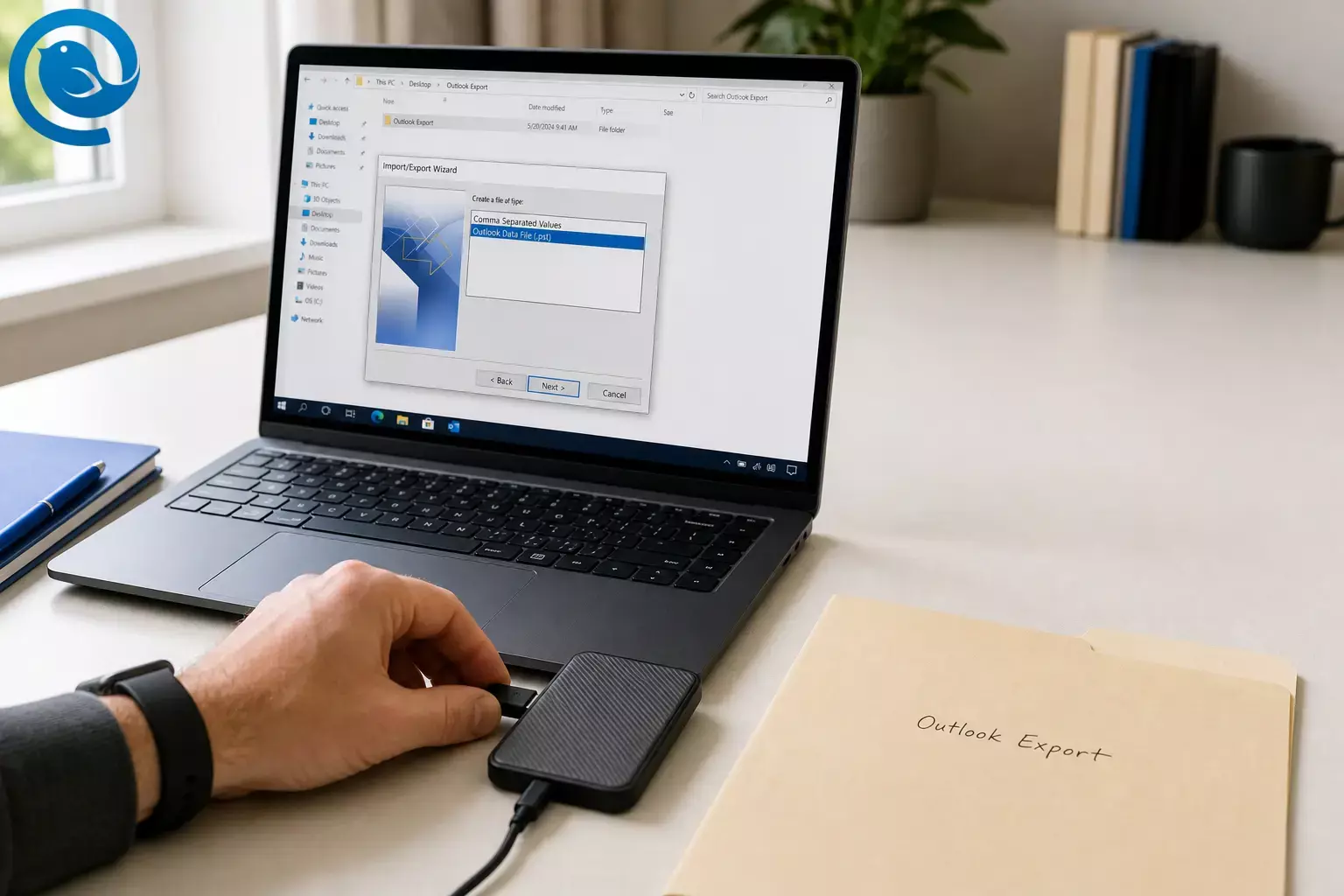
This Outlook data export guide shows you how to export a PST file from Outlook, verify that it’s complete, and then use it to switch away from Outlook (or keep it as a secure archive).
What’s new: Microsoft says the Outlook Lite app for Android will be fully retired and will stop providing mailbox functionality starting . 1 Exporting your mail gives you a copy you control, so you’re not stuck when an app changes or shuts down.
Quick path (classic Outlook):
File
→
Open & Export
→
Import/Export
→
Export to a file
→
Outlook Data File (.pst)
.
2
Promise: You’ll export your Outlook email into an Outlook Data File (.PST) , spot-check it so you know it’s complete, and set it up for a clean move to your next email app (or for a safe archive). Plan for a few minutes to a few hours , depending on mailbox size. Difficulty: Easy (mostly clicking and waiting). 6
If you’re switching away from Outlook, exporting a PST backup first is the safest “no regrets” move. Then you can set up your email in Mailbird knowing you still have a portable copy of your history.
Key takeaways
- Classic Outlook is the most straightforward option for full PST exports on Windows.
- Before exporting, make sure Outlook has downloaded the older mail you want to keep—cached mailboxes may only have recent messages locally. 2
- Export to a local folder you control (not directly inside a OneDrive-synced location). 2
-
Export one account at a time and check
Include subfoldersso you don’t miss folders. 2 - Verify the PST by opening it and spot-checking older messages, key folders, and an attachment.
-
If your mail is server-based (IMAP / Exchange / Outlook.com), add the same account in Mailbird and let it sync; for POP3/local-only email, import the
.pstinto an existing POP3 account in Mailbird. 4 - Keep at least two copies of your PST (for example, external drive + a secure folder) and name exports with an account + date.
Before you start
- Best device for this guide: A Windows PC with Outlook installed (classic Outlook is the most straightforward for full PST exports).
-
Mac note:
Outlook for Mac exports to an
.olmarchive file (and Microsoft notes this option is available in Legacy Outlook for Mac). 7 - What you’ll need: Enough free disk space for a large file, and a stable internet connection if Outlook still needs to download older mail.
- Time: A few minutes to a few hours (larger mailboxes take longer).
- Cost: Usually free. Optional: a USB drive or external drive if you want a second offline backup copy.
- Safety notes: A PST can contain years of personal or work messages and attachments. Store it somewhere private, and if this is a work/school mailbox, check any company policies before exporting.
Step-by-step: export a PST file from Outlook (and move your emails)
Step-by-step: export a PST file from Outlook (and move your emails)
-
Confirm which Outlook you’re using.
If you see a
Filetab in the top-left, you’re in classic Outlook . If you don’t seeFileand the app looks more like Outlook on the web, you’re likely in the new Outlook for Windows . -
Make sure Outlook has downloaded the mail you want to export.
In classic Outlook, Microsoft notes it may download only the past year by default; to export everything, go to
Account Settings→Account Name and Sync Settings(orChange) and move the mail download slider toAll, then let Outlook finish syncing before you export. 2 -
Create a local export folder (not in OneDrive).
In File Explorer, create something like
Documents\Outlook Export\2026-05-05. Microsoft specifically warns against exporting a PST directly into a OneDrive-synced location because OneDrive can block PST syncing. 2 -
Open the export tool.
In classic Outlook:
File→Open & Export→Import/Export. In new Outlook for Windows:Settings→Files→Export→Get started. If you’re in the new Outlook export wizard, follow the prompts to export, then continue with Step 9 to verify your PST. 2 -
(Classic Outlook) Choose the PST format.
In the Import/Export Wizard select
Export to a file→Next, then selectOutlook Data File (.pst)→Next. 2 -
Select what to export.
Choose the
account name
at the top to export everything under it, and check
Include subfolders. Microsoft notes classic Outlook exports one account at a time, so plan to repeat this if you have multiple accounts. 2 -
Pick your save location and file name.
Click
Browse, choose your export folder (Step 3), and name the file something you’ll recognize later, likeOutlook-jane@domain-2026-05-05.pst. -
Start the export and let it finish.
Click
Finish. During the copying/export process you may not be able to use Outlook, and the time can range from minutes to hours depending on mailbox size. 6 -
Verify the PST (don’t skip this).
In classic Outlook, open the file you just created (for example:
File→Open & Export→Open Outlook Data File), then spot-check: open a couple of older messages, confirm key folders are present, and open at least one message with an attachment (Outlook includes attachments in PST exports). 2 - Repeat for any other Outlook accounts you need. If you have multiple accounts in Outlook, export each one into its own dated PST file so you can identify them later.
-
Move to Mailbird (two common paths).
Path A — Your mail is already on the server (IMAP / Exchange / Outlook.com): Add the same email account in Mailbird and let it sync. This is often the simplest way to move emails from Outlook without importing a file.
Path B — You used POP3 or you have local-only email: In Mailbird, you can
Import messagesinto an existing POP3 account:Mailbird menu(three lines) →Settings→Accounts→ open your POP3 account →Import messages, then select your.pstfile and wait for the import to finish (Mailbird supports.pstimports and places imported messages into a dedicated Imported folder). 4 - Back up your backup. Close Outlook completely, then copy your PST to a second place (external drive + a secure folder, for example). Name the folder with the date so you can tell which export is newest.
Next step: switch your daily inbox
After you export, add your email accounts in Mailbird. If you used POP3 and you need your local mail history on this computer, import your
.pst
file as shown above.
Why exporting to PST works
A PST export creates a portable copy of your Outlook data—emails (and, if you export them, contacts and calendar items)—without removing anything from your mailbox. It’s a practical “take it with you” format for archiving and migration—just note that certain Outlook-specific settings (like rules and blocked senders lists) don’t come along with the export. 2
Troubleshooting PST exports
-
Symptom You can’t find
File→Open & Export→Import/Export.Likely cause You’re in the new Outlook for Windows (or Outlook on the web), not classic Outlook.
Fix Use
Settings→Files→Exportin the new Outlook app, or install/open classic Outlook and export from there. -
Symptom The PST finished, but it’s much smaller than expected.
Likely cause You exported a single folder (or missed
Include subfolders).Fix Re-run the export and select the account name at the top of the folder list, then check
Include subfolders. -
Symptom Older messages are missing from the export.
Likely cause Outlook only had recent mail downloaded locally (common with cached mailboxes).
Fix Set “mail to keep offline” to
All, let Outlook fully sync, then export again. -
Symptom Outlook won’t let you save the PST into your chosen folder (or errors appear when the folder is in OneDrive).
Likely cause The folder is being synced/locked by OneDrive or another backup tool.
Fix Export to a plain local folder (like
C:\Outlook Export), then copy the finished PST after Outlook is closed. -
Symptom Outlook freezes or says “Not Responding” during export.
Likely cause The mailbox is large, the disk is slow, or security software is scanning the growing PST file.
Fix Give it time; if it’s still stuck after a long wait, export smaller chunks (folder-by-folder), and make sure you have plenty of free disk space.
-
Symptom You can’t copy the PST (“file in use”).
Likely cause Outlook (or the PST) is still open.
Fix Close Outlook completely, wait 10–20 seconds, then try copying again.
-
Symptom Mailbird shows “Nothing to import.”
Likely cause Mailbird can’t detect your original Outlook profile because it was moved from its default location.
Fix Restore the profile to the default location (if you can), or use the PST import option (import messages into an existing POP3 account). 4
-
Symptom Your imported messages aren’t in the Inbox in Mailbird.
Likely cause Imported messages go into a dedicated Imported folder.
Fix Open the Imported folder and move messages into your preferred folders.
Variations
-
New Outlook for Windows export:
Use
Settings→Files→Exportand follow the wizard to export the mailbox or folders you choose. - Contacts-only move: If you only need your address book, export contacts separately as a CSV (faster than exporting an entire mailbox). 2
-
Outlook for Mac:
Outlook for Mac exports to an
.olmarchive file (and Microsoft notes this export option is available in Legacy Outlook for Mac). - Keep PST as a “reference archive” in new Outlook: New Outlook can access emails in a PST and you can move messages by drag-and-drop, but importing emails/contacts/calendar from a PST isn’t available there “at this time.” 3
Backup, storage, and large mailbox tips
- Make-ahead: Export once now, then set a recurring calendar reminder (monthly or quarterly) if you want fresh backups.
- Storage: Keep at least two copies (for example: external drive + a secure folder). Treat the PST like a sensitive document.
- File naming: Include account + date in the filename so you can sort exports later.
- Scaling (large mailboxes): Export one account at a time, and if the mailbox is huge, export folder-by-folder (or year-by-year) into multiple PST files to reduce failure risk.
- Verification habit: After each export, open the PST and spot-check at least one old message and one attachment before you delete anything from Outlook.
What can change
Outlook’s “new” and “classic” apps continue to change, and PST support (especially importing) can be different depending on which app you’re using. Microsoft’s current guidance also says existing installations of classic Outlook will continue to be supported until at least 2029, but features and rollout details can still shift—so it’s smart to keep a fresh export and a second copy of your PST. 3 5
Frequently Asked Questions
Does exporting to a PST delete emails from Outlook?
No. Exporting creates a copy of your data in a file; your messages remain in Outlook unless you delete them separately. 2
Can I export emails from the new Outlook for Windows?
Yes. The new Outlook for Windows has an export option under Settings that can create a PST export for the mailbox or folders you select. 2
Why are some older emails missing from my PST export?
Outlook may not have downloaded older mail to your computer (common with cached mailboxes). Set Outlook to keep all mail offline, let it fully sync, then export again. 2
Where should I save my PST file?
Save it to a local folder you control (like Documents). After export, you can copy it to another drive for safekeeping. Avoid exporting directly into a OneDrive-synced folder. 2
Does the PST include attachments?
Yes. Attachments that are part of emails are included in PST exports. 2
Can I import a PST into Mailbird?
Mailbird supports importing messages from PST files into an existing POP3 account. (Importing offline files/folders into an IMAP account isn’t supported.) 4
Can the new Outlook app import a PST back into my mailbox?
It can access emails stored in a PST, but full importing of emails/contacts/calendar from a PST isn’t available there right now. 3
I’m on a Mac. Can I export a PST from Outlook for Mac?
Outlook for Mac exports an OLM archive (in Legacy Outlook for Mac). If you specifically need a PST, exporting from Outlook for Windows is usually the simplest route. 7
Quick checklist (screenshot this)
- I confirmed whether I’m using classic Outlook or the new Outlook for Windows.
- I set Outlook to download all mail I want to keep (not just the most recent messages).
- I created a local export folder (not inside OneDrive).
- I exported to Outlook Data File (.pst) and included subfolders.
- I waited for the export to finish completely.
- I opened the PST and spot-checked older mail + an attachment.
- I exported other accounts (one PST per account, clearly named).
- I copied the PST to a second safe location (external drive or secure folder).
- If needed, I imported the PST into Mailbird (POP3) or added my account in Mailbird and let it sync (IMAP/Exchange).
Sources
- Microsoft Support: Get help with Outlook Lite for Android (retirement notice)
- Microsoft Support: Export emails, contacts, and calendar items to Outlook using a .pst file
- Microsoft Support: Import email, contacts, and calendar from an Outlook .pst file
- Mailbird Help Center: How to Import Accounts and Emails to Mailbird
- Microsoft Learn: Stages of migration to new Outlook for Windows (support timeline)
- University of Alabama at Birmingham (UAB): Exporting emails to PST files (time estimates)
- Microsoft Support: Export items to an archive file in Outlook for Mac (.olm)


