How to Unsubscribe from Emails on Outlook
To unsubscribe from emails on Outlook, use Settings > Mail > Subscriptions if you have a personal Outlook.com mailbox. If you do not see an unsubscribe option, use the sender’s trusted unsubscribe link or Outlook’s block, report, Sweep, and rule tools instead.



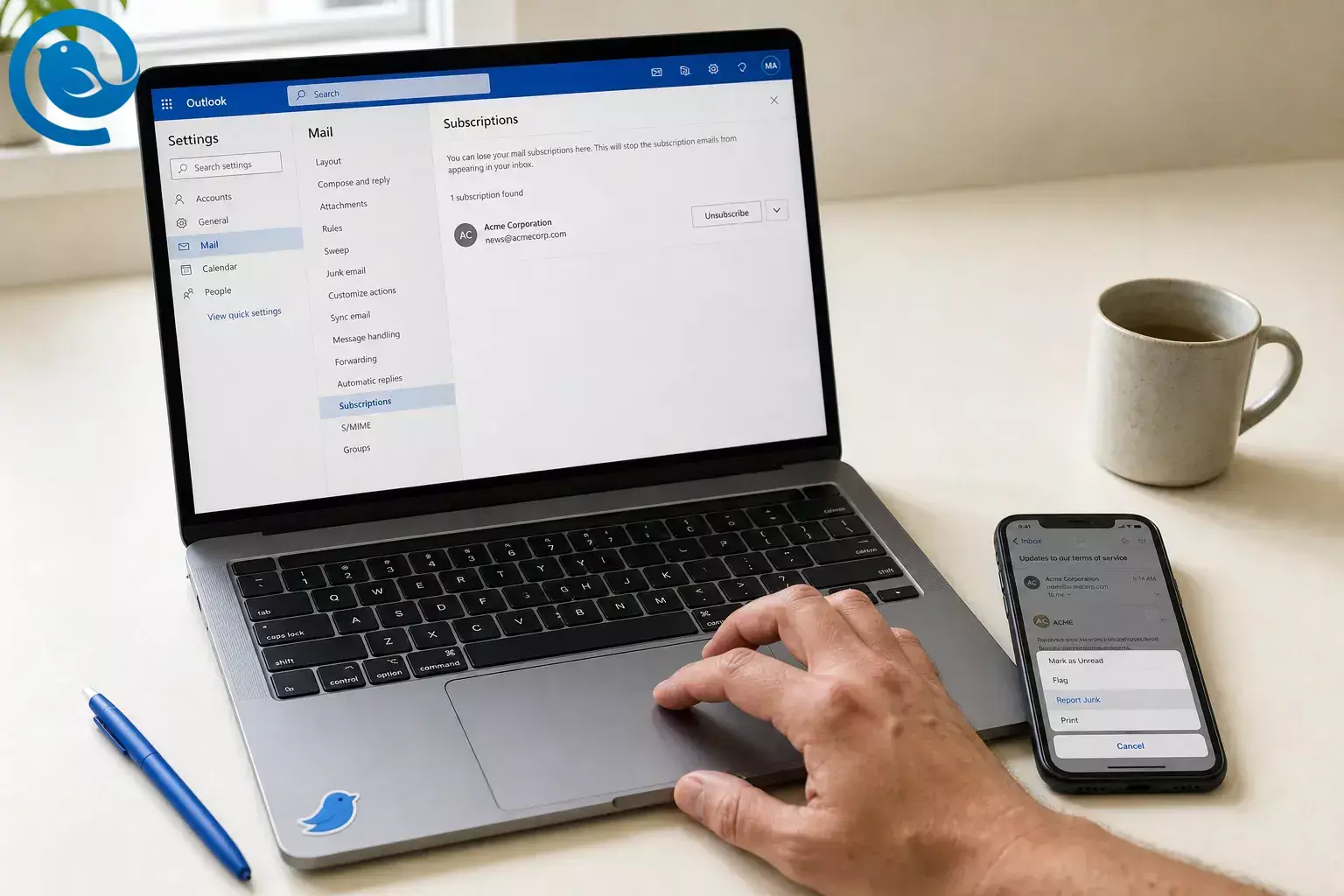
To unsubscribe from emails on Outlook, use Settings > Mail > Subscriptions if you have a personal Outlook.com mailbox. If you do not see an unsubscribe option, use the sender’s trusted unsubscribe link or Outlook’s block, report, Sweep, and rule tools instead. [3] [4] [5] [6] [8]
Outlook looks different by version and account type, so the steps below cover Outlook.com, new Outlook, classic Outlook, and mobile. [1] [2]
Key takeaways
- Personal Outlook.com mailboxes: Start with Settings > Mail > Subscriptions . [3]
- New Outlook and Outlook on the web: Use Junk email settings, Sweep , and rules for ongoing cleanup. [4] [5] [8]
- Classic Outlook: Use Block Sender or junk-mail controls, then add a rule if needed. [4] [5] [15]
- Outlook mobile: Use Report Junk , Phishing , or Block Sender , then switch to Outlook.com in a browser for subscription management if needed. [3] [6]
- Safety first: Only click unsubscribe for senders you recognize and signed up for. [6] [7]
- If mail still gets through: Check the correct account and the real sending address or domain. [4] [13]
Quick answer by Outlook version
Outlook.com (personal)
- Best first move
- Go to Settings > Mail > Subscriptions and remove the sender there. If the sender is missing, use its own unsubscribe or email-preferences link only if you trust it. [3]
New Outlook or Outlook on the web
- Best first move
- Use Settings > Mail > Junk email , Sweep , and rules. If the message is from a sender you trust, you can use its own unsubscribe link too. [4] [5] [8]
Classic Outlook
- Best first move
- Use Block Sender or the junk-mail controls, then add a rule if you need extra cleanup. [4] [5] [15]
Outlook mobile
- Best first move
- Use Report Junk , Phishing , or Block Sender in the app, then finish subscription cleanup in Outlook.com in a browser if needed. [3] [6]
| Outlook version | Best first move |
|---|---|
| Outlook.com (personal) | Go to Settings > Mail > Subscriptions and remove the sender there. If the sender is missing, use its own unsubscribe or email-preferences link only if you trust it. [3] |
| New Outlook or Outlook on the web | Use Settings > Mail > Junk email , Sweep , and rules. If the message is from a sender you trust, you can use its own unsubscribe link too. [4] [5] [8] |
| Classic Outlook | Use Block Sender or the junk-mail controls, then add a rule if you need extra cleanup. [4] [5] [15] |
| Outlook mobile | Use Report Junk , Phishing , or Block Sender in the app, then finish subscription cleanup in Outlook.com in a browser if needed. [3] [6] |
Before you start
Prerequisites: Access to the Outlook account that receives the unwanted email and at least one message from that sender.
Tools: Outlook on your computer or phone, plus a web browser for the Outlook.com steps.
Time: A few minutes per sender; longer if you also add rules.
Cost: Usually free.
Safety: Only use unsubscribe on messages from senders you recognize and signed up for. If the email looks suspicious, report it as junk or phishing and block the sender instead. [6] [7]
How to unsubscribe from emails on Outlook: step by step
How to unsubscribe from emails on Outlook
-
Match your Outlook version first
If you see a Settings gear in the upper-right corner, you are likely in new Outlook for Windows. If you do not, you are likely in classic Outlook. In a browser, a personal Microsoft mailbox is Outlook.com , while a company or school mailbox is Outlook on the web . [2]
-
Open a recent message from a sender you recognize
Start with a store, newsletter, or service you remember signing up for. If the message feels odd or suspicious, do not use its unsubscribe link; skip to Step 6 instead. [7]
-
For personal Outlook.com, use Subscriptions first
Open your personal Outlook.com mailbox in a browser, then go to Settings > Mail > Subscriptions . Find the sender under Your current subscriptions , select Unsubscribe , and confirm with OK . [3]
-
If the sender is missing, decide whether you trust the message
Microsoft notes that the built-in option may be missing if the mail is already in Junk, the sender is blocked, or Outlook does not treat it as the same sender. If it is a legitimate sender, use the message’s own unsubscribe or email-preferences link. If not, skip to Step 6. [3] [7]
-
Block the sender if you want quick inbox relief
In new Outlook or Outlook on the web, go to Settings > Mail > Junk email and add the address or domain. In classic Outlook, use the message’s Block Sender or junk-mail controls. Use this when you want the mail out of your main inbox right away. [4] [15]
-
Report suspicious mail instead of unsubscribing
On Outlook mobile, open the message, tap the three-dot menu, choose Report Junk , then pick Junk , Phishing , or Block Sender . On desktop or web, use Outlook’s junk, phishing, or block tools instead of clicking a questionable unsubscribe link. [4] [6] [7]
-
Use Sweep or a rule for repeat mail
In Outlook.com or new Outlook, select a message and choose Sweep to move future messages from that sender to a folder or Deleted Items . You can also create a rule and run it on your inbox for a faster cleanup. [5] [8]
-
If messages still get through, check the real sender and the right account
If you manage more than one mailbox in new Outlook, make sure you changed the correct account. If blocked mail still reaches Inbox, compare the visible sender name with the actual sending address or domain and block the right one. If needed, check the message headers. [4] [13]
-
Review later and fix anything over-broad
If wanted mail starts going to Junk, remove the block or rule or add that sender to Safe senders . If an old rule from classic Outlook does not behave in new Outlook, rebuild it there instead of trying to reuse the old version. [4] [5] [15]
Why Outlook sometimes shows Unsubscribe — and sometimes doesn’t
Outlook.com can recognize some legitimate subscription emails from details in the email headers, which is why some senders appear in Subscriptions and some do not. When Outlook cannot match the message that way, block lists, Sweep , and rules are the tools that still keep future mail out of your main inbox. [3] [5] [8]
If Outlook won’t let you unsubscribe
These are the most common Outlook unsubscribe problems, plus the fastest fix path. [3] [4] [5] [13]
No unsubscribe option appears
- Likely cause
- The message may already be in Junk, the sender may already be blocked, or Outlook may not recognize it as the same subscription sender.
- Fastest fix
- Use the sender’s own preferences link only if you trust it; otherwise block, report, or create a rule. [3]
You blocked the sender but mail still reaches Inbox
- Likely cause
- The visible sender name is different from the real sending address or domain.
- Fastest fix
- Check the actual address or headers, then block the correct address or domain and add a rule if needed. [13]
Your rule exists but does nothing in new Outlook
- Likely cause
- The rule was migrated from classic Outlook and depends on client-side behavior.
- Fastest fix
- Create a new rule directly in new Outlook instead of editing the old one. [5]
You cannot tell which instructions match your screen
- Likely cause
- You are in a different Outlook version or account type than the tutorial expects.
- Fastest fix
- Check whether you use Outlook.com, new Outlook, classic Outlook, or mobile before you continue. [1] [2]
Wanted mail now goes to Junk
- Likely cause
- You blocked too broadly or built an over-aggressive rule.
- Fastest fix
- Remove the block or rule, then add the sender to Safe senders if you still want their mail. [4] [15]
Mobile only gives you report or block actions
- Likely cause
- Outlook mobile centers on junk, phishing, and block controls rather than the full subscription workflow.
- Fastest fix
- Use Outlook.com in a browser for the dedicated Subscriptions page, and use report or block on mobile in the meantime. [3] [6]
You unsubscribed but promotional mail still arrives
- Likely cause
- The sender may use more than one list or more than one sending address.
- Fastest fix
- Unsubscribe from each trusted list you recognize, then block the leftover sender or domain or create a rule. [3] [4]
| What you see | Likely cause | Fastest fix |
|---|---|---|
| No unsubscribe option appears | The message may already be in Junk, the sender may already be blocked, or Outlook may not recognize it as the same subscription sender. | Use the sender’s own preferences link only if you trust it; otherwise block, report, or create a rule. [3] |
| You blocked the sender but mail still reaches Inbox | The visible sender name is different from the real sending address or domain. | Check the actual address or headers, then block the correct address or domain and add a rule if needed. [13] |
| Your rule exists but does nothing in new Outlook | The rule was migrated from classic Outlook and depends on client-side behavior. | Create a new rule directly in new Outlook instead of editing the old one. [5] |
| You cannot tell which instructions match your screen | You are in a different Outlook version or account type than the tutorial expects. | Check whether you use Outlook.com, new Outlook, classic Outlook, or mobile before you continue. [1] [2] |
| Wanted mail now goes to Junk | You blocked too broadly or built an over-aggressive rule. | Remove the block or rule, then add the sender to Safe senders if you still want their mail. [4] [15] |
| Mobile only gives you report or block actions | Outlook mobile centers on junk, phishing, and block controls rather than the full subscription workflow. | Use Outlook.com in a browser for the dedicated Subscriptions page, and use report or block on mobile in the meantime. [3] [6] |
| You unsubscribed but promotional mail still arrives | The sender may use more than one list or more than one sending address. | Unsubscribe from each trusted list you recognize, then block the leftover sender or domain or create a rule. [3] [4] |
Best route for your Outlook setup
- Personal Outlook.com route: Use Settings > Mail > Subscriptions first, then block or create a rule for anything that slips through. [3]
- Work or school route: If you do not see the same subscription screen, go straight to junk settings, reporting, and rules. [2] [5] [15]
- Suspicious-message route: Do not click unsubscribe at all; report junk or phishing and block the sender instead. [6] [7]
- Multi-account desktop route: After you unsubscribe trusted mail, use Mailbird’s Unified Inbox and Block Sender tools to speed up the rest of the cleanup across accounts. [10] [12]
Keep the cleanup manageable
- Handle one sender at a time: Search that sender again after each change so you can see what actually worked.
- Create a review folder first: A folder such as Promo review helps when you are not ready to delete messages right away.
- Recheck your filters: Review blocked senders and rules now and then so broad filters do not catch mail you still want.
- Start with the noisiest account: Clean your busiest inbox first, then move to the next. If you use Mailbird, a Unified Inbox can make that pass faster. [10]
Why these steps may look different on your screen
Outlook still looks different across versions and account types, especially as Microsoft moves more users to new Outlook. If an older tutorial does not match your screen, verify your version first and then compare the latest Microsoft help page for that specific app. [1] [2]
Frequently Asked Questions
Can I bulk unsubscribe from emails in Outlook?
Not in one universal click for every sender. Outlook’s built-in tools are mostly sender by sender, so use the Subscriptions page where available and then use Sweep or rules for the rest.
Sources: [3] [5] [8]
Why don’t I see an unsubscribe button in Outlook?
Outlook may not recognize that message as a subscription, the message may already be in Junk, the sender may be blocked, or the real sending address may not match the one you expect.
Sources: [3] [13]
Is it safe to click Unsubscribe in every email?
No. Use unsubscribe only for senders you know and trust. For suspicious messages, report junk or phishing or block the sender instead.
Sources: [6] [7]
What’s the difference between Outlook.com and Outlook on the web?
Outlook.com is the personal Microsoft mailbox. Outlook on the web is the work or school version tied to Microsoft 365 or Exchange.
Sources: [2]
How do I unsubscribe on Outlook mobile?
On mobile, Outlook is best for reporting or blocking. Open the message, use the three-dot menu, then choose Report Junk and pick Junk, Phishing, or Block Sender. For the dedicated subscription workflow, use Outlook.com in a browser.
Sources: [3] [6]
Does blocking a sender stop every email completely?
Usually it pushes that sender’s mail to Junk rather than making it disappear. If messages still get through, block the actual address or domain and add a rule.
Sources: [4] [13] [15]
How do I stop Microsoft promotional emails specifically?
Sign in to your Microsoft account profile, open Communication preferences for the address you use, and turn promotional categories on or off. Service, billing, and security messages can still continue.
Sources: [14]
What’s the easiest way to clean several inboxes at once?
Use the same pattern on each account: unsubscribe trusted mail, block or report suspicious mail, and add rules for leftovers. If you want one desktop workspace, Mailbird can pull multiple accounts into one view and help with follow-up cleanup.
Sources: [9] [10] [12]
Quick checklist
- I identified whether I am in Outlook.com, new Outlook, classic Outlook, or mobile.
- I used Subscriptions first for a personal Outlook.com mailbox.
- I only clicked unsubscribe for senders I recognize.
- I reported or blocked suspicious mail instead.
- I added Sweep or a rule for repeat mail.
- I checked the correct account, address, or domain.
- I searched the sender again to confirm the cleanup.
- I reviewed for over-broad blocks or rules if wanted mail started going to Junk.
Sources
- Microsoft Support — Switch to new Outlook for Windows
- Microsoft Support — What version of Outlook do I have?
- Microsoft Support — How to manage email subscriptions in Outlook.com
- Microsoft Support — Block or unblock senders in Outlook
- Microsoft Support — Manage email messages by using rules in Outlook
- Microsoft Support — How do I report phishing or junk email?
- Microsoft Support — 10 tips on how to help reduce spam
- Microsoft Support — Organize your inbox
- Mailbird — Homepage
- Mailbird Support — Unified Inbox
- Mailbird Support — Spam and Mailbird: how to block unwanted emails
- Mailbird Support — Block Sender
- Microsoft Support — Receiving email from blocked senders in Outlook.com
- Microsoft Support — Manage ads and promotional emails
- Microsoft Support — Filter junk email and spam in Outlook


