Gmail Search Operators Cheat Sheet: Find Any Email (or Attachment) Fast
A step-by-step Gmail search operators cheat sheet covering advanced search commands for finding any email or attachment by sender, subject, date range, file type, and status — with troubleshooting tips and copy-paste examples.



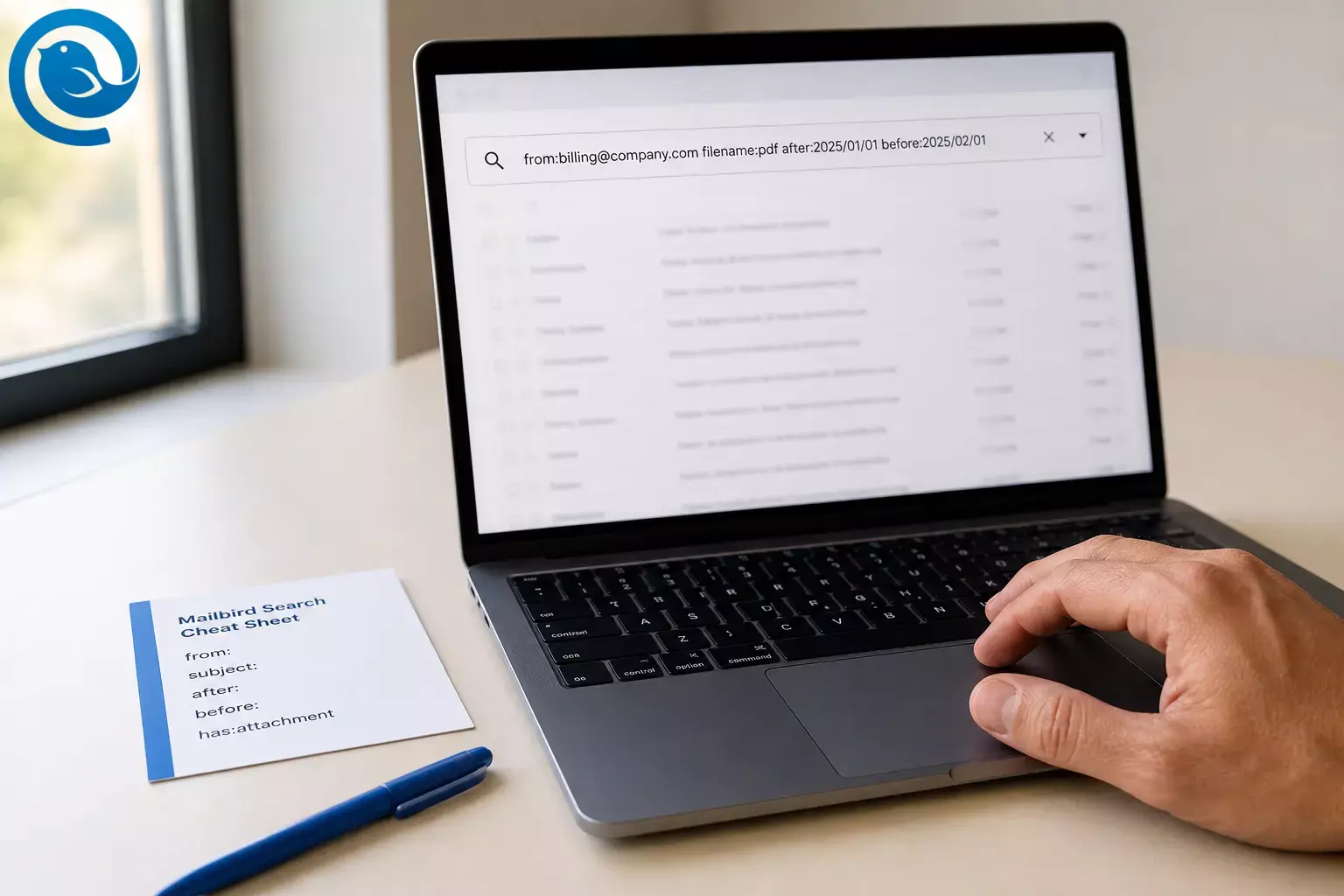
Use Gmail search operators (Gmail advanced search commands) to build a repeatable query that pinpoints the exact message or attachment—without endless scrolling. Plan for about 5–10 minutes for a “hard” search. These operators work in Gmail on the web and in desktop Gmail clients that support operator-style search.
These Gmail search tips work best when you add one filter at a time: start broad, then narrow by sender, subject, date range, and filename until you can confirm the right thread.
What’s new
On , Google announced that Gmail search is adding Gemini-powered “AI Overviews” that summarize threads and (for some plans) answer natural-language questions about what’s in your inbox. [1] What it means for you: even as Gmail gets smarter, operator-based searches are still the quickest way to narrow down to one specific email when you only remember a sender, date range, or filename.
Key takeaways
- Start broad, then narrow by sender, subject, date range, and filename until you can confirm the right thread.
- Add one filter at a time; if results drop to zero, remove the last operator you added.
-
Use quotes to lock an exact phrase (example:
"wire transfer"). -
Use
after:/before:for date ranges, ornewer_than:/older_than:for relative time. -
For files, start with
has:attachment, then narrow withfilename:(example:filename:pdf). -
If the file was shared as a Drive link, try
has:drive(orhas:document/has:spreadsheet). -
If the email could be in Spam or Trash, change the search scope (advanced search) or add
in:anywhere. - Save searches you’ll reuse by turning them into a filter (Create filter).
Before you start
- Prerequisites: A Gmail account and access to Gmail on desktop or mobile.
- Tools/ingredients: A desktop browser (recommended) or the Gmail app . Optional: Mailbird if you prefer searching from a desktop email client.
- Time: About 5–10 minutes for a “hard” search (and less once you know a few operators).
- Cost: $0 to use Gmail search operators.
- Safety & privacy: If you’re on a shared screen (work, coworking, family computer), avoid typing sensitive data into the search bar (full SSNs, full card numbers) where others can see it, and sign out when finished.
Step-by-step: how to find an email in Gmail using advanced search commands
-
Confirm you’re searching the right Gmail account. Open Gmail, click your profile picture (top-right), and verify the address.
Check: The account shown matches the inbox where the message should be.
-
Start with one strong clue, then press Enter. Use the most unique thing you remember (a last name, project code, invoice number, or a very specific phrase).
Check: You get results (even if it’s a lot). If you get none, jump to Step 9.
-
Lock an exact phrase with quotes. In the search bar, type the phrase in double quotes (example:
"wire transfer"), then press Enter.Check: The preview snippets show the exact phrase in the same order.
-
Add the person filter (sender/recipient). Append one of these, then search again:
from:NAME_OR_EMAIL,to:NAME_OR_EMAIL,cc:NAME_OR_EMAIL, orbcc:NAME_OR_EMAIL.Example:
from:billing@company.com "wire transfer"Check: Results drop to a manageable set (ideally under 50).
-
Narrow to the subject line. Add
subject:to avoid matches buried in the email body.Example:
from:me subject:"status update"Check: The subject lines in results look relevant (not just “Re:” noise).
-
Fence it in by date. Add a date range with
after:andbefore:, or a rolling window withnewer_than:/older_than:.Examples:
after:2025/01/01 before:2025/02/01
newer_than:14dCheck: Results now cluster around the time you expect.
-
Add one targeted operator from this Gmail search operators cheat sheet (copy/paste). Add one operator, search, then add another if needed.
Gmail search operator cheat sheet Operator Use it to… Example you can paste has:attachmentOnly emails with attachments has:attachmentfilename:Find a file type or filename filename:pdfhas:drive(orhas:document,has:spreadsheet,has:presentation,has:youtube)Find emails with linked Google files/videos has:drive subject:contractlabel:Search inside a label label:importantcategory:Search inside inbox categories category:promotionsis:unread(oris:read,is:starred,is:important,is:muted)Filter by message status from:me is:unreadin:anywhereInclude Spam and Trash in:anywhere "reset link"in:archive/in:snoozedTarget archive or snoozed mail in:snoozed subject:renewallarger:/smaller:Find messages by size larger:10M has:attachmentdeliveredto:Find mail delivered to a specific address/alias deliveredto:username@example.comORMatch one condition or another from:amy OR from:david-Exclude a word/operator subject:invoice -reminder( )Group terms (especially useful with OR)(subject:invoice OR subject:receipt) newer_than:1yAROUNDFind words near each other holiday AROUND 10 vacationTip: If you’re unsure which operators exist (or what the exact spelling is), start with
from:,subject:,after:/before:, andhas:attachment—then branch out. Operator names and formats above follow Google’s documented list. [3] -
Use logic to tighten the search (without breaking it). Add one change at a time, then press Enter.
-
Exclude:
invoice -reminder -
Either/Or:
from:amy OR from:david -
Group (so
ORapplies before other filters):(from:amy OR from:david) subject:status -
Near each other:
holiday AROUND 10 vacation
Check: Each change either reduces noise or reveals a missing term—if results go to zero, remove your last change.
-
Exclude:
-
If the email could be in Spam or Trash, change the search scope. By default, Gmail searches don’t include Spam and Trash. Use the advanced search menu (sliders icon) and set the “Search” dropdown to include Spam/Trash , or add
in:anywhereto your query and search again. [2]Check: You see additional results that were previously hidden.
-
Sort and verify fast. If Gmail is showing “Most relevant,” switch to “Most recent” to scan chronologically when you know the approximate date. Then open the top few candidates and confirm the sender, date, and attachment name. [2]
Quick scan tip: Once you open a long thread, use
Ctrl+F(Windows) orCommand+F(Mac) to jump to the keyword inside the page.Mailbird tip: In Mailbird, you can also use
Ctrl+Fto search within the open email view. [5]Check: You can point to the exact message and the exact line/file you needed.
-
Save the search so you don’t redo it next month. Click the advanced search (sliders) icon, keep your fields filled, then choose Create filter to apply a label, archive, mark as read, or auto-forward (depending on what you need). [2]
Check: The new filter shows up in Gmail settings, and future matching emails get the label/action.
-
Optional (Mailbird users): use operator-style search in Mailbird Next . In Mailbird Next, click the search bar, type a query (for example
from:John has:attachment), and press Enter. Mailbird Next supports operator-based searching with familiar fields likefrom:,subject:,has:attachment, andin:anywhere. [4]Check: Results narrow based on the filters you typed.
Why this works: Gmail search tips you can reuse
Gmail search operators narrow results using message “metadata” (who it’s from, who it was sent to, dates, labels, and attachment details). When you add one filter at a time, you can tell exactly which constraint helped—and which one accidentally removed the email you’re trying to find.
Troubleshooting
| Symptom | Likely cause | Fix (do this now) |
|---|---|---|
| No results, but you’re sure the email exists | Wrong Gmail account, or the email is in Spam/Trash and isn’t included |
Verify the account (Step 1), then use advanced search to include Spam/Trash or add
in:anywhere
(Step 9)
|
| You get “related” emails that don’t match what you typed | Your query returned no exact matches, so Gmail is showing related results instead |
Add quotes around the most important phrase and add
from:
or a date range to force a tighter match
|
| Your results are correct but hard to scan | Results are sorted by relevance, not time | Switch the sort to “Most recent,” then scan around the date you expect |
OR
doesn’t seem to work
|
You combined too many constraints at once, or didn’t group your query |
Test each part alone, then group with parentheses:
(from:amy OR from:david) subject:status
|
-
(exclude) still shows messages you tried to exclude
|
Gmail groups messages into conversations; a conversation can show up if some messages match |
Open the conversation and confirm which message matches; then add a positive filter (like
from:
and
after:
) to narrow further
|
| Date filters miss the email | Date range is too tight (or you remembered the wrong week) |
Widen the range (add 7–14 days on both sides) or switch to
newer_than:
/
older_than:
temporarily
|
has:attachment
finds nothing, but you know there was a file
|
The file may have been shared as a Drive link, not a traditional attachment |
Try
has:drive
(or
has:document
/
has:spreadsheet
) plus a keyword from the email
|
| Mailbird Next search looks incomplete | Mailbird is still syncing messages, so results aren’t fully indexed yet | Wait for syncing to finish, then run the same query again |
Source note:
Gmail search behaviors (sorting, related results when there are no matches, and searching Spam/Trash via advanced search or
in:anywhere
) are documented in Google’s Gmail Help pages.
[2]
[3]
Mailbird note: Mailbird Next search operators and the “syncing in progress” limitation are documented in Mailbird’s support article for Mailbird Next. [4]
Variations: copy/paste Gmail searches you’ll actually use
-
Find a receipt PDF from last month:
(subject:receipt OR subject:invoice) newer_than:30d filename:pdf -
Find a contract someone shared from Google Drive:
has:drive subject:contract -
Find unread mail from one person this week:
from:person@example.com is:unread newer_than:7d -
Find snoozed messages about renewals:
in:snoozed subject:renewal -
Find messages delivered to an alias address:
deliveredto:yourname+receipts@gmail.com
Save and reuse your Gmail searches (filters and templates)
- Templates: Save 5–10 “starter searches” (receipts, invoices, HR, travel, support tickets) in a Notes app so you can paste and edit instead of rebuilding from scratch.
- Filters: When you find a recurring pattern, convert it into a Gmail filter that applies a label automatically. That turns future searches into a one-click label view.
-
Large inboxes:
Narrow by date first (even a rough range), then add
from:/subject:, then attachments. This keeps each search fast and the result list short.
Frequently Asked Questions
What are Gmail search operators?
They’re short commands you type in Gmail’s search bar (like
from:
or
after:
) to filter results by sender, date, attachments, labels, and more.
[3]
Can I combine multiple operators in one search?
Yes. Start with 1–2 operators, search, then add more. If results drop to zero, remove the last operator you added. [3]
How do I search Gmail by date range?
Use
after:
and
before:
with dates (example:
after:2025/01/01 before:2025/02/01
). For relative time, use
newer_than:
or
older_than:
(example:
newer_than:14d
).
[3]
How do I find an email with an attachment (or a PDF)?
Start with
has:attachment
. To narrow to a type, add
filename:pdf
(or another extension/keyword).
[3]
How do I include Spam and Trash in a Gmail search?
Why does Gmail still show a thread when I exclude something with a minus sign?
Gmail groups emails into conversations. A conversation can appear if at least one message in the thread matches what you searched for, even if another message in that same thread would have been excluded. [3]
Can I save a Gmail search so I can reuse it?
Yes—turn it into a filter. Use the advanced search menu to create a filter from your filled-in search fields. [2]
Do Gmail search operators work inside Mailbird?
Gmail operators are designed for Gmail’s search bar. If you use Mailbird Next, it supports its own operator-based search that looks very similar (for example
from:
,
subject:
,
has:attachment
, and
in:anywhere
).
[4]
Quick checklist: Gmail search operators (screenshot this)
- Verify you’re in the right Gmail account
- Search one unique keyword first (don’t over-filter)
-
Add quotes for an exact phrase (example:
"wire transfer") -
Narrow by person:
from:,to:,cc:,bcc: -
Narrow by subject:
subject: -
Limit by time:
after:/before:ornewer_than:/older_than: -
Target files:
has:attachmentandfilename: -
Use logic carefully:
-,OR, and( ) -
Include Spam/Trash when needed: advanced search scope or
in:anywhere - Switch results to “Most recent” when you need chronological scanning
- Create a filter from a search you’ll reuse
- If you use Mailbird's Gmail unified inbox, try operator search in the Mailbird search bar
Sources
- Google Blog — “Gmail is entering the Gemini era” (Jan 8, 2026)
- Google Gmail Help — “Search in Gmail”
- Google Gmail Help — “Refine searches in Gmail” (search operator list)
- Mailbird Next Support — “Message Search in Mailbird Next” (Updated Apr 18, 2026)
- Mailbird Support — “Searching within an email” (Ctrl+F)


