Download Gmail App For Windows How to Install the Gmail App for Windows
Discover how to install the best Gmail app for Windows 10 or later using Google Chrome and Microsoft Edge browsers. This guide offers step-by-step instructions and explores alternative email apps, ensuring seamless access to Gmail on Windows, even without an official app. Dive in for expert installation tips and solutions.


Article Updates
- October 2025: Improved with internal links to related content for easier navigation
Gmail is a free email service with a no-nonsense interface and powerful features like sending and receiving emails, attaching files, and scheduling emails. Although Gmail comes pre-installed on Android and is available for iPhones, desktop users have long desired a dedicated Gmail app for Windows.
This comprehensive guide takes you through the process of installing the best Gmail app for Windows 10 or later using the Google Chrome and Microsoft Edge browsers. We'll also explore other options for email apps and provide installation tips. Read on to discover the best method for accessing Gmail on Windows.
Is there an official Gmail app for Windows?
Regrettably, there is no official Gmail app for Windows. However, workarounds do exist that allow for using the Gmail web version as an app on your Windows PC. You can either use the Gmail web version or link your Gmail account to the Windows Mail app to manage your emails.
For now, let's get to installing the best Gmail app for Windows 10 or later using the Google Chrome and Microsoft Edge web browsers.
Install the Gmail App for Windows using Google Chrome
To install the Gmail app in your Google Chrome browser, follow these steps:
- Launch Google Chrome on your PC.
-
Visit Gmail.com and sign in to your account.
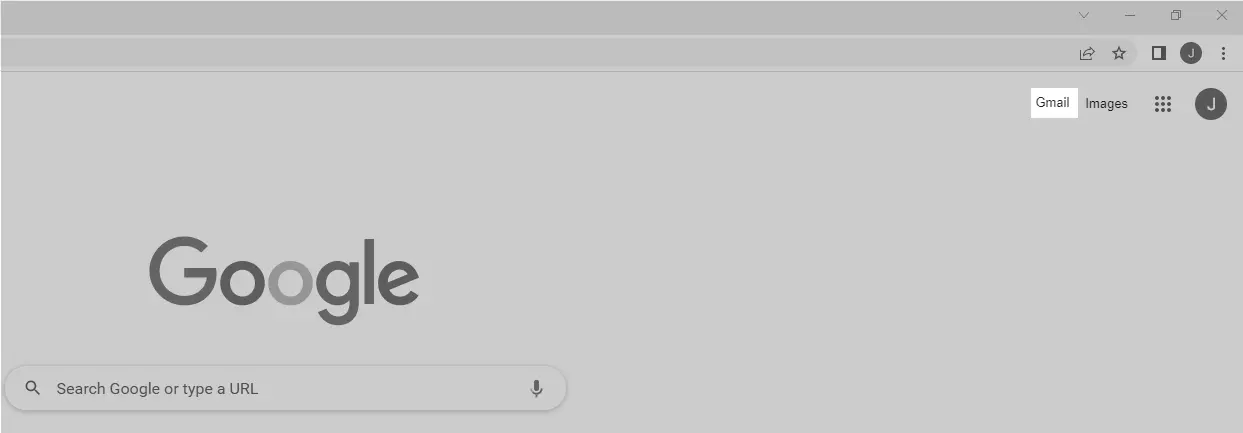
Gmail sign-in page for account login -
Click on the three dots in the top-right corner.
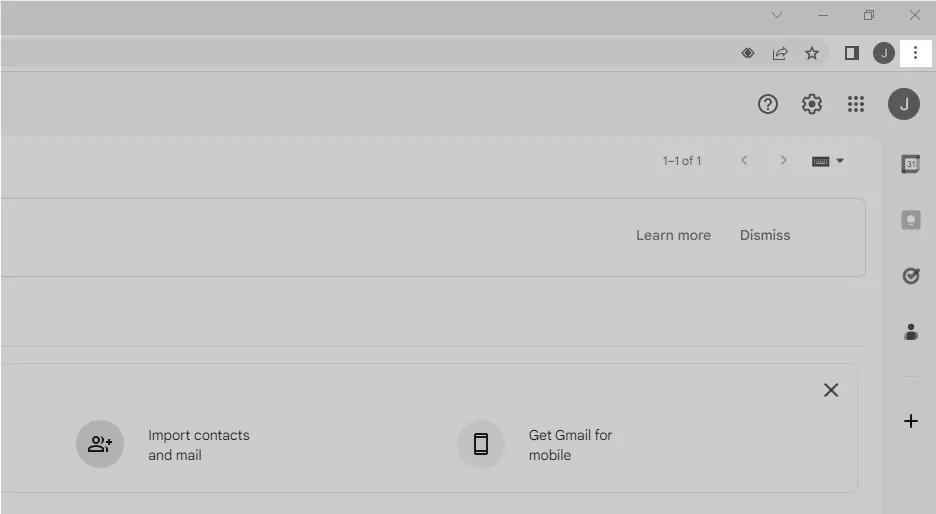
Google Chrome menu with three dots highlighted -
Choose More Tools ' Create shortcut from the dropdown menu.
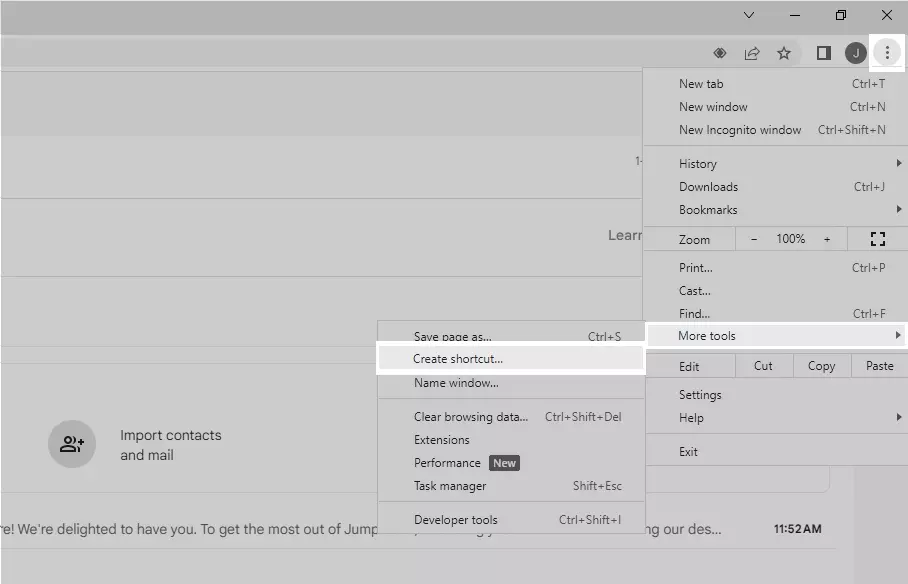
Dropdown menu showing More Tools and Create shortcut option -
In the Create shortcut dialog, type 'Gmail' as the name, check the 'Open as window' option, and click 'Create.'
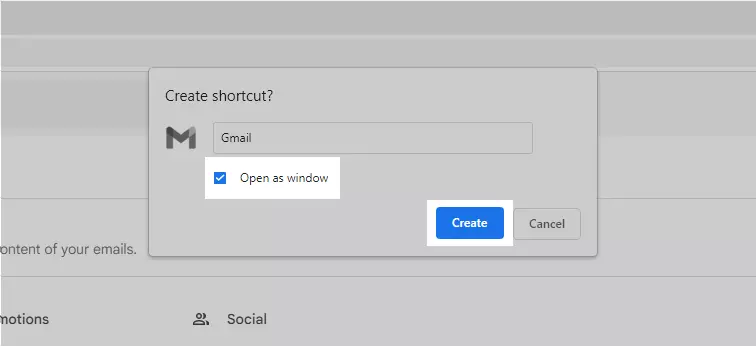
Create shortcut dialog with Gmail name and Open as window option - A Gmail icon will appear on your desktop (representing a Progressive Web App), which opens the Gmail web version in an app-like interface.
Congratulations! You have installed the Gmail app for Windows 10 using Google Chrome.
Install the Gmail App for Windows using Microsoft Edge
To install the Gmail app on Windows using the Microsoft Edge browser, follow these steps:
- Open Microsoft Edge and visit Gmail.com.
-
Click on the three dots in the top-right corner.
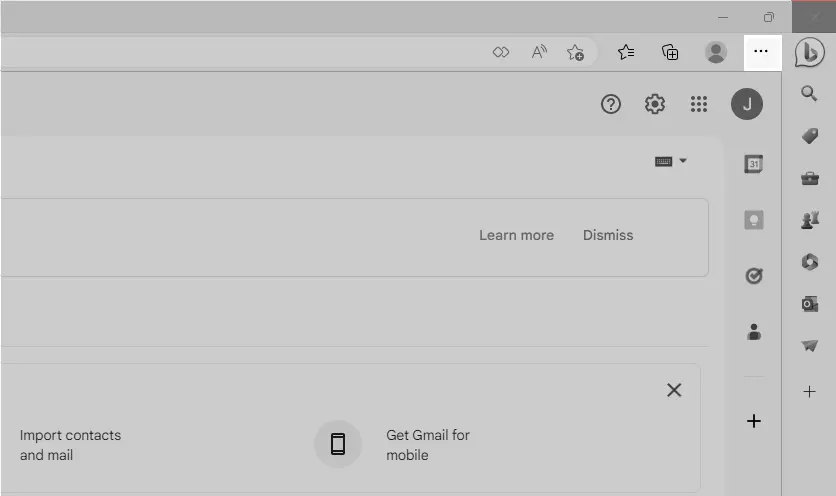
Microsoft Edge menu with three dots highlighted -
Select Apps ' Install this site as an app from the dropdown menu.
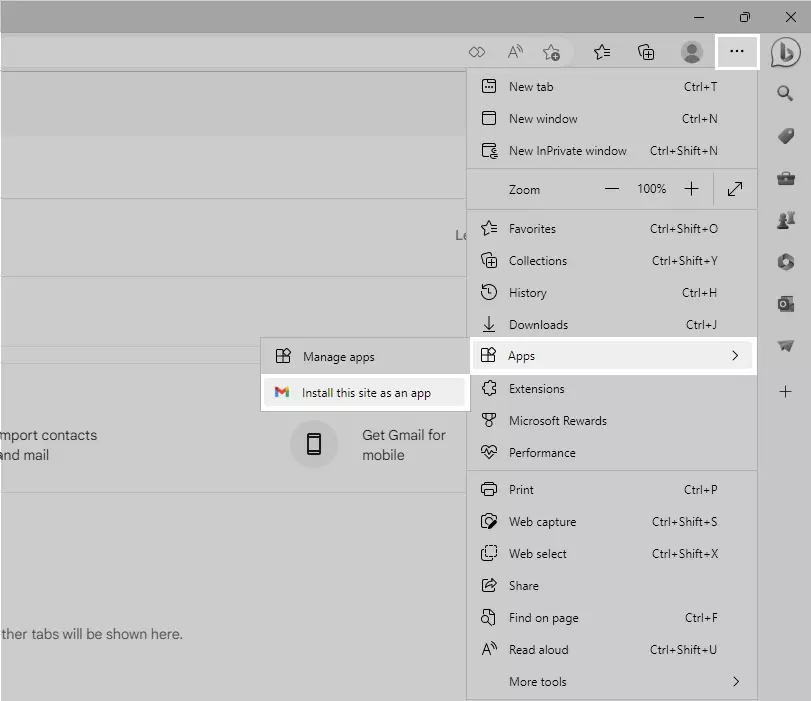
Apps dropdown showing Install this site as an app option -
In the Install app dialog, enter 'Gmail' as the app name and click the Install button.

Install app dialog with Gmail name field - A Gmail Progressive Web App will appear on your Windows desktop, which you can use as an app.
How to Uninstall the Gmail App from Windows?
Uninstalling the Gmail app from your Windows PC is simple. Follow these steps:
-
Click the Windows Search button and type 'Control Panel.' Open the Control Panel app from the list of results.
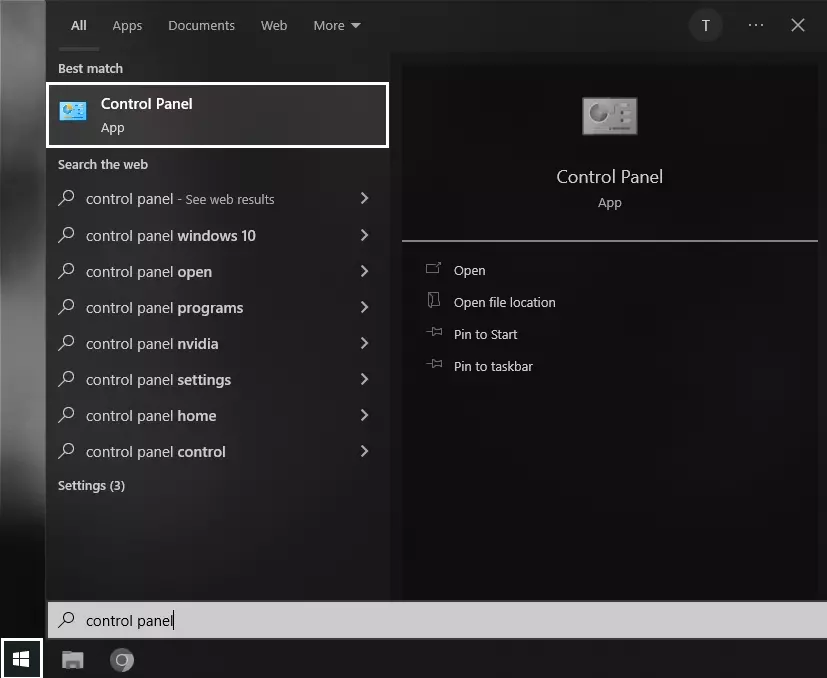
Windows Control Panel search in progress -
In the Control Panel, click on Programs and Features.
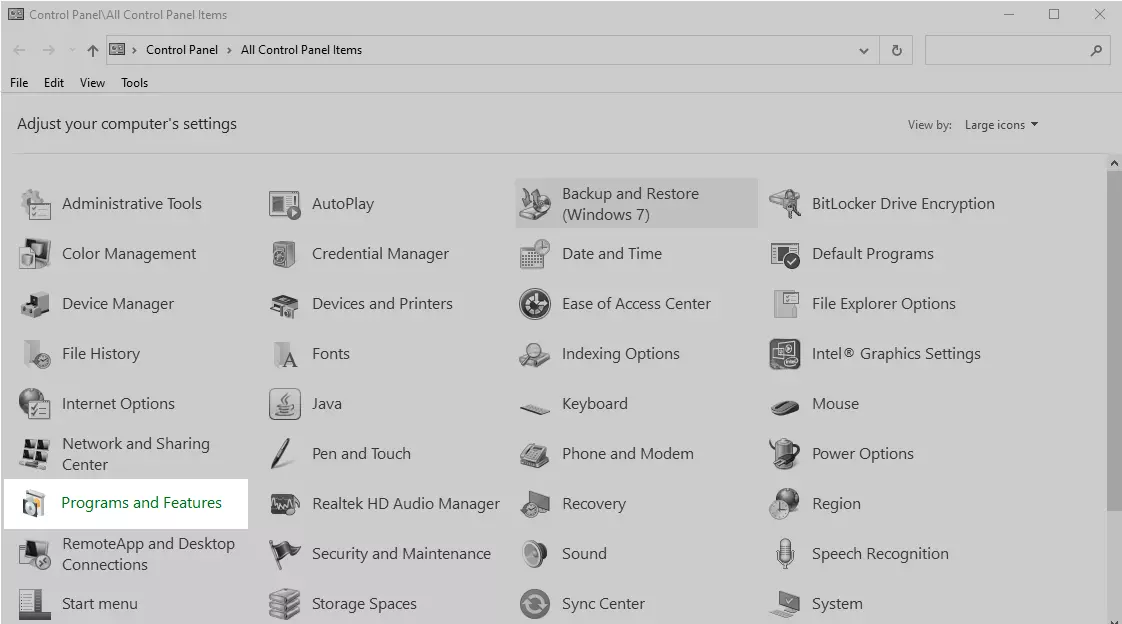
Control Panel Programs and Features option -
Locate the Gmail app, right-click on it, and select 'Uninstall.'
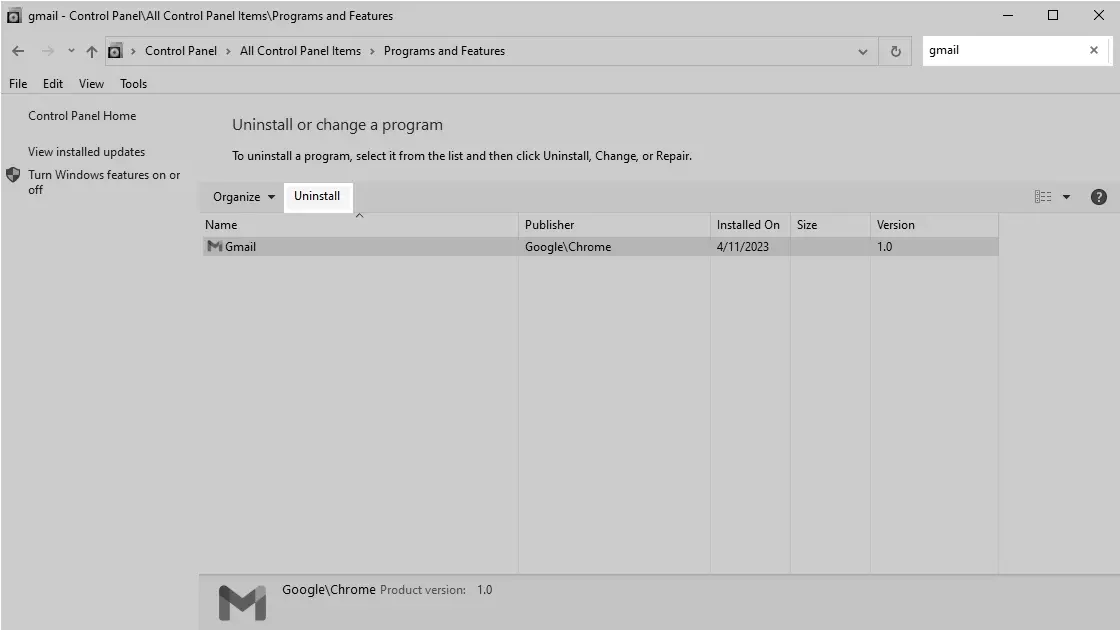
Uninstall Gmail app option in Control Panel
You can also uninstall the Gmail app directly from Windows Search by searching for Gmail, right-clicking on the app, and selecting 'Uninstall.'
By following the steps above, you can quickly install the best Gmail app for Windows 10 or later and enjoy the convenience of using Gmail without opening your browser. With Progressive Web Apps, you can simply double-click on the desktop icon to access the Gmail web version directly.
Alternative Solutions: Windows Mail App and Third-Party Clients
If you're looking for other ways to manage your Gmail on Windows, consider linking your Gmail account to the built-in Windows Mail app. To do so, follow these steps:
- Open the Mail app on your Windows PC.
-
Click on the Settings icon (gear icon) in the bottom-left corner.
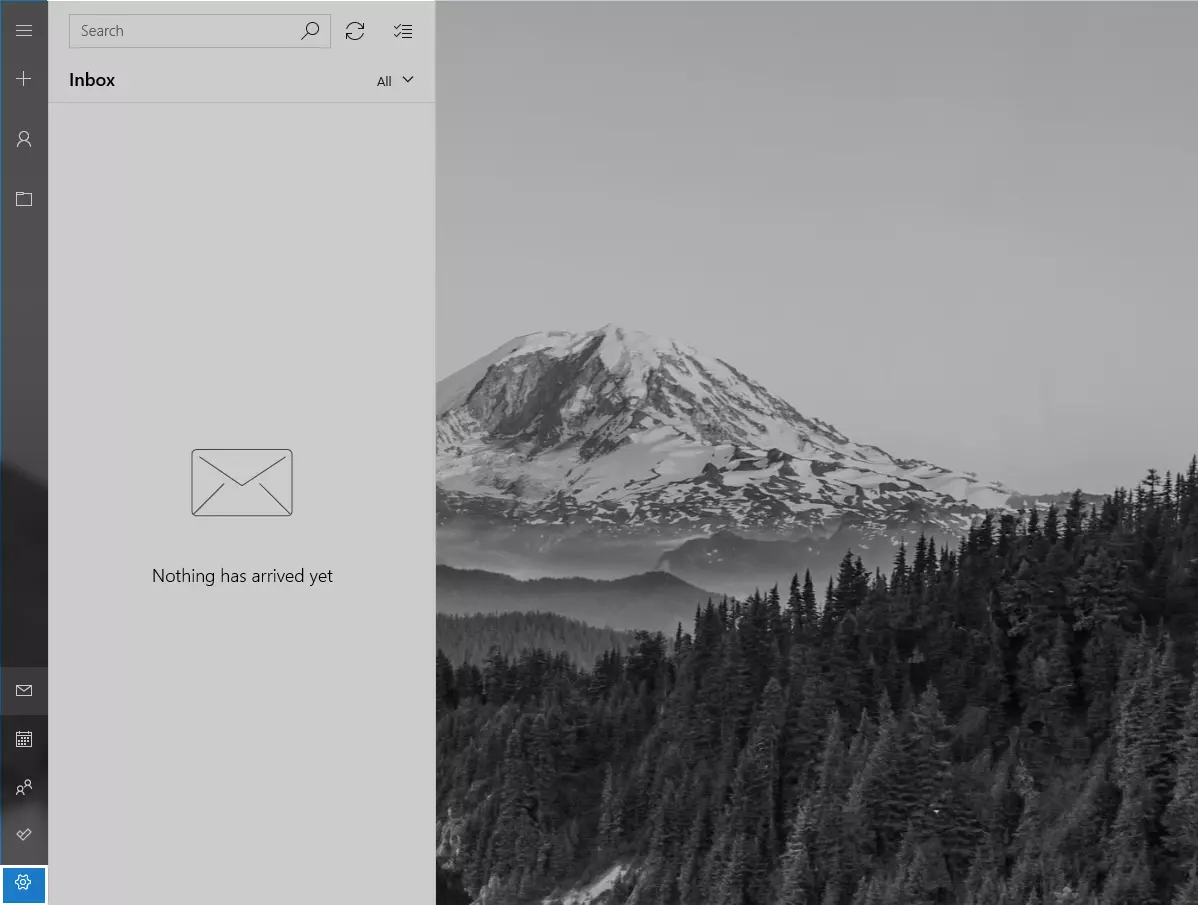
Settings icon highlighted in bottom-left corner -
Choose Manage Accounts ' Add Account.
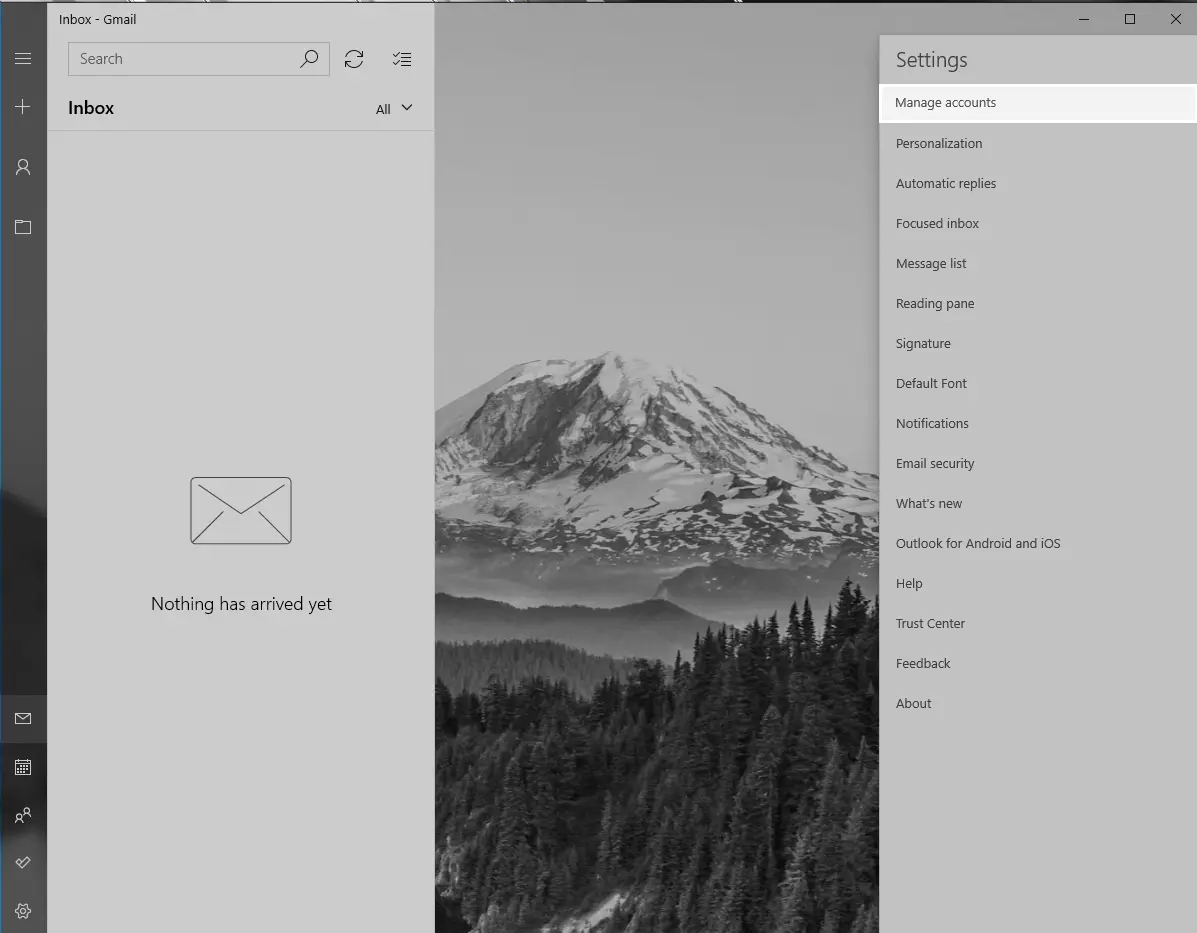
Manage Accounts and Add Account options highlighted 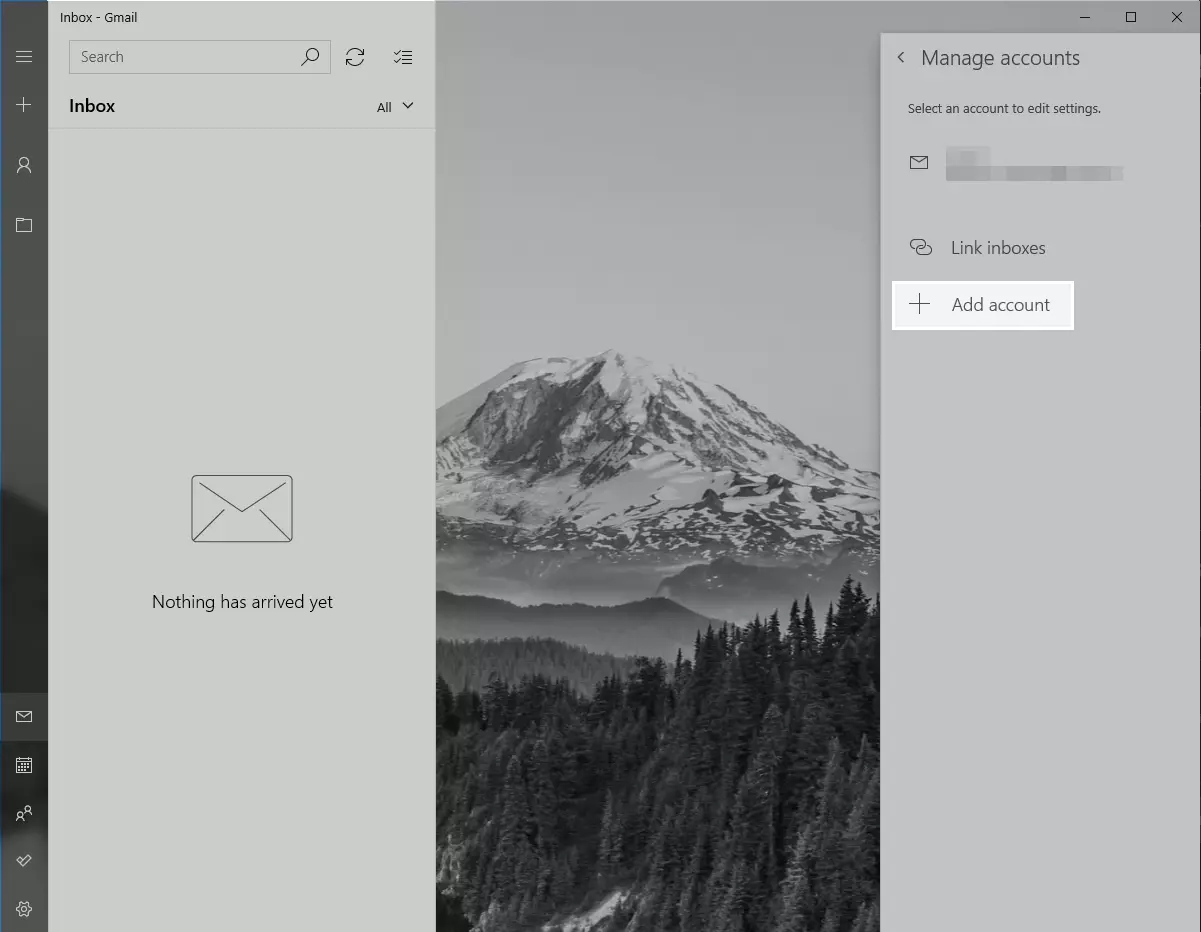
Add Account option in settings -
Select Google from the list of account types.
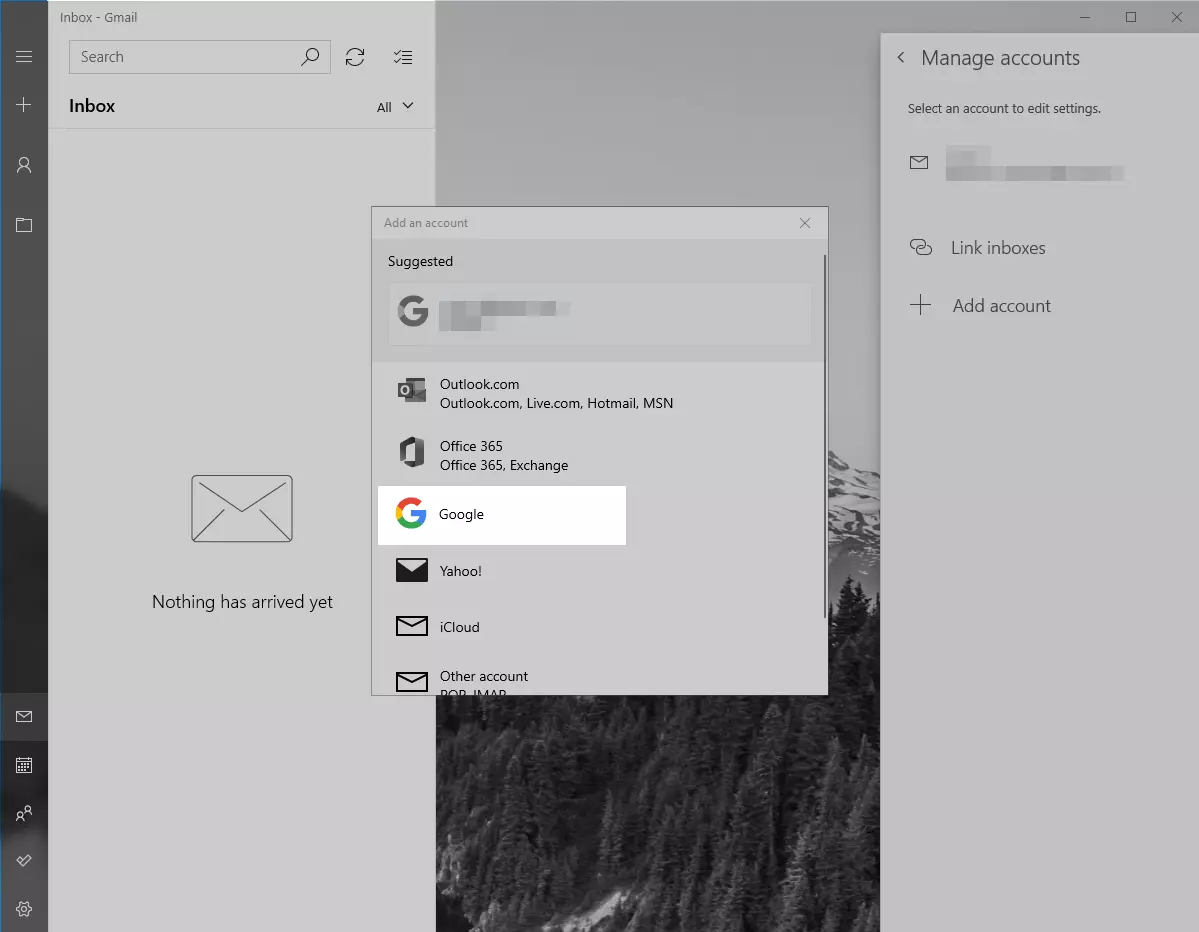
Select Google account type for adding - Follow the on-screen instructions to add your Gmail account to the Mail app.
Besides the Windows Mail app, several third-party email clients support Gmail. Mailbird stands out as the best Gmail client for Windows, offering a sleek design, customizable options, and seamless app integrations.
To get started with Mailbird.
- Download and install Mailbird by clicking the link.
-
Launch Mailbird, click 'Add Account,' and input your Gmail details.
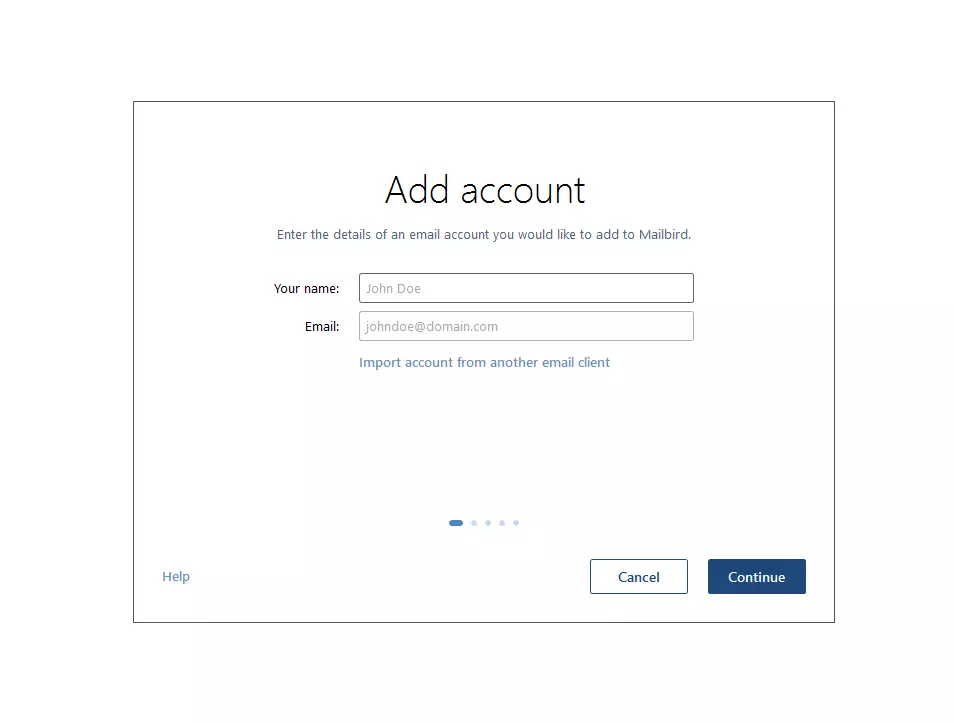
Mailbird setup with Add Account for Gmail - Follow the on-screen instructions to set up your Gmail account.
With user-friendly features like the Unified Inbox and streamlined Customization, Mailbird allows you to easily manage multiple email accounts and personalize your inbox with themes and layouts. Enhance your productivity with App Integrations, Snooze, and Speed Reader, by connecting popular apps to optimize how you handle emails.
Conclusion
While there is no official Gmail app for Windows, the workarounds we mentioned above, like Progressive Web Apps and third-party clients, offer a convenient way to access your Gmail account on your Windows PC. Whether you favor Google Chrome, Microsoft Edge, or an alternative solution like Mailbird, you can now effectively manage your Gmail on Windows while enjoying a premium workflow and productivity experience.
Your Gmail on Windows FAQ
Now, as we conclude this blog, explore the quick answers to frequently asked questions about using Gmail on Windows, curated from popular user queries and online discussions.
Can I use Gmail offline on Windows?
Yes, enable the "Offline" feature in Gmail's settings using Google Chrome. This lets you access Gmail without an internet connection.
How do I set up multiple Gmail accounts on Windows Mail or third-party email clients?
For Windows Mail, repeat the process of adding a new account for each Gmail account. For third-party clients like Mailbird, click "Add Account" and input Gmail details for each account.
Can I customize the Gmail app's appearance and notifications on Windows?
Yes, customize the appearance in Gmail settings under the "General" tab. For notifications, navigate to the "Notifications" tab and choose your desired settings.


