Email Management for Lawyers: Keeping Client Communication Organized
Set up a clean, lawyer-friendly system in about 45 minutes: one place to read every client inbox, a matter folder structure you can reuse, and a daily attorney email workflow that makes "needs reply" obvious.



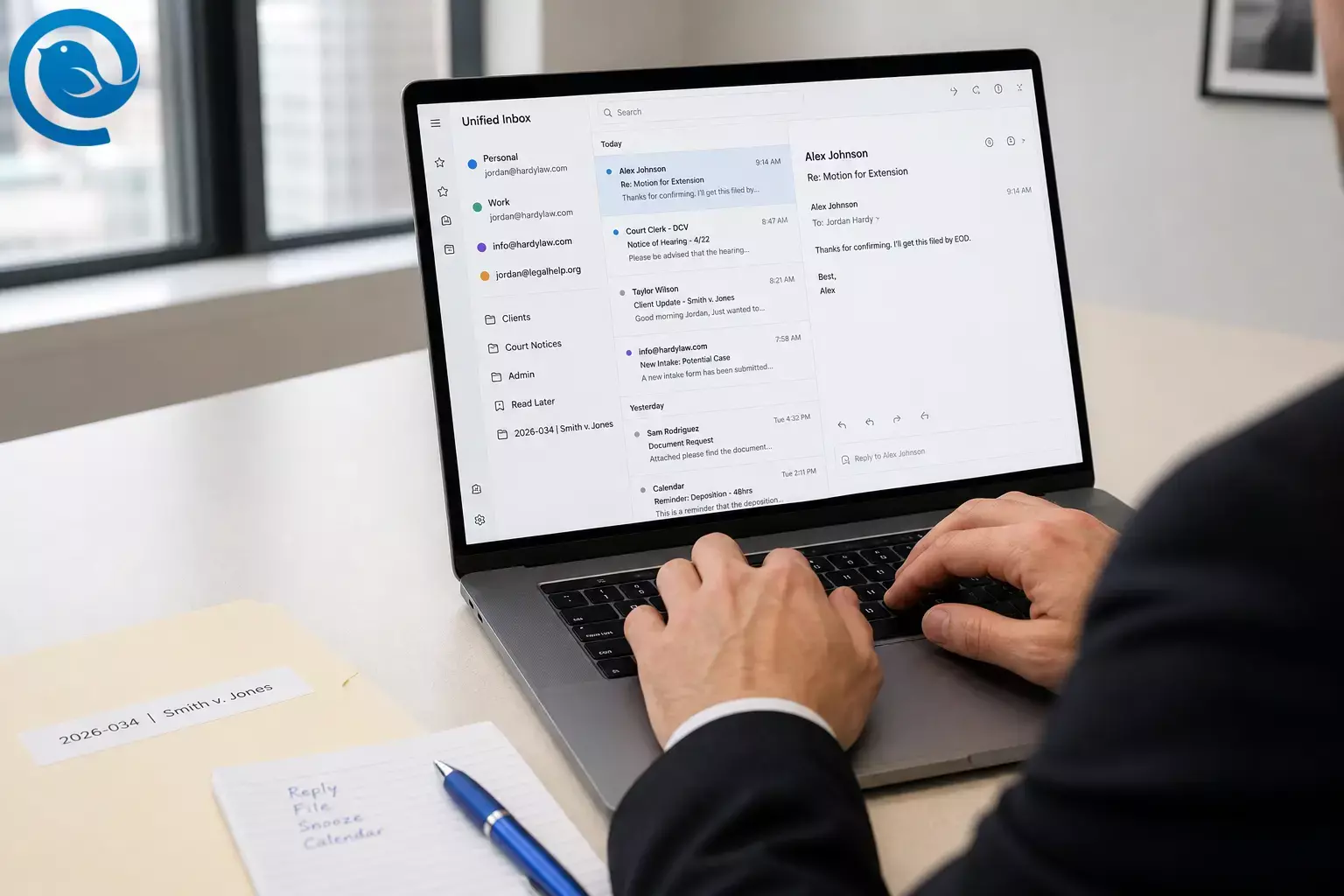
Set up a clean, lawyer-friendly system in about 45 minutes : one place to read every client inbox, a matter folder structure you can reuse, and a daily attorney email workflow that makes “needs reply” obvious. Difficulty: easy (mostly Settings clicks). You’ll build it in Mailbird, a desktop email client that can manage multiple email accounts in one app—useful for real-world law firm email management where client, court, intake, and admin messages shouldn’t live in separate browser tabs.
What’s new
On , the FBI released its 2025 Internet Crime Report—and it lists Business Email Compromise (BEC) losses at $3,046,598,558 in the U.S. for 2025. The practical takeaway: your email setup should make money requests, “urgent” account changes, and client-identity details easy to spot and double-check before you act. [1] [2]
What you’ll set up
- Unified Inbox so every important mailbox is in one reading queue
- Matter-based folders (with consistent naming) to support legal email organization
- Filters for predictable high-volume mail (like court notices and intake)
- Snooze + Templates + Send Later + Undo Send to reduce missed follow-ups and rushed mistakes
- Search + export so you can retrieve and save key emails for the matter record
Key takeaways
- You can set up a lawyer-friendly email system in about 45 minutes , and the difficulty is easy (mostly Settings clicks).
- Unified Inbox creates one reading queue for multiple mailboxes.
- A consistent, shallow, matter-based folder structure keeps filing fast and retrieval predictable.
- Use 3–5 filters for predictable high-volume mail—but remember they only run when Mailbird is open and are not server-synced.
- Pick two fixed inbox blocks and triage each message once: reply, file, snooze, or calendar.
- Use Snooze , Templates , Send Later , and Undo Send to reduce missed follow-ups and rushed mistakes.
- Rely on Advanced Search and export key emails as .eml or PDF for the matter record; back up Mailbird data if your firm requires it.
Before you start
- Prerequisites: You can sign in to every mailbox you plan to use (password/SSO + any multi-factor authentication) and you have your current matter list (even a simple spreadsheet is fine).
- Tools: Mailbird installed on your work computer; a notes app; optional: a password manager and your firm’s document storage open in a separate window.
- Time: 45 minutes for 2–4 inboxes. Add ~5 minutes for each extra inbox or if you’re building folders for lots of active matters.
- Cost: Mailbird’s pricing page lists the current plans. [3]
- Safety notes (confidentiality): Lawyers have an ethical duty to make “reasonable efforts” to prevent unauthorized access to client information. Treat email organization as part of your confidentiality controls: use strong passwords/MFA, verify wire instructions using a second channel, and follow your firm’s rules for storing/forwarding client data. [4]
Step-by-step method (do this now)
Email Management for Lawyers: Keeping Client Communication Organized
-
Write a 1-page “inbox map” (10 minutes)
- Make two lists: Accounts and Matters .
- Under Accounts , list each address you touch (client communications, court notices, intake, billing, personal).
- Mark each account: Read+Send , Read-only , or Exclude from daily view (newsletters and vendor noise).
- Under Matters , list every active matter number/name you need to find quickly.
Check: You can point to each inbox and say “this is why it exists” in one sentence.
-
Add your email accounts to Mailbird (10–20 minutes)
- Add your first account and confirm you can send and receive .
- Add the rest of the accounts from your inbox map.
- If you manage more than one address, verify your plan supports multiple accounts (Mailbird’s Free plan is listed as 1 account ; paid plans list unlimited accounts ). [3]
- Send yourself a test message from each account with a subject like: “TEST – [Account Name]” .
Check: You can send a test email from each account and it arrives (and replies) correctly.
-
Turn on Unified Inbox and make it your default view (2 minutes)
- Open Mailbird menu (☰) → Settings → Accounts .
- Enable Unified Inbox (Mailbird calls this enabling a unified account). [5]
- Set Mailbird to open to Unified Inbox on startup.
Check: You can see at least two accounts feeding into one inbox view, and replies send from the correct address.
If you don’t see Unified Inbox, you likely have only one account connected.
-
Assign a color to each account (3 minutes)
- Mailbird menu (☰) → Settings → Accounts .
- Click the color indicator next to each account and pick a distinct color (e.g., client = blue, court = red, admin = gray). [6]
Check: In Unified Inbox, you can tell which account a message belongs to without opening it.
-
Set up identities + signatures to prevent “wrong from-address” mistakes (8 minutes)
- Mailbird menu (☰) → Settings → Identities .
- Open each identity and add a signature that starts with the role, such as: “— Alex Rivera | Litigation” or “— Alex Rivera | Intake” . [7]
- Add your firm’s standard confidentiality/footer language (use your firm’s approved text).
- If you need different signatures for one mailbox, Mailbird doesn’t support multiple signatures per account; the suggested workaround is creating multiple identities and giving each a signature. [8]
Check: When you compose from each account/identity, the signature makes the role obvious before you hit Send.
-
Create a matter folder structure (and sync it) (10–15 minutes)
- Mailbird menu (☰) → Settings → Folders . [9]
- Create these top-level folders (per account): Clients , Court Notices , Admin , Read Later .
- Under Clients , create one folder per active matter using a consistent naming format, such as: “2026-034 | Smith v. Jones” .
- If you need subfolders, keep it shallow: e.g., 01-Action , 02-Filed , 03-Discovery .
- Click Sync with server so your folder changes apply and save.
- Pick one fast filing method you’ll actually use: drag-and-drop to the matter folder, or use the Move to folder action.
Check: You can file any email into the correct matter folder in under 5 seconds.
-
Create 3–5 rules to auto-sort high-volume email (10 minutes)
- Mailbird menu (☰) → Settings → Filters . [10]
-
Create one rule per “always the same” category, such as:
- Court notices → move to Court Notices
- Intake/website inquiries → move to Admin or a dedicated Intake folder
- Vendors/newsletters → move to Read Later (or delete)
- Use Save and Run to apply the rule to existing emails.
- Important limitation: Mailbird’s filters are not synced with your email server and only run when new emails arrive while Mailbird is open. [10]
Check: A test email that matches the rule lands in the right folder while Mailbird is running.
-
Set your daily attorney email workflow (5 minutes to set up)
- Pick two fixed inbox blocks (example: 9:30 AM and 4:00 PM) and decide what counts as “call/text me.”
-
During each block, touch every message once and do exactly one action:
- Reply (if it truly takes <2 minutes)
- File to the matter folder
- Snooze if you’re waiting on someone
- Calendar it if it has a real deadline (block time immediately)
- If clients expect instant replies, add a line to your signature about response windows (use firm-approved language).
Check: After your inbox block, there are no “mystery emails” left—every remaining message has a next step.
-
Use Snooze for follow-ups and waiting periods (5 minutes)
- Right-click a message → Snooze → pick a date/time that matches your follow-up policy (example: 2 business days). [11]
- When you send a request for documents, snooze your sent message so it resurfaces when you need to nudge.
Check: The message disappears now and reappears when you scheduled it.
-
Create 5 reusable email templates (10 minutes)
- Draft a message you send often (in Compose or Quick Reply).
- Click the Email Templates icon → Save draft as template → name it (e.g., “Docs request – initial”). [12]
- Use placeholders like [Client First Name] , [Matter #] , [Due date] .
- Keep templates short. Use one clear request per paragraph.
- Reminder: recipients (To/CC/BCC) are not saved inside templates. [12]
Check: You can insert a template, fill 3 placeholders, and send in under 60 seconds.
-
Schedule non-urgent email with Send Later (3 minutes)
- In a Compose/Reply window, click the clock icon next to Send . [13]
- Pick a time like Tomorrow morning (or choose a specific date/time).
- Schedule only for a time when your computer will be on and Mailbird will be running. [13]
Check: A scheduled email sends at the planned time while Mailbird is open and connected.
-
Turn on Undo Send (2 minutes)
- Mailbird menu (☰) → Settings → Composing . [14]
- Set Undo send period to 10–20 seconds.
- Send yourself a test email and click Undo on the pop-up. [14]
Check: You can stop a message during the undo window, and it saves to Drafts instead of being delivered.
-
Make emails easy to retrieve and file for the matter record (10 minutes)
-
Practice searches you’ll actually use (and keep them consistent with your matter folder names):
[15]
-
has:attachment(find messages with files attached) -
from:"Client Name" subject:invoice(find billing threads) -
filename:pdf in:"2026-034 | Smith v. Jones"(find PDFs inside one matter folder)
-
-
When an email must live in the case file, save it using your firm’s approved method:
- .EML: open the email → three dots (⋮) → Message source → save the file [16]
- PDF: open the email → Print → Print to PDF
- If your firm requires local backup (or you’re moving devices), back up Mailbird data on Windows: quit Mailbird completely, then copy the Mailbird data folder from your user’s AppData\Local path to a secure location. [17]
Check: You can locate a message + attachment from a specific matter in under 30 seconds, and you can export it to a file format your firm accepts.
-
Practice searches you’ll actually use (and keep them consistent with your matter folder names):
[15]
Why this works
- One reading queue: Unified Inbox reduces switching and makes it harder for a critical message to hide in a “secondary” mailbox.
- Fewer decisions per email: rules pre-sort the predictable stuff, and your daily triage has only four outcomes (reply, file, snooze, calendar).
- Guardrails for high-risk moments: identity-aware signatures, Send Later, and Undo Send reduce “wrong sender” and “sent too fast” mistakes.
Troubleshooting
| Symptom | Likely cause | Fix |
|---|---|---|
| Unified Inbox doesn’t appear | Only one account is connected, or the unified account option is off | Add a second account, then enable Unified Inbox in Settings → Accounts. Set it as the default view on startup. [5] |
| Replies sometimes go out from the wrong address | You’re composing from the wrong identity (especially when switching fast) | Make each signature begin with the role (“Litigation,” “Intake,” etc.). Before sending, check the “From” field and confirm it matches the account you intended. [7] [8] |
| Rules/filters don’t move anything | Mailbird wasn’t running when messages arrived, or the rule is attached to the wrong account | Keep Mailbird open during your email blocks. Confirm the filter is created under the correct account and re-test with a fresh email that matches the rule. [10] |
| Send Later didn’t send at the scheduled time | Mailbird was closed, the computer was asleep, or there was no internet connection | Schedule for a time you know the device will be on and connected. If you’re unsure, send immediately or schedule from a device you’ll keep online. [13] |
| Snoozed email “vanished” and you can’t find it | It’s snoozed (working as designed), but you forgot the return time | Open your Snoozed view/list, check when it’s set to return, and unsnooze if you need to act sooner. [11] |
| You can’t find a message you know exists | You’re searching too broadly (or you’re not using attachment/filename queries) | Use Advanced Search operators like from: , subject: , has:attachment , and filename: . Narrow to the matter folder before searching. [15] |
| Folder structure is taking forever to maintain | Too many subfolders and “perfect filing” expectations | Reduce to 0–3 subfolders per matter (or use one matter folder only). Use search for everything else. |
| Critical court notices are “organized” but still get missed | They’re being moved automatically, but you never review the folder | Add a 60-second “Court Notices scan” to your inbox blocks. If a notice includes a real deadline, calendar it immediately. |
Unified Inbox doesn’t appear
Likely cause: Only one account is connected, or the unified account option is off
Fix: Add a second account, then enable Unified Inbox in Settings → Accounts. Set it as the default view on startup. [5]
Replies sometimes go out from the wrong address
Likely cause: You’re composing from the wrong identity (especially when switching fast)
Fix: Make each signature begin with the role (“Litigation,” “Intake,” etc.). Before sending, check the “From” field and confirm it matches the account you intended. [7] [8]
Rules/filters don’t move anything
Likely cause: Mailbird wasn’t running when messages arrived, or the rule is attached to the wrong account
Fix: Keep Mailbird open during your email blocks. Confirm the filter is created under the correct account and re-test with a fresh email that matches the rule. [10]
Send Later didn’t send at the scheduled time
Likely cause: Mailbird was closed, the computer was asleep, or there was no internet connection
Fix: Schedule for a time you know the device will be on and connected. If you’re unsure, send immediately or schedule from a device you’ll keep online. [13]
Snoozed email “vanished” and you can’t find it
Likely cause: It’s snoozed (working as designed), but you forgot the return time
Fix: Open your Snoozed view/list, check when it’s set to return, and unsnooze if you need to act sooner. [11]
You can’t find a message you know exists
Likely cause: You’re searching too broadly (or you’re not using attachment/filename queries)
Fix: Use Advanced Search operators like from: , subject: , has:attachment , and filename: . Narrow to the matter folder before searching. [15]
Folder structure is taking forever to maintain
Likely cause: Too many subfolders and “perfect filing” expectations
Fix: Reduce to 0–3 subfolders per matter (or use one matter folder only). Use search for everything else.
Critical court notices are “organized” but still get missed
Likely cause: They’re being moved automatically, but you never review the folder
Fix: Add a 60-second “Court Notices scan” to your inbox blocks. If a notice includes a real deadline, calendar it immediately.
Variations
- Solo lawyer (one mailbox): Skip Unified Inbox. Use one Clients folder with one subfolder per matter, plus Court Notices and Read Later . Lean heavily on Advanced Search + templates.
- Lawyer + assistant triage: Put the assistant on intake/admin mailboxes. You keep the client/court mailboxes. Use a shared naming format for matter folders so emails can be filed consistently.
- Litigation-heavy practice: Add a dedicated Deadlines folder and a filter that routes potential deadline emails for manual review (you still calendar real deadlines immediately).
- Transactional/deal work: Replace “Matter #” with “Deal name + year,” and create templates for diligence requests, signature page chasers, and closing check-ins.
Make-ahead / storage / scaling
Make-ahead (do once, reuse)
- Template pack: Create 5–10 templates that match your practice (intake, doc request, status update, follow-up, “received and reviewing”). Review quarterly. [12]
- New matter checklist: For every new matter, create the folder + a few subfolders + one “first email to client” template the same day you open the file.
Storage & retention (keep it defensible)
- Save key threads: Export critical client instructions and deadline-related emails to the matter record (.eml or PDF) using your firm’s approved process. [16]
- Keep client data where it belongs: Before you back up, export, or forward, confirm you’re following your firm’s security rules (encryption, approved storage, retention policies). [4]
Scaling to multiple attorneys and many inboxes
- Standardize folder names: Everyone uses the same “Matter # | Client | Short description” naming format.
- Standardize templates: Agree on template names and a short placeholder style (e.g., [Matter #], [Due date]). [12]
- Use account colors consistently: Pick a firm-wide color scheme for account types (court, client, admin) so assistants and attorneys can scan faster. [6]
Frequently Asked Questions
What’s the simplest email organization system that actually works for lawyers?
A shallow matter folder structure (one folder per matter, with 0–3 subfolders) plus a strict triage routine (reply/file/snooze/calendar). If filing takes longer than replying, you’ll stop filing.
Is it OK to email confidential information to clients?
Often yes, but it depends on your jurisdiction and the sensitivity of the information. Use “reasonable efforts” security practices (MFA, careful recipient checks, secure storage) and follow your firm’s policies for highly sensitive materials (secure portals, encryption, redactions when needed).
Source: [4]
Can I manage multiple inboxes in one place with Mailbird?
Do Mailbird rules/filters keep working when the app is closed?
No. If you rely on rules for court notices or intake sorting, keep Mailbird running during your workday—or set a server-side rule at your email provider as a fallback.
Source: [10]
How do I keep track of follow-ups without a separate task app?
Snooze the email to the day/time you plan to follow up. If it’s deadline-driven, block calendar time immediately and include the matter number in the calendar event title.
Source: [11]
How do I schedule an email to send tomorrow morning?
Use Send Later in the compose window and pick a preset time (like “Tomorrow morning”) or choose a date/time. Keep Mailbird open and connected around that time.
Source: [13]
What’s the fastest way to find “that one attachment” from last year?
Search with has:attachment and filename: (e.g., filename:pdf or filename:Smith). Narrow to the matter folder first if you can.
Source: [15]
How do I save an email thread for the case file?
Save the message as an .eml file (Message source) or print it to PDF, then store it in your firm’s approved matter repository.
Source: [16]
Quick checklist (screenshot this)
- List every inbox you touch (and which ones belong in your daily view)
- Add accounts to Mailbird; send/receive a test email from each
- Enable Unified Inbox; set it to open on startup
- Assign a distinct color to each account
- Set identities + signatures so the role/account is obvious
- Create matter folders under Clients; click “Sync with server”
- Create 3–5 filters (court notices, intake, newsletters, vendors)
- Pick two daily inbox blocks; use reply/file/snooze/calendar rules
- Snooze follow-ups to the day/time you’ll actually act
- Save 5 email templates you’ll use this week
- Use Send Later for non-urgent messages (and keep Mailbird running)
- Turn on Undo Send (10–20 seconds) and test it once
- Practice searches: has:attachment, filename:, and in:[Matter folder]
Disclosure
This is general information, not legal advice. Your firm’s policies and your jurisdiction’s ethics rules may require additional steps.
Sources
- FBI press release (Apr 6, 2026): “Cryptocurrency and AI Scams Bilk Americans of Billions” (includes link to 2025 Internet Crime Report) — https://www.fbi.gov/news/press-releases/cryptocurrency-and-ai-scams-bilk-americans-of-billions
- FBI IC3 — 2025 IC3 Annual Report (PDF) — https://www.ic3.gov/AnnualReport/Reports/2025_IC3Report.pdf
- Mailbird — Pricing (Free vs Premium plan details) — https://www.getmailbird.com/pricing/
- American Bar Association — Model Rule 1.6: Confidentiality of Information — https://www.americanbar.org/groups/professional_responsibility/publications/model_rules_of_professional_conduct/rule_1_6_confidentiality_of_information/
- Mailbird Help Center — Unified Inbox — https://support.getmailbird.com/hc/en-us/articles/220108147-Unified-Inbox
- Mailbird Help Center — Unified Inbox Color Indicator — https://support.getmailbird.com/hc/en-us/articles/360004002594-Unified-Inbox-Color-Indicator
- Mailbird Help Center — Create a Signature — https://support.getmailbird.com/hc/en-us/articles/220107567-Create-a-Signature
- Mailbird Help Center — Can I have multiple signatures for one email account? — https://support.getmailbird.com/hc/en-us/articles/14984470643095-Can-I-have-multiple-signatures-for-one-email-account
- Mailbird Help Center — How to organize folders from within Mailbird? — https://support.getmailbird.com/hc/en-us/articles/220107107-How-to-organize-folders-from-within-Mailbird
- Mailbird Help Center — Setting up Filters and Rules — https://support.getmailbird.com/hc/en-us/articles/360037803653-Setting-up-Filters-and-Rules
- Mailbird Help Center — Managing your inbox with Snooze — https://support.getmailbird.com/hc/en-us/articles/220108067-Managing-your-inbox-with-Snooze
- Mailbird Help Center — Email Templates — https://support.getmailbird.com/hc/en-us/articles/18877966333591-Email-Templates
- Mailbird Help Center — Send Later — https://support.getmailbird.com/hc/en-us/articles/360048362633-Send-Later
- Mailbird Help Center — Undo send feature in Mailbird — https://support.getmailbird.com/hc/en-us/articles/115010544487-Undo-send-feature-in-Mailbird
- Mailbird Help Center — Advanced Search queries and UI — https://support.getmailbird.com/hc/en-us/articles/360042425014-Advanced-Search-queries-and-UI
- Mailbird Help Center — Can I download an email as a file in Mailbird? — https://support.getmailbird.com/hc/en-us/articles/360005793054-Can-I-download-an-email-as-a-file-in-Mailbird
- Mailbird Help Center — How to backup your email data — https://support.getmailbird.com/hc/en-us/articles/115003544187-How-to-backup-your-email-data


