When Is It Safe to Open an Unexpected Email Attachment?
An unexpected email attachment is safe to open only after you verify the real sender outside the message, confirm that the file type fits the situation, see no warning from your mail provider or device, and refuse any request to scan a QR code, enable macros, or bypass protection.



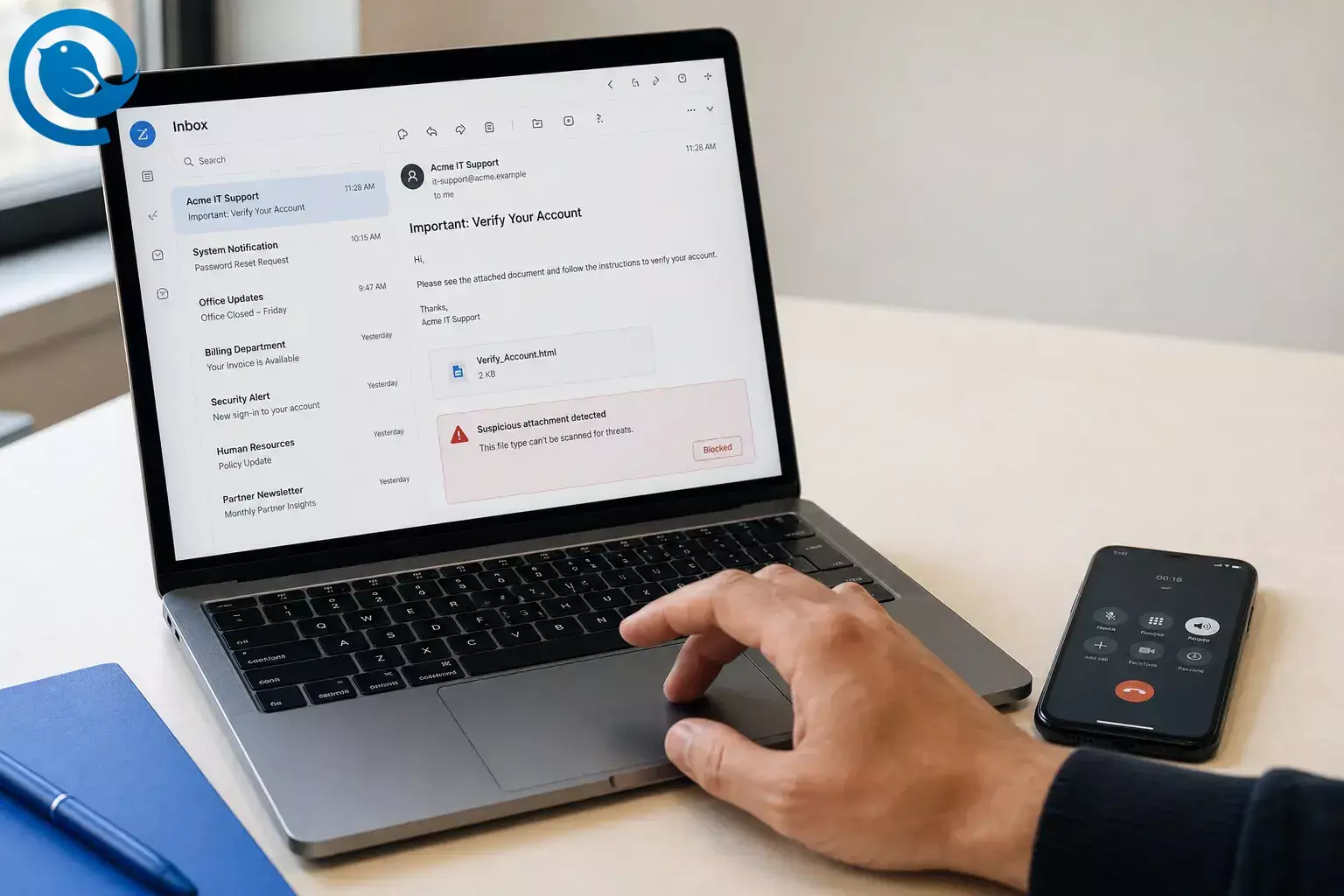
An unexpected email attachment is safe to open only after you verify the real sender outside the message, confirm that the file type fits the situation, see no warning from your mail provider or device, and refuse any request to scan a QR code, enable macros, or bypass protection. [1] [2] [5] [8] [11]
You can usually make that call quickly with the tools already built into your email account, Windows PC, or Mac. The safe default is still “not yet,” not “probably fine.”
What’s new
On , the FBI warned that Kimsuky phishing campaigns were using QR images in email attachments or embedded graphics to bypass traditional email security controls. In other words, even a file that looks like a harmless image can be the first step in an account-takeover attempt. [1]
TL;DR
- Verify the real sender outside the email.
- Confirm the file type makes sense.
- Check for provider or device warnings.
- Refuse QR, macro, or bypass prompts.
- Save first. Scan on Windows or check the file type on Mac.
- If still unsure, report it, delete it, and move on.
What can change: blocked file lists, warning banners, and download screens change over time. If your Gmail, Outlook, Windows, or Mac warning looks different from the examples below, trust the warning and check the latest help page before you open anything. [5] [6] [10] [11] [12]
Before you open anything
- What you need: the email message, a way to contact the sender outside that message, and your device’s built-in security tools.
- Works with: Mailbird, Gmail, Outlook, webmail, mobile mail apps, Windows, and Mac.
- Time: usually just a quick check.
- Cost: usually none if you use the tools already on your device.
- Fallback option: if you cannot scan the file yourself, verify the sender first and ask them to resend it as plain text, a standard PDF, or a cloud share from their usual account.
- Safety note: do not double-click the file, scan any QR code in the message, or type a password the email gives you until the sender and file are verified.
If this is a work account, your company’s rule wins. Use the steps below as the default when no stricter rule exists. [1] [2] [5] [8] [11]
How to check an unexpected email attachment safely
How to check an unexpected email attachment safely
-
Freeze the file where it is
Do not double-click the attachment, tap “Open,” scan a QR code inside the message, or enter a password supplied in the email. If the file starts opening automatically, close the app before you click anything inside the document. [1] [3]
-
Ask the three context questions
Ask yourself: was I expecting a file from this person, was I expecting it now, and does this file type make sense for the reason they emailed me? If any answer is “no,” treat the attachment as untrusted until you verify it. [2] [3] [11]
-
Inspect the full sender address and the thread context
Expand the sender name so you can see the full address and reply-to, then compare it with an older legitimate message or the organization’s real website. If you use Mailbird, Attachment Search can take you back to the conversation the file came with, which makes it much easier to spot a message that is out of context. [2] [3] [13]
-
Check the same message in your provider’s webmail view if anything feels off
If you normally read mail in Mailbird or another desktop app and the message looks even slightly odd, open the same email once in your provider’s webmail view. Gmail warns about unverified scripts and encrypted attachments. Outlook.com can show safety bars and trusted-sender indicators. Treat any warning or blocked download as a hard stop. [5] [7] [12]
-
Reveal the real file type before you open the attachment
Make sure you can see the file extension. Reject mismatches such as
invoice.pdf.exeorphoto.jpg.js. Program, script, disk-image, and password-protected archive types are higher risk. Gmail blocks many of them, including.exe,.js,.iso, and documents with malicious macros. [6] -
Save first, then check the file on your device
Download the file without opening it from the message. On Windows, right-click the saved file and choose Scan with Microsoft Defender . On Mac, select the file in Finder and open Get Info , then confirm the Kind matches the document you expected—not an Application, Script, or another executable type. If the type is wrong, delete it. [9] [10] [11]
-
Verify the sender on a different channel
Call, text, or start a brand-new message using contact details you already know are real. Ask a specific question, such as “Did you send me a PDF named invoice-4831 today?” Do not use the phone number, link, or reply address inside the suspicious email. [2] [3] [14]
-
Ask for a safer version if the file still feels odd
If the sender is real but the file still looks unusual, ask them to resend it as plain text in the email body, a normal PDF, or a file share from their usual account. Be extra cautious with password-protected attachments, because encrypted or archived content may not be scanned by your email provider. [5] [6]
-
Open it once, carefully, and never bypass a warning
If the sender verified it and the file type matches, open it after the scan or device check. If Word, Excel, or PowerPoint asks you to Enable Content or Enable Macros , close the file. If a PDF or image asks you to click a link, sign in, or scan a QR code, stop and go to the real website yourself instead. [1] [8] [11]
-
If you already opened it, contain the damage fast
If the file launched something, asked for credentials, or anything about the device suddenly feels wrong, disconnect the device from the network, update your security software, and run a full scan. On Windows, a full scan or Microsoft Defender Offline is intended for times when you think the device may have been exposed to malware. Change any compromised passwords from a clean device, then alert your IT team if this is a work account. [4] [14] [15]
-
Report it and clean up
Mark the message as phishing or spam in your mail service, forward phishing emails to reportphishing@apwg.org , report the attempt to the FTC, and then delete the message. If the file turns out to be legitimate, save it in your normal folder and keep the verified thread for reference. [3] [4] [5]
Why this email attachment check works
Most attachment attacks still need one of three things from you: trust in the wrong sender, permission to run active content, or a login after you open the file. This checklist checks those three points in order, using the same warning systems built into major mail providers, Windows, Mac, and Microsoft 365. That turns a vague “looks okay” decision into a short set of hard stops. [1] [8] [14]
Troubleshooting suspicious attachment warnings
| Symptom | Likely cause | Fix |
|---|---|---|
| The sender “confirms” by email, but the address still looks different | Spoofed address or a compromised mailbox | Call or text a saved number and ask them to resend the file from the address you already know. [2] [14] |
| The attachment is a ZIP or RAR file and wants a password | Encrypted contents may not be scanned | Ask for a secure portal, a cloud share from the sender’s usual account, or a normal PDF instead. [5] [6] |
| Office asks for “Enable Content” or “Enable Macros” | The file contains active content | Close it and ask for a PDF, screenshot, or pasted text. Do not enable macros. [8] [11] |
| Windows says the file came from another computer and might be blocked | Windows marked the download as potentially unsafe | Verify the source, scan the file, and only unblock it if you trust it. [11] |
| Finder shows the file as an Application or Script on a Mac | A program is pretending to be a document | Delete it and ask the sender to resend the real document format. [10] |
| Gmail or Outlook shows a warning bar or blocks the download | The provider sees risk or cannot fully scan the file | Do not force it. Verify the sender and ask for a safer delivery method. [5] [7] [12] |
| You opened it and something odd happened right away | Possible malware execution or credential theft attempt | Disconnect from the network, run a full or offline scan, change passwords from a clean device, and contact IT if it is a work account. [14] [15] |
Common suspicious attachment problems and what to do
The sender “confirms” by email, but the address still looks different
Likely cause: Spoofed address or a compromised mailbox
Fix: Call or text a saved number and ask them to resend the file from the address you already know. [2] [14]
The attachment is a ZIP or RAR file and wants a password
Likely cause: Encrypted contents may not be scanned
Fix: Ask for a secure portal, a cloud share from the sender’s usual account, or a normal PDF instead. [5] [6]
Office asks for “Enable Content” or “Enable Macros”
Likely cause: The file contains active content
Fix: Close it and ask for a PDF, screenshot, or pasted text. Do not enable macros. [8] [11]
Windows says the file came from another computer and might be blocked
Likely cause: Windows marked the download as potentially unsafe
Fix: Verify the source, scan the file, and only unblock it if you trust it. [11]
Finder shows the file as an Application or Script on a Mac
Likely cause: A program is pretending to be a document
Fix: Delete it and ask the sender to resend the real document format. [10]
Common situations
If it claims to be from your bank, payroll service, or a delivery company
Skip the attachment first. Open the official site or app you normally use and look for the alert there instead of entering through the email. [3]
If the file is “just” a picture or PDF with a QR code
Treat it like a link, not a picture. Do not scan it until the sender and purpose are verified outside the message. [1]
If you manage several accounts in Mailbird
Use Mailbird’s Attachment Search to jump back to the original conversation the file came from, and exclude spam attachments while you sort through files. [13]
Set it up once: habits that make unexpected attachments less risky
For your own inbox
- Keep automatic updates on so your operating system, browser, and security software.
- Keep file extensions visible so fake names are easier to spot.
- Save real phone numbers for your bank, payroll provider, top vendors, and frequent contacts.
- After a file is verified, move it out of Downloads into your normal folder structure.
- Keep a backup that is not always connected to your computer.
Updates and separated backups make one bad attachment much less costly. [14] [15]
For a team
- Set one simple rule: nobody opens unexpected attachments until sender verification happens outside email.
- Create one shared path for reporting suspicious messages.
- Ask vendors to use consistent sending addresses and predictable file formats.
- Tell people to report the message even if they are only “pretty sure” it is fake.
A simple team rule catches a large share of ordinary phishing attempts before anyone clicks. [2] [14]
Frequently Asked Questions about unexpected email attachments
How can I tell if an unexpected email attachment is safe?
Is it safer to open the email but not the attachment?
Are PDF email attachments safe?
What if the sender is someone I know?
What if the attachment is password-protected?
Should I open it on my phone instead of my computer?
No. A phone is not a safety shortcut. Some phishing attacks are specifically designed to move you onto a mobile device with a QR code.
Sources: [1]
What should I do if I already opened it?
Quick email attachment safety checklist
- Stop. Do not open the file, scan a QR code, or type a password from the email.
- Ask: was I expecting this sender, this file, and this timing?
- Expand the full sender address and reply-to.
- If anything feels off, check the same message in your provider’s webmail view for warning bars.
- Reveal the file extension. Reject program or script files and any macro prompt.
- Save first. Scan on Windows or check the file type on Mac.
- Verify on a known phone number, text thread, or new email—not by replying to the suspicious message.
- If still unsure, report it, delete it, and move on.
- If you already opened it, disconnect, scan, change passwords from a clean device, and tell IT if it is work mail.
These are the fastest checks worth memorizing. [2] [3] [5] [8] [11]
Mailbird brings this into one desktop inbox for Windows and Mac, so you can set it up in minutes.
Sources
- FBI — North Korean Kimsuky Actors Leverage Malicious QR Codes in Spearphishing Campaigns Targeting U.S. Entities (Jan. 8, 2026)
- Microsoft Support — Protect yourself from online scams and attacks
- FTC Consumer Alert — Protect yourself from phishing scams
- FTC Consumer Advice — How To Recognize and Avoid Phishing Scams
- Gmail Help — Open & download attachments in Gmail
- Gmail Help — File types blocked in Gmail
- Gmail Help — Anti-virus scanning attachments
- Microsoft Support — Enable or disable macros in Microsoft 365 files
- Microsoft Support — Scan an item with Windows Security
- Apple Support — Safety tips for handling email attachments and content downloaded from the Internet
- Microsoft Support — Information about the Attachment Manager in Microsoft Windows
- Microsoft Support — Help protect your Outlook.com email account
- Mailbird Help Center — Attachment Search
- FTC — Phishing (Cybersecurity for Small Business)
- Microsoft Support — Virus and Threat Protection in the Windows Security App


