Managing Multiple Gmail Accounts: Why a Unified Desktop Client Matters in 2026
Managing multiple Gmail accounts through separate browser tabs creates productivity chaos, with constant switching, missed messages, and mental fatigue. This guide explains how pairing Gmail with a unified desktop email client can transform scattered inboxes into an organized, efficient workflow without changing your existing accounts.




If you're juggling multiple Gmail accounts—personal, work, side business, team inboxes—you already know the daily frustration. Switching between browser tabs, missing important messages buried in the wrong account, and feeling overwhelmed by the sheer volume of email scattered across different inboxes. More than one-third of employees surveyed said email overload might lead them to quit their jobs, highlighting just how serious this problem has become for modern professionals.
The core challenge isn't Gmail itself—Google's email service remains reliable, secure, and feature-rich. The problem is how we access it. When you're managing three, four, or five Gmail accounts through separate browser windows, you're fighting against an interface designed for single-account simplicity, not multi-account orchestration. Every account switch breaks your concentration, every missed message in a secondary inbox damages your responsiveness, and the constant context-switching drains mental energy that should go toward actual work.
This article examines why pairing your Gmail accounts with a unified desktop email client can transform your email workflow from fragmented chaos into organized efficiency. We'll explore the technical architecture that makes this possible, the practical productivity benefits you'll experience, and how modern desktop clients like Mailbird address the specific pain points that Gmail's web interface cannot solve alone.
Understanding the Email Service vs. Email Client Distinction
Before diving into solutions, it's essential to understand a fundamental distinction that shapes how email works: the difference between an email service provider and an email client. This distinction is crucial because it explains why you can improve your Gmail experience without changing your Gmail accounts.
What Email Service Providers Actually Do
As Mozilla Thunderbird's official blog explains, email service providers (ESPs) like Gmail, Yahoo Mail, and Outlook.com are companies that host your mailbox on their servers. They handle the critical infrastructure: storing your messages, filtering spam, maintaining security, and ensuring your email is accessible from anywhere. Google Workspace positions Gmail as the email backbone of its productivity suite, integrating it with Drive, Calendar, Meet, and other collaboration tools.
When you use Gmail, Google maintains responsibility for your data storage, account security, spam protection, and server uptime. This hosting function is separate from how you interact with that data. Google's developer documentation confirms that Gmail supports standard protocols like IMAP and SMTP, which allow authorized applications to access your mailbox while Google continues managing the underlying infrastructure.
What Email Clients Actually Do
Proton defines an email client as software that sends, receives, and organizes email on your devices—computers, tablets, or smartphones. Clients provide the interface you use to read messages, compose replies, search your inbox, and manage attachments. Critically, email clients don't host your mailbox; they connect to your existing accounts and present them in a unified, often more powerful interface.
This separation means you can choose between different ways to access the same Gmail account. You might use Gmail's web interface in a browser, Gmail's mobile app, Apple Mail, Microsoft Outlook, or a specialized desktop client like Mailbird. Each option connects to the same mailbox hosted by Google, but offers different features, interface designs, and workflow capabilities.
As Mailbird's comparison guide clarifies, "Gmail hosts your mailbox" while "Mailbird organizes multiple inboxes into a unified desktop workspace." This distinction is fundamental: you're not replacing Gmail when you add a desktop client; you're enhancing how you interact with your existing Gmail accounts.
The Real Cost of Multi-Account Email Management
Understanding why unified desktop clients matter requires acknowledging the specific challenges that emerge when managing multiple Gmail accounts—challenges that Gmail's web interface wasn't designed to solve.
Fragmentation and Cognitive Switching Costs
Every time you switch between Gmail accounts in your browser, you're not just clicking a different tab—you're forcing your brain to rebuild context. Which account am I in? Did I check the support inbox today? Was that customer email in my personal account or the business one? This constant mental overhead accumulates throughout the day, draining cognitive resources that should be focused on actual work.
Thunderbird's analysis notes that email clients excel specifically in scenarios where users must manage multiple accounts, calendars, and tasks in one place. The browser-based approach forces you to treat each Gmail account as a separate entity, even when your work requires coordinating across them. You might need to forward a message from your personal account to your work account, or search for a customer conversation that could be in any of three different inboxes.
Browser Distractions and Attention Competition
When you access Gmail through a web browser, your email competes for attention with every other open tab—social media, news sites, documentation, shopping. Thunderbird emphasizes that dedicated email clients provide "a cleaner, ad-free experience" that makes it easier to focus, precisely because email lives in its own application context rather than swimming in the ocean of browser tabs.
This separation matters more than it might seem. When email is just another browser tab, it's psychologically grouped with all your other web activities—research, entertainment, shopping, social media. A dedicated desktop application creates a mental boundary: "This is my communication workspace, separate from my browsing workspace." That boundary helps you engage with email more deliberately and less reactively.
The Missing Unified Inbox Problem
Perhaps the most glaring limitation of managing multiple Gmail accounts through the web is the absence of a true unified inbox. Each account maintains its own separate inbox, sent folder, and archive. A community discussion about Zoho Mail's lack of unified inbox illustrates how frustrating this limitation becomes: users describe having to configure identical filters and folders for each account separately, and express that a unified inbox is "desperately needed" as a "simple but crucial feature."
Without unified inbox capability, you face several practical problems:
- Redundant organization work: Setting up the same labels, filters, and folders across multiple accounts
- Incomplete searches: Searching for a message requires checking each account individually
- Response delays: Important messages in secondary accounts may go unnoticed for hours or days
- Inconsistent workflows: Different accounts may drift toward different organizational schemes
These aren't minor inconveniences—they represent genuine workflow barriers that affect your responsiveness, organization, and mental bandwidth.
How Unified Desktop Clients Solve Multi-Account Challenges

Desktop email clients designed for multi-account management address these challenges through architectural and interface decisions that Gmail's web platform cannot replicate. Understanding these solutions helps clarify why pairing Gmail with a desktop client represents a strategic workflow improvement rather than just a preference.
True Unified Inbox Architecture
Mailbird's unified inbox feature exemplifies how desktop clients can aggregate multiple Gmail accounts into a single operational view. Rather than maintaining separate inboxes that you check sequentially, a unified inbox presents all incoming messages from all configured accounts in one chronological stream, ordered by delivery time regardless of which account received them.
This goes beyond simple visual aggregation. Unified inbox extends to system folders: your archived messages from all accounts merge into one archive view, sent messages from all accounts appear in one sent folder, and searches span across every configured Gmail account simultaneously. When you need to find an attachment from a customer, you search once across all your accounts rather than checking each inbox individually.
The practical impact is significant. Instead of mentally tracking "Did I check the support@, sales@, and info@ accounts today?", you see all incoming messages in one place. Instead of forwarding messages between your own accounts to consolidate conversations, you access everything from a single interface. The cognitive load of account management drops dramatically because you're working with one unified information space rather than juggling separate contexts.
Offline Access and Local Caching
Gmail's web interface requires an internet connection for full functionality. While Google offers limited offline capabilities through browser extensions, these pale compared to what desktop clients provide. Mailbird's analysis of offline access explains that desktop email clients maintain local caches of your email data, enabling you to read, search, and draft messages even when disconnected, with changes synchronized back to Gmail's servers once connectivity returns.
This capability matters for several practical scenarios:
- Travel and mobility: Working on planes, trains, or in areas with unreliable connectivity
- Network outages: Maintaining access to critical information during internet disruptions
- Performance: Faster searches and navigation through locally cached data
- Bandwidth efficiency: Reduced data transfer when working over cellular connections
Because desktop clients use Gmail's IMAP protocol to synchronize messages, they can intelligently cache your most important emails locally while maintaining consistency with Google's servers. You're not sacrificing Gmail's reliability—you're adding a local layer that extends functionality beyond what pure web access allows.
Integrated Productivity Ecosystem
Modern knowledge work rarely involves email alone. You're coordinating calendars, managing tasks, collaborating through chat platforms, and accessing documents stored in various cloud services. Desktop email clients can integrate these tools into a unified workspace that reduces application switching and maintains context.
Mailbird supports nearly 40 third-party applications that can be accessed directly within its interface, including calendar systems, task managers, messaging platforms, and file storage services. This means you can view your Google Calendar, check Slack messages, and access task lists without leaving your email workspace—all while managing multiple Gmail accounts in a unified inbox.
The productivity impact comes from reduced context switching. Instead of maintaining mental models for separate applications—"My email is in Chrome, my calendar is in another tab, my tasks are in Todoist, my chat is in Slack"—you work within one coherent environment where these tools are spatially organized and immediately accessible. User reviews on G2 consistently praise this integration capability, noting that bringing favorite apps alongside email genuinely improves daily workflow efficiency.
Focused, Distraction-Free Interface Design
Interface design profoundly affects how you engage with email. Gmail's web interface, while functional, must serve billions of users with vastly different needs and preferences. Desktop clients can optimize for specific workflows and user priorities, creating interfaces that support focused, intentional email management rather than reactive checking.
G2 reviewers consistently highlight Mailbird's clean interface and fast performance as key benefits that enhance their email management experience. A well-designed desktop client eliminates visual clutter, removes ads and promotional content, and presents only the information and controls relevant to your current task. This focused environment helps you process email more efficiently and with less mental fatigue.
The separation from browser context also matters psychologically. When you open a dedicated email application, you're signaling to yourself: "I'm now working on communication, not browsing the web." This mental framing encourages more deliberate, batch-processing approaches to email rather than constant reactive monitoring across multiple browser tabs.
Security and Authentication: Maintaining Gmail's Protection Layer
A common concern when considering third-party email clients is security: "Am I compromising my Gmail security by accessing it through another application?" The answer, when using properly designed clients with modern authentication, is no—you're maintaining Gmail's security while extending functionality.
OAuth 2.0 Authentication Standard
Mailbird's OAuth 2.0 guide explains that modern email clients implement OAuth 2.0 for Gmail authentication, which means they never handle your actual Google password. Instead, when you add a Gmail account to Mailbird, the client redirects you to Google's own authentication interface. You log in directly through Google's secure system, and Google issues an authorization token that permits Mailbird to access your email via IMAP and SMTP.
This architecture offers several security advantages:
- No password storage: The desktop client never sees or stores your Gmail password
- Granular permissions: You authorize specific access scopes (email, calendar, contacts) rather than full account access
- Revocable access: You can revoke the client's authorization at any time through your Google account settings
- Two-factor authentication support: OAuth works seamlessly with Google's 2FA requirements
Google's developer documentation confirms that OAuth 2.0 is the recommended authentication method for applications accessing Gmail, and that connections use TLS encryption to protect data in transit between the client and Google's servers.
Encryption and Local Data Security
Mailbird's encryption articles emphasizes robust encryption practices designed to protect email privacy. While specific implementation details vary by client, reputable desktop email applications encrypt locally cached data and handle sensitive information according to security best practices.
The security model works in layers:
- Transport security: Gmail enforces TLS encryption for all IMAP, POP, and SMTP connections
- Authentication security: OAuth 2.0 eliminates password transmission and storage risks
- Local storage security: Desktop clients encrypt cached message data on your device
- Server-side security: Gmail continues applying its spam filtering, malware scanning, and threat detection
Importantly, using a desktop client doesn't bypass Gmail's security infrastructure. Google still scans incoming messages for threats, applies your configured security policies, and maintains audit logs of account access. The desktop client simply provides an alternative interface to the same secured mailbox.
Practical Implementation: Pairing Gmail with Mailbird
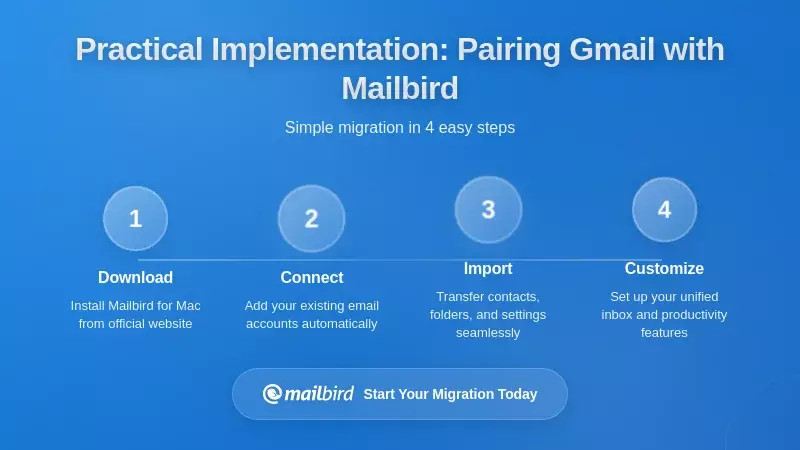
Understanding the benefits of unified desktop clients is one thing; successfully implementing them in your workflow is another. Here's how to approach pairing your Gmail accounts with a desktop client like Mailbird to maximize productivity gains while minimizing transition friction.
Initial Configuration and Account Setup
The first step is enabling IMAP access in your Gmail accounts. Gmail's community support documentation explains that you must log into Gmail from a desktop browser, navigate to Settings → Forwarding and POP/IMAP, and explicitly enable IMAP access. This is a per-account setting, so you'll need to enable it for each Gmail account you plan to add to your desktop client.
Once IMAP is enabled, adding Gmail accounts to Mailbird is straightforward thanks to OAuth 2.0 integration. Mailbird automatically detects Gmail accounts and initiates Google's authentication flow, where you authorize access through Google's interface. This process typically takes less than a minute per account and doesn't require manually entering server settings or port numbers.
For organizations using Google Workspace, administrators should verify that IMAP access is permitted by organizational policies before users configure desktop clients. Workspace admins can control IMAP access through the admin console, allowing them to balance user flexibility with security requirements.
Configuring Unified Inbox for Multiple Gmail Accounts
After adding your Gmail accounts, configuring unified inbox allows you to aggregate them into a single operational view. In Mailbird, you can access unified inbox settings through Options → Accounts, where you select which accounts to include in the unified view.
This configurability is important for several reasons:
- Selective aggregation: You might want to unify your work-related Gmail accounts while keeping personal email separate
- Privacy boundaries: Highly confidential accounts can remain isolated from unified views
- Workflow optimization: Different roles may benefit from different unified inbox configurations
Once configured, your unified inbox presents all messages from selected Gmail accounts in chronological order, with system folders (archived, sent, trash) similarly aggregated. You can search across all accounts simultaneously, apply filters that span multiple accounts, and manage messages without mentally tracking which account contains which conversation.
Setting Up Productivity Integrations
To maximize the value of a unified desktop environment, configure integrations with the productivity tools you use alongside email. Mailbird's integration list includes calendar systems, task managers, messaging platforms, and cloud storage services that can be accessed within the email client interface.
Prioritize integrations based on your actual workflow:
- Calendar integration: Essential if you frequently schedule meetings via email
- Task management: Valuable for converting emails into actionable work items
- Communication platforms: Useful if you coordinate across email and chat
- Cloud storage: Important for teams that share documents via email attachments
The goal is creating a workspace where email, scheduling, task management, and communication coexist in one coherent environment, reducing the application switching that fragments attention and workflow.
Transitioning Your Workflow
Successfully adopting a desktop email client requires adjusting your daily habits and workflow patterns. Rather than attempting an immediate, complete transition, consider a phased approach:
- Start with read-only usage: Use the desktop client to read and search email while continuing to compose in Gmail's web interface
- Add composition gradually: Once comfortable with the interface, begin composing replies and new messages in the client
- Implement unified inbox: After mastering single-account usage, enable unified inbox for multiple Gmail accounts
- Integrate additional tools: Finally, add calendar, task, and communication integrations to complete your unified workspace
This graduated approach reduces transition friction and allows you to validate benefits at each stage before committing more deeply to the new workflow.
Cost-Benefit Analysis: Desktop Client Investment
Pairing Gmail with a desktop client involves both costs and benefits that should be evaluated systematically, particularly for business contexts where workflow efficiency directly impacts productivity and revenue.
Direct Financial Costs
Current Mailbird plans and prices are listed on the Mailbird pricing page. A desktop client is a separate cost from Gmail hosting: Google Workspace charges recurring per-user fees for Gmail hosting and associated apps.
For organizations already using Gmail through Workspace, a desktop client represents an additional client cost layered atop existing hosting fees. Weigh that cost against the time the client saves your team.
The financial calculation should consider:
- Per-user licensing cost: see the current plans on the pricing page
- Ongoing Gmail/Workspace costs: Unchanged, as these cover hosting and services
- Alternative client costs: Comparing desktop client options (some free, some subscription-based)
- Productivity value: Time saved through improved workflow efficiency
Quantifiable Productivity Benefits
The harder but more important calculation involves productivity gains. While exact metrics vary by individual and organization, several measurable benefits emerge from unified desktop email management:
- Reduced context switching: Eliminating the need to check multiple Gmail accounts separately saves time and mental energy
- Faster information retrieval: Cross-account search capabilities reduce time spent hunting for messages
- Improved responsiveness: Unified inbox reduces the likelihood of missing messages in secondary accounts
- Decreased email overload stress: Better organization and unified workflows reduce the psychological burden documented in Forbes' survey on email overload
Even modest time savings—say, 15 minutes per day from reduced account switching and faster searches—compound significantly over weeks and months. For a team of ten people, that's 2.5 hours daily, or roughly 50 hours monthly in reclaimed productive time.
Intangible but Strategic Benefits
Beyond direct time savings, unified desktop email clients offer strategic advantages that are harder to quantify but materially important:
- Employee satisfaction: Reducing email frustration improves workplace experience and may affect retention
- Professional responsiveness: Better multi-account management supports faster, more reliable customer communication
- Workflow coherence: Integrated productivity tools create more seamless work processes
- Remote work support: Offline access and unified interfaces better support distributed teams
Mailbird's own case study highlights how the company has operated as remote-friendly from its founding, with distributed teams relying on effective email and communication tools. Organizations embracing remote or hybrid work models may find that desktop email clients provide infrastructure advantages that support this transition.
Desktop Email Client Landscape: Evaluating Alternatives
While this article focuses on pairing Gmail with Mailbird, understanding the broader desktop email client landscape helps contextualize this choice and ensures you're selecting the right tool for your specific needs.
Open Source Options: Mozilla Thunderbird
Mozilla Thunderbird represents the leading open-source desktop email client, offering multi-account management, calendar integration, and extensive customization through add-ons. Clean Email's comparison notes that Thunderbird is free and community-developed, making it attractive for budget-conscious users and organizations that prioritize open-source software.
Thunderbird's strengths include:
- Zero licensing cost: Completely free for unlimited users
- Cross-platform support: Available for Windows, Mac, and Linux
- Extensive customization: Rich add-on ecosystem for specialized functionality
- Privacy focus: Open-source code allows security auditing
However, Thunderbird's interface and user experience may feel less polished than commercial alternatives, and setup can be more technical for non-expert users. Organizations must weigh the cost savings against potential support overhead and user experience considerations.
Platform-Native Clients: Apple Mail and Outlook
Apple Mail and Microsoft Outlook represent platform-native options that come pre-installed on macOS and Windows respectively (Outlook via Microsoft 365 subscriptions). These clients offer deep operating system integration and familiar interfaces for users already embedded in Apple or Microsoft ecosystems.
Apple Mail integrates seamlessly with macOS features like Spotlight search, iCloud services, and system notifications, making it a natural choice for Mac-centric organizations. However, its multi-account management capabilities are more basic than specialized clients, and it lacks the extensive third-party integrations that platforms like Mailbird provide.
Microsoft Outlook offers robust calendar and contact management alongside email, with strong integration into Microsoft 365 services. For organizations already using Microsoft 365, Outlook may seem like the obvious choice. However, users managing multiple Gmail accounts alongside Microsoft accounts may find that specialized multi-provider clients like Mailbird offer superior unified inbox and cross-platform coordination.
Specialized Unified Clients: Mailbird's Positioning
Mailbird positions itself specifically as a unified desktop client optimized for managing multiple email accounts across different providers—Gmail, Outlook, Exchange, and IMAP services—in one cohesive workspace. This specialization differentiates it from both platform-native clients and general-purpose alternatives.
Mailbird's competitive advantages include:
- True unified inbox: Aggregates multiple accounts into single operational views
- Extensive integrations: Nearly 40 third-party apps accessible within the client
- Performance optimization: Fast interface and responsive search across accounts
- Cross-platform support: Works on both Windows and Mac with consistent experience
- Free and paid plans: a free version plus paid plans with additional features
User reviews on G2 consistently highlight these strengths, with verified business users praising Mailbird's clean interface, multi-account handling, and integration ecosystem as genuinely improving their daily email workflows.
Selection Criteria for Your Context
Choosing the right desktop email client depends on your specific requirements, existing technology stack, and workflow priorities:
- Budget constraints: Free options like Thunderbird vs. commercial clients like Mailbird
- Platform requirements: Windows-only, Mac-only, or cross-platform needs
- Integration priorities: Which productivity tools must integrate with email?
- Multi-account complexity: How many accounts across how many providers?
- Technical expertise: User comfort level with configuration and troubleshooting
- Support requirements: Need for commercial support vs. community forums
For organizations heavily invested in Gmail across multiple accounts and seeking a polished, integration-rich unified workspace, Mailbird represents a strong specialized solution. For budget-conscious users comfortable with more technical setup, Thunderbird offers compelling free functionality. For users deeply embedded in Apple or Microsoft ecosystems with simpler multi-account needs, platform-native clients may suffice.
Strategic Recommendations for Gmail + Desktop Client Deployment
Based on the analysis above, here are concrete recommendations for different organizational contexts considering pairing Gmail with a unified desktop email client.
Freelancers and Solopreneurs
If you're managing multiple Gmail accounts for different clients, projects, or business entities, a unified desktop client offers immediate productivity benefits with minimal implementation complexity.
Recommended approach:
- Enable IMAP access on all Gmail accounts you want to unify
- Install Mailbird and configure accounts using OAuth 2.0 authentication
- Enable unified inbox to aggregate all accounts into one view
- Configure integrations with your calendar and task management tools
- Establish a daily routine of processing email through the unified interface
The license cost is easily justified by time savings from unified multi-account management, especially if you're currently losing billable hours to email fragmentation and account switching.
Small to Medium Businesses
For teams using Gmail through Google Workspace with multiple role-based or departmental accounts (support@, sales@, info@), desktop clients can significantly improve coordination and responsiveness.
Recommended approach:
- Conduct a pilot with 3-5 users managing the most complex email workflows
- Verify that Google Workspace policies permit IMAP access for desktop clients
- Deploy Mailbird to pilot users and configure unified inbox for relevant accounts
- Measure productivity impact: response times, time spent on email, user satisfaction
- Based on pilot results, decide on broader rollout or alternative approaches
The pilot approach allows you to validate benefits before committing to organization-wide licensing, and helps identify any workflow adjustments needed for successful adoption.
Remote and Distributed Teams
For organizations with remote or hybrid work arrangements, desktop clients' offline access capabilities provide infrastructure advantages that support distributed work.
Recommended approach:
- Prioritize deployment for roles with high email volume and frequent travel
- Configure offline caching to ensure access during connectivity disruptions
- Integrate communication tools (Slack, Teams) alongside email for unified workspace
- Establish team norms around unified inbox usage for shared accounts
- Monitor adoption and gather feedback to refine configuration
The goal is creating reliable, unified communication infrastructure that works consistently across varying connectivity conditions and geographic locations.
Enterprise Considerations
Larger organizations face additional considerations around security policies, IT management, and standardization that affect desktop client deployment.
Key evaluation points:
- Security compliance: Verify that OAuth 2.0 authentication and local encryption meet organizational security requirements
- Policy compatibility: Ensure desktop client usage aligns with acceptable use and data handling policies
- Support infrastructure: Determine whether IT can support heterogeneous client deployments or requires standardization
- Integration architecture: Assess how desktop client integrations fit with existing productivity tool stack
- License management: Evaluate how per-user licensing fits your procurement processes
Enterprise deployment typically requires more extensive pilot testing, security review, and change management than smaller-scale implementations, but the productivity benefits can be substantial when dealing with complex multi-account email environments at scale.
Frequently Asked Questions
Does using a desktop email client like Mailbird compromise Gmail's security?
No, when properly configured with OAuth 2.0 authentication, desktop clients maintain Gmail's security protections. Mailbird uses OAuth 2.0, which means it never handles your Gmail password—you authenticate directly through Google's secure interface, and Google issues an authorization token. Gmail continues applying its spam filtering, malware scanning, and threat detection regardless of which client you use to access your mailbox. Additionally, connections between desktop clients and Gmail use TLS encryption to protect data in transit.
Can I still use Gmail's web interface after setting up a desktop client?
Absolutely. Adding a desktop email client doesn't replace or disable Gmail's web interface—it simply provides an alternative way to access the same mailbox. You can freely switch between web and desktop access as needed. Changes made in either interface synchronize through Gmail's IMAP protocol, so messages you archive in Mailbird appear archived in Gmail's web interface, and emails you send through the web interface appear in your desktop client's sent folder. This flexibility allows you to use whichever interface best suits your current context—desktop client at your office, web interface when traveling, mobile app on your phone.
How does unified inbox work with multiple Gmail accounts?
Unified inbox aggregates messages from multiple Gmail accounts into a single chronological view, ordered by delivery time regardless of which account received them. This extends beyond the inbox itself—system folders like archived, sent, and trash also merge messages from all participating accounts. You can search across all accounts simultaneously, apply filters that span multiple accounts, and manage email without mentally tracking which account contains which conversation. Importantly, you control which accounts participate in unified inbox, allowing you to keep sensitive or personal accounts separate while unifying work-related Gmail addresses.
What happens to my email if I stop using the desktop client?
Your email remains completely safe because it's still hosted by Gmail on Google's servers. Desktop clients like Mailbird don't host your mailbox—they simply provide an interface to access it. If you stop using the desktop client, all your messages, contacts, and settings remain intact in your Gmail account, accessible through Gmail's web interface, mobile apps, or any other email client you choose. The desktop client maintains a local cache for offline access and performance, but this cache is just a copy; the authoritative version of your email always lives on Gmail's servers. You can start and stop using desktop clients freely without any risk to your email data.
How much does it cost to pair Gmail with Mailbird?
Your Gmail hosting costs remain unchanged—you continue paying whatever you currently pay for Gmail (free for personal accounts, or per-user subscription fees for Google Workspace). Mailbird is a separate client cost on top of that; current plans and prices are on the Mailbird pricing page. For context, the license cost is often recovered quickly through productivity gains from better multi-account management, especially for professionals managing three or more Gmail accounts.
Will desktop clients work with Google Workspace accounts?
Yes, desktop email clients work seamlessly with Google Workspace accounts as long as your organization's policies permit IMAP access. Google Workspace provides Gmail as the email backbone of its productivity suite, and Workspace accounts support the same IMAP and SMTP protocols as personal Gmail accounts. Workspace administrators can control whether users can enable IMAP access through the admin console, allowing organizations to balance user flexibility with security requirements. Once IMAP is enabled, connecting Workspace Gmail accounts to desktop clients like Mailbird follows the same OAuth 2.0 authentication process as personal accounts.
Can I access my email offline with a desktop client?
Yes, and this is one of the key advantages of desktop email clients over web-only access. Desktop clients maintain local caches of your email data, allowing you to read, search, and draft messages even when disconnected from the internet. Once connectivity returns, the client synchronizes your changes back to Gmail's servers—sending queued messages, updating folder states, and downloading new mail. This offline capability is particularly valuable for frequent travelers, remote workers in areas with unreliable connectivity, or anyone who needs guaranteed access to their communication history during network outages. The local cache also enables faster searches and navigation compared to server-dependent web interfaces.
How do I switch from Gmail web interface to a desktop client?
The transition is straightforward and doesn't require abandoning Gmail's web interface entirely. First, enable IMAP access in your Gmail settings by logging into Gmail from a desktop browser, navigating to Settings → Forwarding and POP/IMAP, and turning on IMAP. Then install your chosen desktop client (such as Mailbird) and add your Gmail accounts using the built-in OAuth 2.0 authentication flow. Consider a phased transition: start by using the desktop client to read email while continuing to compose in Gmail's web interface, then gradually shift composition to the desktop client as you become comfortable with its features. Finally, enable unified inbox if managing multiple accounts and configure integrations with your other productivity tools.


