How to Switch from Spark to Mailbird on Windows and Mac (2026)
Switching from Spark to Mailbird usually means reconnecting your existing mailbox rather than exporting mail. This guide walks through the move on both Windows and Mac, plus the app-specific settings to rebuild.



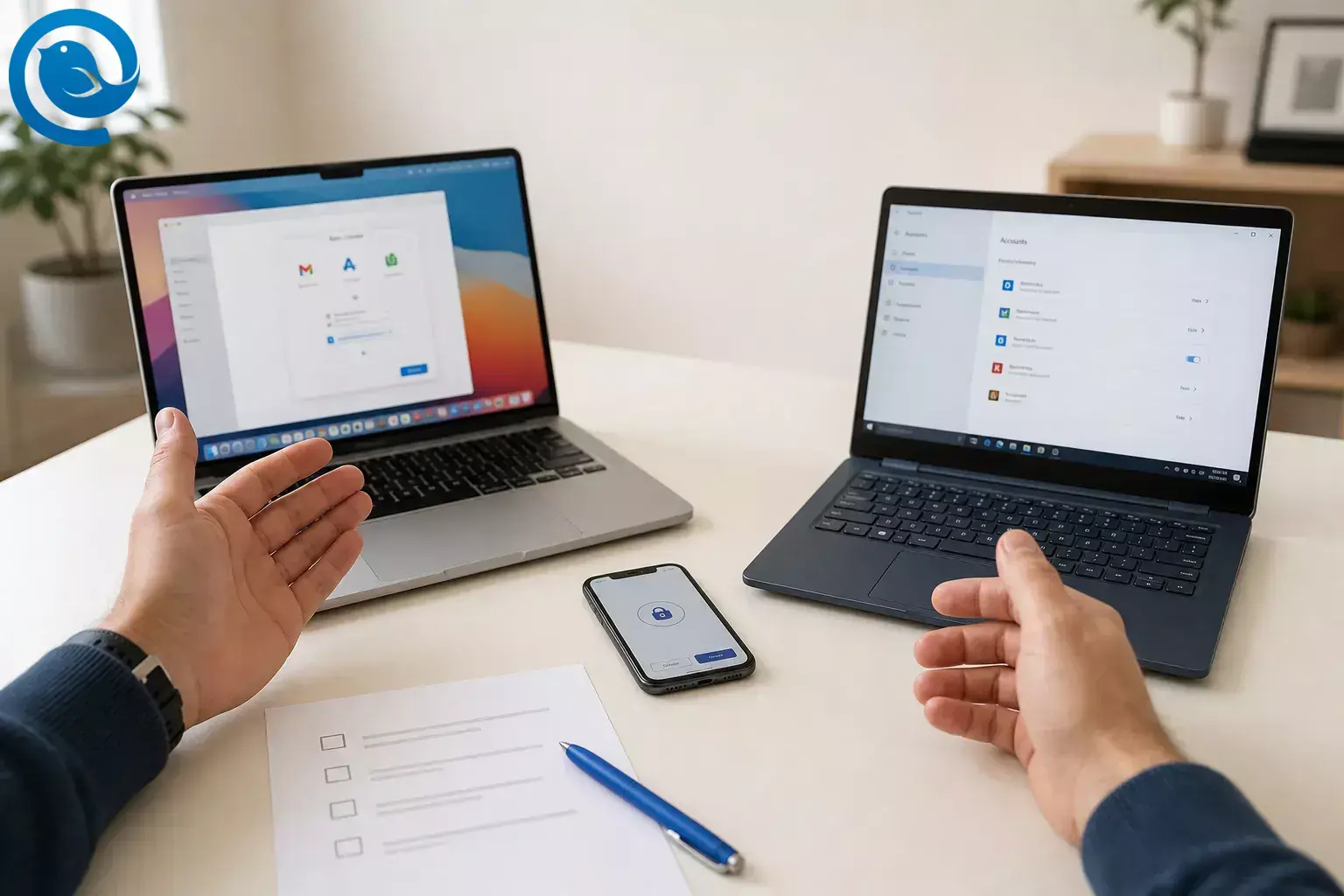
Use this Spark to Mailbird migration guide to move from Spark email and replace Spark Desktop with Mailbird on a Windows PC or a Mac.
Short answer: in most cases, you do not need to export your mail from Spark first. Spark keeps normal mailbox content with your email provider, and Mailbird reconnects to the same mailbox over IMAP or Exchange, so the move is usually about signing in again and rebuilding app-specific items like identities, signatures, and default-app behavior. [3] [5] [6] [11] [33] Mailbird is available on Windows and on Mac via the Apple App Store, so you can replace Spark Desktop on either platform. [1] [19]
TL;DR: Spark to Mailbird migration at a glance
- You usually reconnect, not export. Spark stores normal mailbox content with your provider, and Mailbird connects to the same mailbox over IMAP or Exchange. [3] [5] [33]
- You will likely rebuild app-specific settings. Identities, signatures, Unified Inbox preferences, default email-app behavior, integrations, and snippets are configured in Mailbird. [6] [7] [10] [11] [15] [16] [18] [34]
- Spark is not a direct import source. Mailbird’s import tool supports selected Windows mail clients, but Spark is not listed as a one-click source. [8]
- Start with one account only and use the provider-specific path Mailbird offers for Gmail, Outlook, Microsoft 365, or Exchange. [12] [13] [20] [22]
- Do not uninstall Spark yet. Keep it installed until your send, receive, folder, and alias tests all pass. [4] [5]
- Mailbird offers a free plan, with paid plans available if you need more accounts or extra features. [19]
Before you start
- Prerequisites: A working Spark setup, the email addresses you want to move, passwords, access to any two-factor prompts, and a browser you can sign into each mailbox with.
- Tools: Mailbird installed on your computer. If you use a custom-domain mailbox, keep the provider’s IMAP/SMTP settings nearby in case auto-detection misses them. On Mac, Mailbird currently supports IMAP or Exchange for these setups, not POP3. [5] [14]
- Time: Plan for the setup steps and extra background sync time if one mailbox has a large archive.
- Cost: Mailbird offers a free plan, with paid plans available if you need more accounts or extra features. [19]
- Safety notes: Do the move on a trusted computer, keep your phone nearby for sign-in approvals, and do not uninstall Spark until your send, receive, folder, and alias tests all pass.
Step-by-step: move from Spark email to Mailbird
Step-by-step: move from Spark email to Mailbird
-
List every account you want to move
In Spark, open Settings > Accounts and write down every mailbox you still use. If one address belongs to a custom domain, note the provider too. For a typical Spark to Mailbird migration, you are reconnecting server-based accounts rather than exporting one giant desktop mail file. [3] [5]
Check: You have a written list of every address, plus any custom-domain provider names.
-
Sign into each mailbox in a browser once
Open each mailbox on the web before you touch Mailbird. Finish any forced password reset, device approval, or two-factor prompt now. This cuts down on failed setup loops later, especially for Google and Microsoft accounts that often complete sign-in in a browser window. [20] [22] [26]
Check: Every account opens successfully in the browser without an error.
-
Open Mailbird and go straight to account setup
Install Mailbird, then open the account screen right away. On Windows, go to Mailbird menu > Settings > Accounts > Add . On Mac, click the gear icon > Accounts > Add account . Mailbird automatically tries to detect the correct server settings for IMAP accounts, so start with the default flow before you edit anything manually. [5] [6] [12] [13]
Check: You can see an Add or Add account button in Mailbird.
-
Add your first account with the provider flow Mailbird suggests
Start with one account only. Enter the address, then use the provider-specific path Mailbird offers. For Gmail, choose the Google sign-in path. For Outlook or Microsoft 365, use the Microsoft path instead of forcing a generic setup. Mailbird supports providers that offer IMAP and can auto-detect many settings, but custom domains may still need manual server details. [5] [12] [20] [22]
Check: The account opens in Mailbird, recent mail appears, and you can send yourself one test message.
-
Use the Microsoft 365 or Exchange route for work mail
If the mailbox is tied to work or school, choose the Microsoft 365 or Exchange option that Mailbird offers instead of guessing with a generic template. On Mac, Mailbird adds Microsoft 365 accounts as Exchange by default. On Windows, Exchange setup uses a Microsoft browser sign-in and permission flow. If the setup stops at Autodiscover, that is usually an Exchange configuration problem your IT admin has to fix. [13] [25] [33]
Check: The work mailbox appears in Mailbird without an authorization or Autodiscover error.
-
Fix provider security requirements before retrying a failed setup
If sign-in fails, stop and fix the provider requirement first. Personal Gmail accounts now keep IMAP on by default and should use Google sign-in. Google Workspace setups can still depend on admin IMAP and OAuth rules. Outlook.com accounts may need IMAP enabled in Outlook.com’s web settings. iCloud and Yahoo can require app-specific passwords for third-party mail apps. [20] [21] [22] [23] [24] [26] [32]
Check: You can say exactly what your provider expects: normal browser sign-in, IMAP enabled, or an app-specific password.
-
Add the rest of your Spark accounts and let the first sync finish
Once the first account works, add the rest one by one. After you connect more than one account, Mailbird can show a Unified Inbox that combines messages from all connected accounts while still sending replies from the correct mailbox. Do not judge the move after the first minute if one account has years of history; let the first sync finish before you decide anything is missing. [7]
Check: Each account receives a test email, and Unified Inbox is available after the second account is added.
-
Rebuild your identities, aliases, and signatures
Add any identities or aliases you use, then attach a signature to each one. This is the step that keeps support@ , billing@ , and your personal address from looking the same when you hit Send. On Mac, you can build the signature with Flamingo. On Windows, edit it directly under Identities . [6] [10] [17]
Check: In a new compose window, the From field and signature both match the account you selected.
-
Recreate only the workflow pieces you actually used in Spark
Turn on Unified Inbox if you want one combined triage view, switch on the app integrations you use, and make Mailbird your default desktop email app so mailto: links stop opening Spark or Apple Mail. On Windows, integrations live in the Apps panel at the lower left. On Mac, they live under the nine-dot grid. If you relied on reusable canned text, Mac users can rebuild that with Snippets. [7] [11] [15] [16] [18] [34]
Check: One mail link opens in Mailbird, and at least one integration or snippet you care about is working.
-
Test thoroughly, then remove Spark only after Mailbird passes
Run three tests before you clean up: send from each account, move one message into a folder and confirm the move on webmail, and reply once from every alias you care about. When all of that works, you can remove the account from Spark without deleting the server-stored mail. If you want a clean break, Spark also offers Remove your data ; Stripe-billed Spark subscriptions cancel automatically when you remove data, while App Store and Google Play subscriptions must be canceled separately. [4] [31]
Check: Mailbird passes your send, receive, folder-sync, and alias tests before Spark is removed.
Why you usually do not need a Spark export
Spark stores normal mailbox content with your email provider, and Mailbird reconnects to that same mailbox over IMAP or Exchange. That is why this switch is usually a reconnect-and-resync project instead of a full export. The pieces you normally redo inside Mailbird are client-specific, such as identities, signatures, Unified Inbox, default email-app behavior, and any integrations or snippets you want to keep using. [3] [5] [6] [7] [10] [11] [15] [16] [18] [33] [34]
Common Spark to Mailbird migration problems
-
Gmail keeps bouncing you back to login
Likely cause: wrong sign-in method or blocked OAuth flow.
Fix: start over, choose the Gmail or Google path, and keep the browser window open until Mailbird finishes. If it is a Google Workspace account, ask the admin to confirm the current IMAP and OAuth policy. [20] [21] [26]
-
Outlook.com says IMAP is disabled or the account is authenticated but not connected
Likely cause: IMAP access is off in Outlook.com.
Fix: open Outlook.com on the web, turn IMAP on in its mail settings, save, then remove and re-add the account in Mailbird. [22]
-
Your iCloud or Yahoo password is rejected
Likely cause: the provider wants an app-specific password for a third-party email client.
Fix: generate the app-specific password in your Apple or Yahoo account security settings and retry with that password instead of your normal one. [23] [24]
-
A Microsoft 365 or Exchange work mailbox will not add
Likely cause: wrong provider choice, blocked authentication, or broken Exchange Autodiscover.
Fix: retry with the Microsoft 365 or Exchange flow and ask IT to confirm Autodiscover and external access if the error continues. [13] [25] [33]
-
The same message appears twice in Mailbird
Likely cause: Unified Inbox is showing one copy for each connected address that received the message.
Fix: open the single-account inbox for that message or turn Unified Inbox off if you prefer separate views. [7] [28]
-
Messages look read or disappear on Mac
Likely cause: another email app is still changing the server state.
Fix: turn off the other client, or move that client to IMAP if you want consistent multi-device behavior. [29]
-
Mailbird says host not found, DNS failed, or no internet connection
Likely cause: typo in the server name, a VPN or proxy, or a real network problem.
Fix: double-check the IMAP and SMTP hostnames, disable VPN or proxy temporarily, and retry on another network if needed. [27]
-
Mail is very slow to sync after you add several accounts
Likely cause: too many simultaneous server connections or a large first-time sync.
Fix: close extra email clients, leave Mailbird open, and test again after the archive finishes loading. [30]
-
Authentication fails even though you think the password is right
Likely cause: the wrong provider type, a security tool blocking Mailbird, or stale credentials.
Fix: retry with the correct provider path, temporarily whitelist or disable the security tool, and then start the sign-in flow from the beginning. [26] [32]
Best way to switch, based on your setup
-
Lowest-risk move: Add one personal account first, test it, then bring over your work and custom-domain accounts. This is the safest route if you depend on your inbox all day.
-
Multi-account setup: If you manage several inboxes, turn on Unified Inbox and set up distinct identities and signatures before you start sending real mail. That removes most wrong-address mistakes early. [6] [7] [10]
-
Microsoft 365 or Exchange first: If your main mailbox is a work account, use the Microsoft 365 or Exchange route first and keep IT nearby for Autodiscover or policy issues. [25] [33]
-
Mac with older POP3 mail: Mailbird Next for Mac currently focuses on IMAP or Exchange. If you still rely on a separate POP3 setup, sort that out before you replace Spark on your Mac. [14]
-
Contacts-heavy switch: If contacts are part of your move, plan that step separately. Mailbird supports vCard contact import and export. [9]
-
Legacy local mail on Windows: If you also have old local mail sitting in another Windows client, use Mailbird’s import tool for supported apps. Spark itself is not on Mailbird’s direct-import list. [8]
Prep, storage, and multi-account scaling
-
Prep: Before you start, gather passwords, backup codes, app-specific passwords, custom mail-server settings, and any reusable text you want to copy out of Spark.
-
Storage: Spark does not act like a normal local backup for standard mailbox content; the mail stays with your provider. If you also have separate local mail from another Windows client, handle that as a separate import job in a supported app. [3] [8]
-
Scaling: Add accounts one at a time, test each one, then enable Unified Inbox after at least two accounts are working. [7]
What can change
Provider sign-in screens, IMAP policies, app-specific password rules, and Mailbird plan limits can all change. If a screen looks different from this guide, trust the current Google, Microsoft, Apple, Yahoo, Spark, or Mailbird support page over any older screenshot-based tutorial. [19] [20] [21] [22] [23] [24] [26]
Spark to Mailbird migration checklist
- ☐ I wrote down every Spark account I still use.
- ☐ I signed into each mailbox in a browser first.
- ☐ I added one account to Mailbird and sent a test email.
- ☐ I used the Microsoft 365 or Exchange path for work mail.
- ☐ I handled any Gmail, Outlook.com, iCloud, or Yahoo security requirement.
- ☐ I added the rest of my accounts and waited for the first sync.
- ☐ I rebuilt identities, aliases, and signatures.
- ☐ I turned on Unified Inbox only after the accounts were working.
- ☐ I made Mailbird my default desktop email app.
- ☐ I tested send, receive, folder sync, and alias replies before removing Spark.
FAQ: switching from Spark to Mailbird
Do I need to export my emails from Spark first?
Can Mailbird import Spark directly?
Not as a one-click source. Mailbird’s direct import tool supports Thunderbird, Outlook, Windows Live Mail, and IncrediMail.
Sources: [8]
Will removing my account from Spark delete my email?
No. Removing the account from Spark removes it from the app, not from your email provider’s server.
Sources: [4]
What should I do differently for Gmail?
What if I use iCloud or Yahoo?
Can I move my contacts too?
Yes, but plan that separately from reconnecting your inbox. Mailbird supports importing and exporting contacts as vCards.
Sources: [9]
Can I use Mailbird on both Windows and Mac?
Does Mailbird Next for Mac support POP3?
Sources
- Mailbird — Why We’re on the Apple App Store — And What It Means for You
- Mailbird — Manage Multiple Email Accounts in One Place With Mailbird
- Spark — Email Storage and Backups
- Spark — Remove an email account from Spark
- Mailbird Support — IMAP Support in Mailbird
- Mailbird Support — Connecting Accounts and Adding Identities in Mailbird
- Mailbird Support — Unified Inbox
- Mailbird Support — How to Import Accounts and Emails to Mailbird
- Mailbird Support — Importing and exporting a contact group and individual contacts
- Mailbird Support — Create a Signature
- Mailbird Support — Set Mailbird as Default Email Client
- Mailbird Next for Mac — Connecting Gmail accounts to Mailbird Next for Mac
- Mailbird Next for Mac — Connecting Exchange Accounts in Mailbird Next for Mac
- Mailbird Next for Mac — How to Check if Your Email Account Is Using IMAP or Exchange in Mailbird Next for Mac
- Mailbird Next for Mac & Windows — How to Set Mailbird as Your Default Email Client on Mac
- Mailbird Next for Mac — How to Enable and Use App Integrations in Mailbird Next for Mac
- Mailbird Next for Mac — How to Create a Signature Using Flamingo in Mailbird Next for Mac
- Mailbird Support — How to activate or deactivate apps in Mailbird
- Mailbird — Pricing and Plans
- Gmail Help — Add Gmail to another email client
- Google Workspace Admin Help — About IMAP and POP clients
- Microsoft Support — POP, IMAP, and SMTP settings for Outlook.com
- Apple Support — Sign in to apps with your Apple Account using app-specific passwords
- Yahoo Help — Generate and manage 3rd-party app passwords
- Mailbird Support — Exchange autodiscover is missing or not configured correctly
- Mailbird Support — OAuth2 sign-in failed while adding an email account
- Mailbird Support — No internet connection or DNS lookup failed while adding an account
- Mailbird Support — Why am I seeing duplicate emails in Mailbird?
- Mailbird Next for Mac — Why Emails May Appear as “Read” or Disappear in Mailbird Next for Mac
- Mailbird Support — Too many simultaneous connections
- Spark — Remove data from Spark & request data copy or deletion
- Mailbird Support — Authentication Failed - Unable to add email account
- Mailbird Support — Adding Exchange Account in Mailbird
- Mailbird Next for Mac — Using Snippets in Mailbird Next for Mac


