Mailbird Desktop Email Client Setup: Add an Email Account
This email client setup guide walks you through how to configure desktop email in Mailbird, add an email account via OAuth or manual IMAP/POP + SMTP, and confirm you can both send and receive messages.



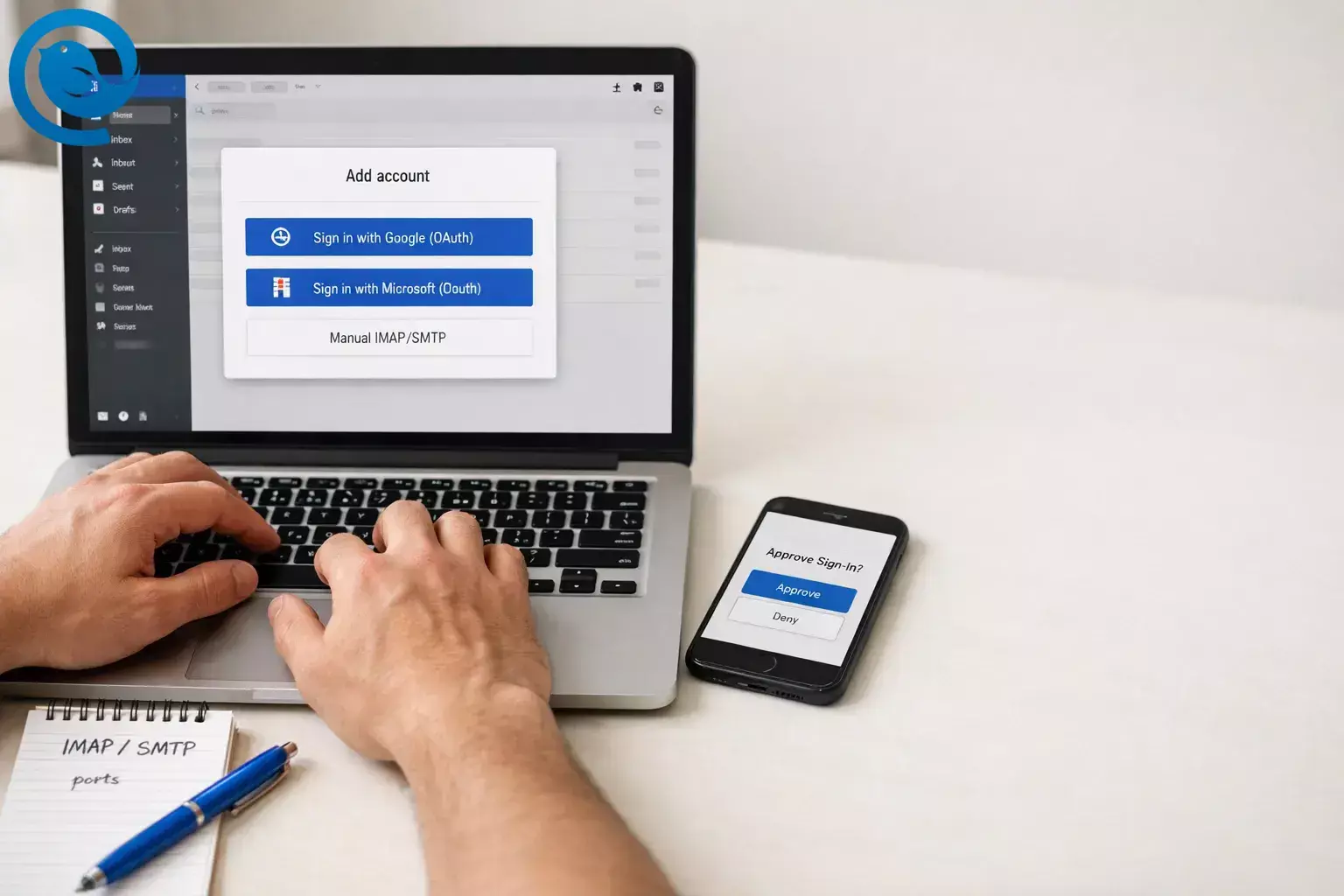
This email client setup guide walks you through how to configure desktop email in Mailbird, add an email account to your email client (with OAuth guide or manual IMAP/POP + SMTP ), and confirm you can both send and receive messages without errors.
Key takeaways
- Plan about 30–45 minutes for a handful of accounts; very large mailboxes can take longer to fully sync in the background.
- Setup is typically easy with a provider sign-in window (OAuth) and moderate when you must enter IMAP/SMTP settings manually.
- If you expect manual setup, you’ll need your incoming (IMAP/POP) and outgoing (SMTP) server names, ports, encryption type, username, and authentication method.
- Use the provider’s sign-in window when it’s offered, and avoid entering “basic” credentials when modern authentication is required.
- Choose IMAP unless you specifically need POP’s “download-to-this-computer” behavior.
- If you can receive email but can’t send, re-check SMTP server/port/encryption and confirm outgoing authentication is enabled.
- For work/school Microsoft 365 accounts, prefer Microsoft OAuth (and Exchange when available); IMAP/POP only works if your organization allows it.
Before you start
- Prerequisites: You can sign in to each mailbox in webmail (password/passkey + any MFA prompts). For work/school accounts, you have permission to connect the account.
- Tools: Mailbird installed, a stable internet connection, and your default web browser (for OAuth sign-ins).
- If you expect manual setup: Have your incoming (IMAP/POP) and outgoing (SMTP) server names, ports, encryption type, and username ready.
- Time: About 30–45 minutes for 2–5 accounts, plus initial sync time for large mailboxes.
- Cost: Depends on your Mailbird plan and how many accounts you connect.
- Safety notes: Use the provider’s sign-in window when offered. Never share passwords. If the account is managed by your employer/school, follow your IT policy.
Manual IMAP/SMTP setup: the details you’ll need
You only need manual settings if Mailbird doesn’t offer a provider sign-in button (OAuth) or you’re connecting a custom domain, hosting provider, or on‑prem mail server.
- Incoming (IMAP or POP): server name, port, encryption (SSL/TLS or STARTTLS), username (often the full email address), and authentication method.
- Outgoing (SMTP): server name, port, encryption, and whether SMTP authentication is required (usually yes).
- Password: your normal password, or a Gmail app password if your provider requires one with 2‑step verification.
Step-by-step: Configure desktop email in Mailbird
Configure desktop email in Mailbird
- Sign in to the mailbox in your web browser first. Open your provider’s webmail (Gmail/Outlook.com/company webmail), sign in, and confirm you can see your Inbox. Check: You can open a recent message in webmail without an error.
- Decide which setup path you’ll use (OAuth vs manual IMAP/SMTP). If the setup screen offers a “Sign in with Google/Microsoft” style option, use it. If you’re adding a custom domain or on‑prem server, plan to enter server settings manually. Check: You know whether you’ll use OAuth sign-in or manual server settings.
-
Open the Accounts screen in Mailbird.
- Mailbird for Windows: open the menu (☰) in the top-left → Settings → Accounts .
- Mailbird Next: click the Settings icon (bottom-left) → Accounts → Add account .
- Click Add and enter your email address. Start the add-account flow, type the address, and continue. Check: You see the setup window move past “email address” to authentication/settings.
-
Use the provider’s sign-in window (OAuth) when it appears.
Complete the browser sign-in, approve access, and return to Mailbird.
If a sign-in window looks suspicious, stop and retry by choosing the correct provider option (for example, “Google” for Gmail).Check: You’re returned to Mailbird and the account starts syncing.
- If Mailbird auto-detects settings, accept them. When Mailbird detects IMAP/POP settings automatically, keep them unless your provider/IT team gave you specific custom values. Check: The account finishes setup without a server/port/authentication error.
- If you need manual configuration, enter IMAP/POP + SMTP settings exactly as provided. Click Edit server settings (or choose manual setup) and fill in the incoming and outgoing details. Check: Mailbird saves the settings and does not immediately prompt “authentication failed.”
- Choose IMAP unless you specifically need POP. Use IMAP when you read mail on more than one device. Choose POP only if you want “download-to-this-computer” behavior. Check: After the first sync, what you see in Mailbird matches what you see in webmail (for IMAP).
- Special case: Microsoft 365 / Exchange accounts. For work/school Microsoft 365 mailboxes, use Microsoft OAuth (and Exchange when available). If you try IMAP/POP, it will only work if your organization allows it. Check: You can complete the Microsoft sign-in flow and the account stays connected (no recurring password prompts).
- Send a test email to yourself and reply. Send a message with a subject like “Test from Mailbird,” confirm it lands in your Inbox, then reply to confirm both sending and receiving work. Check: The original test appears in Sent , and your reply arrives back in your Inbox.
- Add additional accounts one at a time (optional), then rename them. Repeat the add flow for each address. Give each account a clear label (Work, Personal, Billing) so you don’t send from the wrong address later. Check: Each added account can send and receive a test email.
Why this works
Desktop email clients succeed when three things match what your provider expects: the right sign-in method (often OAuth), correct incoming mail settings (IMAP/POP or Exchange), and correct outgoing mail settings (SMTP). When those are correct, Mailbird can authenticate and keep your mailbox in sync.
What can change (so setup doesn’t break later)
- Windows updates can temporarily affect Microsoft account sign-ins.
- Email providers can remove older “basic” sign-in methods and require modern authentication. [4]
- Work/school admins can disable IMAP/SMTP for managed mailboxes.
If something “suddenly broke,” try installing the latest OS updates and then re-authenticating with OAuth (remove and re-add the account if needed).
Troubleshooting
| Symptom | Likely cause | Fix (do this now) |
|---|---|---|
| Microsoft OAuth sign-in fails (or you see an “internet required” style error) | A Windows 11 KB5079473 known issue affecting Microsoft account sign-ins | Run Windows Update and install the fix Microsoft lists for KB5079473 (or a newer cumulative update), then retry adding the account in Mailbird. [1] |
| Outlook.com / Hotmail keeps asking for your password or stops syncing | Modern authentication (OAuth) is required for Outlook email in non-Microsoft apps | Remove the account in Mailbird, then add it again and complete the Microsoft OAuth sign-in in your browser. If prompted again later, repeat the OAuth sign-in rather than entering “basic” credentials. [4] |
| Mailbird says: “Your email provider does not support OAuth2” | Your server expects username/password login (common with custom domains/on-prem servers) | Restart setup and choose manual IMAP/POP + SMTP. If you use 2-step verification, use OAuth when available, or create an app password if your provider requires it. |
| You can receive mail, but sending fails or messages sit in Outbox | Incorrect SMTP settings, or SMTP authentication is disabled/blocked |
Open
Edit server settings
and re-check your SMTP server, port, and encryption. For Gmail manual setups, Google lists
smtp.gmail.com
with port
587
(TLS/STARTTLS) or
465
(SSL), depending on how your client starts the connection.
[3]
|
| “IMAP access is disabled” (Microsoft 365 work/school) | Your admin has IMAP turned off for your mailbox | Use Exchange/OAuth (recommended) or ask your admin to enable IMAP for your mailbox. |
| Gmail setup fails, or you’re told “Web login required” / “App password required” | The account requires OAuth, or it has 2-step verification enabled and won’t accept your normal password in a desktop client | Retry the add flow and use the Google sign-in window. If your account uses 2-step verification, use OAuth or an app password (not your normal password). [2] |
| New mail appears in webmail but not in Mailbird (especially non-Inbox folders) | Inbox updates quickly; other folders may refresh on a schedule | Confirm the Inbox first. For Sent/other folders, wait for the next refresh or restart Mailbird to force a sync. |
| “Cannot establish secure connection” / certificate warning | Wrong server name, captive portal, VPN/antivirus interception, or a blocked connection | Verify server names with your provider/IT team, try a different network, disable VPN temporarily, and whitelist Mailbird in security software if it blocks server access. |
Microsoft OAuth sign-in fails (or you see an “internet required” style error)
Likely cause: A Windows 11 KB5079473 known issue affecting Microsoft account sign-ins
Fix (do this now): Run Windows Update and install the fix Microsoft lists for KB5079473 (or a newer cumulative update), then retry adding the account in Mailbird. [1]
Outlook.com / Hotmail keeps asking for your password or stops syncing
Likely cause: Modern authentication (OAuth) is required for Outlook email in non-Microsoft apps
Fix (do this now): Remove the account in Mailbird, then add it again and complete the Microsoft OAuth sign-in in your browser. If prompted again later, repeat the OAuth sign-in rather than entering “basic” credentials. [4]
Mailbird says: “Your email provider does not support OAuth2”
Likely cause: Your server expects username/password login (common with custom domains/on-prem servers)
Fix (do this now): Restart setup and choose manual IMAP/POP + SMTP. If you use 2-step verification, use OAuth when available, or create an app password if your provider requires it.
You can receive mail, but sending fails or messages sit in Outbox
Likely cause: Incorrect SMTP settings, or SMTP authentication is disabled/blocked
Fix (do this now):
Open
Edit server settings
and re-check your SMTP server, port, and encryption. For Gmail manual setups, Google lists
smtp.gmail.com
with port
587
(TLS/STARTTLS) or
465
(SSL), depending on how your client starts the connection.
[3]
“IMAP access is disabled” (Microsoft 365 work/school)
Likely cause: Your admin has IMAP turned off for your mailbox
Fix (do this now): Use Exchange/OAuth (recommended) or ask your admin to enable IMAP for your mailbox.
Gmail setup fails, or you’re told “Web login required” / “App password required”
Likely cause: The account requires OAuth, or it has 2-step verification enabled and won’t accept your normal password in a desktop client
Fix (do this now): Retry the add flow and use the Google sign-in window. If your account uses 2-step verification, use OAuth or an app password (not your normal password). [2]
New mail appears in webmail but not in Mailbird (especially non-Inbox folders)
Likely cause: Inbox updates quickly; other folders may refresh on a schedule
Fix (do this now): Confirm the Inbox first. For Sent/other folders, wait for the next refresh or restart Mailbird to force a sync.
“Cannot establish secure connection” / certificate warning
Likely cause: Wrong server name, captive portal, VPN/antivirus interception, or a blocked connection
Fix (do this now): Verify server names with your provider/IT team, try a different network, disable VPN temporarily, and whitelist Mailbird in security software if it blocks server access.
Variations (common providers and account types)
Variation 1: Gmail / Google Workspace (recommended OAuth setup)
For Gmail (especially Google Workspace), use “Sign in with Google” when Mailbird offers it. If IMAP is blocked on a managed Workspace account, your admin may need to enable it before a desktop email client can sync. [2]
Variation 2: Microsoft 365 / Exchange (work or school)
Prefer Microsoft OAuth (modern authentication) and Exchange when available. If your organization blocks IMAP/SMTP, you may need IT to approve third‑party access or enable the relevant protocols. [4]
Variation 3: Custom domain, hosting provider, or on-prem mail server (manual IMAP/SMTP)
Choose manual setup and enter the server details from your host or IT team. If you see an OAuth2 warning, that often just means the server uses password-based login and you should continue with manual IMAP/POP + SMTP.
Variation 4: POP3 (download mail to one computer)
Use POP if you want mail to download locally and you don’t need consistent read/unread status across multiple devices. Before you rely on POP, decide whether messages should stay on the server (so you still have webmail access).
Make-ahead / storage / scaling
Make-ahead (2 minutes now, fewer errors later)
- Write down each address you’re adding and label it (Work, Personal, Billing).
- Sign in to webmail for each account and complete any security prompts (CAPTCHA/MFA) before you start.
- If you’ll need manual setup, request the IMAP/POP + SMTP settings from your provider/IT team in one message.
Storage (keep access without scrambling later)
- Store passwords and any app passwords in a password manager (not a sticky note).
- Keep backup/recovery codes for MFA where you can access them even if your phone is unavailable.
Scaling (adding more inboxes without turning it into a project)
- Add accounts one at a time, and do the “send a test email” step for each one before adding the next.
- If you use a unified view, rename accounts clearly to avoid replying from the wrong address.
Quick setup checklist (screenshot this)
- ☐ I can sign in to each mailbox in webmail.
- ☐ I know whether I’ll use OAuth sign-in or manual IMAP/SMTP settings.
- ☐ In Mailbird, I opened Settings → Accounts → Add (or Settings → Accounts → Add account in Mailbird Next).
- ☐ I used the provider’s sign-in window (OAuth) when offered.
- ☐ If manual setup: I entered the incoming server (IMAP/POP), outgoing server (SMTP), ports, and encryption exactly as provided.
- ☐ I chose IMAP (unless I intentionally chose POP).
- ☐ I sent a test email to myself and replied successfully.
- ☐ I added each email account to the email client one at a time and renamed them clearly.
- ☐ I stored passwords/app passwords safely (password manager).
Frequently Asked Questions
Do I need IMAP/POP and SMTP, or just one of them?
You typically need both: IMAP/POP (or Exchange) to receive mail, and SMTP to send mail.
What’s the difference between IMAP and POP?
IMAP keeps your mail synced across devices. POP downloads mail to one device and can lead to mismatched read/sent status across devices.
Where do I find my IMAP/SMTP server settings?
Check your email provider’s help center for “IMAP settings” and “SMTP settings,” or ask your hosting provider/IT team for the exact server names, ports, encryption, and authentication method.
Why does Mailbird open a browser window to sign in?
That’s usually OAuth. It lets you sign in directly with your email provider and avoids handing your password to the email app.
My Outlook.com/Hotmail account keeps asking for a password. What should I do?
Remove the account and add it again using Microsoft OAuth (modern sign-in) so the provider can authenticate you in the browser window. [4]
Why can I receive email but not send?
This is usually an SMTP settings problem (wrong server/port/encryption) or SMTP authentication being disabled by your provider/org. Recheck the outgoing settings and confirm “requires authentication” is enabled.
My work/school account says IMAP is disabled. Can I still use Mailbird?
Often yes—try adding it as Microsoft 365/Exchange with OAuth. If your organization blocks IMAP/SMTP, you may need your admin to enable access or approve the connection.
How long should the first sync take?
Small mailboxes can sync quickly, but large mailboxes can take much longer. You can usually let the initial sync run while you work.
Sources
- Microsoft Support: March 10, 2026—KB5079473 (OS Builds 26200.8037 and 26100.8037)
- Google Workspace Admin Help: Set up Gmail with a third-party email client
- Google for Developers: IMAP, POP, and SMTP (Gmail)
- Microsoft Support: Modern authentication methods now needed to continue syncing Outlook Email in non-Microsoft email apps


