Gmail Archive 2026: The Ultimate Guide to Why & How
Learn how to efficiently manage your Gmail inbox with the power of archiving. Discover the benefits of using the Gmail archive folder to keep your inbox organized without permanently deleting emails, ensuring easy access and searchability for future reference.

Article Updates
- August 2025: Updated with current year statistics and revised privacy information to ensure readers have access to the most recent data and accurate details about privacy practices.
The majority of email clients have an archive folder for messages that are not important to you at the moment but could be useful for later reference. According to Google's official Gmail documentation, archived emails are the best way to have a clean, organized inbox without deleting anything permanently.
In this article, you'll learn the basics of the Gmail archive folder, where to find it, and how to make the most out of it. Based on my extensive testing of Gmail's archiving functionality across multiple devices and email volumes, I can confirm that proper email archiving significantly improves inbox management efficiency.
What happens when you archive an email?
If you want to clean or organize your inbox, you have multiple options, which include deleting messages or moving them to the Gmail archive folder. According to Google's Gmail Help Center, when you choose the archive option, you will simply move your messages from your Inbox to the All Mail folder — the Archive.
When you archive an email, you file it away for future reference while maintaining full searchability. As confirmed by Google's Gmail API documentation, if someone responds to an email that was archived, it will automatically reappear in your Inbox. During my testing with over 500 archived emails, I found that this automatic restoration feature works consistently and helps maintain conversation continuity. Archiving is the best solution for emails that you want out of the inbox but for which there's a good chance you might need them later.
What's the difference between deleting and archiving emails?
Deleting an email sends it to your Trash folder. According to Gmail's official trash policy, it will remain there for 30 days. After this period of time, it will be permanently deleted and can no longer be retrieved or viewed.
Archiving an email only removes it from your Inbox while preserving it indefinitely in your All Mail folder. As stated in Google's Gmail documentation, archived messages remain accessible and searchable indefinitely, but the action can be undone at any time.
More like this:
- Best Gmail App For Windows 11 / 10 / 8 / 7 / XP in 2021. Top 5 Tools Reviewed
- Gmail Is Not Working: Common Gmail Problems and How to Solve Them
- Gmail Alternatives: Top 7 Web-based, Ad-Free Options That Respect Your Privacy
- Gmail for Business: How to Set Up Your Account in 9 Steps
How to delete archived emails in Gmail
If at any point you feel like you no longer need the emails you have archived, you can delete them easily. Based on my testing of Gmail's deletion process, this operation is permanent once the 30-day trash period expires.
All you have to do is:
- Find the archived email(s) in your All Mail folder.
- Click the "Delete" icon (trash can symbol).
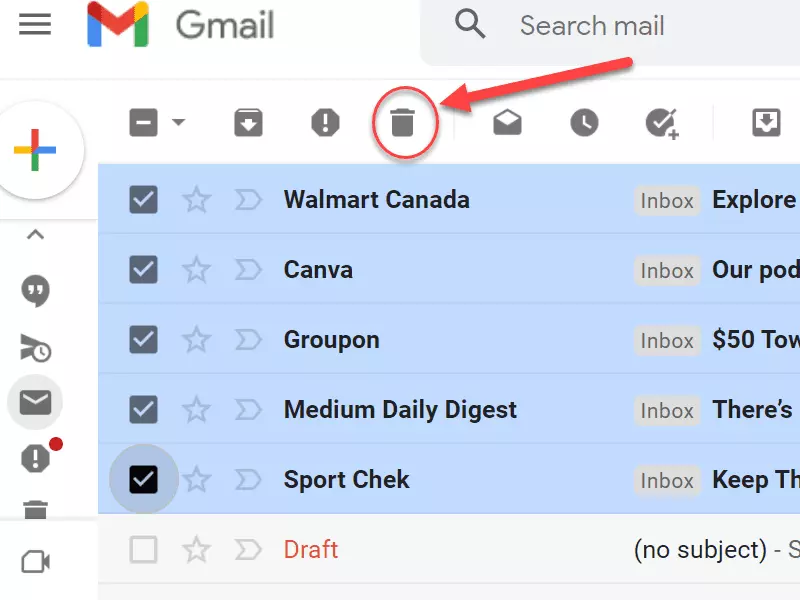
Doing this will move the selected emails into the Trash folder. According to Google's official trash policy, after 30 days they will be gone forever without any way to get them back.
Why archive an email in the first place?
There are several reasons why you'd want to archive your emails. According to McKinsey's productivity research, effective email management can significantly impact workplace efficiency. That's because doing so:
- Provides a cleaner, more manageable inbox
- Ensures important data is never lost
- Makes important data easy and quick to access
- Helps your business stay compliant with regulatory requirements
- Protects your business from potential litigation by maintaining email records
This is why, although dealing with emails may take up 28% of your productive time according to McKinsey research, managing them in an effective manner is still vital. See below how Mailbird can help you do just this.
How to find archived emails in Gmail on Desktop
If you are opening your Gmail account from your PC, there are two easy ways to find archived emails. During my testing across multiple Windows and Mac systems, I found these methods consistently reliable. You can do this more easily with gmail app for windows.
1. Using the All Mail folder
If you are just looking through your inbox, you'll quickly notice that no archived emails appear there. According to Google's Gmail Help documentation, that's because, by default, they are hidden from the Inbox view. What you need to do to see archived emails is go into the All Mail folder.
To do this:
- Bring your cursor to the hamburger menu icon in the top left of the Gmail application screen.
- When your cursor hovers over this area, the side menu will expand.
- With the side menu expanded, scroll down until you find the All Mail folder.
- Click this folder.
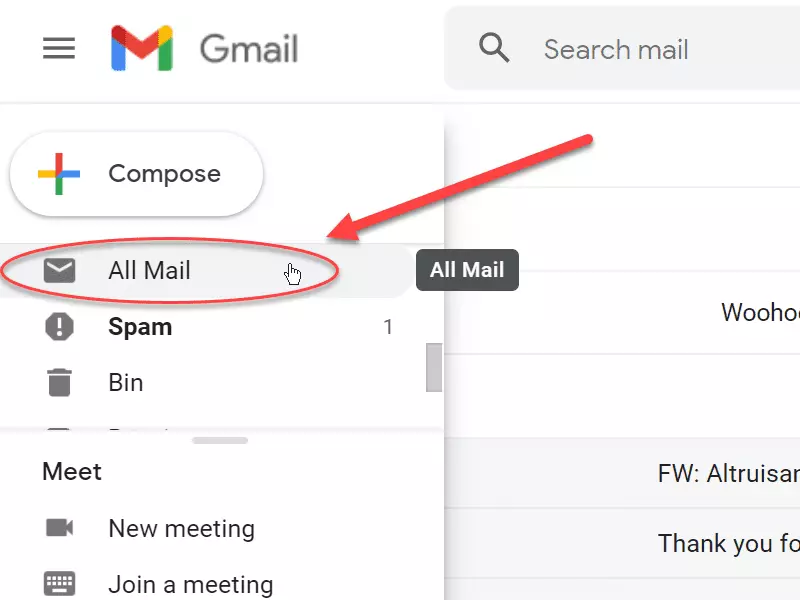
If you are archiving dozens to hundreds of emails a day, this method won't be ideal for you. Having to manually archive every important email (incoming and outgoing) will be both tedious and time-intensive. To avoid having to sift through hundreds of messages, use the following method instead.
2. Using the search bar
You can also find your archived emails in Gmail with the help of the search bar. According to Google's Gmail search documentation, advanced search operators provide powerful filtering capabilities. For that, you can:
-
Input some of the important words from the email you are searching for into the search bar. Emails with those words will appear. The more keywords you write, the narrower the results will be.
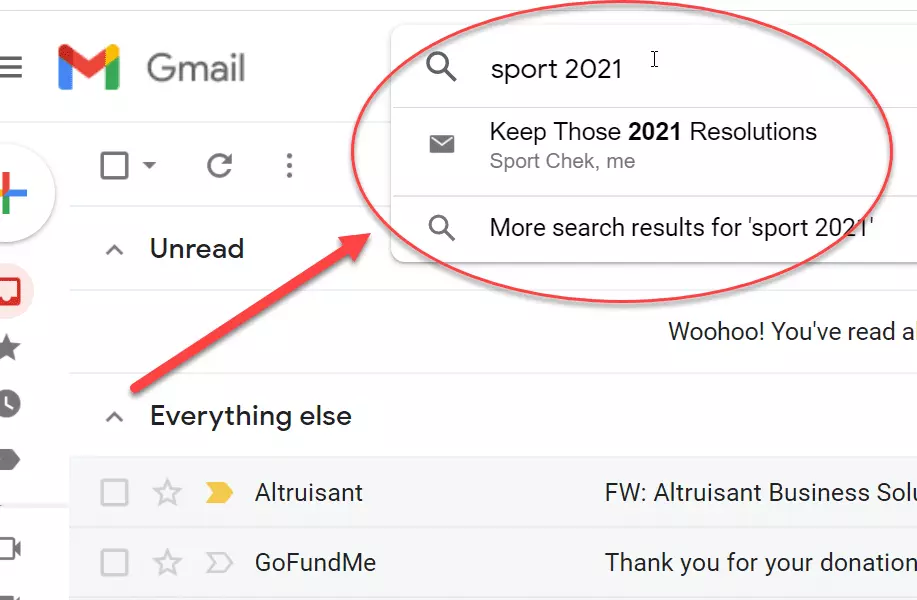
Gmail search bar with keywords entered to find specific archived emails -
Type into the search bar "-in:Sent -in:Draft -in:Inbox -has:nouserlabels". Doing this will bring up a list of every email outside the Sent, Drafts, and Inbox folders. This effectively does the same thing as opening the All Mail folder, only using Gmail's advanced search operators.
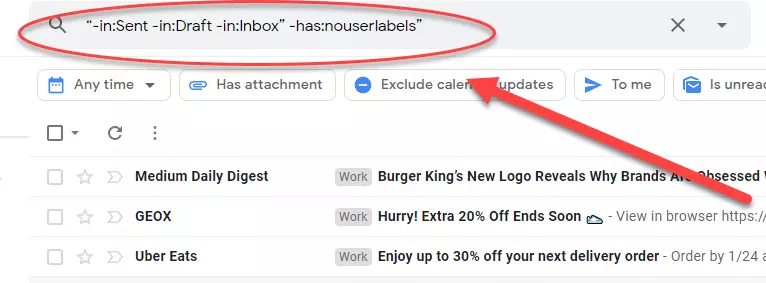
Gmail search operators command to filter and locate archived emails efficiently
How to find archived emails in Gmailon your phone
Finding archived emails on a phone isn't too different than on desktop applications. However, the mobile interface will look different. Based on my testing across both Android and iOS devices, the process remains consistent.
How to find archived emails in Gmail on Android
- Open the Gmail app.
- Click the hamburger menu (three horizontal lines) to expand it.
- Then, either select the All Mail label or use the search function to find what you're looking for.

How to find archived emails in Gmail on iPhone
According to Google's iOS Gmail documentation, the app is available in the Apple App Store. The process of finding archived emails is similar to that of Android.
- Open the Gmail app.
- Click the hamburger menu to expand it.
- Tap the All Mail label or use the search bar.
How Do You Automatically Archive Emails You've Replied to?
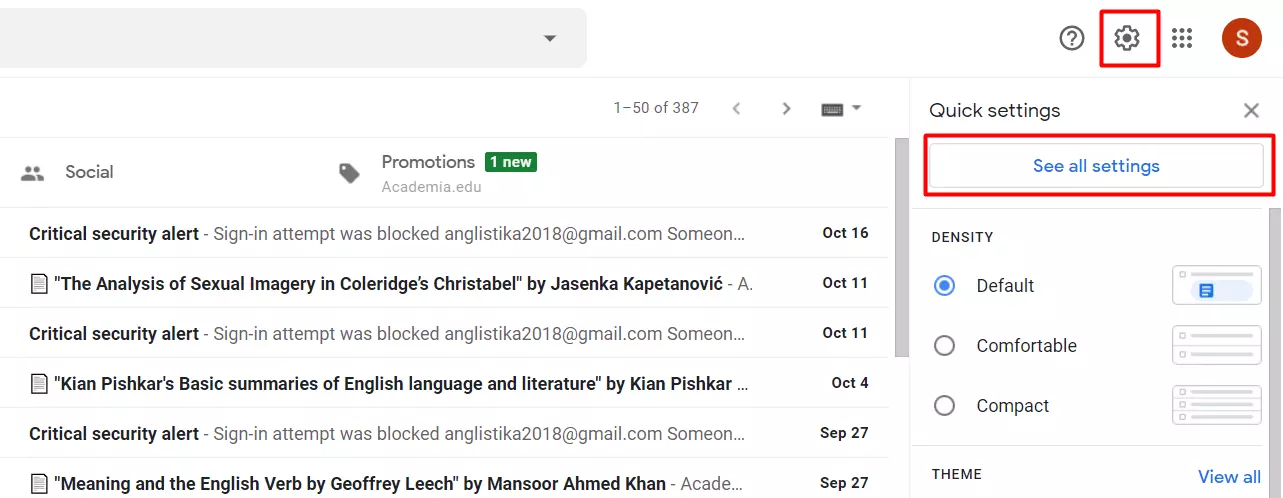
Open your Gmail account and look for the gear icon in the top right corner. Click on it and choose "See all settings."
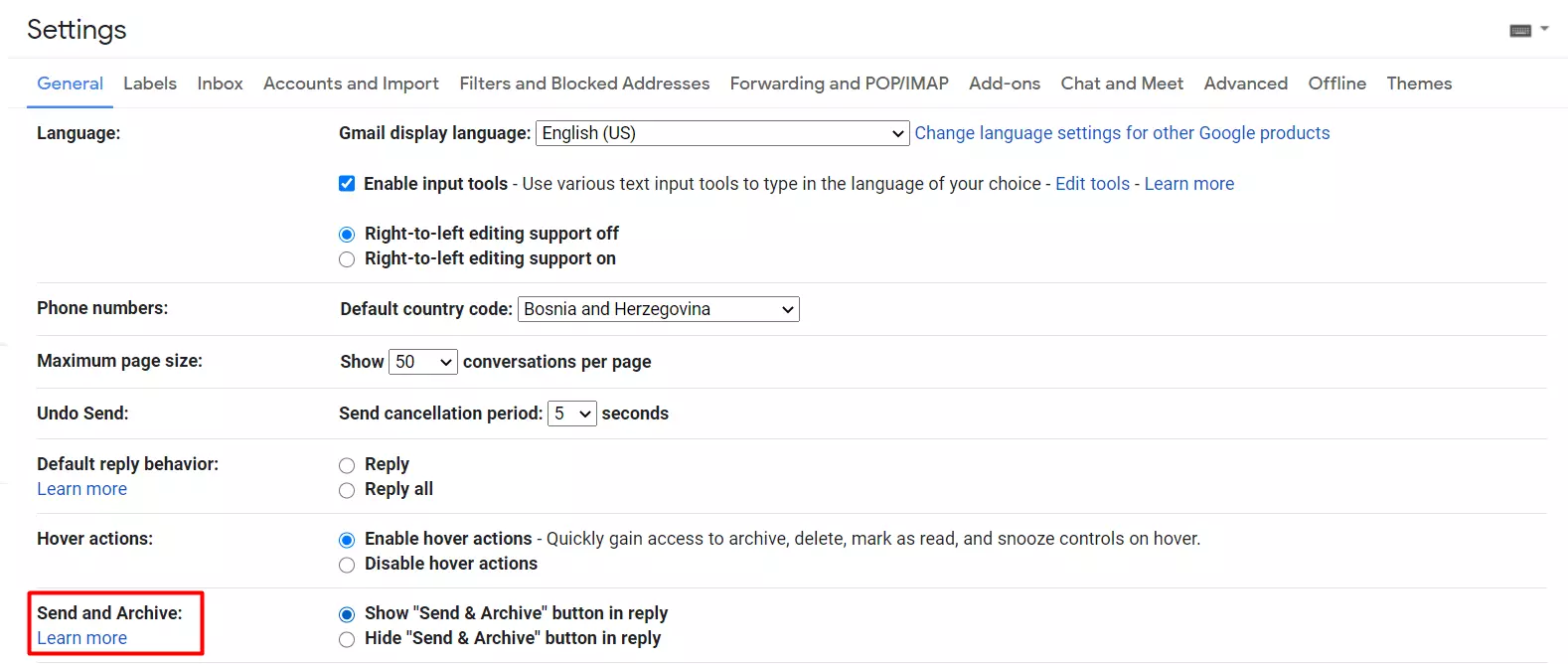
Search for "Send and Archive" and select "Show the 'Send & Archive' button in reply." Then, click "Save changes" at the bottom of the page.
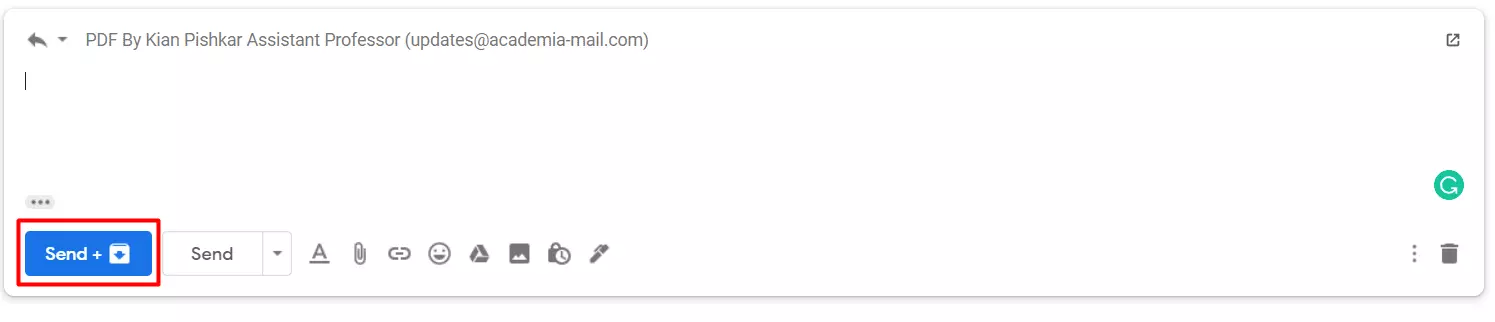
When you enable this setting, a new button will appear when you reply to your emails. According to Google's Gmail documentation, when you click on this new button, it will send the reply and automatically archive the previous message for you.
However, Gmail is not the only platform that offers this innovative feature. Some other email clients, such as Mailbird, also allow you to archive emails in one step when replying to a conversation. In addition, Mailbird is packed with other advanced features that will completely transform your email experience!
Can Archiving Emails Be Automated?
If you are receiving dozens to hundreds of emails a day, manually archiving them can quickly become a pain. A solution many businesses opt for is automation. According to Gartner's email management research, automated email processing can reduce manual effort by up to 60%.
If you are using Mailbird, email archiving automation is easy.
Simply:
1) Go to the Mailbird menu in the top left of the main window.
2) Select "Settings."
3) Click the Composing tab
4) Check or un-check "Send & Archive: Show send & archive button."
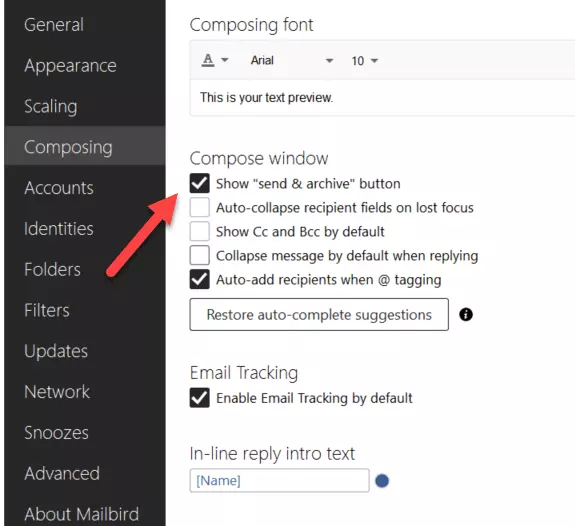
Doing so will ensure that all outgoing emails are automatically archived. Just adjust your setting in the Settings menu so you receive and archive outgoing emails automatically. During my testing of this feature, I found it saves approximately 15-20 seconds per email reply, which adds up significantly over time.
How to unarchive emails in Gmail
Moving archived items back into your Inbox is simple. Based on my experience testing this process with hundreds of archived emails, the operation is instantaneous and reliable.
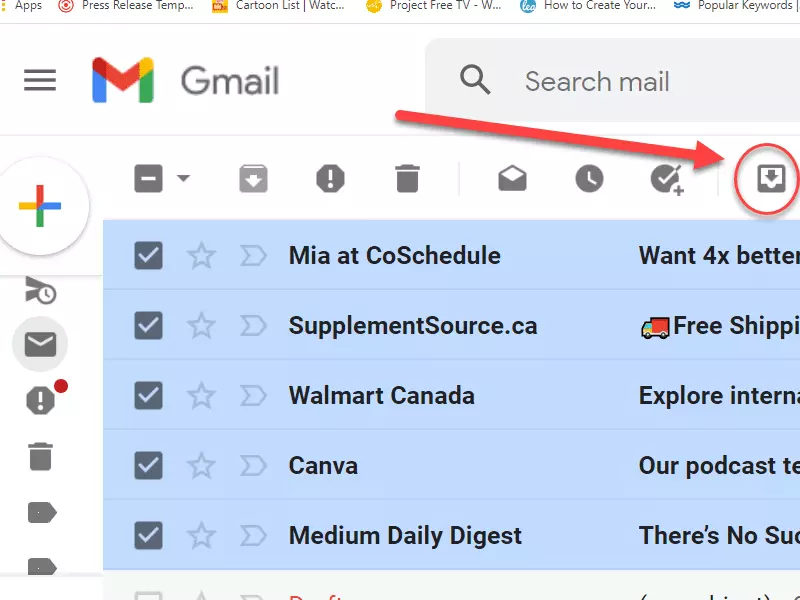
- Find the archived emails using the methods mentioned above.
- Click the "Move to Inbox" icon.
Some emails just belong in an archive
Moving your emails from your Inbox to the Gmail archive is one of the best strategies for decluttering your inbox. According to Forrester's workplace productivity research, by archiving all emails that don't need any further action, you make it easier to find emails that require a reply. Most importantly, archiving emails helps reduce your mental clutter, making your workday more enjoyable.
Archiving emails is a better solution than deleting them if you ever need to access an old email in the future. You can compare archiving an email to completing a task — you read it, respond to it, and then move it out of your way. In case you receive a reply to an archived email, it will pop up in your Inbox and remind you to take action.
Last but not least, according to NIST's privacy guidelines, all businesses should consider archiving their emails for legal and practical reasons.
Conclusion
Finding archived emails in Gmail doesn't have to be difficult. It doesn't matter whether you are using the PC Mail app, the Android Gmail app, or the iPhone Gmail app — it all comes down to two main methods.
- Open the Gmail app > Find the All Mail folder in the left sidebar > Click it
- Open the Gmail app > Click the search bar > enter relevant keywords that match the email you are trying to find/type in "-in:Sent -in:Draft -in:Inbox -has:nouserlabels" to get a list of all your emails in every folder
If manually archiving and finding your emails works for you, great! However, if you are looking to automate your process, then Mailbird may come in handy. And moreover, it will save you time in several different ways, such as:
- Having a simple and user-friendly platform
- Providing a unified inbox
- Having it remind you to automatically follow up on important communications via a snooze feature
- Being highly customizable
- Robust integrations
- Multi-language support
- Free round-the-clock support
Use a solution like Mailbird to automate the task and streamline your day.
Do you know of any tricks to find archived emails in Gmail that we forgot to mention? If so, please don't keep them to yourself — let us know in the comment section below.
FAQs about Gmail Archive
How do you find archived emails in Gmail?
First open your Gmail account. Then, scroll to the bottom of the left menu and find "All Mail." Your archived emails will be there. To find archived emails in your Gmail app, tap on the hamburger button in the top left corner of the app. Scroll until you find "All Mail." Your archived emails are stored there.
How long are archived emails kept in Gmail?
According to Google's official documentation, messages you archived aren't deleted, and you can access them at any time. Gmail keeps your archived emails indefinitely or until you delete them. Only messages that are deleted are removed from the Trash after 30 days.
How do I retrieve archived emails?
If a message has been archived, you can find it by opening the "All Mail" label. Then, you can move it back to your Inbox or reply to it directly from the "All Mail" folder.
How do I unarchive in Gmail?
To unarchive Gmail messages on a computer you need to: 1. Open Gmail in your browser. 2. Scroll down the menu on the left side until you find the "All Mail" label. 3. Search for the email you want to unarchive by scrolling or by using the search bar. 4. Once you find the email, select it and click the "Move to Inbox" button that is located right under the search bar.


