Desktop Email Client vs Webmail: What’s the Difference?
Learn the real difference between a desktop email client and webmail, including how each works, where each wins, and when a desktop app makes email easier to manage.


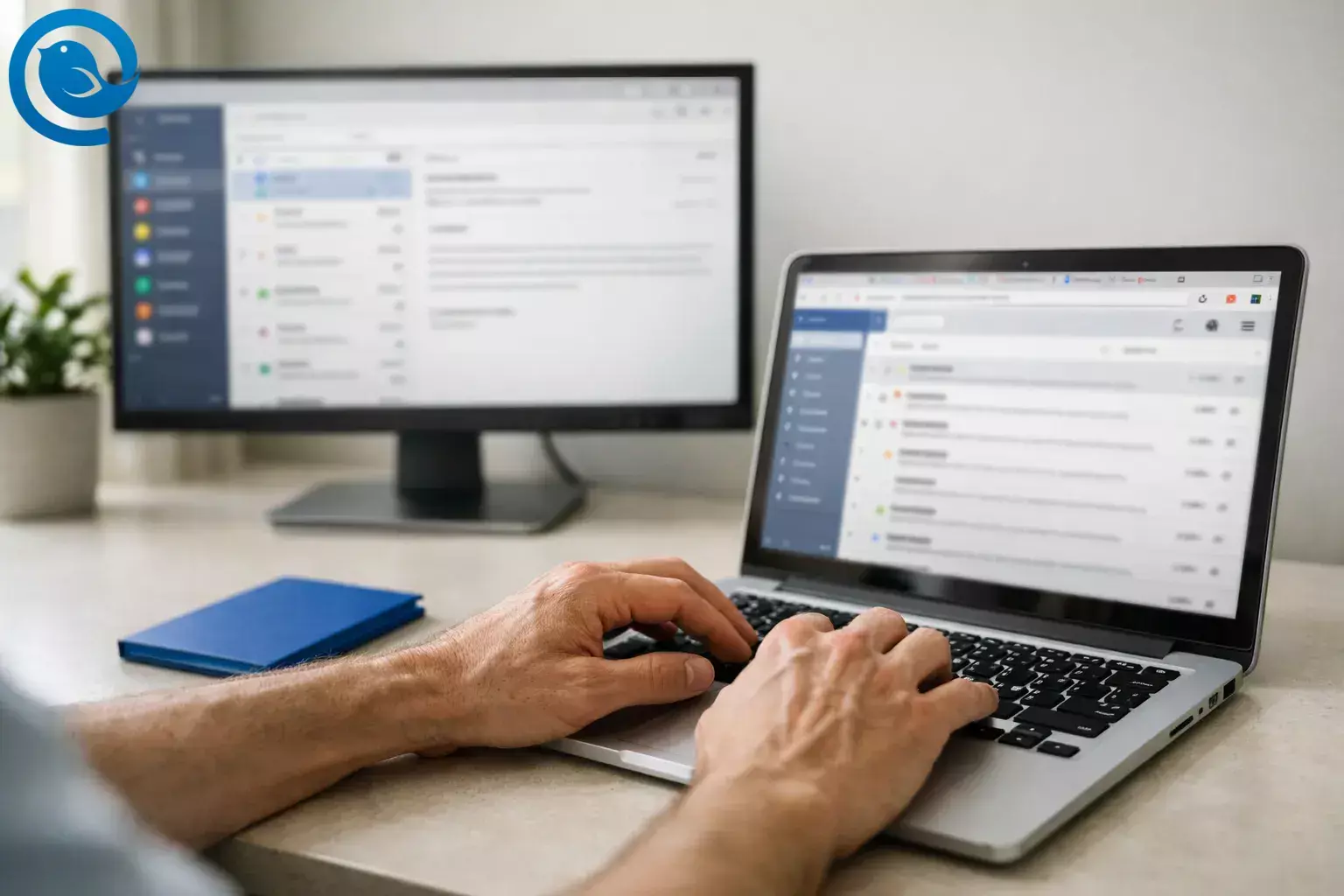
Choosing between a desktop email client and webmail comes down to how you manage your inbox day to day. A desktop email client is usually better if you handle multiple accounts or want a focused workspace, while webmail is better if you need quick access from any device with no setup.
Key idea: In most setups, webmail and a desktop email client access the same mailbox. You’re choosing where the interface runs: browser tab vs installed app.
What’s new: Sometimes the switch is forced. Microsoft ended support for Windows Mail, Calendar, and People on December 31, 2024, and Windows Mail and Calendar can no longer send and receive email or events.1
Short answer: A desktop email client is better if you manage multiple accounts, want a unified inbox, and prefer a focused workspace. Webmail is better if you want simple access from any device with nothing to install.
Key takeaways
- A desktop email client is installed software; webmail runs as a website in your browser.
- In most setups, both webmail and a desktop client connect to the same mailbox—so the difference is the interface, not the account.
- Desktop clients can make handling multiple email accounts feel simpler by bringing inboxes into one place.
- Offline work is often easier in a desktop client (within limits), but some webmail services also offer offline modes (for example, Gmail offline in Chrome).
- Webmail is the easiest “anywhere access” option, while desktop clients may store some mail data locally—making device security and backups more important.
- If you can’t install software (or local storage isn’t allowed), webmail is the practical choice; if email is a core daily tool and you control your device, a desktop client is usually worth trying.
Why it matters
If your familiar inbox changed or stopped working—or if you simply want a better daily workflow—you’re choosing a new “home base” for email. That choice affects how quickly you process messages, how distracted you feel while doing it, and how well you keep moving when connectivity dips.
How a desktop email client works (IMAP, POP, SMTP)
Your email provider hosts the mailbox; your email client is the interface you use to interact with it. Webmail is an email client that runs as a website in your browser, while a desktop email client is installed software that connects to the same mailbox.2
If you’re connecting Gmail to an app, you’re effectively using a Gmail email client setup—where the app accesses your Gmail mailbox without changing where your email is stored.
How a desktop email client works (IMAP, POP, SMTP)
- Add an account. You enter your email address, then sign in or approve access (often through your provider’s sign-in flow).
- Connect to incoming mail. The app pulls message lists and content using IMAP (sync-focused) or POP (download-focused), depending on your account and settings.2
- Connect to outgoing mail. When you hit Send, the app submits your message to a mail server using SMTP, which then handles delivery onward.3
- Keep your mailbox in sync. As you read, move, delete, or flag messages, the app records those actions and syncs them so your mailbox state stays consistent across devices (especially with IMAP-style setups).
- Keep working when you’re offline (within limits). Many desktop clients keep a local working copy of recent mail and queue actions; once you reconnect, the app syncs changes to the server.6
Under the hood, the “plumbing” is typically: IMAP or POP for receiving, SMTP for sending, and OAuth 2.0 for modern authorization when a provider supports it (so the app can use tokens rather than you sharing a password with the app).234
Desktop email client vs webmail (at a glance)
This quick comparison shows the practical differences between using a desktop email client and working in webmail day to day.
| What you’re comparing | Desktop email client | Webmail |
|---|---|---|
| Where it runs2 | Installed app on your computer. | Website in your browser. |
| Offline work | Often can read previously synced mail and draft replies, then sync when you reconnect (app and account dependent).6 | Some services offer offline modes in the browser (for example, Gmail offline in Chrome), usually with limits.5 |
| Multiple accounts | Designed to bring multiple accounts into one interface, which can reduce switching between inboxes. | Often means switching between accounts or inbox pages (depending on the provider). |
| Provider-specific features2 | Some features may be available only in your provider’s web interface. | Some features exist only in the web interface, depending on the email provider. |
| Local storage | May store some mail data on your device (especially for offline access), so device security and backups matter.6 | Offline modes rely on browser storage and settings.5 |
Details depend on your email provider, account type, and settings.
Desktop email client benefits you’ll feel day-to-day
- Fewer “where did I leave that email?” moments. A dedicated app can become a consistent place you go to process messages, instead of hunting through browser tabs.
- Multi-account sanity. If you juggle personal, work, and side-project inboxes, a desktop client can reduce the friction of switching.
- More reliable offline momentum. When your connection drops, you can still review previously synced mail and draft replies so you’re ready to send when you’re back online.
- Better desktop-native handling. Dragging files in and out, opening attachments in local apps, and using system notifications often feels smoother in an installed app than in a browser.
- Less browser distraction. Keeping email in its own app helps some people stay focused when the browser is also where news, docs, and everything else lives.
Desktop email client trade-offs (where webmail often wins)
- Zero-install convenience. Webmail is available anywhere you can sign in.
- Provider-only features. Some features exist only in the web interface, depending on your email provider.
- Local data can become your responsibility. Depending on your settings, a desktop client may store some mail data on your device, so device security and backups matter.
Real-world examples
Example 1 (simple): One inbox, fewer tabs
You keep Gmail open all day in a browser, but it gets buried under other tabs. You switch to a desktop client so email is always one Alt+Tab away, and your browser stays for browsing—not inbox triage.
Example 2 (realistic): A freelancer with three accounts
You manage a personal address, a client address, and a project address. A desktop client lets you scan new messages in one place, reply from the correct identity, and file mail without signing into multiple web pages.
Example 3 (edge case): Spotty internet and an urgent thread
You’re traveling and hotel Wi‑Fi keeps dropping. With a desktop client that has already synced your recent mail, you can still read the thread, draft a careful response, and hit Send once the connection returns—without losing your draft or your place.
Common misconceptions about desktop email clients and webmail
- “Webmail and desktop email are totally different accounts.” They’re usually just two ways of accessing the same mailbox—the difference is the interface.2
- “IMAP means everything lives only on my computer.” IMAP is designed for multi-device access; messages generally stay on the email service and sync across devices.2
- “POP and IMAP are interchangeable.” POP is download-first and can be single-device by nature; IMAP is sync-first and fits multi-device use better.2
- “Webmail can’t work offline at all.” Some services offer offline modes in the browser, but they rely on browser storage and have their own limits.5
- “Windows Mail is still the safe default.” If an app is no longer supported, you may be forced to switch—planned or not.1
- “A unified inbox will make me reply from the wrong address.” A well-built unified inbox keeps track of which account received each message so replies go out from the right identity.7
- “Desktop clients can’t fit modern work tools.” Many desktop clients support app integrations so chat, calendars, and task tools are close to your inbox.8
These basics are documented by major vendors and standards bodies (webmail vs apps; IMAP vs POP; SMTP; OAuth 2.0), plus Gmail’s offline mode, Microsoft’s Windows Mail/Calendar end-of-support notice, and Mailbird’s Unified Inbox and integrations.1234578
Which should you choose: desktop email client or webmail?
Use a desktop email client when…
- You manage multiple email accounts and want one consistent place to triage them.
- You spend a lot of time in email and want more focused processing.
- You often work with unreliable internet and want to keep moving when connectivity dips.
- You want email to integrate more naturally with your desktop (files, notifications, keyboard shortcuts).
- You want a unified inbox workflow instead of switching between separate inbox tabs.
Prefer webmail when…
- You regularly use shared or locked-down computers where you can’t install apps.
- You need a minimal local footprint (for example, you don’t want mail stored on the device).
- You rely heavily on provider-specific features that only exist in the web interface.
- You’re happy with your current setup and mostly need occasional, on-the-go access.
Clear boundary: if installing software or storing mail locally isn’t allowed on your device, webmail is the practical choice. If email is a core daily tool and you control your device, a desktop client is usually worth trying.
How Mailbird fits
Mailbird is a desktop email client designed to help you manage multiple accounts in one place. Mailbird’s Unified Inbox combines messages from multiple connected accounts into a single view and keeps track of which account received each message so replies go out from the right address. Mailbird also supports a large list of app integrations (including tools like Slack, WhatsApp, Google Calendar, and Dropbox) so related work can stay close to your inbox.789
Key terms
- Desktop email client
- An installed email app that connects to an email service to send, receive, and organize messages on your computer.2
- Webmail
- Email accessed by signing in through a web browser, where the interface runs as a website (for example, Gmail or Outlook.com in your browser).2
- IMAP
- A way to access email designed for multi-device use; you read mail from the email service and your mailbox state can stay consistent across devices.2
- POP
- A way to access email that downloads new messages to your computer (and, by default behavior, removes them from the email service), which can be a poor fit for multi-device setups unless configured carefully.2
- SMTP
- The standard protocol used to submit and transfer outgoing email between mail systems.3
- OAuth 2.0
- An authorization framework that lets an app request limited access via tokens, so you can grant access without sharing your account password directly with the app.4
- Offline mail (webmail)
- A webmail feature that saves a limited set of messages in browser storage so you can read, search, and reply without a connection (for example, Gmail offline in Chrome).5
- Unified inbox
- A view that combines messages from multiple accounts into one place so you can process mail without switching inboxes.7
What can change over time
- Bundled apps and end-of-support dates: Built-in mail apps can be replaced or retired, which can force changes for users.1
- Offline features in the browser: Webmail offline modes can be browser-specific and depend on local storage settings (for example, Gmail offline requires Chrome and won’t work in Incognito).5
- Sign-in and security requirements: Providers can change which authentication methods and connections they allow, especially on managed work accounts.
Frequently Asked Questions
Is a desktop email client the same thing as webmail?
No. Webmail runs in your browser as a website. A desktop email client is installed software on your computer that connects to your mailbox.
Sources: 2
Can I use a desktop email client with Gmail? — In many cases
In many cases, yes. Most desktop email clients can connect to Gmail, and many people use a Gmail email client setup so they can keep the same Gmail address while changing the interface they work in.
Sources: 2
Does Gmail work offline in the browser? — Yes. Gmail offers
Yes. Gmail offers an offline mode in Chrome that lets you read, search, and reply without an internet connection, then sync when you’re back online.
Sources: 5
Will I lose email if my laptop dies? — Usually not
Usually not if your account is set up to sync with the server, which is common with IMAP. If you use download-first setups like POP, you may need backups or special settings to avoid missing mail on other devices.
Sources: 2
What’s the difference between IMAP and POP? — IMAP is designed
IMAP is designed for checking mail from multiple devices and keeping mailbox state consistent. POP downloads new messages to a single device and removes them from the email service by default behavior.
Sources: 2
Why did Windows Mail disappear or stop working? — Microsoft ended support
Microsoft ended support for Windows Mail, Calendar, and People. Windows Mail and Calendar can no longer send and receive email or events, and Microsoft recommends moving to the new Outlook or Outlook.com.
Sources: 1
Can I use webmail and a desktop email client at the same time? — Yes. Many people
Yes. Many people use a desktop client for daily processing and webmail for occasional settings or provider-only features.
Sources: 2
Does Mailbird have a unified inbox? — Yes. Mailbird’s Unified
Yes. Mailbird’s Unified Inbox combines messages from multiple connected accounts into one view once you’ve added more than one account, which is one reason people choose a desktop email client over separate webmail tabs.
Sources: 7
Sources 9
- Microsoft Support — Outlook for Windows: The Future of Mail, Calendar, and People on Windows 11 (Windows Mail/Calendar end of support)
- Microsoft Support — What are IMAP and POP? (includes webmail vs email apps)
- RFC 5321 — Simple Mail Transfer Protocol (SMTP)
- RFC 6749 — The OAuth 2.0 Authorization Framework
- Gmail Help — Set up & use Gmail offline
- Microsoft Support — Work offline in Outlook
- Mailbird Support — Unified Inbox
- Mailbird Support — Mailbird Third Party Apps List (app integrations)
- Mailbird — Best Email Client for Windows (desktop email client overview)


