Attachment Email: How to Attach Files the Right Way
Need to send a file by email? This guide shows you how to attach files to an email correctly, avoid common size and format problems, and know when a link is the better option. It works with standard webmail and desktop email apps.



Need to send a file by email? This guide shows you how to attach files to an email correctly, avoid common size and format problems, and know when a link is the better option. It works with standard webmail and desktop email apps.
What’s new
, Microsoft said a phishing campaign using personalized PDF attachments targeted more than 35,000 users across over 13,000 organizations. The takeaway: attachments still work, but clear file names, common formats, and quick sender checks matter every time. 1
Quick answer
An attachment email is simply an email with one or more files added to it. A reliable way to send one is to give the file a clear name, choose the right format, check the size, and mention the file in the message. When a normal attachment is too large or blocked, use a share link instead. 2 3 5
- Give the file a clear name.
- Choose the right format for the job.
- Check the file size before you attach it.
- Mention the file in the message.
- Preview the attachment once before you send.
- Use a link when a normal attachment is too large or blocked.
Before you start
Safety notes: Verify unexpected attachments through a known contact method before you open them. Many mail services also block risky file types on purpose. 3 4
What may change: Attachment size caps, blocked file types, and link-sharing rules vary by provider, plan, and workplace admin settings. 2 3 5
To verify: Send the exact file to yourself first, then open it once before you send it to anyone else.
How to send an attachment email
How to send an attachment email
-
Put the final file in one easy-to-find place
Move the file you want to send into one folder you can reach fast, such as Desktop, Downloads, or a project folder. Open it once outside your email app so you know the file itself works.
Check: You can open the file without using email.
-
Rename the file so a real person can understand it
Replace vague names like
final2orscan0001with something clear. Include a date or version when it matters, such asproposal-2026-07-16.pdf.Check: The filename tells the recipient what it is before they open it.
-
Choose the right format for the job
Use PDF for a read-only document, DOCX/XLSX/PPTX if the recipient needs to edit, JPG or PNG for single images, and ZIP if you need to bundle several files or a folder.
Check: You know whether the recipient should read, edit, or download the file.
-
Check the file size before you attach it
Look at the file’s size in your device’s info or properties panel. If the file is large, compress it or plan to send a share link instead; attachment limits vary by provider, and some mail apps hand large files off to a transfer service rather than sending them as a normal attachment. 2 5
Check: You know whether you’re sending a file copy or a link.
-
Start a new email and write the subject first
Open a new message and write a specific subject before you add the final recipients. “Signed contract attached” is better than “Document.”
Check: The subject line tells the recipient what is attached.
-
Attach the file with the paperclip or drag-and-drop
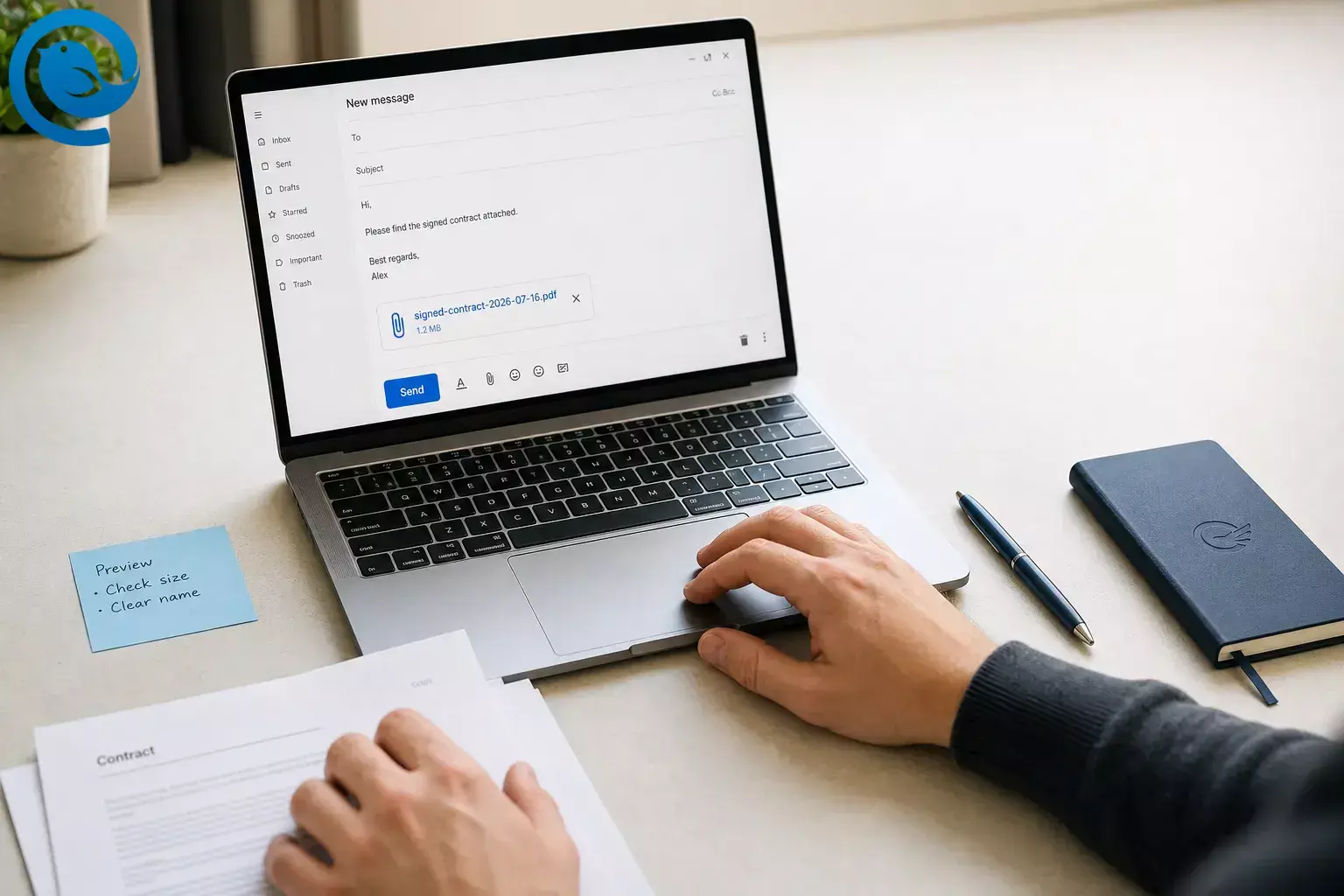
Click the paperclip icon and pick the file, or drag the file into the compose window if your app allows it. Wait until the filename appears in the draft before you move on.
Check: You can see the file name or attachment chip in the message.
-
Mention the attachment in plain English
Say exactly what is attached and what you want next in one or two sentences. Skip stiff phrases like “please find attached” and just say what the file is. If you’re sending more than one file, list each one by name.
Simple attachment email example
Subject: Signed contract attached
Hi Maya,
Attached is the signed contract as a PDF. Please confirm receipt when you get a moment.
Thanks,
AvaCheck: Your email body mentions the attachment by name.
-
Preview the attachment once before you send
Use your mail app’s preview if it has one, or reopen the original file from your device. This catches blank scans, wrong versions, and half-finished exports before the other person sees them.
Check: The file opens and shows the final content.
-
Use a link when a normal email attachment is the wrong tool
Send a link when the file is very large , the file type is blocked, or many people need the same file. Mail systems block certain risky extensions on purpose, and large-file tools may keep downloads available for only a limited time, so tell the recipient what they are getting and what to expect. 2 3 5
Getting that link is where the friction usually sits: open a browser, sign in to storage, find the folder, upload, wait, create a share link, copy it, then switch back to the half-written email. A desktop client can collapse the whole detour — Mailbird runs Google Drive, Dropbox and OneDrive as panels beside your inbox, so you upload the file and copy its share link without leaving the app. Dropbox and Degoo integrate with the compose window itself, letting you pick a file and have a link created from inside the message you are already writing.
Check: The recipient will either get a safe file copy or a working link.
-
Do one final check, then send
For anything important, send the exact message to yourself first and open the file once. Then add the final recipient if you held it back, click Send, and open Sent to make sure the message shows the attachment or paperclip.
Check: Your Sent message clearly shows the file is there.
Why this email attachment workflow works
Most email attachment problems come down to delivery issues, such as size limits and blocked file types, or clarity issues, such as vague file names and no context in the message. This workflow handles both before you click Send, which cuts down on failed deliveries, confused recipients, and risky clicks on suspicious-looking files. 2 3 4
Email attachment troubleshooting
-
Symptom
Message won’t send or sits in Drafts/Outbox
Likely cause: The file is too large for the current limit. Fix: Compress the file, resize images, or switch to a share link or large-file tool before resending. 2 5
-
Symptom
Recipient says the attachment was blocked
Likely cause: The file type is considered risky, or a workplace rule blocks it. Fix: Resend as a PDF or ZIP when appropriate, or use an approved share link instead of a raw attachment. 3
-
Symptom
Recipient says, “I can’t open it”
Likely cause: The format is uncommon or they do not have the right app. Fix: Resend a PDF for reading, and only include the editable original if they need to make changes.
-
Symptom
The attachment is missing
Likely cause: The upload never finished, or the file was never added. Fix: Reopen the draft or Sent message and look for the filename before resending.
-
Symptom
The wrong version went out
Likely cause: Duplicate filenames or last-minute edits. Fix: Add a date or version to the filename, remove old copies from the draft, and attach the final file again.
-
Symptom
The link opens, but the recipient sees “access denied”
Likely cause: Sharing permissions are too strict. Fix: Open the link in a private window, adjust access settings, and test it before resending.
-
Symptom
An unexpected attachment lands in your inbox
Likely cause: A spoofed sender or a malicious lure. Fix: Stop, verify the message through a known phone number or chat, and only open the file after you confirm it is real. 1 4
-
Symptom
Photos make the email huge
Likely cause: Full-resolution camera images. Fix: Export smaller copies or send a shared album or folder link instead of attaching every original photo. 2 5
Email attachment examples and variations
One formal document
Attach a PDF, use a specific subject, and include one action request such as “Please confirm receipt” or “Please review by Friday.”
Multiple files
Name files in order, such as
01-brief.pdf
,
02-pricing.xlsx
, and
03-timeline.pdf
. If there are many, zip them first.
Large video or design file
Use a share link instead of a standard attachment. If the service expires downloads after a set time, say that in the email so the recipient does not miss it. 5
Replying with updates
Some email apps do not keep the original attachment on replies, so attach the revised file manually. If the next person needs the earlier attachment too, forward the original message instead. 6
How to organize attachments before and after sending
Make ahead by keeping two folders: one for files that are ready to send and one for files you have already sent. Store the final PDF and the editable original together so you can resend either version fast. If you send the same large file to many people, use one managed link instead of attaching a heavy copy to every message. 2 5
Email attachment checklist
- The file opens correctly before sending
- The filename is clear and human-readable
- The format matches the job: view, edit, or download
- The file size has been checked
- The subject line says what the attachment is
- The attachment is visible in the draft
- The email body mentions the attachment by name
- If using a link, permissions have been tested
- The final recipient list is correct
- The Sent message shows the attachment or paperclip
Frequently Asked Questions
What is an attachment email? — simply an email
It’s simply an email that includes one or more files, such as a PDF, photo, spreadsheet, or ZIP file.
How do I attach a file to an email? — open a new
Open a new message, write the subject, click the paperclip icon or drag the file into the compose window, wait for the filename to appear, mention the file in the message body, and then send.
How big can an email attachment be? — universal limit
Should I send a file or a link? — send a file
Can I attach a whole folder? — usually not directly
Usually not directly. Zip the folder first, or send a folder link instead.
What file format is best for an email attachment? — safest default
PDF is the safest default for clean viewing. Send an editable format only when the other person needs to change the file.
Why did my attachment get blocked? — considered unsafe
The file type may be considered unsafe, or your organization’s mail rules may block it. 3
Mailbird brings this into one desktop inbox for Windows and Mac, so you can set it up in minutes.
Sources
- Microsoft Security Blog — Breaking the code: Multi-stage “code of conduct” phishing campaign leads to AiTM token compromise
- Microsoft Support — Reduce attachment size to send large files with Outlook
- Microsoft Support — Blocked attachments in Outlook
- Microsoft Support — Help protect your Outlook.com email account
- Apple Support — Mail Drop limits
- Microsoft Support — Reply to or forward an email message


