How to Search Emails on iPhone
To search emails on iPhone, open the Mail app, tap the search field, choose Current Mailbox or All Mailboxes, then search by sender, subject word, date, unread status, or attachment. If Mail still misses the message, narrow the results with filters or try Spotlight.2, 3, 5



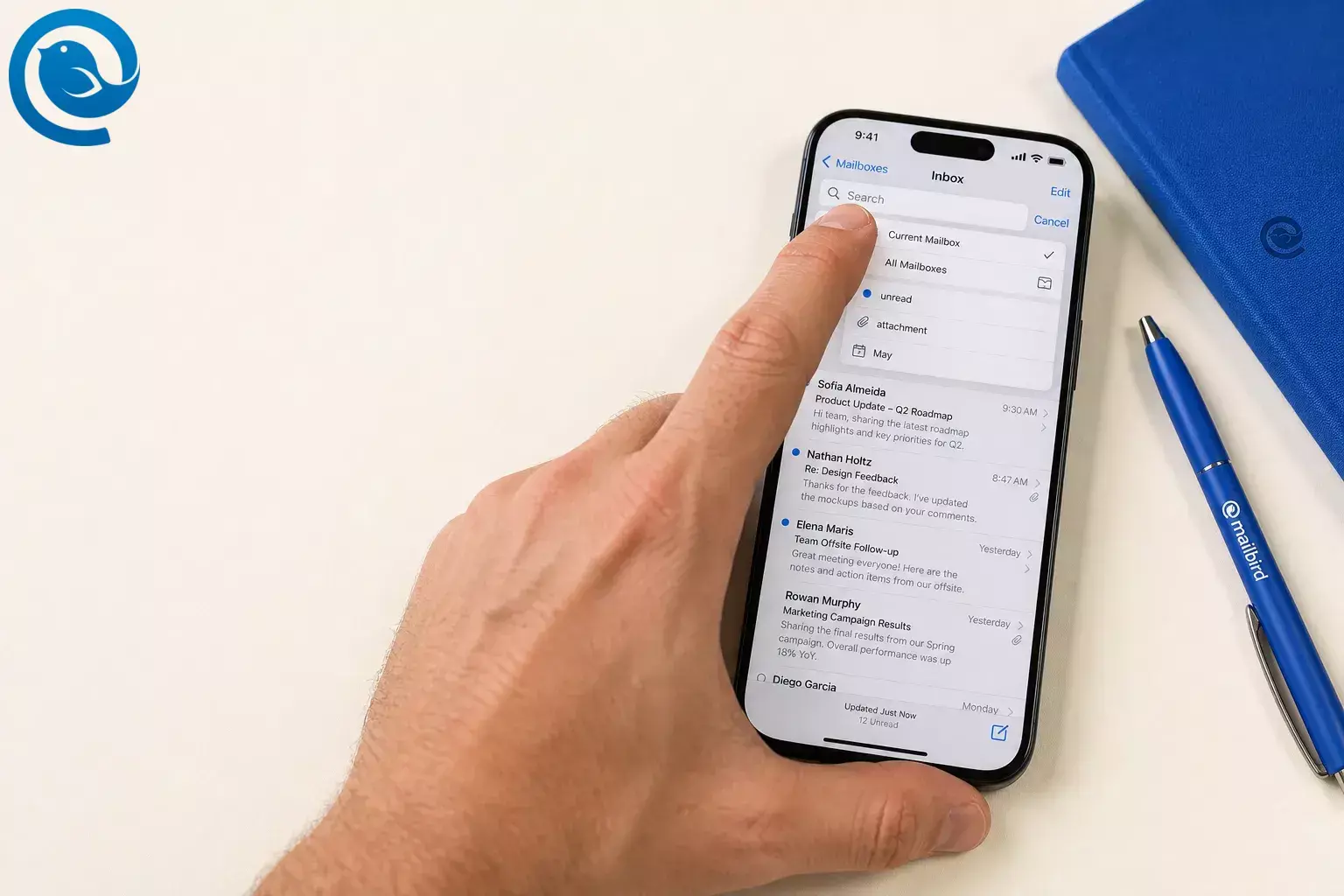
To search emails on iPhone, open the Mail app, tap the search field, choose Current Mailbox or All Mailboxes , then search by sender, subject word, date, unread status, or attachment. If Mail still misses the message, narrow the results with filters or try Spotlight. 2 , 3 , 5
What’s new
If your Mail app looks different from older screenshots, that’s normal. Apple has moved Search in newer iPhone layouts, but the same basic steps still work. 1
Mail controls can move between iOS versions, and categories are not available in all countries or regions. 1 , 4
Key takeaways
- Open the mailbox where the email is most likely to be, then use Current Mailbox for cleaner results or All Mailboxes if you’re not sure where the email is. 2 , 7
- If you don’t see Search right away, swipe down slightly inside the message list to reveal it. 1 , 2
- Good clues include a sender name, full email address, exact subject word, order number, city name, or a short phrase from the message. 2
- Type a month such as September , then add another word like invoice or meeting , or use Date , Before , or After . 2
-
Search
unread,flag, orattachment, then add a temporary filter if you still have too many results. 2 , 3 - If you see Primary , Transactions , Updates , or Promotions , open the most relevant category; categories are not available in all countries or regions. 4
- Use Spotlight from the Home Screen or Lock Screen if Mail still misses the email. 5
- Confirm the messages still exist on the provider’s website before removing or re-adding the account. 6
What you need
- An iPhone with Mail set up: Make sure at least one email account is already added.
- The Mail app: That’s where most of the search tools live.
- Optional fallback: Spotlight from the Home Screen or Lock Screen. 5
- Cost: Free.
- Safety note: If this is a work phone or a shared device, don’t remove the mail account just to troubleshoot until you confirm the message still exists on the provider’s website. Apple notes that changing or deleting account settings can remove previously downloaded email from the device. 6
Step-by-step
How to Search Emails on iPhone
- Open the mailbox where the email is most likely to be. If you know which account received it, start there instead of searching every inbox at once. Check: you can see the message list for that mailbox. 2 , 7
- Tap the search field. If you don’t see it right away, swipe down slightly inside the message list to reveal it. On newer iPhone layouts, Search may sit lower than older screenshots show. Check: the keyboard opens and you see suggestions or recent searches. 1 , 2
- Choose the search scope. Pick Current Mailbox for cleaner results or All Mailboxes if you’re not sure where the email is. Check: the scope on screen matches what you want. 2
- Type the best clue you remember. Good clues include a sender name, full email address, exact subject word, order number, city name, or a short phrase from the message. Apple says Mail searches address fields, the subject line, the body, documents, and links. Check: results update as you type. 2
- Add a month or date if the first search is too broad. Type a month such as September , tap the calendar suggestion, then add another word like invoice or meeting . You can also use Date , Before , or After . Check: the results narrow to the right time window. 2
-
Use built-in search words for common email types.
Type
unread,flag, orattachment, then tap the matching suggestion. Check: only unread, flagged, or attachment emails stay in the list. 2 - Turn on a temporary filter if you still have too many results. Tap the filter button, then Filtered by , and choose criteria such as Unread or Only Mail with Attachments . Check: you see Filtered by above the message list. 3
- Use categories if your inbox has them. If you see Primary , Transactions , Updates , or Promotions , open the category that best matches the email you want. Categories are not available in all countries or regions. Check: you’re in the most relevant category or back in the full inbox view. 4
- Open more messages from the same sender. In some category views, tapping a message can open a sender-specific list. Use Show All Messages if you want to pull up more mail from that sender quickly. Check: you’re seeing several messages from the same sender. 4
- Try Spotlight if Mail still misses the email. Search again from the Home Screen or Lock Screen. If Mail results do not appear, open Settings and make sure Mail is included in Search. Check: Spotlight opens the email or confirms that Mail content is searchable systemwide. 5
Common ways to search emails on iPhone
- Search all mailboxes at once: Tap the search field, then choose All Mailboxes above the results list. 2
- Search one email account only: Open Mailboxes , tap a mailbox under that specific account, and search there. 7
- Search old emails by month or date: Type a month or timeframe, tap the calendar suggestion, then add a keyword or use Date , Before , or After . 2
- Search by sender: Type the sender’s name or full email address to narrow results faster. 2
-
Find only unread emails:
Search
unreador turn on the unread filter. 2 , 3 - Find emails with attachments: Search for attachments , then add a filter if the results are still noisy. 2 , 3
- Search outside the Mail app: Use Spotlight from the Home Screen or Lock Screen when you remember just one unusual word. 5
If Mail search misses emails on iPhone
- The search bar is missing — Likely cause: you’re not in the right mailbox view, or the control moved in your iOS version. Fix: go back to the message list and swipe down slightly to reveal Search. ( Apple Mail search fixes ) 1 , 2
- You get too many unrelated results — Likely cause: the search term is too broad, or you’re searching every mailbox. Fix: switch to Current Mailbox , then add a month and one more keyword. 2
- Top Hits keeps surfacing the wrong emails — Likely cause: Mail is ranking what it thinks is most relevant. Fix: scroll past Top Hits and narrow by mailbox, month, or filter. 2 , 3
- You only see recent messages — Likely cause: a filter or category view is still on. Fix: turn off Filtered by and return to the full inbox or List View . 3 , 4
- The message should be in one account, but it isn’t — Likely cause: you’re searching the wrong account or mailbox. Fix: open Mailboxes , tap the mailbox under that account, and search again there. 7
-
You need a PDF or file, not just any email
—
Likely cause:
the keyword is too generic.
Fix:
search
attachmentfirst, then add a sender, month, or filter. 2 , 3 - Mail does not appear in Home Screen search — Likely cause: Mail is not included in Search. Fix: open Settings and turn Mail back on for Search results. 5
- Downloaded emails disappeared after you changed the account — Likely cause: the account settings were changed or removed. Fix: confirm the messages still exist on the provider’s website before removing or re-adding the account again. 6
Need stronger email search on desktop too?
If most of your heavy searching happens on a computer, Mailbird Advanced Search is a practical next step. It’s a desktop email client for Windows and Mac, and it can be a more comfortable way to work through old threads, receipts, and attachments than searching on a phone.
Frequently Asked Questions
How do I search all mailboxes at once on iPhone?
Tap the search field, then choose All Mailboxes above the results list. 2
How do I search one email account only?
Open Mailboxes , tap a mailbox under that specific account, and run the search there. 7
How do I search old emails on iPhone?
How do I search emails on iPhone by date?
Type a month or date-related term, tap the calendar suggestion, then refine it with another keyword or use Date , Before , or After . 2
How do I find only unread emails?
How do I find emails with attachments?
Why are Top Hits showing the wrong emails?
Can I search Mail from the iPhone Home Screen?
Yes. Use Spotlight from the Home Screen or Lock Screen, and make sure Mail is included in Search results in Settings. 5
What if old emails disappeared after I removed the account?
Check the provider’s website first. If the messages are still there, reconnect carefully; Apple notes that changing or deleting account settings can remove previously downloaded email from the device. 6
Quick checklist
Use this list the next time Mail search gets stubborn. 2 , 3 , 4 , 5 , 7
- Open the most likely mailbox first.
- Tap the search field.
- Switch between Current Mailbox and All Mailboxes .
- Search by sender, subject word, order number, or phrase.
- Add a month or date if results are noisy.
-
Try
unread,flag, orattachment. - Use the filter button when you need fewer results.
- If categories are available, check the most relevant one.
- Turn off filters or category views if results look incomplete.
- Use Spotlight if Mail still doesn’t surface the message.
Mailbird brings this into one desktop inbox for Windows and Mac, so you can set it up in minutes.
Sources
- Apple — New features available with iOS 26 (PDF)
- Apple Support — Search for email in Mail on iPhone
- Apple Support — Filter emails in Mail on iPhone
- Apple Support — Automatically categorize incoming emails in Mail on iPhone
- Apple Support — Search with Spotlight on iPhone
- Apple Support — If you can't receive email on your iPhone or iPad
- Apple Support — Organize email in mailboxes on iPhone


