How to Unsubscribe from Emails in Gmail: Mass Unsubscribe and Clean Your Inbox
Gmail's built-in tools let you mass unsubscribe from newsletters, bulk delete old clutter, and block persistent senders without any third-party extensions. This guide walks through each method step by step, from the new Manage subscriptions view to targeted search operators for batch cleanup.



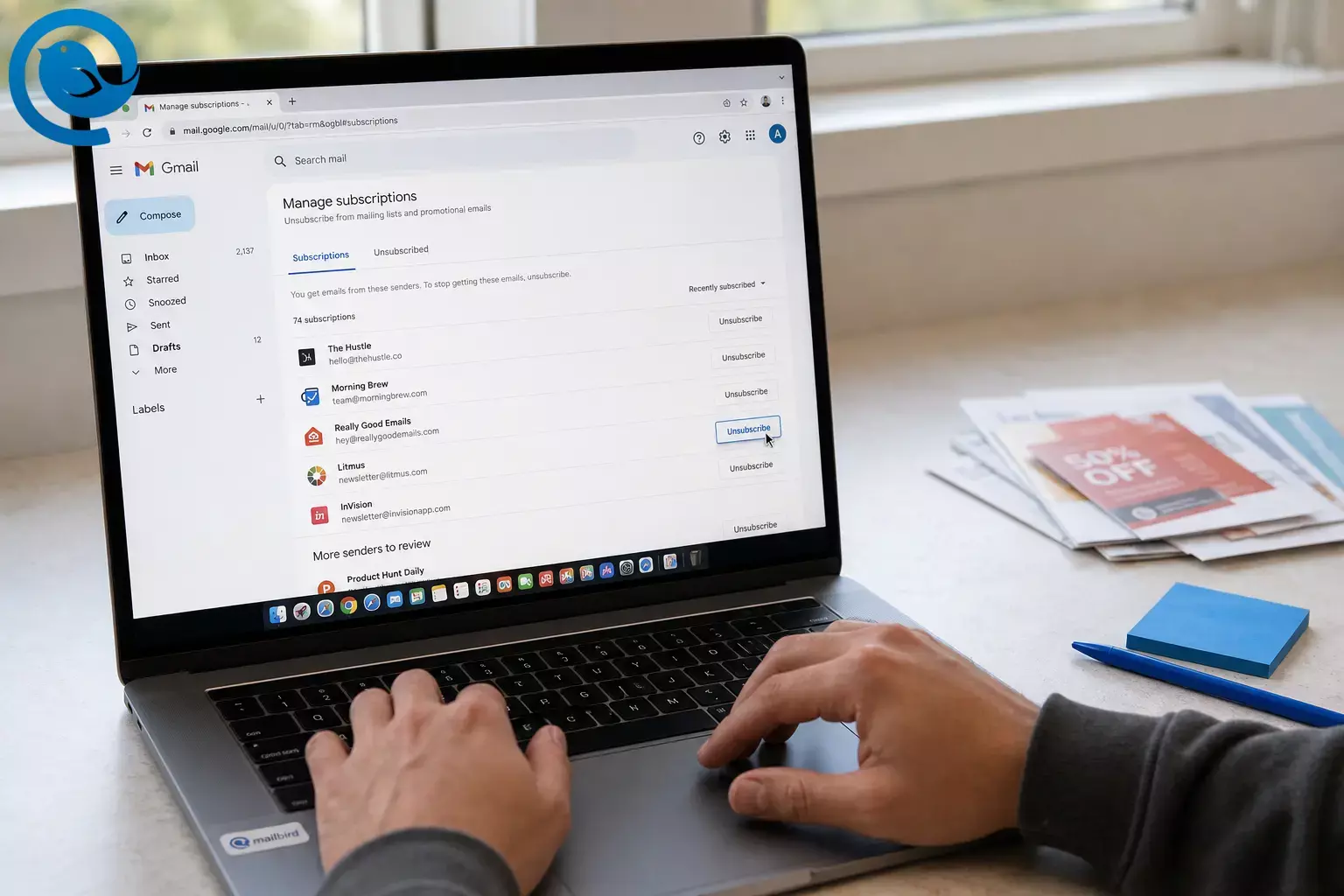
If you’re trying to stop unwanted emails Gmail keeps delivering, you don’t need an extension. Below is a no-third-party-tools workflow to unsubscribe from emails in Gmail in bulk, then clean up old clutter with filters, blocking, and Gmail search.
TL;DR (fast Gmail clean inbox workflow)
- On desktop Gmail, open Manage subscriptions (if you have it) and unsubscribe from the biggest senders first. [2]
- If you don’t see that view, open a newsletter and use Gmail’s header Unsubscribe option (when shown). [3]
- For messages you didn’t sign up for (or don’t trust), use Report spam / Report phishing instead of clicking unsubscribe links in the email body. [7]
- To clear the backlog, search by sender or age (e.g., from: , older_than: ) and bulk-delete or archive. [5]
Before you start
- Prerequisites: Access to your Gmail account (web or mobile app) and a few minutes of uninterrupted time.
- Tools: Gmail only (no extensions, no paid cleanup apps).
- Time: A short session can stop the flood; clearing years of backlog can take longer.
- Cost: $0.
Safety note: If an email looks suspicious, avoid clicking unsubscribe links inside the message body; use Gmail’s built-in unsubscribe (when available) or report it as spam/phishing instead. [7]
Step-by-step: Gmail bulk unsubscribe + inbox cleanup
If you see Manage subscriptions , start at step 2. If you don’t, skip to step 5.
Gmail bulk unsubscribe + inbox cleanup
-
Work on desktop first (if you can). Open Gmail in a web browser for the fastest bulk actions (select-all, filters, and settings are easier to reach).
Check: You can see your Gmail message list and the left sidebar (Inbox, Sent, etc.).
-
Look for Manage subscriptions in the left sidebar. Expand the left menu (if it’s collapsed) and scan for “Manage subscriptions.”
Check: You should get a list of subscription senders with volume and quick actions. [2]
-
Unsubscribe from your top 5–10 senders first (the biggest win). In Manage subscriptions , start at the top of the list. Click Unsubscribe next to a sender and confirm when prompted.
Check: The sender shows as unsubscribed (or disappears from the active list) after the action completes. [2]
-
Use Manage subscriptions to catch related lists from the same sender. If a brand sends multiple newsletters, unsubscribing there can remove you from active mailing lists related to that sender.
Check: Gmail notes this behavior in the Manage subscriptions help guidance. [2]
-
If you don’t have Manage subscriptions , use Gmail’s built-in Unsubscribe on individual emails. Open an email from a newsletter you want to stop. Look near the sender name/header for an Unsubscribe option (or open the message menu and choose unsubscribe if shown).
Check: Gmail won’t show built-in unsubscribe on every message; it depends on eligibility checks and sender setup. [3]
-
For obvious junk, don’t “unsubscribe”—report it. If you never signed up (or the email looks off), use Report spam or Report phishing in Gmail instead of clicking a link in the email body.
Check: The message moves out of your inbox.
-
Block repeat offenders that won’t stop. Open a message from the sender, use the menu (three dots) and choose Block .
Check: New messages from that address go to Spam (not your inbox). [6]
-
Create a “quarantine” filter for stubborn senders (skip inbox automatically). Go to Settings → See all settings → Filters and Blocked Addresses → Create a new filter . Add the sender’s address (or domain) in From , then click Create filter .
Check: You can review the filter criteria before saving it. [4]
-
Choose the exact filter action and apply it to existing mail. In the filter actions, pick one:
- Skip the Inbox (Archive it) to keep it searchable without seeing it daily
- Delete it if you’re confident you’ll never need it
- Apply the label (e.g., “Subscriptions”) to keep it contained
Then check Also apply filter to matching conversations (if shown) and save.
Check: Matching threads move/label immediately, and new mail follows the rule.
-
Bulk-delete the backlog for one sender (fastest inbox cleanup). In the search bar, type from:sender@domain.com and press Enter. Click the checkbox at the top to select the page. If Gmail offers Select all conversations that match this search , click it—then hit delete messages .
Check: The results drop to 0 (or close), and messages move to Trash.
-
Use Gmail search operators to clean your inbox in batches. Try searches like:
- older_than:1y (very old mail)
- older_than:6m category:promotions (older promotions)
- label:inbox older_than:90d (old mail still sitting in Inbox)
- before:2025/01/01 (anything before a date)
Then select-all and delete or archive.
Check: Gmail’s help docs list supported operators like older_than: , before: , and after: so you can tune the batch size. [5]
-
Finish by reviewing Spam and Trash (optional, but satisfying). Open Spam and Trash in the left sidebar and remove what you don’t need. If you’re trying to free up space, empty Trash only after you’re sure nothing important is there.
Check: Your inbox looks “quiet” again.
Tip (1-minute test): After you unsubscribe/filter, send yourself a note like “test inbox” from another address. If it lands normally while the noisy stuff stays out, your setup is working.
Why this works (in plain English)
Gmail can unsubscribe you using built-in subscription controls when senders support them, and it can suppress unwanted mail locally using filters and blocking—so you’re not relying on a “please remove me” link inside every message. Google’s sender guidelines also push bulk senders to make unsubscribing easier, which increases the odds that Gmail can show a safe unsubscribe option in the header for legitimate lists. [3]
What can change: Gmail features (including Manage subscriptions ) can roll out gradually by region/account type, and menu labels can shift slightly over time. [1]
Troubleshooting
| Symptom | Likely cause | Fix |
|---|---|---|
| “Manage subscriptions” isn’t anywhere in my Gmail menu. | It hasn’t rolled out to your account yet, or you’re in a restricted environment (some work/school setups). [1] | Use the header Unsubscribe option on individual emails + create filters for the worst senders. Re-check the menu later (desktop and mobile can differ). |
| I don’t see an Unsubscribe button in the email header. | The sender’s email didn’t pass Gmail’s eligibility checks or doesn’t support the needed unsubscribe method. [3] | Don’t hunt inside the body if you don’t trust it. Use Report spam/phishing , Block , or create a filter to archive/delete those messages instead. |
| I unsubscribed, but emails keep arriving. | You unsubscribed from one list, but the brand uses multiple lists/senders; or you’re still getting transactional mail (receipts, account alerts). | Search from:domain.com and unsubscribe/block/filter each distinct sender address. Keep receipts by labeling instead of deleting. |
| My filter didn’t clean up old emails—only new ones. | The filter was created, but you didn’t apply it to existing conversations at creation time. | Run a search (e.g., from:sender@domain.com ), select-all, and archive/delete manually. Then keep the filter for future mail. |
| “Select all” only selected 50–100 emails. | That checkbox selects the current page of results first. | After checking the box, look for the option that says Select all conversations that match this search and click it before deleting. |
| I blocked a sender, but I still see them sometimes. | They’re using multiple “From” addresses, or you’re seeing forwarded/re-posted messages. | Block/filter by domain (where appropriate), and for aggressive junk use Report spam (not unsubscribe). If it’s a mailing list, also search for the list’s sending address. |
| Important emails are going to Spam after I cleaned up. | You may have blocked the sender, or Gmail is unsure about them. | Unblock the sender and add them to Contacts if appropriate. Then create a filter that labels/keeps them in Inbox. [6] |
Variations
1) Mass unsubscribe first, then filters as a backstop
Use Manage subscriptions (or header Unsubscribe) for legitimate newsletters. For anything that won’t comply—or that you never asked for—use filters to skip the inbox or delete on arrival.
2) “Gmail clean inbox” mode (archive, don’t delete)
If you’re worried about losing something, choose Skip the Inbox (Archive it) in filters and do bulk Archive actions instead of Delete. You’ll still be able to search those emails later.
3) Multi-account workflow (optional)
If you manage more than one mailbox (work + personal + side projects), do the Gmail unsubscribes/filters per account, then read them all in one place using a dedicated Gmail desktop client like Mailbird. The cleanup still happens at the Gmail level—you’re just changing how you view it day-to-day.
Make-ahead / maintenance / scaling
- Make-ahead: Create one label called “Subscriptions” and route borderline senders there (filter action: Apply label + Skip the Inbox ). That gives you a safe holding pen.
- Maintenance: Once a week, open Manage subscriptions and unsubscribe from any new offenders. Then search category:promotions newer_than:7d and bulk-delete what you don’t want.
- Scaling: When your inbox volume spikes (sales, travel, job search), switch from “unsubscribe” to “label + skip inbox” temporarily. After the busy period, unsubscribe in one sitting.
Frequently Asked Questions
What’s the fastest way to mass unsubscribe in Gmail?
Why can’t I find the “Manage subscriptions” option?
Some Gmail features roll out gradually and may not be enabled on every account yet. If you don’t have it, use the built-in Unsubscribe on individual emails plus filters. [1]
Does Gmail’s Unsubscribe button actually unsubscribe me or just block the sender?
Is it safe to click “unsubscribe” at the bottom of every email?
If the sender is legitimate and you trust them, it’s usually fine. If the email looks suspicious or you didn’t sign up, it’s safer to use Gmail’s built-in controls or report it as spam/phishing instead of clicking links in the message body. [7]
How do I stop emails without unsubscribing (but keep them searchable)?
Create a filter that skips the inbox (archives) and applies a label . That keeps the mail out of your face but easy to find later. [4]
How do I unsubscribe from emails on the Gmail mobile app?
Can I undo an unsubscribe?
Sometimes you can resubscribe using a recent email from that sender (if you still have one) or by signing into your account with that company and adjusting email preferences.
I unsubscribed, but I still get receipts and account alerts. Why?
Receipts, password resets, and security alerts are usually transactional messages, not marketing subscriptions. Use filters/labels if you want them organized, but be careful about deleting them automatically.
Quick checklist (save this)
- Open Gmail on desktop for faster bulk actions
- Use Manage subscriptions for mass unsubscribe Gmail (if available) [2]
- For other lists, use Gmail’s built-in Unsubscribe in the email header (when shown) [3]
- For suspicious mail: Report spam/phishing (don’t click body links) [7]
- Block repeat offenders that won’t stop [6]
- Create filters to Skip Inbox , Label , or Delete future mail [4]
- Bulk-delete old clutter using searches like from: and older_than: [5]
- Review Spam/Trash and remove what you don’t need
Sources
- Google Workspace Updates — “Manage email subscriptions from a single location in Gmail” (Jul 8, 2025)
- Gmail Help — Manage your subscriptions in Gmail
- Google Workspace Admin Help — Email sender guidelines FAQ (unsubscribe eligibility + bulk sender requirements)
- Gmail Help — Create rules to filter your emails
- Gmail Help — Refine searches in Gmail (search operators)
- Gmail Help — Block or unblock an email address in Gmail
- Popular Science — “That ‘unsubscribe’ button may be a scam” (Jun 2025)


