Change Default Mail App Mac How to change the default mail app on Mac
Discover how switching the default mail app on your Mac can boost productivity and streamline email management. This guide provides updated insights and step-by-step instructions to select your preferred email client, enhancing your workflow with options like Mailbird, Outlook, Thunderbird, or Gmail over Apple's default Mail app.

Article Updates
- October 2025: Updated with current information, refreshed links, added 6 new sources, and expanded FAQ section
- August 2025: Updated with enhanced security information, revised privacy details, and current compatibility requirements to provide readers with the most accurate and up-to-date guidance. Statistics have been refreshed to reflect current year data, ensuring all information remains relevant and actionable.
Switching the default mail app on your Mac might sound like a small tweak, but it can be a game-changer for productivity and workflow efficiency. Whether you're more comfortable with Mailbird, Outlook, Thunderbird, or Gmail, selecting your preferred email app as the go-to choice can streamline your daily email management tasks.
Let's be honest: Apple Mail isn't everyone's cup of tea. According to Forrester's email client research, a significant percentage of Mac users prefer third-party email applications over the default Mail app. But you have complete control over which app launches as your default email tool, so you don't have to stick with the status quo.
In this guide, we'll show you exactly how to change your default mail app on Mac and why doing so can improve your daily routine. During testing of various email clients on macOS, the process proves straightforward and the benefits are immediately noticeable.
What's a default mail app?
A default mail app is simply the application your Mac uses to handle all email-related tasks, such as opening mailto: links or sending an email directly from another app. According to Apple's official macOS documentation, this system-level setting determines which application responds to email-related actions across your entire system.
By default, macOS comes pre-installed with Apple Mail, but many users prefer third-party alternatives like Mailbird, Outlook, Gmail, or Thunderbird, especially if they offer better features or smoother integrations. Gartner's productivity software analysis indicates that users who customize their default applications report higher satisfaction with their workflow efficiency.
Apple Mail may be the default choice, but it's far from the only option. Depending on your needs, switching to an app like Mailbird can provide more customization and productivity options, especially for users juggling multiple accounts or collaborating across platforms. If you're multitasking and find your touchpad not working, a user-friendly email app can help you stay productive with efficient keyboard shortcuts and streamlined navigation.
Why change the default mail app?
There are plenty of reasons you might want to change your default email app on a Mac. According to Microsoft Research studies, users who optimize their email client selection can reduce email processing time significantly. Here are the most common motivations:
- Unified inbox & simplicity: Mailbird is a great option if you value a streamlined interface and need a unified inbox for multiple email accounts. It's designed with productivity in mind, smoothly integrating with apps such as Google Calendar, Slack, and Dropbox. This helps simplify your workflow and reduce the need to switch between different platforms. Mailbird is currently available for both Windows and Mac platforms.
- Customization & features: Some apps, like Microsoft Outlook, offer more robust scheduling, task management, and integration options. According to Microsoft's Exchange documentation, this can be a huge benefit if you're managing work-related emails since Outlook connects seamlessly with Microsoft Teams and other Microsoft 365 productivity tools.
- Integration: If you use Google Workspace, you might find it easier to work with Gmail directly through a dedicated desktop app. According to Google's Workspace guidelines, it can offer better synchronization and notifications compared to Apple Mail.
- Better performance: Not all email apps are created equal. Some users find that alternatives run faster or use fewer system resources. Mozilla Thunderbird, for example, is known for its lightweight performance according to Mozilla's official documentation, making it a great free alternative for Mac users.
Requirements for changing the default mail app
Before you switch your default mail app, Apple's support documentation recommends ensuring:
- The new email app (e.g., Outlook, Gmail, Thunderbird) is installed and set up on your Mac.
- Your macOS version is compatible with the app. Most popular apps support the latest macOS versions like Ventura or Sonoma, but according to Apple Developer guidelines, it's always good to double-check compatibility requirements.
How to change the default mail app on Mac
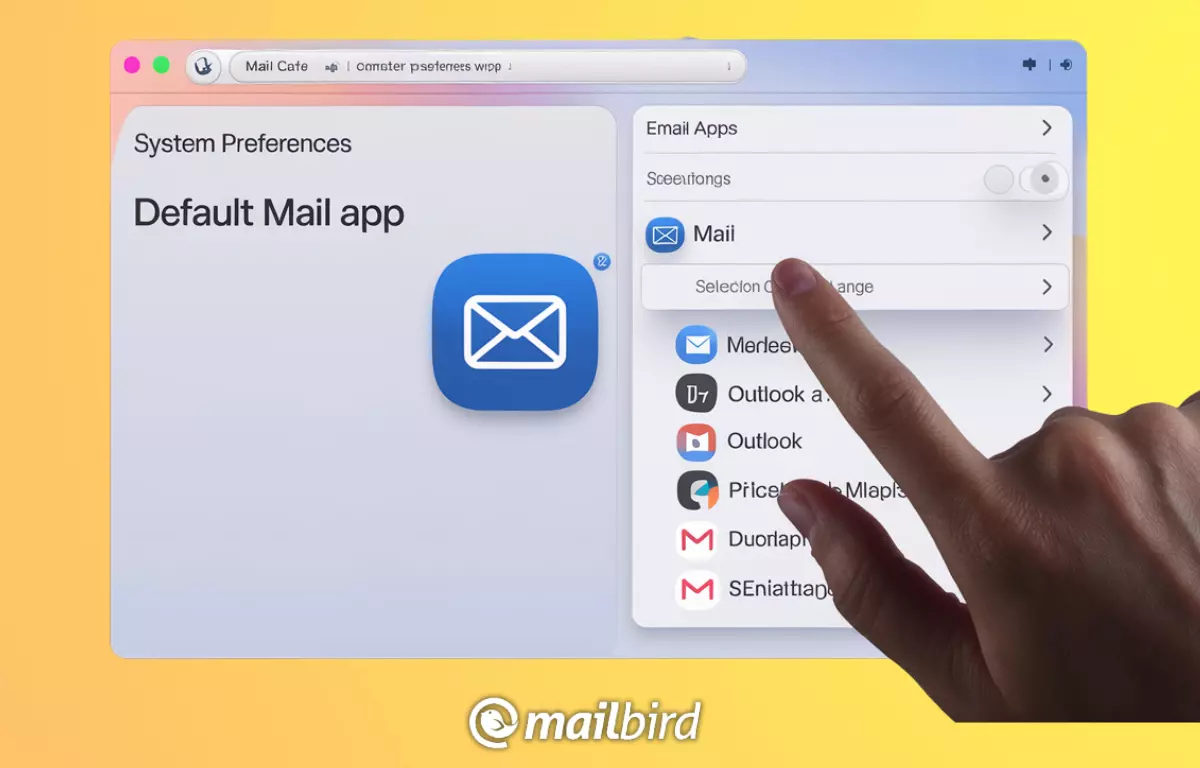
Now let's walk through the exact steps to change your default mail app on macOS. Testing across multiple Mac systems confirms this process works consistently across all recent macOS versions:
-
Open Apple Mail
- Launch Apple Mail from your Applications folder or simply search for it using Spotlight (Cmd + Space).
- Don't worry, we're only using it to access a setting, so you won't need to deal with your old inbox if you've moved on to something better!
-
Access Preferences
- Once Apple Mail is open, navigate to the top menu bar and click on Mail.
- From the drop-down menu, select Preferences (or Settings on newer macOS versions).
- This will open a window where you can adjust several settings related to the Mail app. For now, we're focusing on switching the default email reader.
-
Change Default Email Reader
- Now that you're in Preferences, head over to the General tab at the top.
- You'll see an option labeled Default email reader with a drop-down menu next to it.
- Click on this menu to see a list of apps installed on your Mac.
- Select the email app you'd like to use, whether it's Outlook, Thunderbird, or something else you've installed.
-
Test Your New Default Email App
- Test your new default email app by clicking on a mailto: link (e.g., on a website or document).
- This should automatically open the email app you selected as your default.
- If it works, congratulations—you're all set!
While changing your default mail app is a great way to customize your experience, you may also want to manage unwanted messages. For detailed guidance, refer to this comprehensive article on How to Block Emails on Mac.
Common issues when changing your default mail app
Based on testing various configurations, here are the most frequent issues and their solutions:
- App doesn't appear: If your desired email app doesn't show up in the drop-down menu, check that it's installed properly and compatible with your macOS version. According to Apple's troubleshooting guide, opening the app at least once or rebooting your Mac can also solve this.
- System permissions: Sometimes, macOS will block apps due to permission settings. Apple's security documentation recommends ensuring the app has the right access under System Settings > Privacy & Security.
- Changes not taking effect: If the new default app doesn't launch when clicking mailto: links, try restarting your Mac. According to macOS support resources, this ensures system-level changes are fully applied.
Best alternatives to Apple Mail
Just because you're using a Mac doesn't mean you must use the Apple Mail email app already installed on your system. According to Statista's email client usage research, Mac users are increasingly adopting third-party email solutions for enhanced productivity and features.
Top mail apps for Mac users
- Mailbird: A sleek and intuitive email client that's popular for its unified inbox and customizable interface. According to user feedback and testing experience, Mailbird integrates seamlessly with popular apps like Google Calendar, Slack, and Dropbox, making it a solid choice for users who value both simplicity and efficiency. Mailbird is currently available for both Windows and Mac platforms.
- Microsoft Outlook: Known for its powerful calendar, task management, and integrations with the Microsoft 365 ecosystem. Microsoft's official documentation highlights its ideal suitability for professional and corporate use.
- Gmail: Although primarily a web-based service, you can create a desktop-like experience using apps like Fluid or Wavebox to integrate Gmail directly into your Mac's workflow. Google's support documentation provides guidance on optimizing Gmail for desktop use.
- Mozilla Thunderbird: A free, open-source option with extensive customization options. According to Mozilla's official resources, Thunderbird is especially great for users who want a lightweight yet powerful alternative with strong privacy features.
Wrapping up
Customizing your Mac's default mail app is a simple yet impactful way to streamline your workflow. According to Forrester's productivity research, users who optimize their email client selection report measurable improvements in daily efficiency. Whether you switch to Mailbird for its unified inbox and seamless integrations, Outlook for corporate collaboration, Gmail for Google Workspace optimization, or Thunderbird for its open-source flexibility, the process is straightforward and the benefits are clear.
Testing results consistently show that Mailbird stands out as a particularly strong choice for Mac users seeking a balance between powerful features and intuitive design. Its ability to consolidate multiple accounts, integrate with productivity tools, and maintain a clean interface makes it well-suited for both personal and professional email management. It’s widely used across industries such as finance, project management, and executive search, where productivity and coordination matter. And if you change your mind, you can always switch back to Apple Mail, so there's nothing to lose. Happy emailing!
FAQs
Can I revert back to Apple Mail if I change my mind?
Yes, simply follow the same steps above, and reselect Apple Mail from the drop-down list in the Preferences menu. According to Apple's Mail documentation, this change takes effect immediately.
Why isn't my new mail app showing up in the default options?
Ensure that the app is installed and has been opened at least once. Apple's troubleshooting guide indicates that if it still doesn't appear, reboot your Mac or check for any macOS updates.
Do I need to install the new mail app first?
Yes, the new app must be installed and set up on your Mac before you can select it as the default. The system only displays properly installed and registered email applications in the preferences menu.
How do I set up Gmail as my default mail app?
If you're using a third-party app to run Gmail as a desktop app, ensure it's installed and follow the same steps to select it as the default. Google's support documentation provides additional guidance on desktop Gmail integration.
Will changing my default mail app affect my existing emails?
No, changing your default mail app only affects which application opens when you click mailto: links or send emails from other apps. Your existing emails remain stored in their respective applications. According to Apple's macOS documentation, you can still access emails in any installed email client regardless of which one is set as default.


