How to Stop Gmail Notifications from Dictating Your Workday: A Comprehensive Guide
Gmail notifications disrupt deep work by interrupting employees over 50 times daily, transforming email into an attention-demanding taskmaster. This guide explores the cognitive science behind these costly interruptions and provides practical strategies to reclaim control, ensuring email serves your priorities rather than dictating your workday.



If you're reading this, chances are you've experienced that familiar sense of frustration: you're finally making progress on an important project when—ping—another Gmail notification pulls your attention away. Before you know it, you've spent 20 minutes responding to emails that could have waited, and that deep focus you'd carefully cultivated has evaporated. You're not alone in this struggle, and more importantly, your frustration is completely justified.
The modern knowledge worker faces an unprecedented challenge: email has evolved from a communication tool into an attention-demanding taskmaster. McKinsey's research on knowledge work reveals that employees access email more than 50 times per day, transforming what should be an asynchronous communication channel into a constant source of interruption. For content creators, developers, designers, and other professionals whose effectiveness depends on sustained concentration, this notification-driven workflow isn't just annoying—it's actively undermining your ability to do your best work.
This guide addresses the real problem: Gmail notifications have become the invisible scheduler of your workday, dictating when you shift attention rather than supporting your intentional priorities. We'll explore the cognitive science behind why these interruptions are so costly, examine the notification systems Gmail uses across desktop and mobile platforms, and provide practical strategies—including how tools like Mailbird can help you reclaim control—to ensure email serves you rather than dominates you.
Understanding the Real Cost of Email Notifications

Before diving into solutions, it's essential to understand why Gmail notifications feel so disruptive. This isn't about willpower or discipline—there's genuine cognitive science explaining why each alert carries a hidden productivity tax.
The Interrupt Recovery Time You're Not Accounting For
Every time a Gmail notification appears, you face what researchers call an "interrupt recovery cost." Empirical research on email interruptions demonstrates that when workers stop their primary task to handle email, they experience a measurable delay in returning to their previous level of focus. The study found that most email users answer messages almost immediately upon arrival, creating a pattern of constant context-switching throughout the day.
Think about your own experience: when you're writing a report, analyzing data, or designing a presentation, and a notification pulls you away, how long does it really take to get back into that productive flow state? For most people, it's not the two minutes spent reading and responding to the email—it's the additional 10-15 minutes needed to rebuild the mental context you had before the interruption. Multiply this by the dozens of notifications you receive daily, and you're losing hours of productive time to cognitive recovery.
Alert Fatigue: When Everything Urgent Becomes Nothing Urgent
The concept of alert fatigue, well-documented in cybersecurity contexts, applies directly to email notifications. Research on alert fatigue in managed service environments shows that when people are exposed to high volumes of alerts—many of them false positives or low-priority—they become desensitized, increasing the risk that truly critical messages will be missed or ignored.
Your Gmail inbox likely contains a mix of genuinely important client communications, routine newsletters, social media notifications, and automated system messages. When all of these generate notifications, your brain stops distinguishing between "urgent" and "routine." You either become compulsively responsive, checking every alert immediately (and losing your workday to reactive email management), or you swing to the opposite extreme and begin ignoring notifications altogether, potentially missing legitimately time-sensitive communication. Neither outcome serves your productivity or professional reliability.
The Organizational Impact of Email Overload
This isn't just a personal productivity issue—it's an organizational challenge affecting entire teams and companies. Research on employee email overload indicates that frequent, unscheduled email blasts from internal communications, HR, and marketing departments clutter inboxes and make it harder for employees to focus on core responsibilities. When every department treats email as a real-time broadcast channel, the cumulative notification load becomes overwhelming.
Organizations that fail to address this systematically pay a price in reduced employee engagement, increased stress, and diminished output quality. The constant interruption pattern created by unrestricted Gmail notifications isn't just affecting your individual performance—it's a structural drag on your entire organization's effectiveness.
How Gmail Notifications Work Across Your Devices

To regain control over your attention, you need to understand exactly how Gmail's notification systems operate across different platforms. Gmail doesn't use a single notification mechanism—it employs multiple layers of alerts through web browsers, mobile operating systems, and desktop clients, each with its own configuration options.
Desktop Browser Notifications: The Hidden Attention Thief
Gmail's desktop notification system operates through your web browser, allowing alerts to appear even when your Gmail tab isn't in focus. When you sign in to Gmail in Chrome, Firefox, or Safari, the service requests permission to display notifications, and once granted, these alerts can interrupt you regardless of what other work you're doing.
Within Gmail's settings under the General tab, you'll find three notification options: "New mail notifications on" (alerts for every incoming email), "Important mail notifications on" (alerts only for messages Gmail classifies as important based on your behavior), and "Mail notifications off." Most users either leave the default setting or enable "New mail notifications," unknowingly signing up for dozens of daily interruptions. Additionally, Gmail offers notification sounds that add an auditory layer to the visual pop-ups, creating an even more intrusive experience.
The challenge is compounded by the fact that these settings interact with your operating system's notification controls. On Windows, Gmail notifications are also governed by the Windows Action Center configuration, meaning you may need to adjust settings in multiple locations to fully control when and how Gmail interrupts your work.
Mobile Notifications: Gmail in Your Pocket
On smartphones and tablets, Gmail notifications present an even more persistent challenge because your device is typically with you throughout the day. Gmail's Android notification settings are controlled through a combination of in-app options and device-level permissions, creating multiple intervention points.
Within the Gmail app on Android, you can navigate to Settings → General settings → Manage notifications to control alert behavior for specific account labels. You can choose to receive notifications for all messages, only those in your Primary inbox, or only high-priority emails. However, these app-level settings only function if device notifications are enabled at the system level—if Gmail is blocked in Android's global notification settings, no in-app configuration will produce alerts.
On iOS devices, the configuration is similar but leverages Apple's notification framework. You must first ensure Gmail has notification permission in the iOS Settings app, then configure specific notification levels within the Gmail app itself. Practical tutorials on iPhone Gmail notifications demonstrate that selecting "Primary only" significantly reduces noise by excluding promotional and social category messages while still alerting you to personal and direct communication.
The Unified Notification Challenge
For professionals managing multiple email accounts—perhaps a work Gmail, a personal Gmail, and accounts from other providers—the notification problem multiplies. Each account can generate its own stream of alerts across multiple devices, creating a notification environment that's nearly impossible to manage effectively using Gmail's built-in tools alone. This is where the value of a unified email client becomes apparent, but we'll explore that solution in detail later.
Strategic Approaches to Reclaiming Your Workday
Understanding the problem is only the first step. Now let's explore practical strategies for preventing Gmail notifications from dictating your schedule, starting with fundamental mindset shifts and progressing to specific technical configurations.
Reframe Email as Scheduled Work, Not Real-Time Communication
The single most important mental shift is to stop treating email as a real-time communication channel. Productivity experts at Google recommend treating email like laundry—a recurring chore best handled in batches, not something attended to immediately every time a "sock" appears.
This approach suggests processing email at most twice per day, during dedicated time blocks. For example, you might schedule 30 minutes at 11:00 AM and another 30 minutes at 4:00 PM specifically for email triage and response. During these windows, you open your email client, process everything that's accumulated, and then close it again until the next scheduled session. This workflow is fundamentally incompatible with constant Gmail notifications, which are designed to pull your attention to the inbox outside those planned windows.
To implement this strategy, you need to align your notification settings with your processing habits. If your goal is to handle email only during scheduled blocks, Gmail's "New mail" notifications should be turned off entirely, and mobile notifications should be restricted to truly high-priority messages or disabled during focus periods. This isn't about ignoring email—it's about handling it intentionally rather than reactively.
Leverage Gmail's Built-In Importance Filters
One of the simplest yet most underutilized strategies is switching from "New mail notifications" to "Important mail notifications" in Gmail's settings. Gmail's importance classifier uses machine learning trained on your behavior—which messages you open promptly, reply to, or star—to identify emails that genuinely deserve your attention.
On mobile platforms, similar options exist under labels like "Primary only" or "High priority only." These settings restrict alerts to messages in key categories or those the system identifies as high priority, dramatically reducing notification volume. As demonstrated in practical tutorials, selecting "Primary only" excludes promotional and social category messages from triggering alerts while ensuring personal and direct communication still surfaces via notifications.
You can further tune Gmail's importance classifier by consistently marking specific threads as important when you want to be alerted to future messages in those conversations. Over time, Gmail learns your priorities and becomes more accurate at distinguishing genuinely urgent communication from routine inbox chatter. This approach reduces alert volume by 60-80% for most users while maintaining responsiveness to truly important messages.
Harness Operating System Notification Tools
Modern mobile operating systems offer sophisticated notification management features that can dramatically reduce Gmail's intrusion into your workday, but many users aren't aware these tools exist or how to configure them effectively.
Apple's iOS notification management features include "Summarize Notifications," which groups selected app notifications—including Gmail—into scheduled summaries delivered at specific times rather than immediately. You can configure these summaries to appear at, say, 11:00 AM and 4:00 PM, perfectly aligning with a scheduled email-processing routine. This means new email alerts are deferred to your chosen times rather than interrupting you constantly throughout the day.
Apple's Focus modes provide even deeper control, allowing you to specify exactly which people and apps are permitted to notify you during periods designated as "Reduce Interruptions" or custom focus sessions. If Gmail is excluded from your allowed list during focus periods, its notifications will be suppressed entirely, though email will still accumulate in your inbox for later review during scheduled processing windows.
On Android, Digital Wellbeing and Do Not Disturb schedules serve similar functions. You can create custom modes—such as an "Off Work" mode—that suppress notifications from selected apps including Gmail during non-working hours. The key is to ensure all app notification channels are properly configured and to integrate custom modes with Do Not Disturb schedules for reliable suppression of work-related alerts during personal time.
Address Organizational Email Practices
If you're part of an organization, individual notification management is only part of the solution. Organizations need to examine their internal email practices to reduce the volume of low-value messages that generate notifications in the first place.
This includes using automation to schedule and coordinate internal communications rather than sending ad hoc email blasts, limiting the use of "urgent" flags to genuinely time-sensitive matters, and reducing unnecessary "reply all" chains. For organizations using Google Workspace, alert center configurations should be carefully calibrated so that only truly critical security events generate email notifications to administrators, avoiding a constant stream of low-severity alerts that contribute to notification overload.
How Mailbird Provides a Unified Solution
While Gmail's built-in tools and operating system features provide important controls, they still leave you managing notifications across multiple interfaces and platforms. This is where a dedicated email client like Mailbird offers a fundamentally different approach to email management.
Centralized Email Management Across Multiple Accounts
Mailbird is a desktop email client for Windows and Mac that consolidates multiple email accounts—including Gmail, Outlook, Yahoo, and others—into a single, unified interface. Mailbird's unified inbox feature allows you to view emails from all your accounts sorted by delivery time, rather than having them separated by account or service. This extends to system folders such as archive, sent, and trash, meaning all your email communication is accessible through consolidated views.
For professionals juggling work and personal Gmail accounts plus additional email services, this centralization transforms the notification challenge. Instead of receiving separate browser notifications for each Gmail account, mobile alerts for others, and desktop notifications from various sources, you can centralize email checking within Mailbird and configure a single notification strategy that covers all your accounts.
Users consistently praise this approach. Reviews on G2 highlight Mailbird's clean interface and unified inbox as major factors in boosting email management and productivity, with users noting that the consolidated approach reduces the cognitive overhead of switching between multiple Gmail tabs or applications.
Granular Notification Control at the Client Level
Mailbird's notification management capabilities give you precise control over when and how you're alerted to new emails. In Mailbird's settings under the General tab, you can enable or disable email notifications entirely, or configure specific notification behaviors that align with your workflow preferences.
The key option is "Show tray notifications when receiving a message," which governs whether Mailbird displays system tray alerts when new messages arrive. For a notification-minimal workday, you might disable Mailbird notifications altogether and check the unified inbox only during scheduled email processing windows. Alternatively, you could enable notifications but configure them to show only for specific accounts or during certain hours, creating a more nuanced alert strategy than Gmail's built-in options allow.
Here's the strategic advantage: once you've imported your Gmail accounts into Mailbird, you can disable Gmail's own web and mobile notifications entirely, relying instead on Mailbird as your single notification gateway. This eliminates duplicate alerts and gives you a unified control point for all email-related interruptions. You're no longer managing notification settings across Gmail's web interface, Android app, iOS app, and browser permissions—you have one client with one set of notification rules covering all your email accounts.
Productivity Features That Support Intentional Email Processing
Beyond notification control, Mailbird includes features specifically designed to support batch email processing and intentional workflow management. Mailbird's snooze functionality allows you to right-click on an email and specify when it should reappear in your inbox, enabling you to defer messages that aren't relevant to your current session.
This feature is particularly valuable when combined with scheduled email processing. During your 11:00 AM email block, you might encounter several messages that require action but not immediately. Rather than leaving them in your inbox as a source of mental clutter or impulsive checking throughout the day, you can snooze them to reappear at 4:00 PM or the next morning, ensuring they resurface at more appropriate times. This supports a workflow where Gmail messages are triaged during scheduled blocks, with non-urgent items postponed and no ongoing notifications demanding attention between these sessions.
Mailbird also offers keyboard shortcuts, quick actions, and customizable views that make email processing faster and more efficient. When you're working within scheduled email blocks rather than responding reactively to notifications, these efficiency tools become even more valuable because they help you process larger volumes of accumulated email in less time.
Understanding Sync Frequency and the Productivity Trade-Off
An interesting dimension of email management relates to sync frequency—how often your email client checks for new messages. Recent changes by major providers including Gmail have shifted to slower sync intervals (15-30 minutes) to reduce battery drain and device resource usage.
While this might initially seem like a limitation, it actually supports a notification-minimal workflow. When email is no longer synced in near-real-time, the expectation of instantaneous notification is naturally weakened, making it psychologically easier to treat email as asynchronous work. A 15-30 minute delay rarely impacts actual productivity significantly but can reduce the compulsive urge to respond immediately to every incoming message.
When Gmail is integrated into Mailbird, you can shape sync behavior and notification patterns to balance timeliness with focus, rather than accepting Gmail's default notification model that treats every message as requiring immediate attention.
Practical Implementation: Your Step-by-Step Action Plan
Understanding strategies is valuable, but implementation is where real change happens. Here's a practical, step-by-step plan for reclaiming your workday from Gmail notifications.
Step 1: Define Your Email Processing Schedule
Begin by deciding when you'll process email. For most knowledge workers, two 30-minute blocks work well—one mid-morning (around 11:00 AM) and one late afternoon (around 4:00 PM). These times allow you to handle morning email after you've completed your most important deep work, and to clear afternoon email before end-of-day without letting it accumulate overnight.
Block these times in your calendar and treat them as non-negotiable appointments with yourself. During these blocks, you'll open your email client, process everything that's accumulated, respond to what requires immediate attention, defer what can wait, and then close the client until the next scheduled session. This schedule becomes the foundation for all your notification settings.
Step 2: Configure Gmail Desktop Notifications
Open Gmail in your web browser and navigate to Settings (gear icon) → See all settings → General tab. Scroll to the "Desktop notifications" section. If you're committed to scheduled email processing, select "Mail notifications off." If you want to maintain some level of alerting for genuinely urgent messages, select "Important mail notifications on" and ensure Gmail's importance classifier is well-trained by consistently marking important threads.
Also review the "Mail notification sounds" setting and select "None" to eliminate auditory interruptions. Save your changes. If you use multiple Gmail accounts, repeat this process for each account.
Step 3: Configure Mobile Notifications
On your iPhone, open Settings → Notifications → Gmail. You can either turn off "Allow Notifications" entirely or configure a more nuanced approach. Consider enabling notifications but setting them to "Deliver Quietly," which places them in Notification Center without showing on the lock screen or playing sounds. Within the Gmail app itself, go to Settings → [your account] → Email notifications and select "Primary only" or "High priority only."
Then configure iOS's Summarize Notifications feature (Settings → Notifications → Summarize Notifications) to include Gmail, with summaries scheduled to appear at your email processing times (11:00 AM and 4:00 PM). This ensures you still receive notification information but batched at times that align with your workflow.
On Android, open the Gmail app and navigate to Settings → General settings → Manage notifications. Configure notification levels to "Primary" or "High priority only." Then use Android's Digital Wellbeing tools to create a custom mode or Do Not Disturb schedule that suppresses Gmail notifications during your deep work hours, allowing them only during or just before your scheduled email processing windows.
Step 4: Set Up Mailbird as Your Email Hub
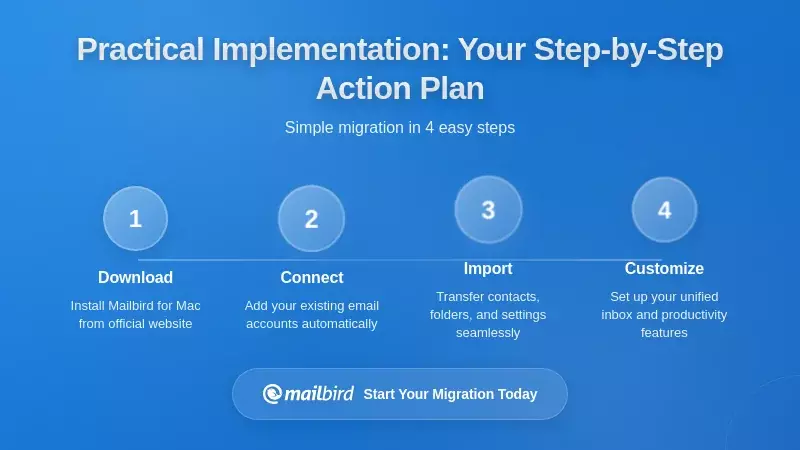
Download and install Mailbird on your primary work computer. During setup, import all your email accounts—Gmail, Outlook, Yahoo, and any others you use. Mailbird's unified inbox will consolidate all these accounts into a single view.
In Mailbird's settings (menu → Settings → General), configure notification preferences. For a notification-minimal workday, uncheck "Show tray notifications when receiving a message." This means Mailbird will not generate pop-up alerts; instead, you'll check email by intentionally opening Mailbird during your scheduled processing windows.
Customize Mailbird's interface to support efficient processing: set up folder structures, configure keyboard shortcuts you'll actually use, and explore the snooze feature so you're comfortable deferring messages during triage.
Step 5: Manage Exceptions for Truly Urgent Communication
No system is complete without handling genuine urgencies. Identify the small number of people or message types that genuinely require immediate notification—perhaps your manager, key clients, or family members during work hours.
On mobile devices, use Focus mode whitelists (iOS) or Do Not Disturb exceptions (Android) to allow calls or texts from these specific contacts even when email notifications are suppressed. In Gmail, you might create a filter that forwards messages from specific critical senders to your phone via SMS, or use Gmail's "Important" marking to ensure their messages trigger notifications if you're using "Important mail only" settings.
The key principle is that exceptions should be rare and deliberately chosen. If everything is urgent, nothing is urgent, and you're back to reactive email management.
Step 6: Establish a Transition Period
Changing email habits requires adjustment. For the first week, you might find yourself reflexively checking for notifications that no longer appear, or worrying that you're missing important messages. This is normal. Consider sending a brief email to frequent contacts explaining that you're now processing email at scheduled times and will respond within [timeframe], setting appropriate expectations.
Monitor your email during scheduled blocks to ensure nothing genuinely urgent is being missed. After a week or two, you'll likely find that very few messages actually required immediate attention, and your productivity during non-email time has improved significantly.
Frequently Asked Questions
What if I miss an urgent email by turning off Gmail notifications?
Research findings indicate that the vast majority of emails classified as "urgent" by senders don't actually require immediate response. By using Gmail's "Important mail notifications" setting and training the importance classifier to recognize genuinely critical senders, you create a safety net for truly time-sensitive communication. Additionally, processing email at scheduled intervals (such as mid-morning and late afternoon) means you're checking multiple times per day, so even without real-time notifications, urgent messages are typically addressed within a few hours. For the rare cases that require faster response, you can establish alternative communication channels (phone calls, text messages) with key contacts who might need immediate access.
How does Mailbird help with Gmail notification overload specifically?
Based on the research, Mailbird addresses Gmail notification overload by providing a unified notification control point for all your email accounts. Instead of managing separate notification settings across Gmail's web interface, Android app, iOS app, and browser permissions, you import your Gmail accounts into Mailbird and configure a single notification strategy. Research shows that Mailbird's unified inbox consolidates multiple accounts into one view, and its notification settings allow you to disable tray alerts entirely or configure them more precisely than Gmail's built-in options. This means you can turn off Gmail's native notifications across all platforms and rely solely on Mailbird during scheduled email processing windows, eliminating duplicate alerts and fragmented attention.
Can I use these strategies if my organization requires fast email response times?
The research findings demonstrate that scheduled email processing doesn't mean being unresponsive—it means being intentionally responsive. Processing email twice daily at consistent times (such as 11:00 AM and 4:00 PM) allows you to respond to most messages within 4-5 hours, which meets the expectations of the majority of professional communication. For organizations with stricter requirements, you can adjust the schedule to three processing windows, or use Gmail's "Important mail only" notifications to alert you to messages from key stakeholders while batching routine communication. Research from productivity experts at Google suggests that treating email like scheduled work actually improves response quality and reduces errors compared to constant reactive checking.
What's the difference between turning off Gmail notifications and using "Important mail only"?
According to the research, "Mail notifications off" completely eliminates real-time Gmail alerts, requiring you to check email manually during scheduled times. This provides maximum focus protection but requires discipline and may not suit all work environments. "Important mail notifications on" uses Gmail's machine-learning classifier to identify high-priority messages based on your behavior—which senders you respond to quickly, which messages you mark as important, and which you star. Research indicates this setting typically reduces notification volume by 60-80% while maintaining alerts for genuinely significant communication. The research suggests starting with "Important mail only" as a middle ground, then moving to "Notifications off" once you've established reliable scheduled processing habits.
How do I train Gmail's importance filter to recognize my actual priorities?
The research findings explain that Gmail's importance classifier learns from your email behavior over time. To train it effectively, consistently mark messages from critical senders as important using the importance marker (the yellow arrow icon in Gmail). Reply promptly to high-priority messages and use stars or labels to organize them. Conversely, archive or delete low-priority messages quickly without engaging with them extensively. Research shows that within 2-3 weeks of consistent behavior, Gmail's classifier becomes significantly more accurate at distinguishing your genuine priorities from routine inbox noise. You can also create filters that automatically mark messages from specific domains or senders as important, reinforcing the classifier's learning.
Will using Mailbird slow down email delivery or cause me to miss messages?
Research on email sync frequency indicates that modern email clients, including Mailbird, sync with email servers at regular intervals (typically 5-30 minutes depending on configuration). This means there may be a brief delay between when a message arrives at Gmail's servers and when it appears in Mailbird, but this delay is usually 15 minutes or less. The research shows that this slight latency rarely impacts actual productivity and can actually support better focus by reducing the expectation of instantaneous notification. Mailbird doesn't prevent messages from arriving or cause them to be lost—it simply provides an alternative interface for accessing your Gmail account. All messages sync bidirectionally, so actions taken in Mailbird (reading, archiving, responding) are reflected in Gmail's web interface and vice versa.
What should I do about Gmail notifications during non-work hours?
The research highlights that operating system tools are particularly valuable for separating work and personal time. On iOS, use Focus modes to create an "Off Work" configuration that blocks Gmail notifications entirely during evenings and weekends, while still allowing calls from important contacts. The research shows that iOS's "Summarize Notifications" feature can batch any accumulated work emails into a morning summary rather than interrupting your evening. On Android, Digital Wellbeing's custom modes and Do Not Disturb schedules serve the same function. Research indicates that establishing clear boundaries between work and personal time through notification management contributes significantly to reduced stress and better work-life balance, and many organizations now support or even encourage these practices as part of digital wellbeing initiatives.


