How Do I Unsubscribe from Emails?
Short answer: To unsubscribe from emails, open a recent message from a sender you trust and use the built-in Unsubscribe option or your provider’s subscriptions screen. Gmail’s Manage subscriptions view can group active subscription senders in one place, which makes an email mass unsubscribe session much faster. In one short cleanup, you can stop many unwanted newsletters, clear old promos, and block stubborn senders if needed.[1–5, 9]



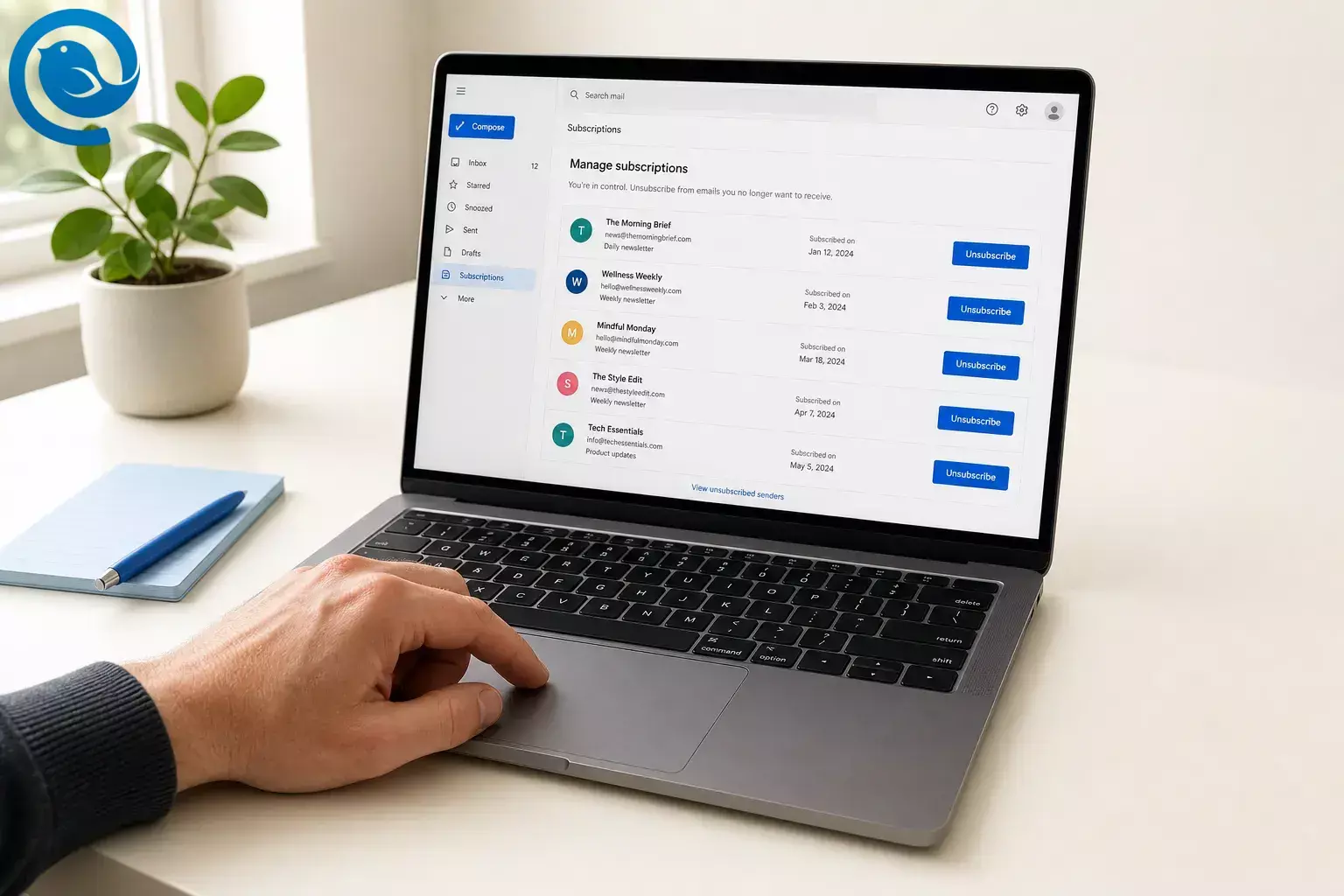
Short answer: To unsubscribe from emails, open a recent message from a sender you trust and use the built-in Unsubscribe option or your provider’s subscriptions screen. Gmail’s Manage subscriptions view can group active subscription senders in one place, which makes an email mass unsubscribe session much faster. In one short cleanup, you can stop many unwanted newsletters, clear old promos, and block stubborn senders if needed. [1–5, 9]
Key takeaways
- Use a recent message from a sender you trust and start with the built-in unsubscribe option or your provider’s subscriptions screen.
- If it is available on your account, Gmail’s Manage subscriptions and Outlook.com’s Subscriptions page make cleanup faster.
- Only click unsubscribe on senders you recognize; suspicious messages should be reported as spam or phishing instead.
- Marketing opt-outs do not necessarily stop account or service emails.
- Delete or archive old promotional mail from that sender right after you unsubscribe for immediate cleanup.
- Block or filter stubborn senders if needed; in Mailbird, blocked-sender and filter actions run while the app is open.
Before you start
- Prerequisites: access to your inbox and permission to change email settings.
- Tools: any webmail or email app; optional Mailbird if you manage several accounts, since its Unified Inbox puts connected accounts in one place. [8]
- Time: one short cleanup session for a first pass.
- Cost: none if you stick to built-in inbox tools; paid add-ons are optional.
- Safety: only click unsubscribe on senders you recognize. If a message asks for money, passwords, or personal information, report it as spam or phishing instead of replying or clicking links. [6, 12]
- What can change: Gmail says subscription management may not appear on every account yet, and exact screens can differ by app and sender. [1, 2]
- To verify: open a recent newsletter you trust and look near the sender name, in the message banner, or at the footer. In Gmail, if it is available on your account, also check More > Manage subscriptions ; in Outlook.com, check Settings > Mail > Subscriptions . [2–5]
How to unsubscribe from emails: step-by-step
How to unsubscribe from emails: step-by-step
-
Work from one inbox view
Open the inbox you use every day. If you handle several addresses in Mailbird, switch to Unified Inbox so you can review connected accounts in one place instead of hopping between separate inboxes. [8]
-
Surface your subscription mail
Search your inbox for words like unsubscribe , newsletter , deals , promo , or updates . In Gmail, if it is available on your account, you can also open More > Manage subscriptions . In Outlook.com, go to Settings > Mail > Subscriptions . [2, 4]
-
Start with the noisiest sender
Pick the sender you see most often, not the one you dislike most. Gmail’s subscriptions view sorts active subscriptions by frequent senders and shows how many emails they sent recently, which makes the biggest wins easy to spot. [1]
-
Open the newest message from a sender you trust
Use a recent message from a sender you actually recognize. If the email asks for money, passwords, or personal information, or it looks off in any way, stop and report it as spam or phishing instead of clicking links or replying. [6, 12]
-
Use the built-in unsubscribe option first
In Gmail, click Unsubscribe next to the sender name or use Manage subscriptions . In Outlook.com, use the Subscriptions screen. In Apple Mail on Mac, use the Unsubscribe banner below the message header. In Mailbird, if your plan includes it, use the unsubscribe tool. [2–5, 10, 11]
If you do not see a trustworthy unsubscribe option, do not guess. Use spam or phishing reporting instead. [6, 12]
-
Finish the opt-out prompt
Confirm the unsubscribe request. Some senders will open a short preferences page or take you to their website. If you still want product alerts or receipts, keep only the smallest set of messages you actually need, because marketing opt-outs do not necessarily stop account or service emails. [3, 7]
-
Clean out the backlog
Search for that sender, select older promotional mail, and delete or archive it right away. You will see the inbox get cleaner immediately, and you will know within seconds whether you picked the right sender.
-
Repeat sender by sender for mass cleanup
If you want a practical email mass unsubscribe routine, stay inside a subscriptions dashboard or a unified inbox and work through your worst repeat senders first. That is faster than opening random emails one at a time. [1, 2, 4, 8]
-
Add a backup block or filter for stubborn senders
In Outlook.com, you can block a sender from the Subscriptions area. In Mailbird, Block Sender moves future mail from that sender to Spam or Junk, and Mailbird filters can sort or delete matching mail; just remember that Mailbird’s blocked-sender and filter actions run while the app is open. [4, 9, 13]
-
Check back after a few days
Gmail says senders may take a few days to stop. In the U.S., the FTC says commercial senders must honor opt-out requests within 10 business days. If messages still keep coming after that, mark them as spam and, in the U.S., report deceptive behavior through your provider or the FTC. [2, 6, 7]
How to do an email mass unsubscribe
The closest built-in approach to an email mass unsubscribe is to open a subscriptions page or a unified inbox and work through your highest-volume senders first. Gmail’s Manage subscriptions view and Outlook.com’s Subscriptions page are built for this, and Mailbird’s Unified Inbox can help if you manage several accounts. [1, 2, 4, 8]
Gmail, Outlook.com, and Apple Mail can surface opt-out controls near the top of many subscription emails or in a subscriptions screen, which is usually faster than hunting through a footer link. Once you unsubscribe and clear the old backlog from that sender, you get both long-term reduction and immediate visual cleanup. [2–5]
How to unsubscribe in Gmail, Outlook.com, Apple Mail, and Mailbird
Fastest Gmail cleanup
If you see it on your account, open More > Manage subscriptions , review the frequent senders, and unsubscribe from the ones you do not want. Gmail can send the unsubscribe request on your behalf. [1, 2]
Outlook.com cleanup
Open Settings > Mail > Subscriptions , unsubscribe from current subscriptions, and block stubborn senders from the same screen. [4]
Apple Mail on Mac
Open a message from the mailing list and click Unsubscribe in the banner below the header. [5]
Multi-account cleanup in Mailbird
Use Unified Inbox to review connected accounts in one place. On supported plans, Mailbird also offers unsubscribe and block sender tools; Mailbird Free does not include them. [8–11]
Troubleshooting unsubscribe problems
- Symptom: You do not see an unsubscribe button. Likely cause: the sender did not expose the right unsubscribe info, the message is already in Junk, or the sending address does not match the one your app expects. Fix: use the footer link only if you trust the sender, or switch to block/spam tools. [4, 5]
- Symptom: You unsubscribed, but messages are still arriving. Likely cause: senders may take a few days to process the request, and U.S. commercial senders get up to 10 business days. Fix: wait briefly, then mark future mail as spam if it continues. [2, 7]
- Symptom: Only one kind of email stopped. Likely cause: you left one list but not every list from that brand, or the remaining messages are service or account messages. Fix: open the sender’s full preferences or Gmail Manage subscriptions , and keep in mind that account messages may continue. [2, 3, 7]
- Symptom: The email looks shady. Likely cause: phishing or spoofing. Fix: do not reply, do not click links, and report phishing or spam. [6, 12]
- Symptom: Mailbird still shows mail from a blocked sender. Likely cause: Mailbird was closed or not running in the background. Fix: reopen Mailbird or use your provider’s spam or block tools if you want handling that does not depend on Mailbird staying open. [9]
- Symptom: Your Mailbird filter did nothing. Likely cause: Mailbird filters are not synced with your email server and only run while Mailbird is open. Fix: review the rule, then use Save and Run if you want it applied to existing inbox mail too. [13]
- Symptom: Outlook.com shows no subscription for that sender. Likely cause: the message may already be in Junk, you may have blocked the sender, or the sender is using different addresses. Fix: use the message footer link or adjust blocked-sender settings first. [4]
- Symptom: Gmail Manage subscriptions is missing. Likely cause: Google says the feature may not be available on every account yet. Fix: use Gmail’s built-in unsubscribe option or the footer link until the subscriptions view appears. [1–3]
U.S. timing notes here are general information, not legal advice. [7]
Keep your inbox clean after you unsubscribe
- Save time next round: save a search for unsubscribe or bookmark your provider’s subscriptions screen so the next cleanup starts in seconds.
- Clear old clutter: after you unsubscribe, delete or archive old promos from that sender so they stop distracting you right away.
- Handle multiple accounts: if you manage several inboxes, do one account at a time or use Mailbird’s Unified Inbox. If you rely on Mailbird filters for cleanup, remember they only run while Mailbird is open. [8, 13]
Quick email unsubscribe checklist
- Open the inbox you use most
- Search for unsubscribe , newsletter , or open your subscriptions screen
- Start with the sender you get most often
- Use the built-in unsubscribe option first
- Skip suspicious messages and report spam or phishing instead
- Delete or archive old promos from that sender
- Block or filter stubborn senders
- Recheck after a few days
Use built-in unsubscribe for known senders. Report suspicious mail instead. [6, 12]
Frequently Asked Questions
Can I unsubscribe from all emails at once?
Not with the built-in tools covered here. The fastest built-in options are provider dashboards such as Gmail’s subscriptions view or Outlook.com’s Subscriptions page, then working sender by sender from there.
Is it safe to click unsubscribe?
Yes for brands and newsletters you recognize. If the message looks suspicious or asks for personal information, do not click or reply—report spam or phishing instead.
Why am I still getting emails after I unsubscribed?
Senders may take a few days to process the request. In the U.S., commercial senders should honor opt-outs within 10 business days.
Does unsubscribe stop billing, account, or security emails?
Usually no. Marketing opt-outs do not always stop service or account messages tied to an ongoing relationship.
What if there is no unsubscribe link?
Use your email provider’s spam or phishing tools, block the sender, or adjust the brand’s email settings on its website if you trust it.
How do I do an email mass unsubscribe in Gmail?
If your account has it, open Gmail, choose More , then Manage subscriptions , and unsubscribe from the senders you no longer want.
Can I do this in Mailbird?
Yes. Unified Inbox can help you review connected accounts in one place, and Mailbird offers block sender tools plus unsubscribe tools on supported plans.
Why did only one list from the same company stop?
A single unsubscribe action may remove you from one mailing list, not every list from that brand. Use the sender’s email preferences or Gmail’s subscriptions view for a fuller cleanup.
Mailbird brings this into one desktop inbox for Windows and Mac, so you can set it up in minutes.
Sources
- Google Blog — “Declutter your inbox with Gmail’s newest feature” (July 8, 2025)
- Gmail Help — Manage your subscriptions in Gmail
- Gmail Help — Unsubscribe from an email
- Microsoft Support — How to manage email subscriptions in Outlook.com
- Apple Support — Reduce junk mail in Mail on Mac
- FTC Consumer Advice — Dealing with spam texts, emails, and junk mail
- FTC — CAN-SPAM Act: A Compliance Guide for Business
- Mailbird Support — Unified Inbox
- Mailbird Support — Block Sender
- Mailbird blog — “Unroll.me: Benefits Without Privacy Risk” (includes Mailbird unsubscribe example)
- Mailbird Support — Is Mailbird free? (plan feature differences)
- Gmail Help — Avoid & report phishing emails
- Mailbird Support — Setting up Filters and Rules


