What Is a Desktop Email Client? Benefits, Features, and Best Options in 2026
Short answer: If you are asking what a desktop email client is, it is software installed on your computer that connects to the email accounts you already have, so you can send, receive, search, and organize messages outside a browser.



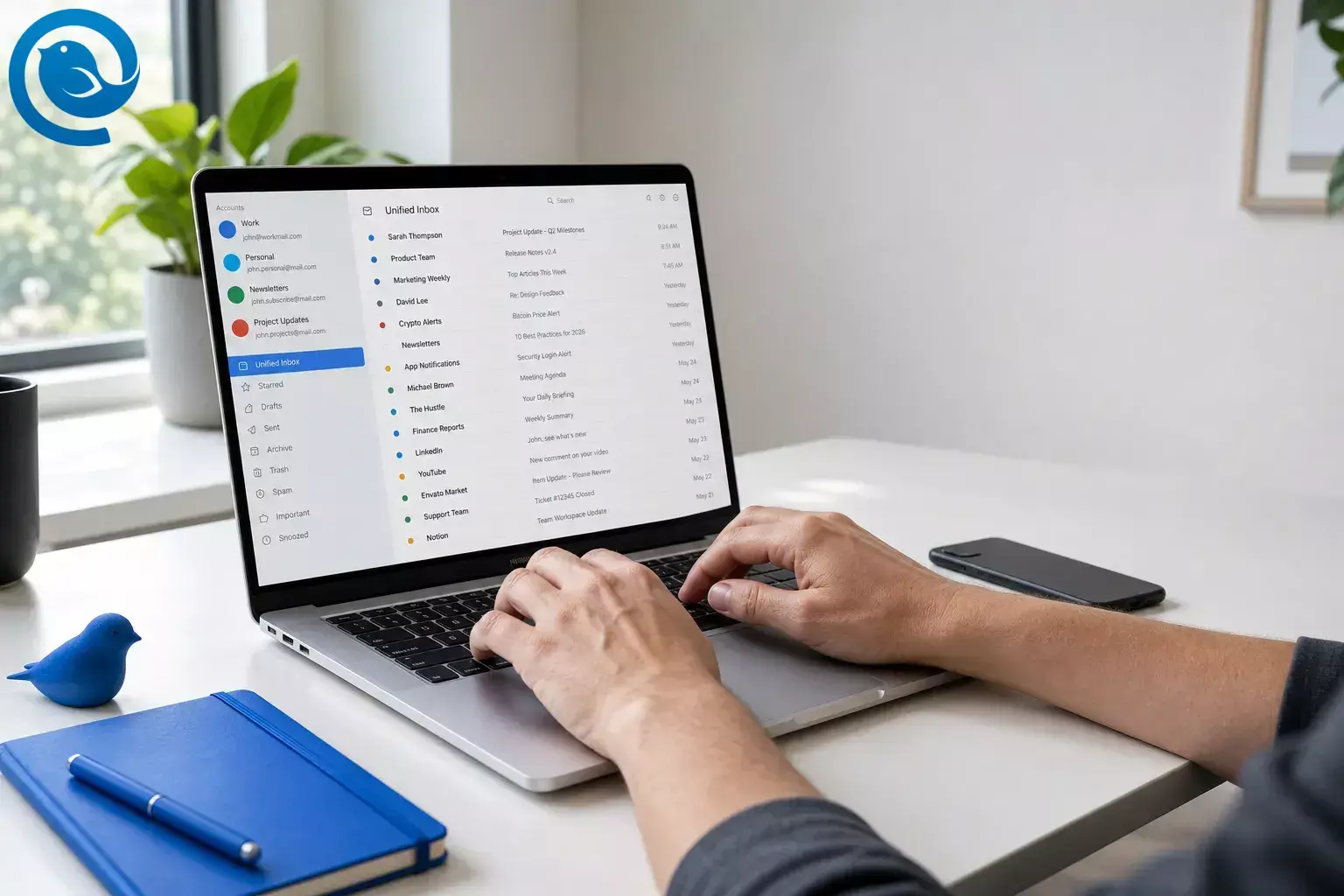
Short answer: If you are asking what a desktop email client is, it is software installed on your computer that connects to the email accounts you already have, so you can send, receive, search, and organize messages outside a browser. 3
Key takeaways
- It connects to mailboxes you already own; it does not create a new email address. 3
- It can combine multiple accounts in one app or one unified view. 11 12
- Many desktop clients keep local data or cached mail, which helps with offline reading and search. 2 13
- You can use a desktop client and webmail side by side. 2
- For most people, IMAP is the better default if you use more than one device or want the mailbox to stay in sync. 5 13
- Modern compatibility matters: Google and Microsoft increasingly expect OAuth or Modern Auth, so an old client can fail even if the interface still looks fine. 4 6 7
How does a desktop email client work?
A desktop email client is a front end for mailboxes you already own, not a new mailbox or a new email address. 3 12
- Add your account. You enter an existing email address, and the app either auto-detects the settings or asks you to enter them manually. That usually means incoming and outgoing mail details, especially when automatic setup fails. 13 14
- Sign in through the provider. Modern setups increasingly use OAuth or a provider sign-in flow—such as Sign in with Google or Outlook.com’s Modern Auth—instead of relying on plain password-only access. 4 6 7
- Sync incoming mail. With IMAP, messages stay synced across devices. With POP, mail is downloaded and is a weaker fit for real-time multi-device sync. 13 5
- Send outgoing mail. The client uses the provider’s supported outgoing settings, usually SMTP. In multi-account views, each message still stays tied to its original account so replies go out from the correct address. 6 12
- Store a local working copy. Desktop clients typically keep local data or cached mail on your device for speed and offline use; with IMAP-based setups, copies can also remain on the provider’s server. 3 8 13
Desktop email client vs. webmail
Desktop email client
The main difference is workflow, not the mailbox itself. A desktop email client gives you a local workspace for one or many accounts, while webmail keeps email inside a browser. 2 3
Desktop email client benefits and features that matter
The biggest desktop email client benefits are about workflow: fewer account switches, more control over how messages are grouped, and an easier way to work across providers in one place.
- One place for multiple accounts. A single app can hold mixed providers—Gmail, Outlook, iCloud, Exchange, or a custom IMAP/SMTP address—in one workspace instead of scattering them across separate browser sessions. 11 14
- Offline reading and search. Thunderbird documentation highlights reading and searching mail offline, and local syncing is part of how desktop clients keep working when the connection is weak. 2 13
- Better organization. Rules and filters let you group mail by sender, subject, or attachment instead of sorting everything by hand. 2 10
- Flexible views. Some people want one combined triage list; others want strict separation. A unified inbox or other saved view lets you change how you see mail without forcing everything into one manual folder. 10 12
- Current sign-in support. Modern compatibility matters: Google and Microsoft increasingly expect OAuth or Modern Auth, so an old client can fail even if the interface still looks fine. 4 6 7
Real-world desktop email client examples
Simple case
You have one personal Gmail address and one old Outlook.com address. In Mailbird, you can add both accounts and see them in one desktop workspace instead of bouncing between separate browser tabs. 11 12
Mixed-provider case
You freelance and juggle hello@yourdomain.com , a client-facing Outlook account, and a personal Gmail inbox. Thunderbird documents offline use and search, while Mailbird’s Unified Inbox is designed to show multiple connected accounts together in one view. 2 12
POP-heavy case
Your office still uses POP on one desktop PC. A desktop client will still work, but that setup is built for download-focused access, not real-time multi-device sync, so it is easier to create mismatches with your phone or webmail. 5
Common misconceptions
- “A desktop client gives me a new email address.” No. It uses the address and provider you already have. 3
- “If I use a desktop client, I have to stop using webmail.” No. Desktop clients and webmail can coexist side by side. 2
- “A unified inbox means all my mail is imported into one provider.” Usually no. A unified inbox is a view inside the client; the messages stay tied to their original accounts. 12
- “IMAP and POP are basically the same.” They are not. IMAP is built for syncing across devices; POP is built more like download-to-one-computer access. 5 13
- “If the app asks for my password, that’s normal forever.” Not necessarily. Google and Microsoft have both moved users toward OAuth or Modern Auth for safer account access. 4 6 7
- “Removing the account from the app deletes the mailbox.” Usually no. Removing an account from the app disconnects it there; it does not normally delete the provider account itself. 8
When to use a desktop email client
Use one when
- you manage two or more accounts regularly or mix providers in the same day. 3 11
- you want offline reading, local search, or a desktop workspace that is not tied to a browser tab. 2 13
- you want rules, filters, or a unified view to reduce mental clutter. 10 12
- you need to send from different addresses without constantly switching contexts. 12 14
Skip it or rethink it when
- your workplace requires a specific app or blocks outside access to the account. 6 7
- the computer is shared and you would rather not keep a local mail cache on it. 3 8 13
- you use one simple mailbox and webmail already does everything you need.
- your real problem is a team queue, approval flow, or shared ownership process rather than personal inbox control.
Best desktop email client options in 2026
There is no single best desktop email client for everybody. The better question is which model fits you: a multi-account workspace, a Microsoft-centered setup, Apple’s own Mail app, or an open-source tool you can shape yourself.
Mailbird
Best for: multi-account workflows on Windows and Mac.
Mailbird connects Gmail, Outlook, Yahoo, iCloud, Exchange, and other IMAP/SMTP accounts, and its Unified Inbox becomes available after you add more than one account. 11 12
Thunderbird
Best for: free, open-source flexibility.
Thunderbird runs on Windows, macOS, and Linux, supports POP, IMAP, and SMTP, and its documentation highlights offline use, filters, and search. 2 3
How to choose desktop email software in 2026
The basic idea of a desktop email client does not change much. Provider compatibility does. Gmail has announced POP-related changes, and both Google and Microsoft now push outside apps toward OAuth or Modern Auth. Outlook setup steps can also differ by version and account type. 1 4 6 7 14
- Check the sign-in method. Confirm the client supports your provider’s current OAuth or Modern Auth flow. 4 6 7
- Check protocol support. Make sure your provider still supports the IMAP, POP, and SMTP setup you plan to use. 5 6 13
- Check work or school restrictions. Some admins only allow certain apps or block outside access entirely. 6 7
- Check multi-account features. If a unified inbox matters to you, confirm that the client actually offers one. 11 12
- Check offline behavior. If offline reading matters, confirm the client keeps a local cache or offline copy in the way you expect. 2 13
Key terms
- Email provider
- The service that hosts your mailbox—such as Gmail, Outlook.com, iCloud, Exchange, or a domain-based provider. The client is the app you use to access it. 3
- Webmail
- Email you use in a browser instead of a local app on your computer. 2
- IMAP
- The standard setup for keeping mail synced across multiple devices and clients. 13
- POP
- An older, download-focused setup that fits one computer better than real-time multi-device sync. 5
- SMTP
- The outgoing mail connection used to send messages. 6
- OAuth / Modern Auth
- A provider-controlled sign-in method that lets the client connect using current security rules instead of simple password-only access. 4 6 7
- Unified inbox
- A combined view inside the client that shows mail from several connected accounts while keeping each message tied to its original account. 12
Frequently Asked Questions
What is a desktop email client?
Is a desktop email client better than webmail?
Does a desktop email client give me a new email address?
No. It uses the email address and provider you already have.
Sources: 3
Can a desktop email client combine Gmail and Outlook?
Is IMAP usually better than POP?
Can I still use webmail too?
Yes. A desktop client does not stop you from logging into the same account in a browser.
Sources: 2
Can I use a desktop email client offline?
Are desktop email clients safe?
- Gmail Help: “Learn about upcoming changes to Gmailify & POP in Gmail”
- Thunderbird Help: “Get started with Thunderbird”
- Thunderbird Help: “Thunderbird FAQ”
- Gmail Help: “Add Gmail to another email client”
- Gmail Help: “Read Gmail messages on other email clients using POP”
- Microsoft Support: “POP, IMAP, and SMTP settings for Outlook.com”
- Google Workspace Help: “Transition from less secure apps to OAuth”
- Apple Support: “Add and manage email accounts in Mail on Mac”
- Apple Support: “Get started with Mail on Mac”
- Apple Support: “Automatically sort incoming emails in Mail on Mac”
- Mailbird: “Best Email Client for Windows and Mac”
- Mailbird Support: “Unified Inbox”
- Mailbird Support: “IMAP Support in Mailbird”
- Microsoft Support: “Add an email account to Outlook for Windows”


