Missing Gmail Emails: Why They Disappear and How to Prevent It
Most "missing Gmail emails" aren't truly gone—they're usually in the wrong view (archived in All Mail, filed under another Inbox tab, or moved into Spam/Trash), or they were moved by a filter, forwarding/POP setting, or a synced app. This guide helps you find the message and fix the setting that made it seem like it disappeared.


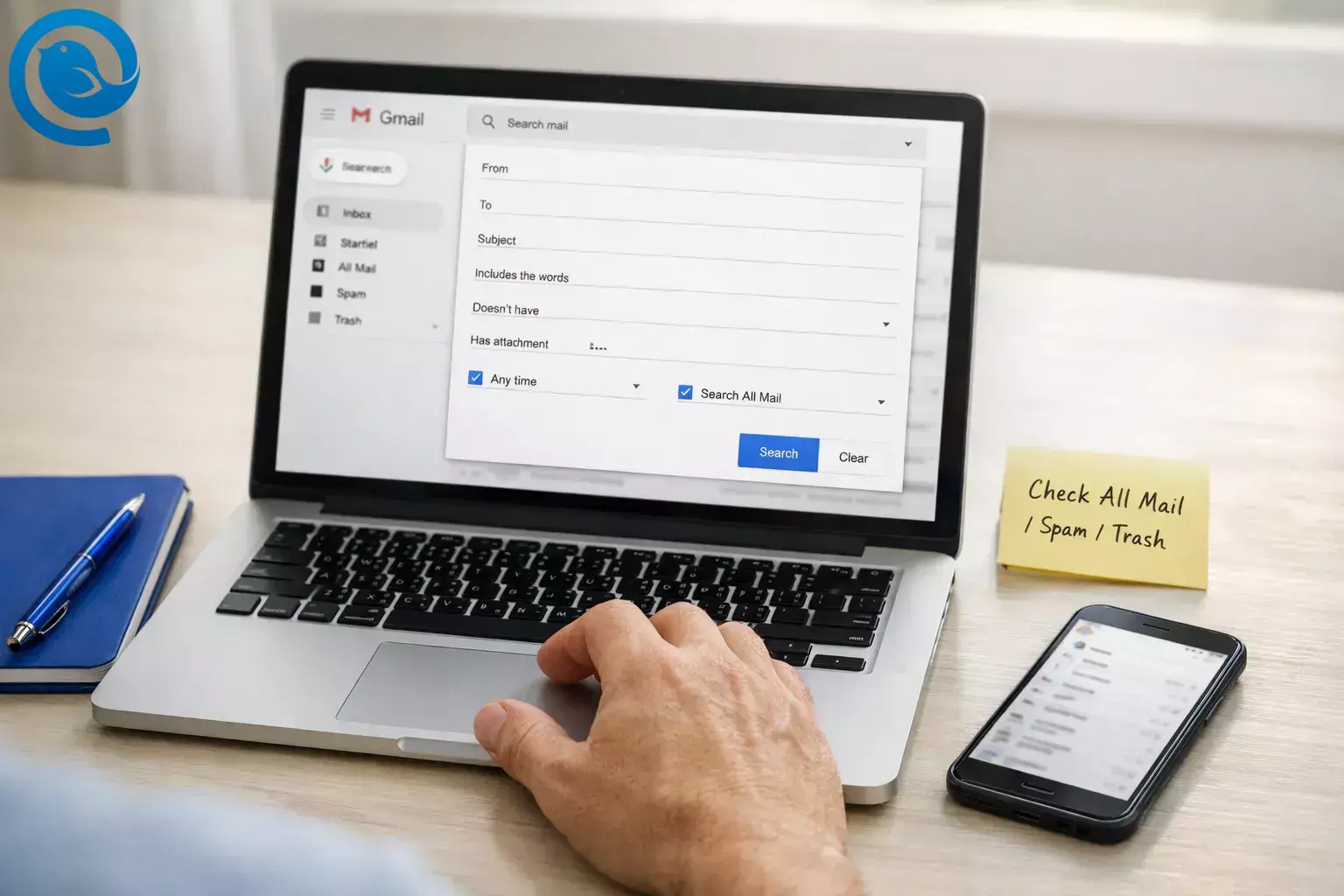
Most “missing Gmail emails” aren’t truly gone—they’re usually in the wrong view (archived in All Mail, filed under another Inbox tab, or moved into Spam/Trash), or they were moved by a filter, forwarding/POP setting, or a synced app. This guide helps you find the message and fix the setting that made it seem like it disappeared.234
One thing that can slow people down: Gmail search and sorting can look different across accounts (for example, “Most relevant” vs “Most recent”), and new features roll out gradually. When in doubt, follow the steps below in Gmail on the web and check the labels where Gmail stores mail—not just what’s visible in your Inbox.61
Quick answer: where missing emails in Gmail usually are
- All Mail (Archive): the email is still in your account, but it’s no longer labeled Inbox.3
- Spam or Trash: it was filtered there and may be auto-removed after a limited time, so check quickly.4
- Another Inbox tab/category: Promotions, Updates, Social, etc.5
- A filter, forwarding, or POP setting: something automatically filed, forwarded, archived, or deleted it.2
- A synced device/app: moving or deleting in one place affects Gmail everywhere.2
Before you start
- Prerequisites: access to Gmail on the web (recommended) and your phone (if you use the Gmail app). If you use Mailbird, have it installed and updated.
- Tools/ingredients: your Gmail login, a browser, and (optional) Mailbird.
- Time: 10–30 minutes.
- Cost: typically $0.
- Safety notes: Don’t share one-time codes or passwords. If you see forwarding to an address you don’t recognize, treat it as suspicious and secure the account before deleting anything.2
Step-by-step: find missing Gmail emails (and keep them from “disappearing” again)
If you’re in a hurry: do Steps 2, 4, 5, 7, and 8 first. That’s where most “lost email” cases end up.
Step-by-step: find missing Gmail emails (and keep them from “disappearing” again)
- Start from Gmail on the web and confirm you’re in the right account. Open Gmail in a browser (type
mail.google.com). Click your profile icon in the top-right and confirm the exact email address. Then click Inbox in the left sidebar and clear any search (click the X in the search box or pressEsc). Done when: you can see the correct Gmail address and a clean Inbox view (no active search). - Search everywhere (including Spam and Trash) using Gmail’s search options. Click the search box, then click Show search options (the slider/tune icon). In the Search dropdown, choose Mail & Spam & Trash. Enter one strong clue (for example
from:billing@company.comorsubject:invoice) and click Search.2 If you don’t see search options, you can also include Spam/Trash by starting your query within:anywhere(for examplein:anywhere from:billing@company.com).5 Done when: you either find the email in results, or you’ve confirmed Gmail can’t find it even when including Spam/Trash. - If results are hard to scan, switch sorting to “Most recent” and tighten the date. On the results page, look for a sort dropdown (you may see Most relevant). Switch it to Most recent, then add a date window (for example
after:2026/04/01 before:2026/04/16) so you can scroll less.65 Done when: results are in date order and you’ve checked the timeframe the message should have arrived. - Check All Mail (this is where archived mail lives). In the left sidebar, click More > All Mail. If the email is there, it’s still in your account—it just isn’t labeled Inbox. To put it back in Inbox, select it and click Move to Inbox. If All Mail is long, run the same sender/subject/date search again while you’re in All Mail to narrow down.35 Done when: you’ve either restored the email to Inbox or confirmed it isn’t in All Mail.
- Check Trash and Spam immediately (there’s a 30-day limit). Open Trash, then Spam, and search each label for the sender/subject. If you find the message, move it back (Trash: Move to > Inbox; Spam: Not spam). Don’t wait—messages in Trash (and Spam) are only kept for a limited time before they’re permanently removed.4 Done when: the email is back in Inbox (or safely labeled somewhere you can find it again).
- Check tabs and categories (Primary/Promotions/Updates/etc.). In Inbox, click each tab across the top (for example Primary, Promotions, Updates, Social). If you prefer searching instead, try
category:promotionsorcategory:updates.5 Done when: you’ve checked every tab your inbox uses, not just Primary. - Review filters that skip Inbox or delete messages. Go to Settings > See all settings > Filters and Blocked Addresses. Look for filters that include actions like Skip the Inbox or Delete it. Edit or delete any rule that matches the missing sender, domain, or subject.2 Done when: no filter remains that would automatically hide or delete that kind of email.
- Verify Forwarding + POP/IMAP settings (a common cause of missing Gmail emails). Go to Settings > See all settings > Forwarding and POP/IMAP. In Forwarding, confirm the forwarding address is one you recognize. If not, select Disable forwarding and save. If you use POP, choose a setting that keeps Gmail’s copy (so downloading mail elsewhere doesn’t remove it from Gmail).2 Done when: forwarding is intentional (or disabled) and POP/IMAP settings won’t remove Gmail’s copy.
- Check other devices/apps that sync with Gmail (a delete in one place affects the whole account). If you also read Gmail in another app (for example a phone mail app, a desktop mail app, or an old tablet), check that app’s settings for swipe actions and “delete from server” behavior. Then refresh Gmail on the web and re-check Trash and All Mail.2 Done when: you’ve identified the device/app that moved or deleted messages—or ruled this out.
- Remove unknown access (apps and services) and secure your account. In your Google Account settings, review Third-party apps & services. Remove anything you don’t recognize. Then change your password (especially if you saw suspicious forwarding).2 Done when: only trusted apps have access and your password is updated.
- If you use Mailbird: make Gmail labels visible in IMAP, then re-sync. In Gmail web, make sure IMAP is enabled: Settings > See all settings > Forwarding and POP/IMAP > Enable IMAP.7 Next, open Settings > See all settings > Labels and ensure the system labels you rely on are set to Show in IMAP. In Mailbird, reconnect the account if needed and re-sync; then search within your Gmail folders (especially All Mail) to confirm whether the message is still on the server. Note: Mailbird Advanced Search UI can’t search within Spam or Trash, so use Gmail web for those checks.8 Done when: Mailbird and Gmail web show the same message presence in All Mail/Inbox for the missing email.
- Prevent repeats with a 3-minute monthly “lost mail” routine. Once you’ve found the email (or the rule that moved it), set a calendar reminder once a month to: (1) scan Spam and Trash, (2) review Filters and Forwarding for anything you no longer use, and (3) confirm your account storage isn’t full (a full account can block sending/receiving).2 Done when: you’ve set one recurring reminder and cleaned up at least one risky setting (filter/forwarding/storage).
Why missing Gmail emails usually aren’t really “missing”
Gmail uses labels and views. So when an email “disappears,” it’s often still there—just archived, labeled differently, moved into Spam/Trash, or moved by an automation (filters, forwarding/POP settings, or a synced device/app). The steps above force Gmail to search the places people forget, then remove the specific rule that keeps re-hiding messages.2
Troubleshooting missing Gmail emails
| Symptom | Likely cause | Fix (do this now) |
|---|---|---|
| Email isn’t in Inbox, but it shows up in search. | It’s archived (Inbox label removed) or it’s living in another category/label. | Open the message and click Move to Inbox. Then check All Mail and your category tabs to confirm you can find it again. |
| Email is missing from Inbox and also missing from All Mail. | It’s in Spam/Trash, it was permanently deleted, or it never arrived. | Search with Mail & Spam & Trash (or in:anywhere), then check Spam/Trash directly. If nothing turns up, ask the sender to resend and check your filters/forwarding.25 |
| Emails vanish right after they arrive. | A filter or forwarding rule is moving them. | Settings → Filters and Blocked Addresses: remove “Skip the Inbox” / “Delete it” actions. Settings → Forwarding and POP/IMAP: disable unknown forwarding.2 |
| You only “lose” emails on your phone, but Gmail web looks fine. | Wrong account selected, label view differs, or the app hasn’t refreshed. | Confirm the address in the app, pull-to-refresh, and check Spam/Trash/All Mail from the app’s left menu. |
| Gmail search doesn’t show the newest email first. | Search results are sorted by relevance instead of time. | Switch sorting to Most recent (when available) and add after: / before: so you can scan by date.65 |
| Only newsletters/receipts seem to be missing. | They’re landing in Promotions/Updates (or another category), not Primary. | Click each Inbox tab and search using category:promotions or category:updates.5 |
| Mailbird doesn’t show the same folders/labels as Gmail web. | IMAP is off, or system labels aren’t set to “Show in IMAP.” | Enable IMAP in Gmail, then set key labels (All Mail, Spam, Trash) to “Show in IMAP,” and re-sync in Mailbird.7 |
| You see a forwarding address you don’t recognize. | Old setup you forgot, or unauthorized access. | Disable forwarding, remove unknown third-party access, and change your password immediately.2 |
Variations
- Mobile-only (no computer): In the Gmail app, open the left menu and check All Mail, Spam, and Trash. Use
in:anywherein the search bar to include Spam/Trash.5 - Mailbird user: Use Gmail web first to locate the email, then use Mailbird to keep future inbox checks consistent across accounts—just make sure Gmail’s labels are set to “Show in IMAP.”7
- Work/school (Google Workspace): If you can’t find mail anywhere, your admin may have retention rules or routing that affects delivery. Ask your admin to check your account settings and any organization-wide email rules.
- Hunting for an attachment: Use
has:attachmentorfilename:pdfplus a sender/date window to narrow results quickly.5
Make-ahead / storage / scaling
- Make-ahead: Create a simple label like “Receipts” or “Clients,” then add filters that apply the label (instead of deleting or skipping Inbox). That way, mail is filed but still findable.2
- Storage: If you routinely hit storage limits, do a monthly cleanup: delete large attachments you don’t need, then empty Trash. Full storage can stop new mail from arriving.2
- Scaling (multiple accounts): Standardize labels and filters across accounts (personal/work/projects). If you use a desktop client like Mailbird, keep your “source of truth” as Gmail web for Spam/Trash checks and recovery actions.
Frequently Asked Questions
Where do archived emails go in Gmail?
They leave your Inbox view but remain in your account under All Mail. To restore one, open it and use Move to Inbox.3
Does Gmail delete emails automatically?
Why are emails missing from Inbox but still in All Mail?
How do I search Gmail for an email that’s in Spam or Trash?
Can Mailbird (or another email app) make Gmail emails disappear?
Yes. If the app is synced and you delete or move messages there, Gmail reflects that change. Always confirm in Gmail web when something looks “missing.”2
What if my Google account storage is full?
A full storage account can prevent you from sending or receiving email. Free up space, then test by sending yourself a message from another account.2
Why does Gmail search not show the newest message first?
Can I recover an email deleted more than 30 days ago?
If it’s been permanently deleted, recovery may not be possible for personal accounts. If it’s a work/school account, an admin might have additional recovery options—ask them right away.4
Quick checklist for missing Gmail emails (screenshot this)
- Confirm the correct Gmail account in a web browser
- Search using “Mail & Spam & Trash” (or
in:anywhere) - Switch search sorting to “Most recent” (if available) + add
after:/before: - Check All Mail (Archive)
- Check Trash and Spam (recover fast)
- Check Inbox tabs (Primary/Promotions/Updates/Social/Forums)
- Review Filters (remove “Skip Inbox” / “Delete it” rules you don’t intend)
- Review Forwarding + POP/IMAP settings
- Check other synced devices/apps for delete/move settings
- Remove unknown third-party access + change password
- If using Mailbird: enable IMAP + set system labels to “Show in IMAP” + re-sync
Sources
- Google: “The latest AI news we announced in January” (posted Feb 4, 2026)
- Google Gmail Help: “Gmail messages are missing”
- Google Gmail Help: “Archive Gmail messages”
- Google Gmail Help: “Delete messages in Gmail”
- Google Gmail Help: “Refine searches in Gmail” (search operators)
- Google: “Gmail’s new search update finds relevant emails faster”
- Mailbird Support: “Enabling IMAP for Gmail”
- Mailbird Support: “Advanced Search queries and UI”


