How to Manage Multiple Gmail Accounts Without Switching Constantly
This guide shows how to add multiple Gmail accounts to Mailbird, enable Unified Inbox, and reduce account-switching while avoiding reply-from-the-wrong-address mistakes.


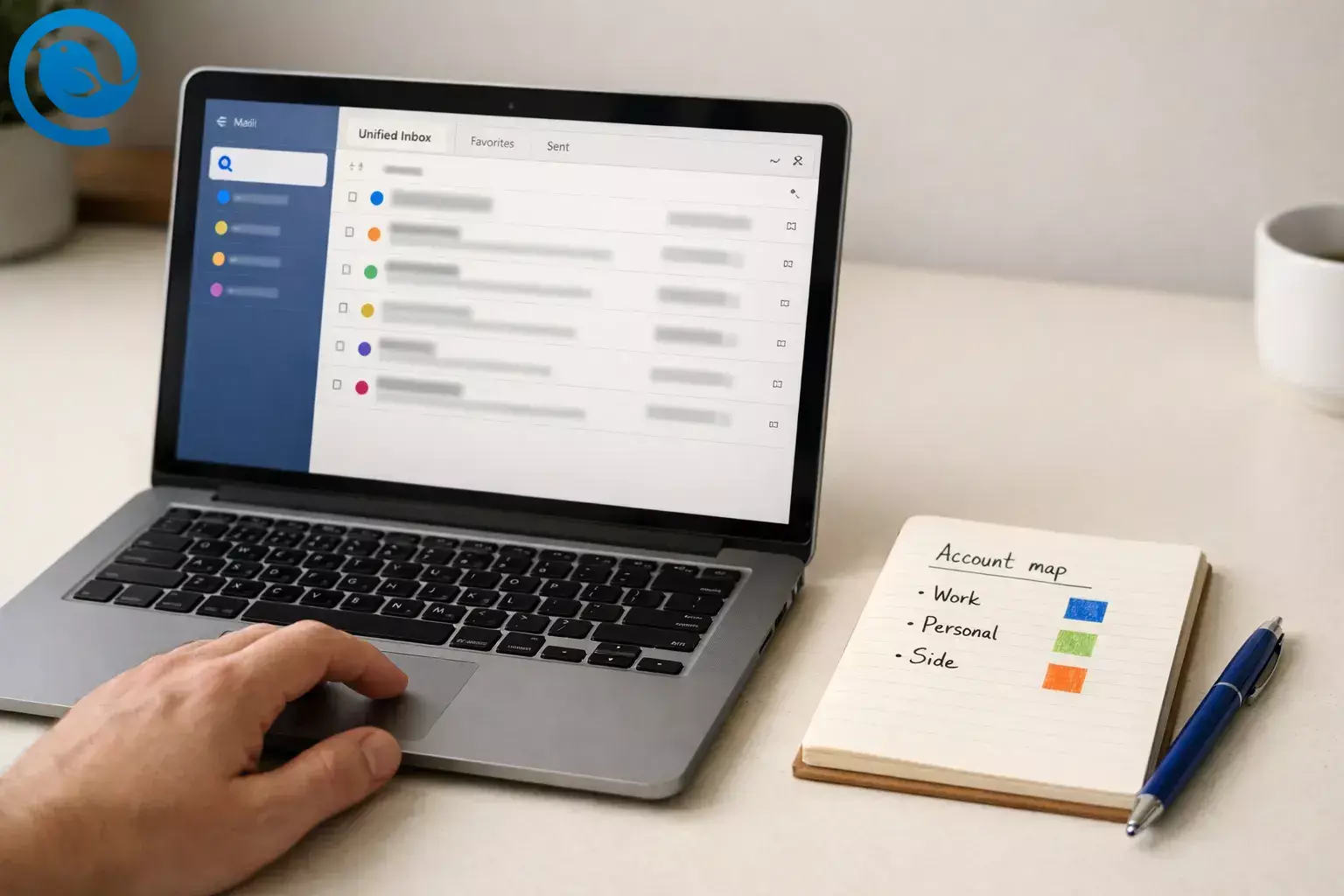
By the end of this guide, you’ll manage multiple Gmail accounts from one place in Mailbird—read, search, and reply without bouncing between tabs. If you already know each account’s sign-in, the basic setup can take about five minutes. [1]
What’s new
Google says the “Check mail from other accounts” option in Gmail (POP fetching) is being removed, with support for new users stopping in the first quarter of 2026 and existing setups ending later in 2026. So if your goal is one inbox without constant switching, connect each Gmail account directly and use a unified view instead of building your workflow around POP fetching. [2][3]
Key takeaways
- Basic setup can take about five minutes (plus extra time for first-time syncing if you have a large email history). [1]
- The “Check mail from other accounts” option in Gmail (POP fetching) is being removed; connect each account directly instead of relying on POP fetching. [2]
- Add each Gmail account via “Sign in with Google” (OAuth) rather than entering your Google username + password directly. [3]
- Enable Unified Inbox to read messages from multiple accounts in one list. [7]
- Assign a distinct color indicator per account to reduce “sent from the wrong address” mistakes. [8]
- Add a per-identity “From-address safety” signature and run a quick reply test. [9][7]
- Filters run when Mailbird is running; some actions (like moving to a folder) require rules per account rather than Unified Accounts. [12]
Quick plan: Add each Gmail account via “Sign in with Google” (OAuth), enable Unified Inbox, then set a distinct color indicator and signature for every account so it is easier to stay organized and avoid sending from the wrong address. [3][7][8][9]
Before you start
- Prerequisites: You can sign in to every Gmail/Google Workspace account you want to add (password, passkey, and/or 2-step verification device).
- Tools: A computer (Windows or macOS), a web browser for Google sign-in, and Mailbird installed for the unified inbox workflow.
- Time: About five minutes for the basic setup, plus extra time for first-time syncing if you have a large email history. [1]
- Cost range: Free–paid (Mailbird offers a Free version; paid plans are optional). [4]
- Safety notes: For Gmail, avoid apps that ask for your Google username + password directly—use “Sign in with Google” instead. Only connect accounts on devices you trust (especially for work/school accounts). [3]
Step-by-step: Manage multiple Gmail accounts in Mailbird (Unified Inbox)
Manage multiple Gmail accounts in Mailbird (Unified Inbox)
-
1) Make an “account map” (2 minutes now, hours saved later)
In a note, list each Gmail address you want to manage. Next to each, write (a) what it’s for (Work, Personal, Side project) and (b) one unique color you’ll assign later.
Check: You have a list of addresses and a color picked for each.
-
2) Open Mailbird Settings
Open Mailbird, then open Settings. (Menu labels can vary a little by version and platform, but you’re looking for the Settings area where accounts are managed.)
Check: You can see Mailbird settings (you’ll use Accounts, and later Identities/General/Filters).
-
3) Add your first Gmail account
Go to Settings → Accounts → Add. Enter the Gmail address (and the name you want shown on outgoing mail), then continue until the account appears in your sidebar/list of accounts. [5]
Check: You can click that account and see mail folders loading (Inbox, Sent, etc.).
-
4) Connect Gmail the safe way: “Sign in with Google” (OAuth)
When Mailbird asks you to authenticate, choose the option that routes you through Google (often shown as “Sign in with Google” or OAuth 2.0). Complete the Google sign-in and approve access, then return to Mailbird to finish setup. [3][6]
Check: Your account finishes setup without a repeating “password not accepted” loop.
-
5) Repeat until every Gmail account is added
Repeat steps 3–4 for each Gmail address on your list. Don’t rush—use the exact Google account you intend for each prompt (work vs personal is easy to mix up).
Check: All your Gmail accounts are visible in Mailbird as separate accounts.
-
6) Turn on the Unified Inbox (the “stop switching” moment)
In Mailbird, enable Unified Inbox: go to Settings → Accounts and check “Enable unified account”. If you want Mailbird to open to this view every time, also enable “Select on startup” for the Unified Inbox. [7]
Note: Unified Inbox typically appears once you have at least two accounts connected. [7]
Check: You can click “Unified Inbox” and see messages from multiple accounts in one list.
-
7) (Optional, macOS) Include only the accounts you want in Unified Inbox
If you’re using Mailbird for Mac, you can choose which accounts show up in Unified Inbox: Settings → Accounts → “Include in unified account”, then check/uncheck accounts and save. [13]
Check: Unified Inbox shows only the accounts you selected (if you used this option).
-
8) Assign a color to each Gmail account (so you never reply from the wrong one)
Go to Settings → Accounts, click the color indicator next to an account, and pick the color from your account map. Repeat for every account. [8]
Check: In Unified Inbox, each message has a visual cue that tells you which account it belongs to.
-
9) Add a “From-address safety” signature per identity
Go to Settings → Identities, open each identity, and add a simple signature line like: — Alex (Work: alex@company.com) or — Alex (Personal). This gives you one more visual confirmation before you hit Send. [9]
Check: When you compose from each account, the right signature appears.
-
10) Run a quick “reply-from-the-right-account” test
Send yourself one short test email from each account (subject: “Test – Work,” “Test – Personal,” etc.). Then open each test message inside Unified Inbox and hit Reply. Mailbird tracks which account received a message so your reply routes from the correct address—but still glance at the “From” line before sending. [7]
Check: Your sent replies show the correct Gmail address in the “From” field.
-
11) Set notifications so they help (not hijack your day)
In Settings → General, decide whether you want tray notifications and an unread count. Toggle “Show tray notifications when receiving a message” and “Show unread count in taskbar & system tray”, then send yourself a test email to confirm the behavior you want. [10]
Check: You get (or don’t get) a notification exactly as intended.
-
12) Use multi-select to clear inboxes across accounts faster
In Unified Inbox, use multi-select to batch actions: select individual messages, select a range, or select all—then archive, delete, star, mark spam, or apply other actions in one pass. [11]
Check: You can process at least 10 messages at once without switching accounts.
-
13) Add one simple filter/rule to reduce noise (optional but powerful)
Go to Settings → Filters and create a rule per account (or for Unified Accounts) that handles repetitive mail—like newsletters. Note: Mailbird filters run when Mailbird is running, and “Move/Copy to folder” actions aren’t supported when you pick Unified Accounts—set those rules per account instead. [12]
Check: A test email that matches the rule gets the action you chose.
Why this works
You’re not trying to “merge” Gmail accounts into one (which can depend on features Google is retiring). Instead, you connect each Gmail account directly and use a unified view. Mailbird’s Unified Inbox keeps everything in one place while preserving account context, so replies go out from the right address—and you can still jump into a single account view when needed. [2][7]
Troubleshooting
| Symptom | Likely cause | Fix (do this now) |
|---|---|---|
| Unified Inbox isn’t showing anywhere. | You’ve only added one account, or Unified Inbox is disabled. | Add at least two accounts, then go to Settings → Accounts and enable the unified account option. [7] |
| Gmail sign-in fails, loops, or says “invalid credentials.” | The setup is trying to use a password-only sign-in instead of Google’s secure flow. | Remove the account and add it again, making sure you choose “Sign in with Google” / OAuth 2.0 when offered. [3][6] |
| You see: “You are trying to sign in from a browser or app that doesn't allow us to keep your account secure.” | You’re trying to sign into Google apps through an embedded browser. | Open Google apps (like Drive/Calendar) in your normal web browser outside Mailbird. Use Mailbird for email, and the browser for Google apps when needed. [16] |
| You can’t find an “Enable IMAP” switch in Gmail settings. | IMAP may already be enabled by default for your account, or your organization controls access (work/school). | Don’t get stuck in settings—add Gmail to Mailbird using “Sign in with Google.” For a work/school account, check with your admin if sign-in or access is restricted. [3] |
| The “same” email appears twice in Unified Inbox. | The message was sent to two of your connected accounts, so it appears once per inbox. | Open each copy and check who it was sent to. If it’s distracting, switch to individual account inboxes for that thread—or disable Unified Inbox. [14] |
| You only want desktop notifications for one Gmail account. | Per-account notification settings aren’t available right now. | Option A: turn off tray notifications in Mailbird. Option B: keep Mailbird notifications on, but use your phone (Gmail app) for “urgent-only” alerts. [15][10] |
| Gmail’s “Check mail from other accounts” option is missing or stopped fetching. | Google is phasing out POP fetching (“Check mail from other accounts”). | Use provider-side forwarding or add the account directly in a mail app. If you previously imported messages, they stay in Gmail even after deprecation. [2] |
| Mailbird feels slow right after adding several accounts. | Initial syncing can take a long time if you have thousands of emails across multiple accounts. | Leave Mailbird open to finish syncing. If it’s still sluggish, consider enabling “Download Messages on Demand.” [17] |
Unified Inbox isn’t showing anywhere.
- Likely cause: You’ve only added one account, or Unified Inbox is disabled.
- Fix (do this now): Add at least two accounts, then go to Settings → Accounts and enable the unified account option. [7]
Gmail sign-in fails, loops, or says “invalid credentials.”
You see: “You are trying to sign in from a browser or app that doesn't allow us to keep your account secure.”
- Likely cause: You’re trying to sign into Google apps through an embedded browser.
- Fix (do this now): Open Google apps (like Drive/Calendar) in your normal web browser outside Mailbird. Use Mailbird for email, and the browser for Google apps when needed. [16]
You can’t find an “Enable IMAP” switch in Gmail settings.
- Likely cause: IMAP may already be enabled by default for your account, or your organization controls access (work/school).
- Fix (do this now): Don’t get stuck in settings—add Gmail to Mailbird using “Sign in with Google.” For a work/school account, check with your admin if sign-in or access is restricted. [3]
The “same” email appears twice in Unified Inbox.
- Likely cause: The message was sent to two of your connected accounts, so it appears once per inbox.
- Fix (do this now): Open each copy and check who it was sent to. If it’s distracting, switch to individual account inboxes for that thread—or disable Unified Inbox. [14]
You only want desktop notifications for one Gmail account.
Gmail’s “Check mail from other accounts” option is missing or stopped fetching.
- Likely cause: Google is phasing out POP fetching (“Check mail from other accounts”).
- Fix (do this now): Use provider-side forwarding or add the account directly in a mail app. If you previously imported messages, they stay in Gmail even after deprecation. [2]
Mailbird feels slow right after adding several accounts.
- Likely cause: Initial syncing can take a long time if you have thousands of emails across multiple accounts.
- Fix (do this now): Leave Mailbird open to finish syncing. If it’s still sluggish, consider enabling “Download Messages on Demand.” [17]
Quick reminder: If something breaks suddenly, your best first move is usually to re-add the Gmail account and make sure you’re using “Sign in with Google” rather than password-only sign-in. [3]
Variations
Variation 1: No install—use separate browser profiles (work/personal separation)
Create one browser profile per Gmail account (for example: “Work,” “Personal,” “Side project”). Keep each Gmail account signed into its own profile, then switch profiles instead of logging in and out. This also keeps your Google Drive/Calendar separated by account.
Variation 2: Mobile-first—use the Gmail app with “All Inboxes”
Add all Gmail accounts to the Gmail app, then use “All Inboxes” for reading and quick triage. When you need to send or organize mail for one account, switch to that specific inbox before you compose.
Variation 3: Forward secondary accounts to one primary inbox (instead of POP fetching)
If you mainly need “one place to read,” set up automatic forwarding from your secondary account(s) to your primary inbox. This is one of the options Google points to as POP fetching is retired. [2]
Variation 4: For shared/team inboxes—delegate or use a shared workflow
If the “multiple accounts” problem is really a shared inbox problem (support@, info@), consider delegation or a shared inbox process so you’re not sharing passwords or juggling logins.
Make-ahead / maintenance / scaling
- Make-ahead: Save your “account map” (address + purpose + color) somewhere you can find it later. It’s the fastest way to avoid “sent from the wrong Gmail” mistakes.
- Maintenance: Once a month, send yourself one test message from each Gmail account and reply from Unified Inbox to confirm the correct “From” behavior after any updates or password changes.
- Scaling to 5+ accounts: Add filters/rules for repetitive mail (newsletters, receipts, automated alerts). Keep in mind filters apply while Mailbird is running, and some actions (like moving to a folder) require rules per account rather than Unified Accounts. [12]
Quick checklist (screenshot this)
- I listed every Gmail address I need to manage and picked a color for each.
- I added each Gmail account to Mailbird via “Sign in with Google” / OAuth.
- Unified Inbox is enabled (and set to open on startup if I want).
- Each account has a distinct color indicator in Unified Inbox.
- Each account has a simple “From-address safety” signature.
- I sent one test email from each account and replied from Unified Inbox.
- Notifications are set to the level I actually want.
- I know my backup plan: browser profiles (for Google apps) and/or forwarding (not POP fetching).
Frequently Asked Questions
Can I manage multiple Gmail accounts without merging them? — Add each separately
Yes. The easiest approach is to add each Gmail account separately and use a unified view to read everything together, while keeping each account’s identity intact for sending and organizing.
Is Gmail’s “Check mail from other accounts” still a good way to avoid switching? — Being phased out
It’s being phased out. If your goal is one place to read and reply, connect each account directly in an email app (or use forwarding) instead of relying on POP fetching. [2]
Do I need to enable IMAP for Gmail to work in Mailbird? — Already enabled
For many personal Google Accounts, IMAP access is already enabled. For work/school accounts, settings may be managed by your organization. [3]
How many email apps can connect to the same Gmail account? — limits on simultaneous
Gmail has limits on simultaneous client connections. If you connect the same account to lots of devices/apps, you may need to sign out of a few. [3]
Why does my unified inbox show the same email twice? — sent to two
If the same message was sent to two of your connected Gmail accounts, it will appear once for each account in a unified view. [14]
Will Mailbird reply from the correct Gmail address automatically? — smart to glance
When you reply to a message, Mailbird keeps track of which account received it so replies are sent from that address. Still, it’s smart to glance at the From line before sending. [7]
Can I set different desktop notifications per Gmail account in Mailbird? — Not at moment
Not at the moment. Use Mailbird’s global notification settings, and rely on phone notifications for the one account that truly needs immediate alerts. [15]
Why does Google block sign-in inside some apps? — embedded browsers
Google may restrict sign-ins that happen through embedded browsers inside other apps. When that happens, use your regular web browser for Google apps and keep your email workflow in Mailbird. [16]
Sources
Show sources
- Mailbird — Desktop Email Client Setup Made Easy (setup time reference)
- Google Gmail Help — Learn about upcoming changes to Gmailify & POP in Gmail
- Google Gmail Help — Add Gmail to another email client
- Mailbird Support — Is Mailbird free?
- Mailbird Support — Multiple Email Accounts in Mailbird
- Mailbird Support — Authentication Failed: Unable to add email account
- Mailbird Support — Unified Inbox
- Mailbird Support — Unified Inbox Color Indicator
- Mailbird Support — Create a Signature
- Mailbird Support — Notification of New Emails
- Mailbird Support — Multi-select in Mailbird
- Mailbird Support — Setting up Filters and Rules
- Mailbird for Mac Support — Unified Inbox in Mailbird for Mac
- Mailbird Support — Why am I seeing duplicate emails in Mailbird?
- Mailbird Support — Can I configure notifications for each email account in Mailbird?
- Mailbird Support — Unable to sign into Google’s app in Mailbird
- Mailbird Support — “Loading is taking longer than usual” error message


