How to Send Attachment in Email
To send an attachment in an email, open a new message, click the paperclip or Attach File button, choose your file, wait for the upload to finish, then click Send.



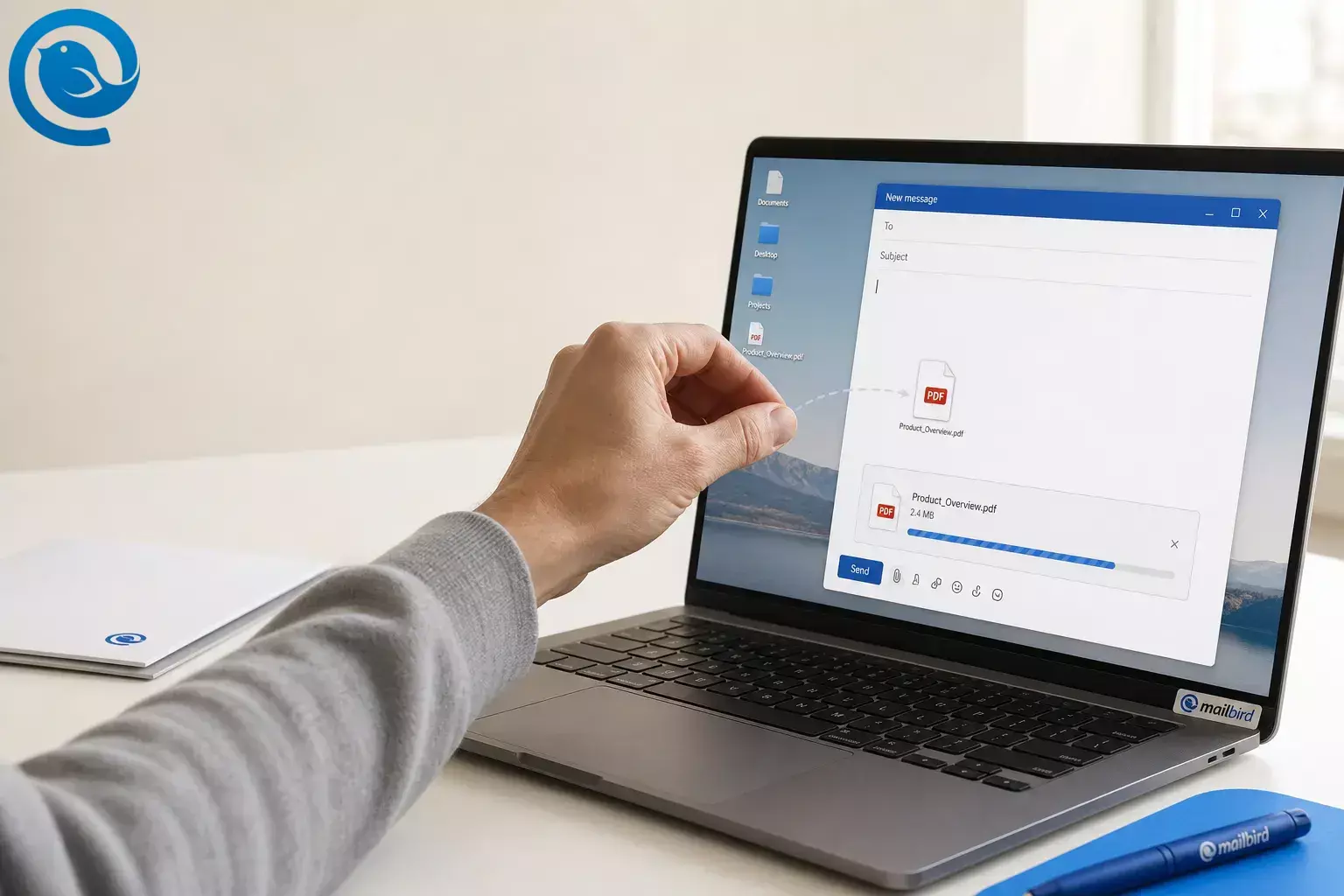
To send an attachment in an email, open a new message, click the paperclip or Attach File button, choose your file, wait for the upload to finish, then click Send . [1] [3]
For the wider subject — provider size caps, platform-by-platform steps, and when a cloud link beats a file — see our email attachment guide. You can use the same basic process for PDFs, photos, documents, and multiple files in almost any email app. The steps below also show what to do when the file is too large , the upload stalls, or a share link is the better choice. [1] [3] [4]
Before you send, double-check the recipient address and use extra care with sensitive documents or unusual file types. [5] [8] [9]
Before you start
- Have the final file saved where you can find it quickly.
- Use a clear file name so the recipient knows what they are opening.
- If the file is large, compress it or prepare to send a share link instead. [4] [8]
- For sensitive documents or unusual file types, use the secure-sharing method your workplace or recipient prefers. [5] [8] [9]
How to send an attachment in an email: step by step
How to send an attachment in an email: step by step
-
Put the file somewhere easy to find
Move it to your Desktop, Downloads, or a clearly named folder. Open it once to confirm it is the final version and not an older draft.
-
Rename the file clearly
Use a name like
signed-contract-july-2026.pdforresume-jordan-lee.pdf. Clear names reduce confusion for both you and the recipient. -
Fix size problems before you attach anything
If the file is large, compress it, resize photos, or turn a folder into a ZIP file first. If it is still too big, plan to send a share link instead of a direct attachment. [4] [8]
-
Start a new email
Open your email app or webmail page, then choose New Email , Compose , Reply , or Forward , depending on what you need.
-
Add the recipient and a specific subject line
Type the email address carefully. Then write a subject that tells the recipient what the file is, such as “Invoice attached” or “Project photos for review.”
-
Attach the file with the paperclip or drag-and-drop
Click the paperclip or Attach File , browse to the file, and choose it. Many email apps also let you drag the file straight into the message window. [3]
-
Wait for the upload to finish
Do not send the message while the attachment is still uploading. Make sure the file name appears in the message before you move on.
-
Choose attachment or link if your app asks
If your app asks whether to attach a copy or send a link, choose a direct attachment for a finished file the recipient should keep. Choose a share link when the file is large or may change after you send it. [1] [3] [4]
-
Mention the attachment in the message body
Write one clear line that says what is attached so the recipient knows what to look for.
Quick example
Subject: Signed lease attached
Hi Maya,
Attached is the signed lease PDF. Please confirm when you receive it.
Thanks,
Alex
-
Review everything, then send
Before you send, confirm the file name, file count, and access permissions if you used a link. Then click Send and check Sent , Outbox , or Drafts if the message does not leave right away. [3] [6] [7]
When to use a direct attachment vs a share link
Both options are normal. Use a direct attachment for a finished file the recipient should download and keep, and use a share link when the file is large, stored online, or likely to change after you send it. [1] [3] [4]
Use a direct attachment when...
- The file fits within your provider’s size limit.
- The recipient needs a fixed copy they can keep.
- You want the file attached to the message itself.
Use a share link when...
- The file is too large for ordinary email.
- You need to send a folder or many large files.
- The file may change after you send it, and you can set permissions first.
Common attachment problems and how to fix them
The recipient got the email, but not the attachment
Likely cause: The message was sent before the upload finished, or the file was missed.
Fix: Open the message in Sent , confirm whether the file is missing, and resend a short follow-up with the attachment included.
The photo appears inside the email body instead of as a file
Likely cause: The image was inserted into the message body instead of attached as a separate file.
Fix: Remove the inline image and use the paperclip or Attach File option so the photo appears as a normal attachment. [3]
You cannot attach a folder
Likely cause: Many email tools handle files better than regular folders.
Fix: Zip the folder first, or upload the folder and send a share link instead. [8]
The recipient cannot open the file
Likely cause: The format is uncommon, the file is damaged, or a share link does not have the right permissions.
Fix: Open the file yourself, then resend it in a common format such as PDF, JPG, or DOCX. If you used a link, verify that the recipient has access.
Other common email attachment tasks
Attach more than one file
In many file pickers, you can choose several files before you click Open . If you want one cleaner download, zip them into a single file first. [3]
Send a folder
If your app will not attach a regular folder, compress the folder into a ZIP file. For very large folders, upload them and send a link instead. [8]
Send photos as attachments, not inline images
Use the paperclip or Attach File option. If you use an image insert option instead, the photo may appear inside the message body instead of as a downloadable file. [3]
Checklist before you hit send
- I opened the file and confirmed it is the final version.
- I renamed it clearly.
- I compressed it or switched to a link if it is large.
- I checked the recipient address.
- I can see the file name in the message.
- I mentioned the attachment in the email body.
- I checked permissions if I used a share link.
- I confirmed the message left Outbox or Drafts.
Want a desktop app that handles attachments well?
If you want a desktop client that handles attachments well, Mailbird is a cross-platform desktop email client for Windows and Mac. It lets you add files with the paperclip button or simple drag-and-drop, which keeps everyday attachment tasks straightforward on desktop. [2] [10]
Frequently asked questions about email attachments
How do I attach more than one file to an email?
Choose several files in the file picker before you click Open , then wait until all file names appear in the message. If you want a neater download, zip them into one file first.
Sources: [3]
Can I send a folder as an email attachment?
Some email apps will not attach a regular folder. Zip it first, or upload the folder and send a share link.
Sources: [8]
What if my attachment is too large to send?
Why do some pictures show inside the email instead of as attachments?
That usually means the image was inserted into the message body. Use the paperclip or Attach File option when you want a normal attachment.
Sources: [3]
How do I know the attachment really sent?
Is it better to send a link or a direct attachment?
Sources
- Microsoft Support — “Send and receive attachments”
- Mailbird Help — “How to Add Attachments in Mailbird Next”
- Microsoft Support — “Add pictures or attach files to emails in Outlook”
- Microsoft Support — “Sending limits in Outlook.com”
- Microsoft Support — “Troubleshoot attachment problems in Outlook for Windows”
- Microsoft Support — “I can’t send or receive messages in Outlook”
- Microsoft Support — “Email stuck in Outlook.com”
- NIST — “Security Considerations for Exchanging Files Over the Internet”
- NIST Small Business Cybersecurity — “Phishing”
- Mailbird — “The Best Email Client for Windows and Mac”


