Email Management for Nonprofits: Coordinating Donors, Volunteers, and Grants
Email management for nonprofits works best when donor, volunteer, grant, and restricted leadership mail each have a clear place. In Mailbird, manage multiple accounts in one desktop view and keep sensitive inboxes separate.



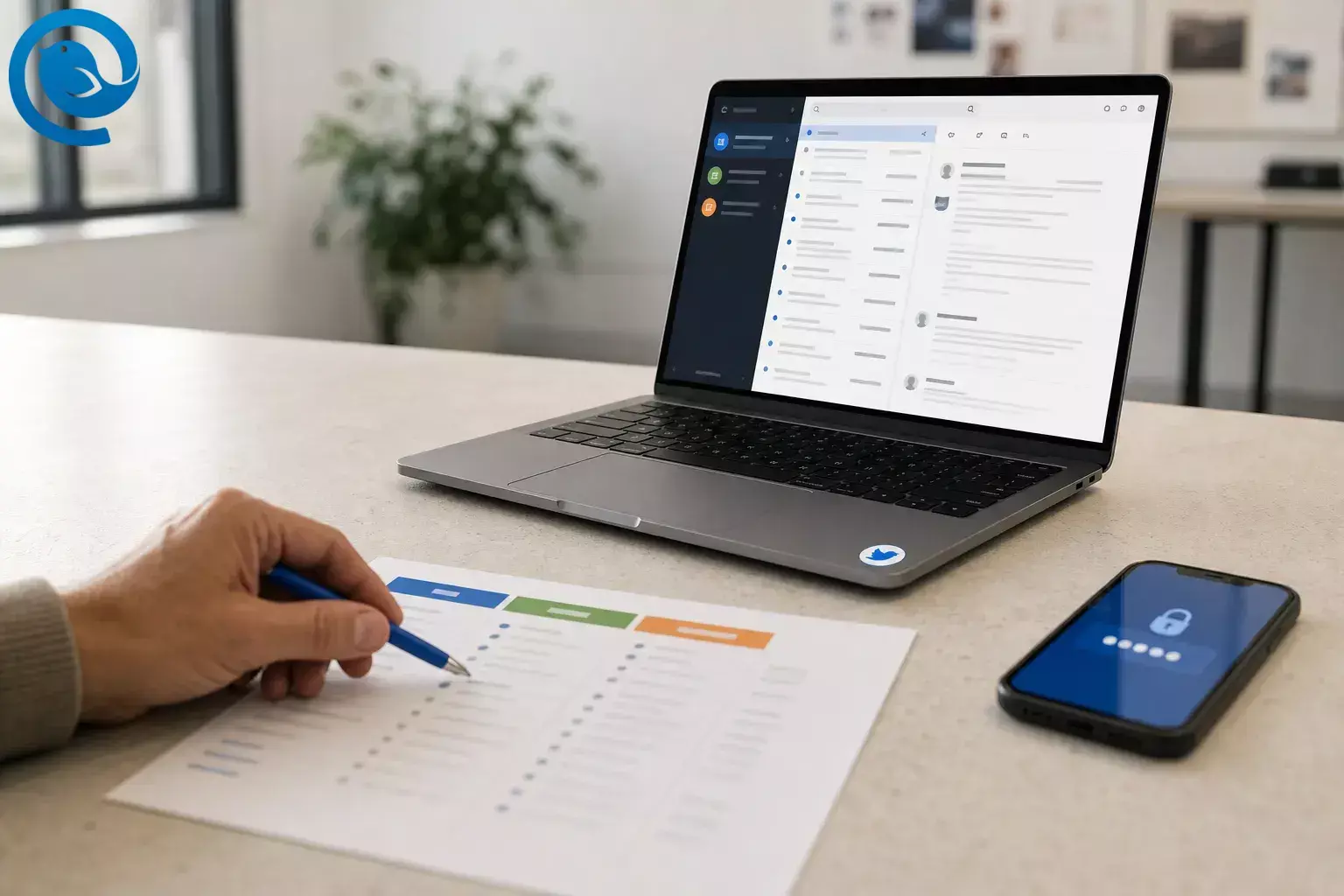
Email management for nonprofits works best when donor, volunteer, grant, and restricted leadership mail each have a clear place. In Mailbird, you can manage multiple email accounts in one desktop view, keep sensitive inboxes separate, and build a donor and volunteer email workflow that survives staff changes. 2 4
The simplest nonprofit email organization is layered: daily-response mailboxes for supporters and the public, role-based work mailboxes for active programs, and restricted mailboxes for finance, HR, or leadership. That structure makes charity inbox management easier without turning one shared inbox into a security problem.
Use email for coordination, not as the only place institutional memory lives. Mailbird is the daily triage layer; your CRM, volunteer platform , and grant tracker should hold the lasting record.
Key takeaways
- Keep daily-response, role-based, and restricted mailboxes separate instead of pushing everything into one shared inbox.
- Use Mailbird as the daily triage layer, and keep the lasting record in your CRM, volunteer platform, grant tracker, or shared drive.
- Only daily-response mailboxes should usually go into Unified Inbox.
- Every mailbox needs a clear owner, a backup, and a handoff location.
- Use the same short folder pattern across donor, volunteer, and grant mailboxes.
- Critical rules should also exist server-side if they need to run while Mailbird is closed.
- Turn on two-factor authentication and verify requests involving money, passwords, or donor data.
- Test donor, volunteer, and grant flows before the team relies on the setup.
To verify: Send test messages that mimic donor, volunteer, and grant traffic before the team starts using the setup.
A simple nonprofit inbox structure
-
Layer 1: Daily-response mailboxes
such as
donors@,volunteers@,grants@, andinfo@. These are the accounts most likely to belong in Mailbird's Unified Inbox . 4 -
Layer 2: Role-based work mailboxes
such as
events@orprograms@when one team needs its own queue for an active period. -
Layer 3: Restricted mailboxes
such as
finance@,hr@,board@, orlegal@. Keep these out of the shared daily view unless the same people are authorized to see them. - Long-term record: Keep the lasting record in your CRM, volunteer platform, grant tracker, or shared drive—not only inside inbox folders.
Before you start
- Prerequisites: Sign-in access to each mailbox, whether that means a password, SSO, or two-step verification. For custom domains, have IMAP/POP/SMTP details ready in case auto-setup fails. If the account belongs to your organization, use the provider’s sign-in window and follow IT policy. 3 2
- Tools: Mailbird if you want one place to read and reply across multiple inboxes. Fallback: use Gmail or Outlook in the browser, plus a shared note or doc for handoffs, if you cannot install a desktop app. 4
- Time: About 30–45 minutes for 2–5 accounts, plus extra time if you need server details or workplace approval. 2
- Cost range: Free to paid. Mailbird’s current Free plan is for one account, while paid plans support unlimited accounts, so check the current plan before rollout. 2
- Safety notes: Turn on two-factor authentication for each mailbox. Do not click unexpected links or attachments, and verify any request involving money, passwords, or donor data with a known phone number or website. If your organization sends 5,000 or more messages a day to personal Gmail accounts from one primary domain, involve whoever manages email authentication before the next campaign send. 7 1
Step-by-step Mailbird setup for nonprofit email management
Step-by-step Mailbird setup for nonprofit email management
-
Map every mailbox by stakeholder layer and give each one a single job
Open a one-page note with five columns: email address, layer, audience, owner, and “Show in Unified Inbox?” Add public addresses such as
donors@yourorg.org,volunteers@yourorg.org,grants@yourorg.org, andinfo@yourorg.org, plus any role-based or restricted boxes such as events, finance, or board mail.Example mailbox map for a small nonprofit Mailbox Layer Main job Owner Show in Unified Inbox? donors@yourorg.orgDaily-response Gift questions, receipt issues, sponsorship follow-up Development Yes volunteers@yourorg.orgDaily-response Applications, shifts, onboarding Volunteer lead Yes grants@yourorg.orgDaily-response Funder questions, deadlines, portal notices Grants lead Yes, if active info@yourorg.orgDaily-response General public inquiries and routing Operations Yes events@yourorg.orgRole-based work RSVPs, sponsor questions, event logistics Events lead Seasonal finance@yourorg.orgRestricted Invoices, payment disputes, sensitive records Finance No board@yourorg.orgRestricted Governance and confidential leadership mail Executive lead No Check: You can point to every address and explain its layer and job in one short sentence.
-
Choose which layers belong in the daily queue
Bring together only the daily-response mailboxes and any active role-based inboxes that the same people need to triage every day. Keep finance, HR, board, legal, or executive mail out of the shared daily view if access is limited or the subject matter is sensitive.
Check: You have a clear reason for every mailbox that is in or out of the daily queue.
-
Assign a clear owner, a backup, and a handoff location
For each mailbox, write down who replies first, who covers absences, and where handoff notes live. A shared doc, CRM note field, or grant tracker comment field all work better than “it’s in someone’s inbox somewhere.”
Check: No mailbox is ownerless, and no absence leaves the inbox stranded.
-
Add each mailbox to Mailbird one at a time and test it
In Mailbird, go to Menu → Settings → Accounts → Add an account , sign in, and finish setup before adding the next mailbox. If auto-setup misses the settings, enter the IMAP or POP details manually; you can also give each account its own icon so it is easier to spot later. After each account is added, send yourself a short test to make sure it can send and receive correctly. 3 2
Check: Every account sends and receives a test message before you move on.
-
Turn on Unified Inbox only for the daily-response mailboxes
After you add more than one account, go to Settings → Accounts and turn on Enable unified account . Include only the mailboxes you want in the daily queue, then set a color indicator so donor, volunteer, grant, and general inquiry messages are visually different at a glance; Mailbird keeps the receiving account attached so replies go out from the correct address. 4 12
Check: You can tell which mailbox received a message before you open it, and the correct “From” address appears when you reply.
-
Use one short folder pattern inside each stakeholder mailbox
Create the same short status-based folder set in each mailbox. A simple starting point is Action , Waiting , and Receipts . If grants needs one extra folder such as Deadlines , keep the rest of the pattern the same. In Mailbird, go to Settings → Folders, add the folders, then click Sync with server . 5 2
Check: Donor, volunteer, and grant mailboxes all use the same simple status logic.
-
Create rules for recurring mail and move critical ones server-side
Open Settings → Filters, choose the specific account, add the condition and action, and click Save and Run so the rule applies to existing mail and future incoming mail. For move-to-folder actions, build the rule under the specific mailbox rather than Unified Accounts. In
donors@, route payment confirmations and donation-platform notices to Receipts. Involunteers@, flag shift or form alerts. Ingrants@, flag funder portal notices and deadline emails. Mailbird filters are local to the app, not synced to the server, and they only run while Mailbird is open, so recreate the important ones in Gmail or Outlook if you need them to run all day. 6Check: A sample receipt, a volunteer alert, and a grant notice each land where you expect.
-
Write short, repeatable replies for common situations
Create plain-text templates for donor receipt questions, volunteer onboarding, “we received this,” grant document acknowledgments, and handoff replies. Store them in a shared doc or saved drafts so staff and volunteers use the same next-step language.
Check: A backup person can answer routine mail without rewriting the message from scratch.
-
Set a daily triage order and clear mail in one pass
When you open the daily queue, handle each message by doing one thing with it: reply now, forward to the owner, move it to Waiting, or file it. For most teams, start with anything tied to money, people arriving on-site, or near-term grant deadlines, then clear general inquiries. Do not leave “I’ll remember this later” mail sitting in the inbox.
Check: The inbox holds only new work or work that is still being decided.
-
Log the outcome in the real system of record
After the email is handled, put the donor note in the CRM, the volunteer follow-up in the volunteer system, and the grant update in the grant tracker or shared drive. Use email for coordination, not as the only place where relationship history lives.
Check: Another team member can find the full history without digging through a personal inbox.
-
Protect the setup before busy season hits
Turn on two-factor authentication for every mailbox and teach everyone to stop on unexpected requests for money, passwords, or donor data until they verify them with a known phone number or website. If your organization sends 5,000 or more messages a day to personal Gmail accounts from one primary domain, have your admin confirm the sender requirements before the next campaign send. 7 1
Check: MFA is on or assigned, and the person who handles bulk sends knows the rule.
-
Run a live rehearsal and adjust the weak spots
Send a donor-style test, a volunteer-style test, and a grant-style test through the full setup. Confirm the right mailbox receives each message, the right person can answer it, the right reply address appears, and the right rule or folder catches it.
Check: The whole system works without manual rescuing.
Why this nonprofit email organization works
This donor and volunteer email workflow works because it separates who the message is for from what state the work is in . Stakeholders stay distinct as mailboxes, status stays simple as folders, restricted access stays deliberate, and Mailbird’s Unified Inbox gives you one triage surface without removing the original account context. 4
Troubleshooting
| Symptom | Likely cause | Fix |
|---|---|---|
| The same message shows up twice | The message hit more than one connected address, and Unified Inbox is showing each copy. | Open the account-specific inbox to confirm, or disable Unified Inbox if the duplication is too noisy. 9 |
| A rule did not move a message | Mailbird was closed, or the folder action was set under Unified Accounts. | Keep Mailbird open for local rules, move folder-based rules to the specific account, or recreate the rule in Gmail or Outlook so it runs server-side. 6 |
| You cannot tell which mailbox received a message | Every account looks the same. | Set a distinct account color or icon, then send another test message and confirm the visual cue is obvious. 12 3 |
| Notifications are nonstop | Mailbird does not currently support notification settings per account. | Turn off global notifications during focused work, use your operating system’s Focus or Do Not Disturb mode, and check low-priority inboxes on a schedule. 10 |
| Campaign emails to Gmail bounce or get rejected | Your primary sending domain is missing sender requirements for personal Gmail mailboxes. | Have your admin check authentication, unsubscribe handling, and compliance before the next campaign send. 1 |
| A message asks for gift cards, donor data, or a password | It may be phishing or impersonation. | Stop, verify with a known number or website, and report the message through your normal security process. 7 8 |
| A mailbox will not connect | Auto-setup failed, or your organization requires provider-side approval. | Get the IMAP/POP details or IT approval, then reconnect through the provider’s sign-in flow. 3 |
| Grant deadlines disappear under general mail | Too many low-priority inboxes are in the daily queue. | Take noisy or seasonal accounts out of Unified Inbox and check them on a schedule instead. 4 |
Nonprofit email organization variations
One-person nonprofit
If you only have one public address, separate donor, volunteer, and grant traffic with rules and a short folder pattern until you can create role inboxes.
Shared-mailbox team
Use role addresses for donor, volunteer, and grants work that must survive staff changes. Keep a clear owner and a backup for each one.
Year-end or event season
Temporarily add
events@
or
appeals@
to the daily queue during a campaign, then remove it once the rush is over.
Browser-only fallback
If you cannot install software, keep the rules in Gmail or Outlook, use one shared handoff note, and standardize your folder names there first.
Budget-tight pilot
Test the process with the highest-priority mailbox first, then expand later. Mailbird’s current Free plan is limited to one account, so keep the rest in webmail until you decide whether to add a multi-account setup. 2
Storage and scaling tips
Before busy season: Build the mailbox map, folder names, rules, and reply templates before fundraising pushes, volunteer recruitment, or grant deadlines pile up.
Storage: Keep the long-term record in your CRM, volunteer system, grant tracker, or shared drive—not only inside personal inbox folders.
Scaling: Add a new mailbox only when it needs a different public address, access list, or owner. When you standardize this across a team, keep the same folder names and handoff rules on every desktop; if you are budgeting for multiple Mailbird seats, confirm current business pricing and volume discounts before rollout. 11
Charity inbox management checklist
Screenshot this before rollout.
- Every mailbox has one clear job and layer.
- Restricted mailboxes stay out of the shared daily view.
- Every account can send and receive a test.
- Unified Inbox only includes daily-response mailboxes.
- Each included account has an obvious visual cue.
- Folder names match across donor, volunteer, and grant mailboxes.
- Rules catch receipts, system alerts, and deadline mail.
- Reply templates live in one shared place.
- MFA is turned on for every mailbox.
- Donor, volunteer, and grant tests all land in the right place.
Frequently Asked Questions
Should donors, volunteers, and grants share one inbox?
Usually no. Keep stakeholder groups as separate mailboxes or at least separate rule sets, then bring only the daily-response mailboxes into one unified view.
What is the smallest setup that still works?
A mailbox map, clear ownership, one short folder pattern, a few rules, and a place outside email to log outcomes.
Do we need a separate grants email address?
If funder questions, deadlines, and attachments keep getting buried in general mail, a dedicated grants mailbox makes ownership and search much cleaner.
Should finance, HR, or board mail go into the same unified view?
Usually no. Keep restricted or highly sensitive mailboxes separate unless the same people are authorized to see them every day.
Can Mailbird replace our CRM or grant tracker?
No. Use Mailbird as the email layer where messages are read, answered, and sorted. Keep relationship history, grant status, and donor notes in the system your team uses as the long-term record.
Why do I see the same message twice in Unified Inbox?
If a message was sent to more than one connected address, the unified view can show each copy separately even though nothing was duplicated. 9
What if our campaign emails to Gmail start bouncing or getting rejected?
Treat it as a sender-setup issue, not only an inbox issue. Have your admin review the sender requirements for mail sent to personal Gmail accounts before the next campaign. 1
How do we train new staff or volunteers on this quickly?
Give them the mailbox map, the folder pattern, the reply templates, and a short rehearsal with test messages. If they can pass the rehearsal, they can cover the inbox.
What if we cannot install a desktop app on staff computers?
Use Gmail or Outlook webmail with server-side rules, keep a shared handoff note, and move to a multi-account client later if the team needs one daily queue.
Sources
- Google — Email sender guidelines FAQ (support.google.com)
- Mailbird — How to Manage Multiple Email Accounts in One Inbox (getmailbird.com)
- Mailbird Support — Multiple Email Accounts in Mailbird (support.getmailbird.com)
- Mailbird Support — Unified Inbox (support.getmailbird.com)
- Mailbird Support — How to organize folders from within Mailbird? (support.getmailbird.com)
- Mailbird Support — Setting up Filters and Rules (support.getmailbird.com)
- FTC — Protect yourself from phishing scams (consumer.ftc.gov)
- FTC — Phishing (business guidance) (consumer.ftc.gov)
- Mailbird Support — Why am I seeing duplicate emails in Mailbird? (support.getmailbird.com)
- Mailbird Support — Can I configure notifications for each email account in Mailbird? (support.getmailbird.com)
- Mailbird Support — Does Mailbird Offer Discounts for Purchases of Multiple Licenses? (support.getmailbird.com)
- Mailbird Support — Unified Inbox Color Indicator (support.getmailbird.com)


