How to Send a Large Attachment via Email (and Avoid Common Errors)
An email attachment is a file sent with your message, such as a PDF, photo, spreadsheet, presentation, or ZIP file. To attach one, open a new email, choose the paperclip or Attach button, select the file, wait for it to appear in the draft, and send.



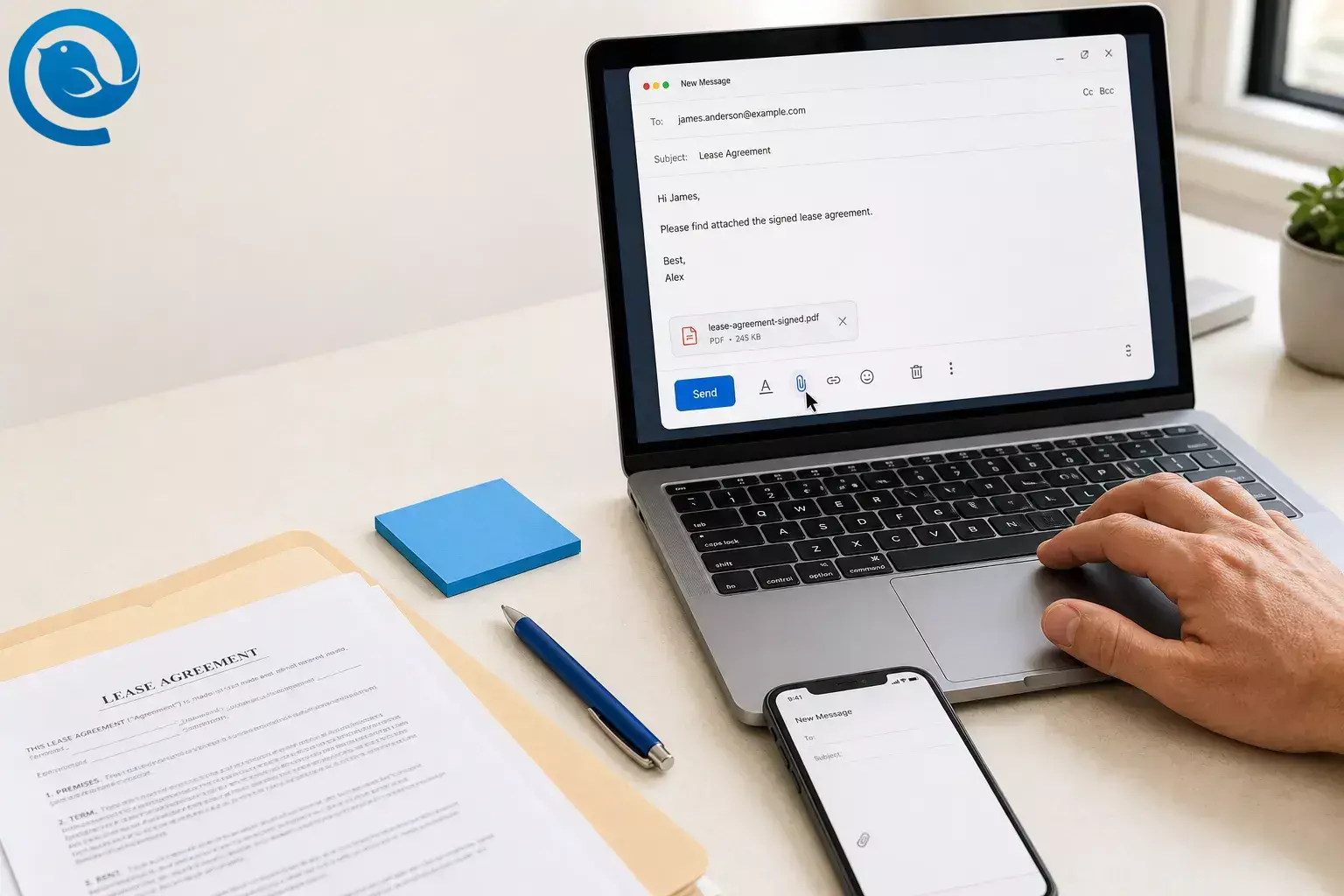
An email attachment is a file sent with your message, such as a PDF, photo, spreadsheet, presentation, or ZIP file. To attach one, open a new email, choose the paperclip or Attach button, select the file, wait for it to appear in the draft, and send.
This method works across most desktop email apps, browser-based inboxes, and phone mail apps. If the file is large, still changing, or needs permissions, send a share link instead of a direct attachment. Treat unfamiliar attachments carefully and verify what you are opening before you click.
Key takeaways
Quick answer: Start a new draft, use the paperclip or Attach button, pick your file, wait for the file name or thumbnail to appear, then send. If the file is too large or needs permissions, send a share link instead.
- If the file is anywhere near 20–25 MB, expect trouble and switch to compression or a share link before you hit send. 2 , 3 , 6
-
Email apps commonly block formats such as
.exe,.bat,.js, and.vbs. 1 - Use a direct attachment when the file is small and final. Use a share link when the file is large, still changing, or needs view/edit permissions.
- For share links, test access in a private or incognito browser window or review the link permissions before sending.
- After sending, check that the message left Outbox and appears in Sent with the file or link still visible.
Before you send an email attachment
- Prerequisites: the file you want to send, an email account, and permission to share that file.
- Tools: any email app or browser-based inbox; optional compression tool or cloud storage link for large files.
- Time: one short session.
- Difficulty: easy.
- Cost: usually none.
-
Safety:
do not open, forward, or resend unexpected attachments without checking them first. Some email apps block risky file types such as
.exe,.bat,.js, and.vbsfor security reasons. 1
What can change: direct-attachment limits, blocked file types, and share-link permissions vary by provider, app, plan, and work-account settings. Microsoft documents 25 MB for Outlook.com and about 20 MB for some internet email account setups in Outlook. Yahoo Mail documents 25 MB total, and Apple Mail Drop uses a separate large-file system with its own limits and expiry rules. 2 , 3 , 4 , 6
How to attach a file to an email on desktop or phone
How to attach a file to an email on desktop or phone
-
Save the exact file you want to send
Open the file, make your last edits, save it, and close it. If the recipient only needs to read it, export a PDF so the layout stays put and they do not accidentally edit the original.
-
Check the file size before you open your draft
On Windows, right-click the file and open Properties . On a Mac, use Get Info . On a phone or tablet, open the file details screen. If the file is anywhere near 20–25 MB, expect trouble and switch to compression or a share link before you hit send. 2 , 3 , 6
-
Rename the file so the recipient understands it instantly
Replace vague names like
Scan0001orfinal-finalwith a clear file name such aslease-agreement-signed.pdforq3-budget-review.xlsx. A clear file name helps both you and the recipient find the attachment later. -
Open the file once and confirm it is correct
Make sure it opens, looks right, and does not contain hidden comments or the wrong pages. If the file type is an executable or script, stop and choose a safer format or a link instead; email apps commonly block formats such as
.exe,.bat,.js, and.vbs. 1 -
Start the email and write a specific subject line
Create a new message, or reply if the file belongs in an existing conversation. Write a subject that matches the file, such as “Signed contract attached” or “Updated floor plan PDF.”
-
Attach the file and wait until it actually appears in the draft
Use the paperclip or Attach button, then choose the file. On a computer, you can usually browse to the file and select Open or Insert . On a phone, tap the paperclip or plus icon, choose Files , Documents , or Photos , and wait until the file name or thumbnail is visible before you move on. If your phone mail app only shows photos, save the document into your Files app first and attach it from there.
-
Choose attachment or link on purpose
Use a direct attachment when the file is small and final. Use a share link when the file is large, still changing, or needs view/edit permissions; links keep the message smaller, and an attached copy will not stay synced with later edits to the original file. 4 , 5 , 6
-
Name the attachment in the message body
Write one plain sentence that tells the recipient what you sent and what to do with it, such as “Attached is the signed lease PDF for review.” Some apps, including Outlook, can warn you if you mention an attachment and forget to add it, but do not rely on that—match the sentence to the actual file shown in the draft. 5
-
Check recipients, permissions, and the final draft
For share links, test access in a private or incognito browser window or review the link permissions before sending. For direct attachments, confirm the correct file name, number of files, and recipient list. If the file is sensitive, remove any extras before you send.
-
Send it, then confirm it left your outbox
After sending, check that the message left Outbox and appears in Sent with the file or link still visible. If it stalls or bounces, remove the attachment, reduce the size, or resend with a share link instead. 2 , 3 , 6
Why these steps prevent email attachment errors
You are checking the three things that break attachments most often: wrong file, file too large, and wrong permissions. Once you confirm those before sending, email attachments become far more predictable.
Email attachment troubleshooting
- Message stays in Outbox → Likely cause: the attachment is too large or the upload stalled. Fix: remove the file, compress it, or switch to a share link, then send again. 2 , 3 , 6
- Message sends but bounces back → Likely cause: the receiving service has a smaller size limit than you expected. Fix: resend with a smaller file or a link instead of a direct attachment. 2 , 3 , 4 , 6
- Recipient says “I can’t open it” → Likely cause: the file type is blocked or uncommon. Fix: resend as a PDF, ZIP file, or share link; avoid risky executable and script formats. 1
- Recipient gets a “request access” message → Likely cause: the share link is restricted. Fix: change the link to view access, or attach a copy instead. 5
- A folder will not attach → Likely cause: raw folders are not always accepted as direct attachments. Fix: ZIP the folder first or send a folder link. Apple Mail Drop, for example, rejects uncompressed folders. 4
- The link stops working later → Likely cause: the link expired or was revoked. Fix: create a fresh link or send a smaller direct attachment. Apple Mail Drop downloads are available for 30 days. 4
- The attachment is missing from the sent email → Likely cause: you forgot to attach it or sent before the upload finished. Fix: reattach the file, wait for the file name or thumbnail, and resend. Some apps, including Outlook, can show a forgotten-attachment warning, but you should still check manually. 5
- The image still makes the email too big → Likely cause: you changed how the image looks on screen, not the actual file size. Fix: compress or export a smaller image before sending. 6
Common email attachment situations
- View-only version: export a PDF when you want the recipient to read, sign, or print the file without editing it.
- Multi-file version: ZIP several related files into one attachment so the recipient downloads one clean package.
- Inline-image version: insert a screenshot or photo inside the message body when the image should be visible immediately, then attach the full file only if needed.
- Live-document version: send a view or edit link when the file is still changing or multiple people need the current version. 5 , 6
- Conversation-context version: in some desktop mail apps, you can attach the original email to a new message instead of pasting a long thread when the message history matters. 5
Ways to make email attachments easier next time
-
Make-ahead:
keep a folder called
Ready to Sendwith final PDFs, images, and ZIP packs. - Storage: keep the editable original and the send-ready copy together so you do not attach the wrong version.
- Scaling: when one file is going to many people, use one view-only link so everyone opens the same current version; use separate attachments only when each recipient needs their own fixed copy or offline access. 5 , 6
Email attachment FAQ
What is an email attachment?
An email attachment is a file sent with your message, such as a PDF, photo, spreadsheet, presentation, or ZIP file.
How big can an email attachment be?
How do I attach a file on my phone?
Open a new draft, tap the paperclip or plus icon, choose Files, Documents, or Photos, wait for the file name or thumbnail to appear, then send.
Should I attach the file or send a link?
Attach small final files. Send a link for large files, live documents, or anything that needs permission control.
Why is my attachment blocked?
Risky file types such as executables and scripts are often blocked for security. Converting the file to PDF, zipping it, or sending a link usually works better. 1
Can I send a folder as an attachment?
Usually not as a raw folder in a reliable way. ZIP it first or send a folder link instead. 4
Can I attach an email to another email?
Yes. Some desktop mail apps allow this, and it is often the cleanest way to preserve the original context. 5
Will my email app warn me if I forgot the attachment?
Some apps, including Outlook, can do that in certain situations, but it is still smarter to check the draft yourself before sending. 5
Email attachment checklist
- Final file saved and opened once
- File size checked
- File name cleaned up
- Safe file format chosen
- Attachment or link added
- Permissions tested if using a link
- Email body names the file
- Recipients double-checked
- Sent message confirmed in Sent
Mailbird brings this into one desktop inbox for Windows and Mac, so you can set it up in minutes.
Sources
- Microsoft Support: Blocked attachments in Outlook
- Microsoft Support: Sending limits in Outlook.com
- Yahoo Help: Message size limits in Yahoo Mail
- Apple Support: Mail Drop limits
- Microsoft Support: Add pictures or attach files to emails in Outlook
- Microsoft Support: Reduce attachment size to send large files with Outlook


