Best Outlook Alternative for Windows in 2026: Desktop Email Clients Compared
A comparison of 10 desktop Outlook alternatives for Windows in 2026, with guidance on account type, PST migration, calendar requirements, and a step-by-step switching checklist.



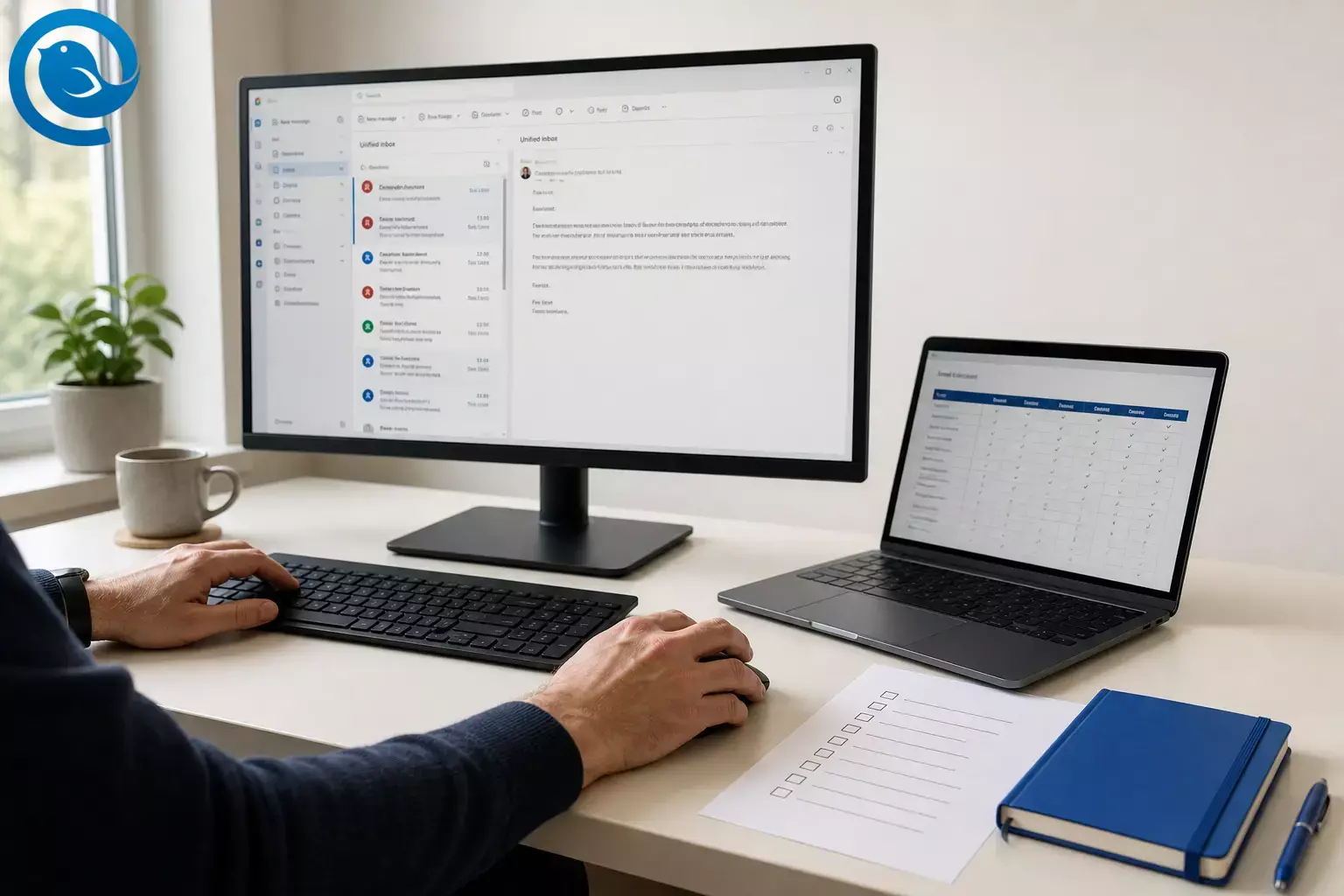
If you’re looking for an Outlook replacement for Windows in 2026, the best choice depends less on looks and more on (1) your account type (Microsoft 365/Exchange vs. IMAP/POP), (2) whether you rely on PST archives , and (3) how important calendar invites and meeting flow are in your day.
If you’re also considering a broader email switch—including moving away from Microsoft accounts entirely—our guide to the best Gmail alternative covers options for users evaluating email clients and providers together.
What’s new
Microsoft calls the new Outlook for Windows the future of Mail and Calendar on Windows 11. [2]
And timelines can still move—TechRadar Pro reported that Microsoft delayed the enterprise “opt‑out” phase for the new Outlook for Windows to March 2027. [1]
Key takeaways
- If you’re on a work or school account, check with IT first—some organizations restrict third‑party email clients or require specific sign‑in methods.
- Microsoft says support ended on December 31, 2024 and those apps can no longer send/receive mail. [2]
- Microsoft’s own feature comparison page still lists .PST support in the new Outlook as only partially available (as of April 14, 2026). [3]
- Bridge enables an IMAP/SMTP-style setup for desktop email clients while keeping Proton Mail in the loop. [15]
- Tuta states it does not support IMAP (and explains this as part of its encryption model). [16]
- In most cases you’ll export contacts to a CSV file and calendars to an ICS file—or you’ll rely on server sync if your contacts/calendar are stored in your email provider account.
- Run a 48-hour real-world test: keep Outlook installed until you’ve handled a normal week of meetings, attachments, and replies.
What this guide helps you do
- Compare 10 popular desktop Outlook alternatives for Windows by use case.
- Choose based on real switching friction points (Microsoft 365 rules, PST history, unified inbox behavior).
- Switch from Outlook on Windows with a checklist so you don’t lose mail or break your workflow.
If you’re on a work or school account, check with IT first—some organizations restrict third‑party email clients or require specific sign‑in methods.
Quick comparison: desktop Outlook alternatives for Windows (2026)
| Alternative | Type | Best for | Key strength | Biggest drawback |
|---|---|---|---|---|
| Mailbird | Desktop email client | People who want a clean, unified Windows desktop inbox | Unified inbox + customizable workspace | Not every Outlook/Exchange workflow translates 1:1 |
| Mozilla Thunderbird | Desktop email client | Control, customization, and an open-source ecosystem | Flexible organization + add-ons | Can take more setup and tuning to feel “modern” |
| Spark Desktop | Desktop email client | People who want fast triage and team-friendly features | Inbox organization and collaboration options | Subscription model (no buy-once option) |
| Mailspring | Desktop email client | Modern UI + fast search across accounts | Local indexing + productivity features | Advanced features are tied to Pro |
| BlueMail | Desktop email client | Multi-account users who want one app across devices | Broad provider support + unified folders | Feature set varies by plan and platform |
| Proton Mail (+ Bridge) | Email provider + Bridge | Privacy-first users who still want a desktop workflow | Encrypted ecosystem + Bridge for desktop clients | Bridge setup (and typically a paid plan) |
| Tuta Mail | Email provider + desktop app | Encryption-first email with dedicated desktop apps | Designed around end-to-end encryption | No IMAP; you commit to their app ecosystem |
| Zoho Mail Desktop Lite | Email suite + desktop app | Teams moving business email into Zoho Workplace | Zoho Mail experience as a desktop app | Mostly for Zoho Mail accounts (not a universal client) |
| The Bat! | Desktop email client (Windows-only) | Power users who want local-first security on Windows | Message base encryption + deep control | Steeper learning curve and an “old-school” feel |
| Gmail in Chrome (PWA/offline) | Webmail (PWA) | Google Workspace users who want the simplest switch | Zero “client” maintenance | Still browser-based; offline has limits |
Fast shortcut (if you don’t want to overthink it)
- Want a clean Windows desktop Outlook alternative built around a unified inbox? Start with Mailbird .
- Want maximum customization and don’t mind tinkering? Start with Thunderbird .
- Want fast triage with team-friendly features? Try Spark .
- Want privacy-first email (and don’t mind switching providers)? Look at Proton or Tuta .
Why people switch from Outlook on Windows (pain points)
- I’m drowning in separate inboxes. I have work + personal + side projects, and I’m constantly switching accounts, tabs, or windows—and still missing messages.
- I want email to feel fast and focused again. I don’t need a full “suite” in one app; I need quick search, clean triage, and fewer distractions. Many Outlook switchers also explore alternative email clients when re-evaluating their full setup.
- I’m tired of change I didn’t ask for. Between “classic” vs. “new” experiences and shifting feature parity, I just want a stable desktop email client that fits my workflow.
- I want an Outlook alternative desktop app—not another browser tab. For many Windows workflows, offline access and system-level notifications still matter.
How to choose the right Outlook alternative (criteria that separate options)
- Your account type (Microsoft 365/Exchange vs. IMAP/POP): A client can be great for Gmail/IMAP and still be frustrating for Microsoft 365 if you need shared mailboxes, directory features, or strict admin policies.
- Whether you rely on PST/OST history: If years of mail live in PST files , switching is not just “add account and go.” Microsoft’s own feature comparison page still lists .PST support in the new Outlook as only partially available (as of April 14, 2026). [3]
- Calendar + meeting depth (not just “has a calendar”): For some people, email is easy—meeting invites, shared calendars, and delegated access are where clients differ sharply.
- Unified inbox behavior: Some apps do a true unified inbox (one stream), some keep accounts separate but offer great “search across accounts,” and some let you choose per folder.
- Workflow features you’ll actually use: Snooze, send later, templates, keyboard shortcuts, rules/filters, and integrations can save hours—if they match your habits.
- Privacy model (where your mail is processed): Some clients index mail locally; some features may involve cloud processing; encrypted providers may avoid standards like IMAP to keep encryption guarantees.
What can change (so you don’t get surprised)
- Pricing and plan names: vendors update them often—verify before you buy.
- Microsoft rollout timing: even enterprise timelines have moved recently, so don’t assume dates are fixed. [1]
- Workplace restrictions: your organization can disable protocols, require specific authentication, or block third‑party clients.
Outlook replacement vs. Outlook alternative: are you switching the client or the provider?
When people search for an Outlook replacement on Windows, they usually mean one of two things:
- Switch the desktop client (keep your email address): choose a new app and connect your existing accounts (Microsoft 365/Exchange, Outlook.com, Gmail, or IMAP/POP).
- Switch the email provider (bigger move): move to a provider like Proton Mail or Tuta Mail and use their desktop apps (or a Bridge-style setup) as part of the switch.
This guide includes both approaches—so you can pick how much change you actually want.
Desktop Outlook alternatives for Windows (grouped by use case)
The options below are grouped by the main reason people switch from Outlook: unified inbox simplicity, team workflow, customization, privacy-first ecosystems, suite alignment, or local-first security.
For most Outlook switchers: a modern unified inbox on Windows
Best overall Mailbird
A calm, unified-inbox desktop email client for Windows users who want to move away from Outlook without juggling separate inboxes all day. The current version is Mailbird Next.
- Key differentiator: Built around a unified workflow (including a Unified Inbox) with an interface you can tailor to how you work. [5]
- Biggest drawback: Some premium features (like third‑party app integrations) aren’t included in the Free license. [6]
-
Watch-out:
If you’re connecting an Exchange account, Mailbird notes that some Exchange endpoints (such as
/Microsoft-Server-ActiveSync,/OWA, and/EAS) aren’t supported. [7] - Compatibility note: Mailbird publishes a current list of supported Windows versions—check it before installing in a managed environment. [4]
BlueMail
A multi-account email app aimed at giving you one consistent experience across desktop and mobile.
- Key differentiator: Unified folders and broad account support for people managing several inboxes. [14]
- Biggest drawback: Depending on your workflow, it can feel “busy” compared to more minimalist clients, and plan differences can make comparisons tricky.
- Watch-out: BlueMail advertises support for IMAP, POP3, Exchange, and Office 365 accounts—great for compatibility, but worth validating with your exact workplace setup before committing. [14]
For teams (or anyone who treats email like a shared workspace)
Spark Desktop
A polished desktop email app designed for triage, organization, and team-friendly workflows.
- Key differentiator: Emphasizes getting through the inbox faster with organization-focused and collaboration-oriented features. [12]
- Biggest drawback: Spark explicitly says it’s subscription-based and does not offer a one-time purchase option (policy can change). [12]
- Watch-out: Spark’s help docs list Windows 10 or later as a requirement for Spark on Windows. [11]
If your real problem is that several people own the same conversations, a personal client with “team-friendly” features may not be enough—look at a dedicated shared-inbox tool instead. Missive and Front turn email into a shared workspace with assignments, internal comments, and collaborative drafting, though both are priced per seat and built for teams rather than solo users.
For control, customization, and open-source workflows
Mozilla Thunderbird
A flexible Outlook alternative for Windows users who want control over how email is organized and extended.
- Key differentiator: Strong organization tools plus a long-running ecosystem of add-ons and extensions. [9]
- Biggest drawback: You may spend more time tuning the experience (layout, add-ons, workflows) before it feels “just right.”
- Watch-out: If Exchange/Office 365 access is a must, it may require a paid add-on like “Owl for Exchange,” rather than working out of the box. [10]
Mailspring
A modern desktop email client for people who want a clean UI and fast search across multiple accounts.
- Key differentiator: Focuses on a modern desktop experience, including fast search and productivity-oriented features. [13]
- Biggest drawback: Some workflow features are tied to the Pro tier.
- Watch-out: Mailspring lists Mailspring Pro at $8/month (pricing can change) and also states the codebase is open-source under the MIT license. [13]
For privacy-first email (encrypted ecosystems)
Proton Mail (+ Proton Mail Bridge)
A privacy-first email provider that can still fit a desktop-client workflow when you use Proton Mail Bridge.
- Key differentiator: Bridge enables an IMAP/SMTP-style setup for desktop email clients while keeping Proton Mail in the loop. [15]
- Biggest drawback: Switching providers is a bigger move than switching clients—you’ll likely migrate contacts, update logins, and possibly change your address.
- Watch-out: Proton says Proton Mail Bridge is available for Windows but is only available with a paid Proton Mail plan. [15]
Tuta Mail
An encryption-first email service with dedicated desktop clients for Windows—built to avoid standard “traditional client” trade-offs.
- Key differentiator: Designed around end-to-end encryption rather than maximum compatibility with legacy mail protocols. [16]
- Biggest drawback: You’re opting into a closed ecosystem approach (by design), which can be limiting if you love mixing providers and clients.
- Watch-out: Tuta states it does not support IMAP (and explains this as part of its encryption model). [16]
For business suites replacing Outlook’s “work hub” feeling
Zoho Mail Desktop Lite
A desktop app for people moving email into Zoho Mail/Zoho Workplace and wanting a dedicated desktop window (not just a browser tab).
- Key differentiator: A desktop-style experience aligned with Zoho Mail for teams building around Zoho’s suite. [17]
- Biggest drawback: It’s not meant to be a universal Outlook replacement for every provider; it’s strongest when you’re going all-in on Zoho Mail.
- Watch-out: Zoho’s help page says Desktop Lite supports Windows 10 or later and allows adding up to 10 email accounts (details can change). [17]
For security-focused power users who want local-first control on Windows
The Bat!
A Windows-only desktop email client aimed at users who want high control, strong local security options, and deep filtering.
- Key differentiator: Emphasizes local security options, including message base encryption, plus deep filtering and control. [18]
- Biggest drawback: It can feel less “modern” than newer clients, and the feature depth can be overkill if you just want simple email.
- Watch-out: Ritlabs highlights features like message base encryption and OpenPGP/S/MIME support (edition details can vary). [18]
For minimal change: ditch the desktop client and use webmail
Gmail in Chrome (PWA + offline mode)
If you mostly need to “get away from Outlook,” a browser-first setup can be the simplest path—especially for Google Workspace.
- Key differentiator: No mail client maintenance—just Gmail plus Google’s built-in search and integrations.
- Biggest drawback: Offline and multi-account behavior is more limited than a true desktop email client.
- Watch-out: Google notes Gmail offline only works in a Chrome window (not Incognito), and offline use is tied to the account you enabled it for. [19]
Switching from Outlook on Windows (2026): steps, risks, and a quick checklist
If you’re still using the old Windows Mail/Calendar apps rather than Outlook, Microsoft says support ended on December 31, 2024 and those apps can no longer send/receive mail. [2]
Step-by-step migration plan (safe, low-drama)
- Inventory your Outlook setup: list accounts, confirm which are Microsoft 365/Exchange vs. IMAP/POP, and note any shared mailboxes or delegated calendars.
- Decide what must move: mail history, contacts, calendar, rules, signatures, templates, categories, tasks.
- Identify your “data gravity”: if you rely on PST/POP archives, plan your archive strategy first (export, migrate to IMAP, or keep Outlook for historical access).
- Back up before changing anything: copy key PST files to a safe location and export contacts and calendars (CSV/ICS) if you’re not sure how they’re synced.
- Set up your new client in parallel: add one account first, test send/receive, then add the rest.
- Validate the basics: Sent mail, drafts, trash, spam behavior, signatures, and notifications.
- Recreate “workflow glue”: rules/filters, quick actions, keyboard shortcuts, and default “mailto” handling in Windows.
- Run a 48-hour real-world test: keep Outlook installed until you’ve handled a normal week of meetings, attachments, and replies.
Risks to plan for (so you don’t lose data)
- Local-only archives can get left behind: PST/POP mail may not automatically appear in a new client unless you import or re-home it.
- Calendar/meeting mismatches: outside Outlook, meeting workflows can vary—especially with Microsoft 365 shared calendars, delegates, and enterprise policies.
- Duplicates and read/unread drift: testing multiple clients at once can create confusion if rules or server settings differ.
- Authentication surprises: modern sign-in (OAuth) and MFA/app passwords can change the setup flow per provider and per organization.
Quick switching checklist
- I wrote down every account I use (work, personal, aliases, shared mailboxes).
- I know which accounts are Microsoft 365/Exchange vs. IMAP vs. POP.
- I backed up any PST files (and I know where they live).
- I exported contacts and calendar (or confirmed they sync through the server).
- I tested sending and receiving from every account in the new client.
- I validated meeting invites (accept/decline/tentative) if I rely on them.
- I recreated essential rules/filters and signatures.
- I kept Outlook installed until I finished a real-world test week.
Moving to Mailbird specifically?
Mailbird includes an import tool and supports importing email accounts from Outlook (as well as a few other clients). Use it to speed up setup, then validate folder sync and “Sent” behavior before fully cutting over. [8]
Common mistakes when switching (and how to avoid them)
- Assuming every email account behaves the same. Microsoft 365/Exchange, Gmail, and “generic IMAP” can all have different quirks, admin rules, and authentication flows.
- Switching before you deal with PST/POP data. Decide whether you’ll keep Outlook as an archive viewer, move history to IMAP, or export and store mail elsewhere.
- Forgetting the calendar is part of the job. If meetings matter, test invites early—don’t wait until you miss a meeting request.
- Going “all-in” in one hour. The safest switch is a short parallel run: set up the new client, use it daily, and only then remove Outlook from the workflow.
- Ignoring default apps on Windows. If your browser or other apps keep opening Outlook, set your new client as the default for email and mailto links.
If you’re still unsure, answer these 3 questions
- Do you need full Microsoft 365/Exchange features outside Outlook? If yes, prioritize options with strong Microsoft account compatibility—and be realistic about calendar/share/delegate requirements.
- Is your email “server-first” (IMAP) or “local-first” (PST/POP archives)? If it’s local-first, pick an option with a clear import/archive plan, not just a nice UI.
- What’s your top priority: speed/triage, customization, or privacy-by-design? Your answer points you toward a unified-inbox desktop client, an add-on-friendly client, or an encrypted-provider ecosystem.
Frequently Asked Questions
What is the best Outlook alternative for Windows in 2026?
The best choice depends on your account type and what you need from Outlook. If you mainly want a cleaner desktop inbox and a unified inbox workflow, start there. If you need heavy Microsoft 365 calendar or shared mailbox features, test carefully before switching.
Can I stop using Outlook but keep my Outlook.com or Microsoft 365 email address?
Usually yes—switching email clients doesn’t automatically change your address. The main question is whether your provider and organization allow the connection method your new client uses.
Will I lose emails if I uninstall Outlook?
If your mail is synced on the server (typical IMAP/Microsoft 365 setups), your new client can re-sync it. The main risk is local-only mail (PST files or POP downloads) that lives only on your PC.
Does Mailbird have a Unified Inbox?
Yes—Mailbird’s Unified Inbox is designed to let you view multiple accounts in one place (instead of switching inboxes all day). [5]
Can Thunderbird work with Microsoft 365/Exchange accounts?
It can, but it may require an add-on. Thunderbird’s add-on directory lists “Owl for Exchange,” which is designed for Exchange/Office 365 connectivity. [10]
Does the new Outlook support PST files?
Microsoft’s feature comparison page lists .PST support in the new Outlook as only partially available (as of April 14, 2026). [3]
Do Outlook alternatives support shared mailboxes and shared calendars?
Some do, some don’t, and some do it partially. If shared mailboxes/calendars are core to your job, do a real-world test (including meeting invites) before you switch.
How do I move contacts and calendar from Outlook to a new app?
In most cases you’ll export contacts to a CSV file and calendars to an ICS file—or you’ll rely on server sync if your contacts/calendar are stored in your email provider account.
Which options work best offline on Windows?
Traditional desktop clients usually offer the best offline experience. Webmail can work offline too, but it’s often more limited and browser-dependent. [19]
Sources
- TechRadar Pro: Microsoft delays enterprise Outlook switchover to 2027 (opt-out phase pushed to March 2027)
- Microsoft Support: Outlook for Windows—The future of Mail, Calendar, and People (Windows Mail/Calendar support ended Dec 31, 2024)
- Microsoft Support: Feature comparison between new Outlook and classic Outlook (Last updated April 14, 2026)
- Mailbird Support: What versions of Windows are supported by Mailbird? — https://support.getmailbird.com/hc/en-us/articles/12486718644375-What-versions-of-Windows-are-supported-by-Mailbird
- Mailbird Support: Unified Inbox — https://support.getmailbird.com/hc/en-us/articles/220108147-Unified-Inbox
- Mailbird Support: What apps are available in each Mailbird plan? — https://support.getmailbird.com/hc/en-us/articles/360039349814-What-apps-are-available-in-each-Mailbird-plan
- Mailbird Support: Adding Exchange Account in Mailbird (supported/unsupported Exchange endpoints) — https://support.getmailbird.com/hc/en-us/articles/360000309767-Adding-Exchange-Account-in-Mailbird
- Mailbird Support: How to Import Accounts and Emails to Mailbird — https://support.getmailbird.com/hc/en-us/articles/220108247-How-to-Import-Accounts-and-Emails-to-Mailbird
- Thunderbird: Features
- Thunderbird Add-ons: Owl for Exchange
- Spark Help Center: Is Spark available for Windows? (Windows 10+ requirement)
- Spark: Spark for Windows (pricing model FAQ)
- Mailspring: Official site (features, open-source license note, Pro pricing)
- BlueMail: Unified Inbox (supported account types and unified folders)
- Proton Support: IMAP/SMTP/POP3 setup (Bridge availability and paid-plan requirement)
- Tuta Blog: Desktop clients (IMAP not supported rationale)
- Zoho Mail Help: Desktop Lite client (supported platforms and account limit)
- Ritlabs: The Bat! product page (security features and editions)
- Google Gmail Help: Set up & use Gmail offline


