Project Manager Email Workflow: A Simple Inbox System
A simple project manager email workflow built on four folders, consistent subject lines, and one waiting system. Set it up in one sitting, then keep it running with short daily check-ins.



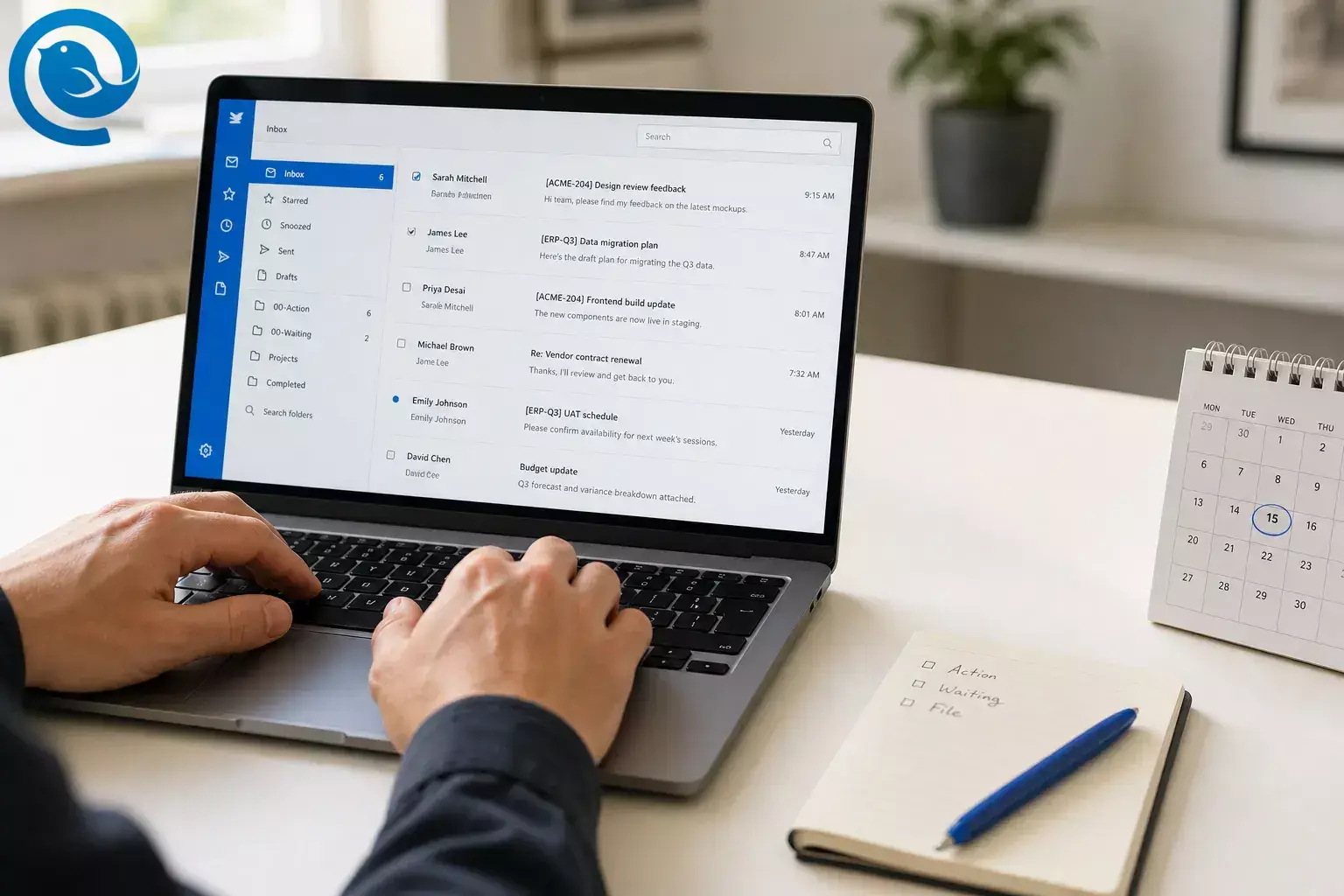
This project manager email workflow uses four folders, consistent subject lines, and one waiting system to keep follow-ups visible and make old decisions easy to find.
Set it up in one focused sitting in Mailbird, then keep it running with short daily check-ins. It is built for the real PM inbox organization problems that show up in project work: too many threads, too many follow-ups, and no fast way to see what still needs action.
What’s new and what can change
Mailbird menu names, plan access, and rollout timing can change. Some Mailbird integrations depend on plan, Gmail rolls some inbox features out gradually, and Microsoft says some business users began being switched from classic Outlook to new Outlook starting in January 2025. 13 19 20
Workflow in one line: every message gets one outcome: delete, reply, action, waiting, or file. Mailbird is available for Windows and Mac, including through the Apple App Store for Mac, so you can keep one desktop setup across both if needed. 1 2
Key takeaways
-
Use four top-level folders:
00-Action,00-Waiting,Projects, andCompleted. - Every message gets one outcome: delete, reply, action, waiting, or file.
- Standardize subject lines with a project code and a clear action or status word.
-
Move follow-up threads into
00-Waitingand snooze them to the follow-up date. - Create rules only for messages that follow a pattern.
- Keep your calendar or task list beside the inbox.
- Close threads with a visible decision, owner, and due date before you file them.
Before you start
- Prerequisites: access to each work mailbox, a list of active projects, and permission to create folders, rules, or labels.
- Tools: Mailbird on Windows or Mac, or any email app with folders or labels and search. 2
- Time: one focused sitting for setup, then brief check-ins during the day.
- Cost: free with your current email app; an optional paid client if you want a one-app setup.
- Safety notes: follow your team’s retention, legal hold, and client confidentiality rules before deleting, forwarding, exporting, or auto-filing project mail.
Mailbird menu paths are included where helpful. Every step also has a fallback if you stay in Gmail, Outlook, or another client.
How to set up your project manager email workflow
How to set up your project manager email workflow
-
Write a one-line map of every active project
Open a blank note and list each active project on its own line. For each one, write the project code, project name, primary mailbox, shared mailbox if there is one, and the next visible deadline. If a project has no short code yet, create one now, such as
ACME-204orERP-Q3.Check: every live project now has a short code, a mailbox, and a next deadline on one screen.
-
Put every work inbox in one workspace
In Mailbird, open
Menu > Settings > Accountsand add each work inbox . If you use more than one work account, turn on Unified Inbox so you can see connected accounts in one view, search across accounts, and reply from the correct sender address without jumping between windows. 3 4If you are not using Mailbird, open every work inbox in one browser profile and pin the tabs in the same order every day.
Check: you can see all work mail from one workspace or one browser profile.
-
Build one folder structure and repeat it in every account
Inside each work account, create the same top-level folders:
00-Action,00-Waiting,Projects, andCompleted. UnderProjects, create one folder per active project. Mailbird supports nested folders and folder colors, but unified cross-account folders are not available, so repeat the same structure inside each account instead of trying to build one shared folder tree. 500-Action00-WaitingProjects/ ACME-204 Website refresh ERP-Q3 Budget approval ONBOARDING Vendor setupCompletedCheck: each account shows the same top-level folders, and every active project has its own folder.
-
Make unread mail visible and stop accidental read clicks
Turn on
Group unread conversations at the topso anything you have not handled stays visible. If you often click into a message just to preview it, changeMark as Readto a delay or toNeverinMenu > Settings > Appearanceso you do not hide important mail by accident. 6 7If your current client does not support those settings, create an unread-only view and use that as your working list.
Check: unread project mail stays in sight until you deliberately handle it.
-
Standardize your subject lines before you send the next email
Use one simple subject format on all project mail:
[PROJECT CODE] Topic — action needed[PROJECT CODE] Decision — topic[PROJECT CODE] FYI — topicWhen the discussion changes topic, start a new email instead of dragging a stale subject line into a new decision. This is one of the easiest ways to improve PM inbox organization and future search.
Check: your next outbound project email includes a project code and a clear action or status word.
-
Process every new message with the same five moves
Open each new message once, then choose exactly one action: delete it, reply now, move it to
00-Action, move it to00-Waiting, or file it in the right project folder. If the message matters but should come back later, snooze it so it leaves the inbox and returns when you choose; if the sender is pure noise, block them so future messages go straight to Spam or Junk while Mailbird is running. 8 14If your current client does not support snooze, star the message and put the follow-up date on your calendar before you leave the thread.
Check: nothing stays in the inbox after processing unless it is truly new and still undecided.
-
Create a real waiting system for follow-ups
Any time a thread now depends on someone else, move the latest message or the whole thread into
00-Waitingright away. In Mailbird, you can bring it back with Snooze later, or find it fast with search operators such asin:00-Waiting,is:snoozed,subject:(ACME-204),from:(vendor name), orhas:attachment. 8 9This is the simplest way of tracking project email threads without turning your Sent folder into a scavenger hunt.
Check: you can answer “who owes me a reply?” from one folder or one search.
-
Automate only the predictable mail
Create rules only for messages that follow a pattern: weekly status reports, build notifications, approval receipts, recurring shared-mailbox alerts, or vendor auto-messages. In Mailbird, go to
Menu > Settings > Filters, choose the account, set the condition, set the action, then clickSave and Runso the rule can work on existing inbox mail as well as future arrivals. Important: Mailbird filters are not synced with your email server, they run only while Mailbird is open, and folder actions are not supported for Unified Accounts. 10Start with one rule, test it, then add the next. Do not try to automate every human message.
Check: at least two repetitive message types now stop landing in your main inbox.
-
Keep your calendar or task list beside the inbox
If your schedule lives in Google or Microsoft, add Google Calendar or Outlook Calendar to Mailbird. If your task list lives in Asana, Trello, or Todoist, add that tool when your plan allows it, or keep one browser tab open as the fallback. 11 12 13
The goal is simple: while the email is open, record the next meeting, deadline, or task immediately instead of promising yourself you will do it later.
Check: you can turn one email into a dated next step without hunting for another app window.
-
Reduce interruption pressure on purpose
If pop-up alerts keep dragging you back into email, open
Menu > Settings > Generaland turn off tray notifications. You can still keep the unread count visible if you want a quiet reminder without a full interruption, then put your own inbox review blocks on your calendar instead of reacting to every ping. 18Check: new email no longer interrupts you unless you choose to look.
-
Close threads with a summary before you file them
When a thread produces a decision, send one short closing reply before you file it. Use this three-line format:
Decision: what was approvedOwner: who does the next stepDue: the next visible dateThen move the conversation into the project folder. Weeks later, you will be able to reopen one thread and see the final call without piecing it together from five separate messages.
Check: every closed thread ends with a visible decision, owner, and due date.
Why this works for PM inbox organization
A good project manager email workflow is boring on purpose. For PM inbox organization and tracking project email threads, every message should live in one of three states: action, waiting, or reference. Consistent folders and subject codes do the heavy lifting, which makes follow-ups easier and old decisions much faster to find than in a purely chronological inbox.
Troubleshooting
| Symptom | Likely cause | Fix |
|---|---|---|
| The same email appears twice | The message hit two connected accounts, and Unified Inbox is showing each account’s copy. | Leave it if both accounts need the record, or turn Unified Inbox off for that account mix. 15 |
| Rules are not moving new mail | Mailbird is closed, or the rule was created under Unified Accounts with a folder action. | Keep Mailbird open during intake hours, and rebuild folder-based rules on the specific receiving account. 10 |
| Unread work disappears too fast | Messages are being marked read the moment you click them, or unread conversations are not pinned. | Turn on unread grouping and change Mark as Read to a delay or Never. 6 7 |
| Snoozed mail feels lost | You snoozed it, but you are not reviewing snoozed items or your waiting folder. |
Check
is:snoozed
, review
00-Waiting
, and snooze only to dates you know you will review.
8
9
|
| Project folders are inconsistent across accounts | You tried to build one cross-account folder tree. | Repeat the same template inside each account and rely on project codes in subjects for cross-account search. 5 |
| Too much promotional mail still lands in the inbox | You have not blocked noisy senders or cleaned old subscriptions. | Block repeat offenders in Mailbird, and if you use Gmail, clean subscription clutter from Gmail’s Manage subscriptions view. 14 20 |
| You cannot find an old decision | Subject lines are vague, and search terms are too broad. |
Search by project code, sender, or folder with operators such as
subject:(PROJECT-CODE)
and
in:00-Waiting
, then keep using the same subject format on new threads.
9
|
| Shared mailbox replies go out from the wrong address | The right account or identity is not set up, or you are sending from the default sender. | Add the shared account or identity, then confirm the sender before you send. 16 |
The same email appears twice
Likely cause: The message hit two connected accounts, and Unified Inbox is showing each account’s copy.
Fix: Leave it if both accounts need the record, or turn Unified Inbox off for that account mix. 15
Rules are not moving new mail
Likely cause: Mailbird is closed, or the rule was created under Unified Accounts with a folder action.
Fix: Keep Mailbird open during intake hours, and rebuild folder-based rules on the specific receiving account. 10
Unread work disappears too fast
Likely cause: Messages are being marked read the moment you click them, or unread conversations are not pinned.
Fix: Turn on unread grouping and change Mark as Read to a delay or Never. 6 7
Snoozed mail feels lost
Likely cause: You snoozed it, but you are not reviewing snoozed items or your waiting folder.
Fix:
Check
is:snoozed
, review
00-Waiting
, and snooze only to dates you know you will review.
8
9
Project folders are inconsistent across accounts
Likely cause: You tried to build one cross-account folder tree.
Fix: Repeat the same template inside each account and rely on project codes in subjects for cross-account search. 5
Too much promotional mail still lands in the inbox
Likely cause: You have not blocked noisy senders or cleaned old subscriptions.
Fix: Block repeat offenders in Mailbird, and if you use Gmail, clean subscription clutter from Gmail’s Manage subscriptions view. 14 20
You cannot find an old decision
Likely cause: Subject lines are vague, and search terms are too broad.
Fix:
Search by project code, sender, or folder with operators such as
subject:(PROJECT-CODE)
and
in:00-Waiting
, then keep using the same subject format on new threads.
9
Shared mailbox replies go out from the wrong address
Likely cause: The right account or identity is not set up, or you are sending from the default sender.
Fix: Add the shared account or identity, then confirm the sender before you send. 16
Workflow variations
Single-project sprint
Skip the extra project tree. Use only
00-Action
,
00-Waiting
, and
Completed
until the project closes.
Many small client projects
Create client parent folders under
Projects
, then place each live job underneath. Keep only current client folders expanded so your sidebar stays short.
Make-ahead, storage, and scaling
Make-ahead
Save your folder names, subject-line format, and closing-reply template in a pinned note. When a new project starts, create its folder before kickoff instead of waiting until the inbox gets messy.
Storage
Move closed threads into the right project folder immediately. At project close, move the whole project folder under
Completed
. If your company requires a second record system, copy the final decision thread there before deleting anything.
Scaling
When your project load grows, keep the same folder pattern in every account and lean harder on project codes in subject lines. Since Mailbird does not currently offer unified cross-account folders, consistency will scale better than a clever one-off structure. 5
Frequently asked questions
What is the simplest folder structure for a project manager inbox?
Start with four buckets:
00-Action
,
00-Waiting
,
Projects
, and
Completed
. That is usually enough to stop the inbox from becoming a parking lot.
Should I keep conversation view on for project email threads?
Usually, yes. It keeps replies together so you can see the latest decision in context. Turn it off only when people keep changing topics under one stale subject line.
Sources: 17
How do I track project email threads that still need an answer?
Can Mailbird handle multiple work accounts without mixing sender addresses?
Can I use this system if my team stays in Gmail or Outlook on the web?
Yes. Keep the same project codes, the same action and waiting buckets, and the same closing-summary habit. The app can change; the workflow does not have to.
Do filters replace manual review?
No. Use rules only for predictable messages. Human email still needs human judgment.
Sources: 10
What if I also manage tasks in Asana or Trello?
Why do duplicate emails show up in a combined inbox?
If the same message was sent to more than one connected account, Unified Inbox shows one copy for each receiving account. That looks like a duplicate, but it is really two records of the same thread.
Sources: 15
Quick PM inbox checklist
Screenshot this and use it during your next inbox reset.
- I listed every active project and created a short code for each one.
- I added every work inbox to one workspace.
-
I created
00-Action,00-Waiting,Projects, andCompletedin each account. - I turned on unread visibility and fixed accidental read behavior.
- My subject lines now start with a project code.
-
I move follow-up threads into
00-Waiting. - I created only a few safe rules for predictable mail.
- My calendar or task list sits beside the inbox.
- My notifications are set on purpose, not by default.
- Closed threads end with a decision, owner, and due date.
Sources
- Mailbird Blog: Why We’re on the Apple App Store — And What It Means for You
- Mailbird: Best Email Client for Windows and Mac
- Mailbird Support: Multiple Email Accounts in Mailbird
- Mailbird Support: Unified Inbox
- Mailbird Support: How to organize folders from within Mailbird?
- Mailbird Support: Group Unread Conversations at the top
- Mailbird Support: Disabling Mark as Read Automatically
- Mailbird Support: Managing your inbox with Snooze
- Mailbird Support: Advanced Search queries and UI
- Mailbird Support: Setting up Filters and Rules
- Mailbird Support: Using Google Calendar in Mailbird
- Mailbird Support: Mailbird Third-Party Apps List
- Mailbird Support: What apps are available in each Mailbird plan?
- Mailbird Support: Block Sender
- Mailbird Support: Why am I seeing duplicate emails in Mailbird?
- Mailbird Support: Connecting Accounts and Adding Identities in Mailbird
- Mailbird Support: Turning Conversation View On or Off
- Mailbird Support: Notification of New Emails
- Microsoft Support: Switch to new Outlook for Windows
- Google Blog: Declutter your inbox with Gmail’s newest feature


