How to Send the Same Email to Multiple Recipients Separately
To send the same email to multiple recipients separately, skip BCC. For a short list, send one by one from a saved template. If the body stays mostly the same, use mail merge. If the job needs opt-outs, reporting, or recurring sends, switch to a dedicated email tool. BCC hides addresses, but it is still one shared send, not a true one-to-one thread, and careless bulk email can expose personal addresses.



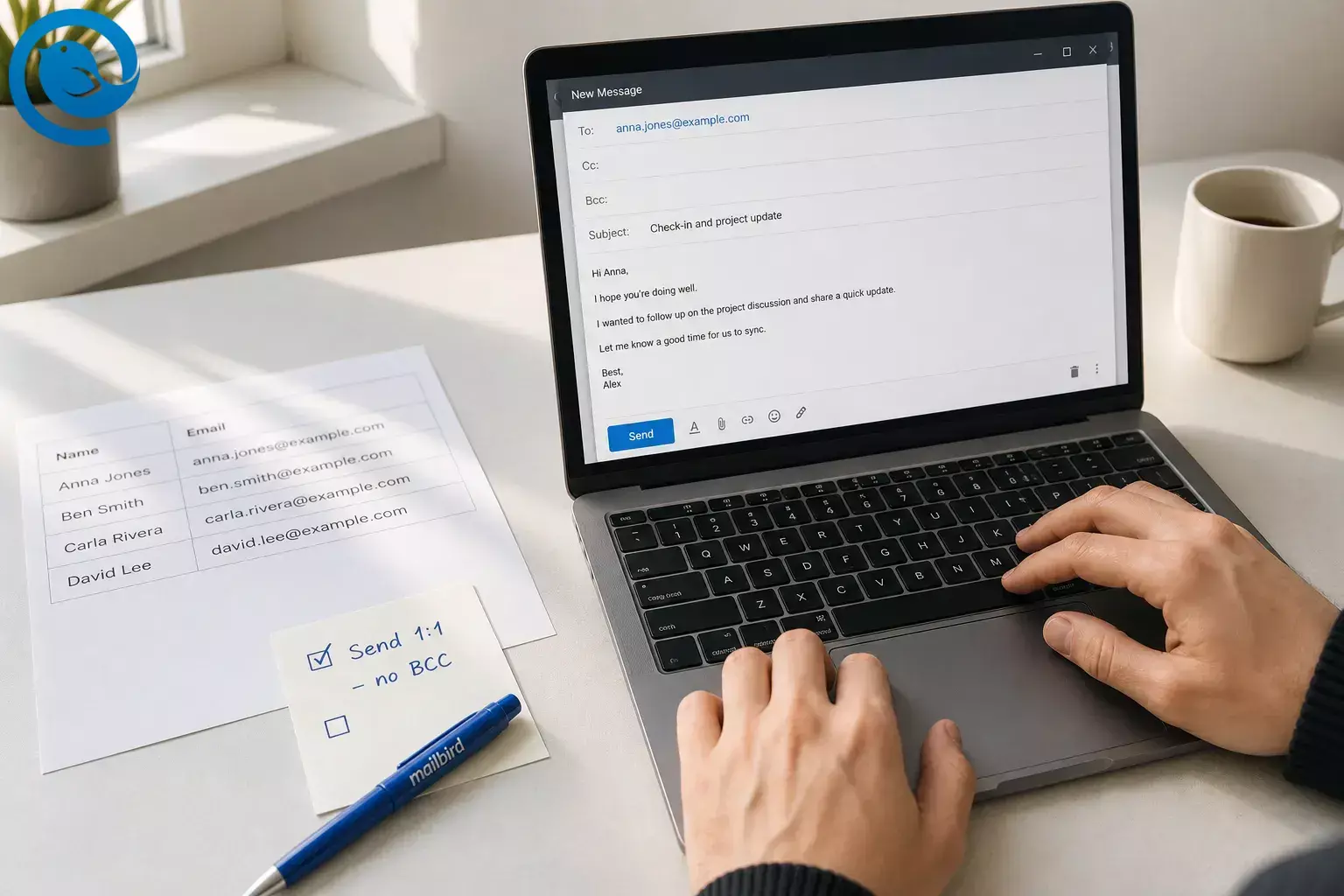
Short answer: to send the same email to multiple recipients separately, skip BCC. For a short list, send one by one from a saved template. If the body stays mostly the same, use mail merge. If the job needs opt-outs, reporting, or recurring sends, switch to a dedicated email tool. BCC hides addresses, but it is still one shared send, not a true one-to-one thread, and careless bulk email can expose personal addresses. 1 2 3
This guide covers manual one-by-one sends, mail merge in Gmail and Outlook, and the point where a proper email tool is warranted.
TL;DR
Quick answer
- Short personal list: send one email at a time from a template or draft.
- Mostly identical message: use mail merge so each person gets an individual copy. 4 6
- Recurring or promotional send: use a dedicated email tool with unsubscribe handling and sender controls. 7 8
- Do not use BCC when your goal is a truly separate, personalized email. 1 2
Before you start
- Prerequisites: a finished message, a clean recipient list , and access to the email account you actually plan to send from.
- Tools: any email app for manual sends; Gmail if your account has Mail merge; Word + Outlook if you want Microsoft’s mail merge path; a spreadsheet only if you need merge fields.
- Time: one short sitting for manual sends; a longer first setup for mail merge.
- Cost range: free for manual sending; paid plans may be required for some mail merge or template features.
- Safety notes: never put a private recipient list in CC. Send yourself a test first. If the list itself is sensitive, send one-to-one or use an approved secure tool. If the message is promotional or large-volume, use a method that can handle unsubscribe requests and current sender rules. 1 7 8
Use this rule: short personal list = send one by one. Mostly identical message = mail merge. Recurring or promotional send = dedicated email tool.
How to send individual emails to multiple recipients without BCC
How to send individual emails to multiple recipients without BCC
-
Pick the route before you write
Decide which branch you are taking before you compose anything:
- Manual one-by-one: best for a short list and real personal context.
- Mail merge: best when the body stays mostly the same and only a few fields change.
- Dedicated tool: best when the send needs opt-outs, reporting, or repeat use.
Once you choose, skip to the matching step below and ignore the other branch steps.
-
Clean the recipient list
Put each person on one line. Keep only the fields you will actually use, such as first name, email address, company, or one custom detail.
- Delete duplicates.
- Fix obvious typos.
- Remove addresses you are not confident about.
- Make sure every person has the greeting data you plan to use.
-
Write one master email that sounds one-to-one
Use a direct subject line, a normal greeting, one clear point, and one clear next step. Remove group language like “Hi everyone,” and replace it with a neutral opener or a merge field. If you want replies, make that ask obvious in the last line.
-
Cross BCC off for personalized sending
BCC hides addresses, but it still sends one shared copy, not a true one-by-one email. It can be fine for a plain notice, but it is the wrong tool when you want privacy plus personal context. One common accident is simple: the list gets placed in CC or To instead of BCC, exposing every address. Microsoft also notes that a BCC recipient can Reply All and reveal that they received the message. 1 2 3
Privacy accident to avoid: Canada’s privacy commissioner documented a case where nearly 300 customer email addresses were exposed after mass emails used CC instead of BCC. 3
-
For a short list, use the fastest mail merge alternative: a saved template
For a short list, the simplest mail merge alternative is usually a saved template plus manual sends. In Mailbird, email templates can store the message while leaving To, CC, and BCC out of the template, which is ideal here: open the template, add one recipient, write one personal line, send, and repeat. 9
If your app does not have templates, keep a clean draft or store the message in a plain-text note. The goal is the same: reuse the body, but choose the recipient fresh every time.
-
In Gmail, use Mail merge if it is available on your account
If your Gmail account shows Mail merge , use it for the repeated-but-personalized version. Write the message once, insert the merge fields you need, add recipients directly or through a Google Contacts label, send a test to yourself, then send the batch. Google says Gmail mail merge can send up to 1,500 recipients per day. Standard Gmail accounts have a 500-message daily send limit, while most work, school, and Workspace Individual accounts have a 2,000-message total daily limit. 4 5
No Mail merge button? Go back to the manual template route in step 5 or jump ahead to step 10.
-
In Outlook, use Word mail merge
For Outlook, the standard Microsoft path is Word mail merge. Put your recipient list in a spreadsheet or other compatible mail merge data source, open Word, choose Mailings > Start Mail Merge > E-mail Messages , then Select Recipients , insert your greeting or merge fields, preview every record, and finish with Send E-mail Messages . Microsoft says Word sends one individual message to each email address, but this method does not support CC, BCC, or file attachments in the merged email. 6
If that feels heavy and your list is small, step 5 is usually faster.
-
Send a test that tries to break the message
Before you send to real people, send the message to yourself and check it like a stranger would.
- Check the subject line.
- Check the greeting and any merge fields.
- Check the signature and reply-to address.
- Open every link.
- Reply once, so you know exactly where the answer lands.
-
Send a small first batch and watch the replies
Start with a small first batch and confirm three things: the To line shows one person, the personalized fields look right, and replies land in the account you expect. If you send from several addresses, Mailbird can manage multiple accounts in one place, and its Unified Inbox can combine messages across accounts while remembering which account received the message so replies go out from the right address. 10 11
-
Know when a proper email tool is warranted
If the job needs unsubscribe links, audience management, reporting, recurring sends, or a bigger audience, stop using a normal inbox and move it to a dedicated platform. Gmail’s sender guidance and Yahoo’s Sender Hub both require large-volume senders to authenticate mail and support one-click unsubscribe for subscribed or promotional traffic, which is well beyond what a hand-built BCC workflow is meant to do. 7 8
Why this works
If you want to send individual emails to multiple recipients, the right method depends on how much needs to change from one email to the next. Manual sends keep the note human. Mail merge automates only the repeated fields. Dedicated platforms take over when the send needs opt-outs, sender verification, or repeatable audience management.
Troubleshooting
Symptom → likely cause → fix.
| Symptom | Likely cause | Fix |
|---|---|---|
| The email says “ Undisclosed recipients ,” or the To line looks empty. | You sent one BCC email. | Resend as manual one-by-one emails or use mail merge. On your test email, confirm the To field shows one real recipient. |
| A first name, company, or other merge field is blank. | Your contact list or spreadsheet is missing data. | Fill the empty cells, preview the merge again, and resend only the affected records. 4 6 |
| Gmail stops you from sending. | You hit a daily send limit or mail merge limit. | Wait for the quota to reset, reduce the batch, or use a dedicated sending platform for larger sends. 4 5 |
| “Send E-mail Messages” is grayed out in Word. | Your default mail program is not set up for mail merge. | Set up a compatible default mail program, reopen Word, and try the merge again. 6 |
| The attachment did not go out with your Outlook/Word merge. | Standard Word email merge does not add file attachments. | Send a secure link instead, send those messages manually, or move the job to a dedicated tool. 6 |
| Recipients can see each other’s addresses. | Someone used To or CC instead of separate sends or a safe BCC workflow. | Stop the send, assess what was exposed, notify affected people if your situation requires it, then resend with the right method. 1 3 |
| A BCC recipient replied to everyone. | BCC was used for a conversation that should have been separate. | Move follow-ups into individual threads and stop using BCC for personalized outreach. 2 |
| The message feels robotic. | The template is doing too much of the talking. | Add one custom opener, one specific detail, or one sentence tied to the person’s role before you hit send. |
The email says “Undisclosed recipients,” or the To line looks empty.
- Likely cause
- You sent one BCC email.
- Fix
- Resend as manual one-by-one emails or use mail merge. On your test email, confirm the To field shows one real recipient.
A first name, company, or other merge field is blank.
Gmail stops you from sending.
“Send E-mail Messages” is grayed out in Word.
- Likely cause
- Your default mail program is not set up for mail merge.
- Fix
- Set up a compatible default mail program, reopen Word, and try the merge again. 6
The attachment did not go out with your Outlook/Word merge.
- Likely cause
- Standard Word email merge does not add file attachments.
- Fix
- Send a secure link instead, send those messages manually, or move the job to a dedicated tool. 6
Recipients can see each other’s addresses.
A BCC recipient replied to everyone.
- Likely cause
- BCC was used for a conversation that should have been separate.
- Fix
- Move follow-ups into individual threads and stop using BCC for personalized outreach. 2
The message feels robotic.
- Likely cause
- The template is doing too much of the talking.
- Fix
- Add one custom opener, one specific detail, or one sentence tied to the person’s role before you hit send.
Variations
Short list, high-touch
Use the template route and add one sentence that proves the note is actually for that person.
Same message, first-name personalization
Use Gmail or Outlook mail merge when the body stays the same and only fields like first name, company, or date change.
Segmented audience
Duplicate the master email for each group—customers, applicants, partners, donors—and change only the proof point or call to action.
Sensitive-info version
If the fact that someone is on the list is private, do not treat it like a casual group email. Send one-to-one or use an approved secure system. 1
Make-ahead, storage, and scaling
Make-ahead
Save the final master email as a template or draft, prepare your recipient list in advance, and write your common custom openers ahead of time. That turns send day into a review-and-send job instead of a copy-and-paste marathon.
Storage
Keep working recipient lists in a secure folder, limit who can edit them, and delete throwaway exports when the send is done. As the privacy cases above show, even simple address lists can become a problem when they are exposed to the wrong people. 1 3
Scaling
Use manual sends for true one-to-one notes, mail merge for lightly personalized batches, and a dedicated platform for ongoing or promotional programs. Stay within your provider’s limits and move early if you need authentication, opt-outs, or reporting. 4 5 7 8
What can change
Gmail limits, mail merge availability, and sender rules can change over time. Before a large send, double-check the three items below in the account you will actually use. 4 5 7 8
- Your current daily sending limit
- Whether Mail merge is available on that account
- Whether the message now counts as subscribed or promotional mail
Screenshot this checklist
- My recipient list is clean and de-duplicated.
- I chose manual sends, mail merge, or a dedicated tool before composing.
- I am not relying on BCC for a personalized one-to-one send.
- My test email shows one recipient in the To field.
- The greeting, subject, links, signature, and reply-to are correct.
- I know where replies and bounces will land.
- If the send is promotional or large-volume, I have opt-outs and sender rules covered.
Frequently Asked Questions
Is BCC the same as sending separate emails?
How do I email multiple people separately without BCC?
What is a good mail merge alternative for a short list?
For a short list, a saved template plus manual one-by-one sends is usually simpler than setting up mail merge.
Sources: 9
Can Gmail send the same email separately?
Yes—if your account shows Mail merge. It creates individual copies from one draft.
Sources: 4
Can Outlook do this without an add-on?
Yes. Word mail merge can send one email per recipient from a spreadsheet or another compatible data source.
Sources: 6
Can I add attachments to Outlook/Word mail merge?
Not in the standard Word email merge flow. Use a secure link, send manually, or switch tools if every message needs a file.
Sources: 6
When should I switch to a dedicated email tool?
Can Mailbird help with the manual route?
Sources
- Information Commissioner’s Office (UK) — Guidance on sending bulk communications by email
- Microsoft Support — Best practices for Outlook
- Office of the Privacy Commissioner of Canada — Incident Summary #4: mass email exposed customer addresses
- Gmail Help — Send personalized emails with mail merge
- Gmail Help — Limits for sending & getting mail
- Microsoft Support — Use mail merge in Word to send bulk email messages
- Gmail Help — Email sender guidelines
- Yahoo Sender Hub — FAQs on email sender requirements
- Mailbird Help — Email Templates
- Mailbird Help — Multiple Email Accounts in Mailbird
- Mailbird Help — Unified Inbox


