How to Open a PST File in Outlook—or Without It
In classic Outlook, you can open a PST as a separate set of folders or import its contents into a mailbox. New Outlook for Windows has more limited PST support, and Outlook on the web cannot open a local PST directly. If you do not have Outlook, a dedicated viewer can help you inspect the file.



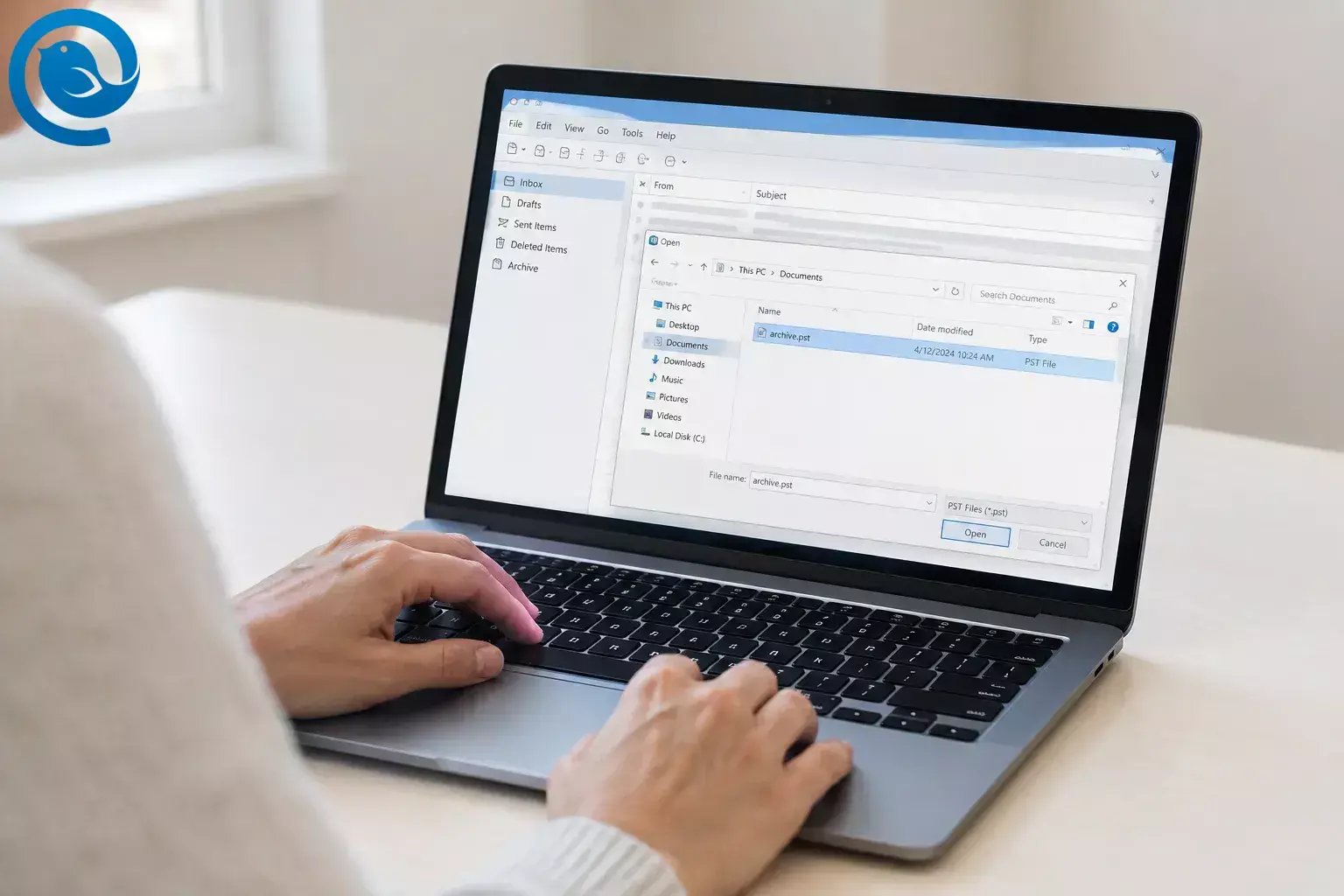
In classic Outlook, you can open a PST as a separate set of folders or import its contents into a mailbox. New Outlook for Windows has more limited PST support, and Outlook on the web cannot open a local PST directly. If you do not have Outlook, a dedicated viewer can help you inspect the file. [1, 2, 3]
Key takeaways
- Open a PST in classic Outlook to read it as a separate set of folders without importing it.
- Import the PST if you want copies of its contents in a mailbox.
- New Outlook for Windows has partial PST support; its available options and requirements differ from classic Outlook.
- Outlook on the web cannot open a PST stored on your computer directly.
- Without Outlook, a dedicated Windows viewer can help you inspect a copy of the file.
- Keep the original PST safe while you work from a copy.
Before you start
- Find your .pst file. Have its password ready if it has one.
- Keep the original safe. Close Outlook before copying a PST it uses, and work from the copy when possible. Avoid uploading private messages and attachments to an unfamiliar website.
- Choose your goal. Open the PST to read its contents without merging them into your mailbox. Import it only if you want copies of its contents in a mailbox.
How to open a PST file in classic Outlook
These steps are for classic Outlook on Windows. You can recognize it by the File tab at the upper left. [3]
How to open a PST file in classic Outlook
-
Locate the PST.
Check
C:\Users\<your-name>\Documents\Outlook Files. If Outlook already uses the file, go to File → Account Settings → Account Settings → Data Files to find its location. Older files may be underC:\Users\<your-name>\AppData\Local\Microsoft\Outlook. [4] - Make a working copy. Close Outlook, then copy the PST to a local folder outside OneDrive. Leave the original untouched. [5]
- Open the file. In classic Outlook, select File → Open & Export → Open Outlook Data File . Choose the copied PST and select Open . Enter its password if prompted. [2, 6]
- Check its folders. The PST should appear in Outlook’s folder pane, often near the bottom. Expand it and open a message and attachment to confirm you have the right file. If a search misses an item, select the relevant PST folder and search again. [2]
You can stop here if you only need to read or search the archive. Opening a PST does not copy all its contents into your mailbox. [2, 3]
How to import a PST into classic Outlook
If you want the contents in a mailbox rather than in a separately attached file, use the import wizard (or see our guide on importing Outlook accounts ):
- Select File → Open & Export → Import/Export .
- Choose Import from another program or file → Next → Outlook Data File (.pst) → Next .
- Browse to the PST, choose how to handle duplicates, and select Next .
- Choose the source folder, select Include subfolders if needed, and choose the intended destination mailbox or folder. Enter the PST password if asked, then select Finish .
- Check the destination for an older message, a subfolder, and any contacts or calendar items you expected. Keep the original PST until you have verified what you need. [3]
Importing may create additional copies of items in the destination mailbox, depending on the duplicate setting you choose. [3]
New Outlook, Outlook on the web, and other options
New Outlook for Windows
Microsoft lists PST support in new Outlook as partial. To check whether you can open a PST for email access, look under Settings → Data files → Outlook Data Files → Add file . Another Microsoft help page shows the location as Settings → Files → Outlook Data Files . Microsoft’s stated requirements for opening a PST include classic Outlook installed with matching 32-bit or 64-bit architecture, an account with a Microsoft 365 subscription, and a non-ARM version of new Outlook. Opening a PST for email access is not the same as browsing all its stored calendar items and contacts. [1, 2] See our migrate to Mailbird guide.
To import into a mailbox, check whether your app offers Settings → Data files → Import . Microsoft’s import guide describes selecting the file, source folder, duplicate handling, and destination there. Its help pages differ on whether PST mailbox import is supported in new Outlook, so use classic Outlook if the import option is absent. [3, 7]
Outlook on the web
You cannot attach a PST stored on your computer directly in Outlook on the web. If you need its contents in your online mailbox, import them into that mailbox using a supported Outlook desktop app, then check the mailbox in your browser after it syncs. [3]
Without Outlook
To inspect a PST on Windows without Outlook, try
XstReader
. Its open-source project says the viewer does not depend on Microsoft Office components. Download the ZIP from its Releases page, extract it, run
XstReader.exe
, and open a copy of your PST. Check the publisher and your organization’s software rules before running a downloaded app.
[8]
Thunderbird is not a PST-only workaround: its Outlook import instructions say Outlook must also be installed on the device. [9]
Where to keep the PST afterward
Keep the original in a private location and retain your working copy until you have checked the items you need. To remove an attached PST from classic Outlook’s folder pane, right-click its top-level name and choose Close “Outlook Data File” . This closes the file in Outlook; it does not delete it from your computer. [6]
Need to create a PST first? That is a separate task; see exporting emails to a PST or Microsoft’s PST export instructions .
Troubleshooting
- No File tab: You are likely using new Outlook. Check its Settings → Data files options, or switch to classic Outlook for the classic steps. [3]
-
Cannot find the PST:
Check classic Outlook’s
Data Files
tab for its path, and confirm the file ends in
.pstrather than.ost. [4] - Permission or file-in-use error: Close Outlook and try a copy in a local folder outside OneDrive. Check the copy’s Windows file permissions before retrying. [5]
- New Outlook will not add the file: Check Microsoft’s requirements for classic Outlook, matching architecture, a Microsoft 365 subscription, and a non-ARM version of new Outlook. [2]
- Items are missing after import: Confirm they exist in the PST, then check which source folder you selected and whether Include subfolders was enabled. [3]
- Outlook cannot open the data file: The PST may be damaged. Preserve the original and use Microsoft’s SCANPST.EXE Inbox Repair tool on a copy. [10]
Frequently asked questions
How do I add a PST file to Outlook without importing it?
In classic Outlook, select File → Open & Export → Open Outlook Data File , then choose the PST. It appears as a separate set of folders.
Where is my Outlook PST file stored?
Check
Documents\Outlook Files
first. If classic Outlook already uses the file, its
Data Files
settings can show you where it is.
Can new Outlook open or import a PST?
New Outlook for Windows can open a PST for email access when Microsoft’s requirements are met. Check Settings → Data files for an import option; if it is unavailable, use classic Outlook to import.
Can Outlook on the web open a PST from my computer?
No. Use a supported Outlook desktop app to import the contents into a mailbox if you need to access them on the web.
How can I read a PST without Outlook?
Use a dedicated viewer such as XstReader to inspect a copy of the file on Windows.
Does closing a PST in Outlook delete the file?
No. It removes the PST from Outlook’s folder pane but leaves the file on your computer.
Looking for a desktop email client?
Use Outlook or a dedicated viewer to access your PST first. If you also want a desktop email client, compare Mailbird vs Outlook .
Sources
- Microsoft Support — Feature comparison between new and classic Outlook
- Microsoft Support — Open and find items in an Outlook Data File
- Microsoft Support — Import email, contacts, and calendar from a PST
- Microsoft Support — Find and transfer Outlook data files
- Microsoft Support — Remove an Outlook PST from OneDrive
- Microsoft Support — Open and close Outlook Data Files
- Microsoft Support — PST guidance describing different new Outlook limitations
- XstReader — Project and installation instructions
- Thunderbird Help — Import settings and data
- Microsoft Support — Repair Outlook Data Files


