How to Repair a PST File in Outlook with ScanPST.exe
To repair an Outlook PST file, close Outlook, back up the file, and run Microsoft’s Inbox Repair Tool—ScanPST.exe—on a separate copy. Then open the repaired copy in classic Outlook and check what it recovered. ScanPST can fix file errors, but it cannot guarantee that every missing item will return.



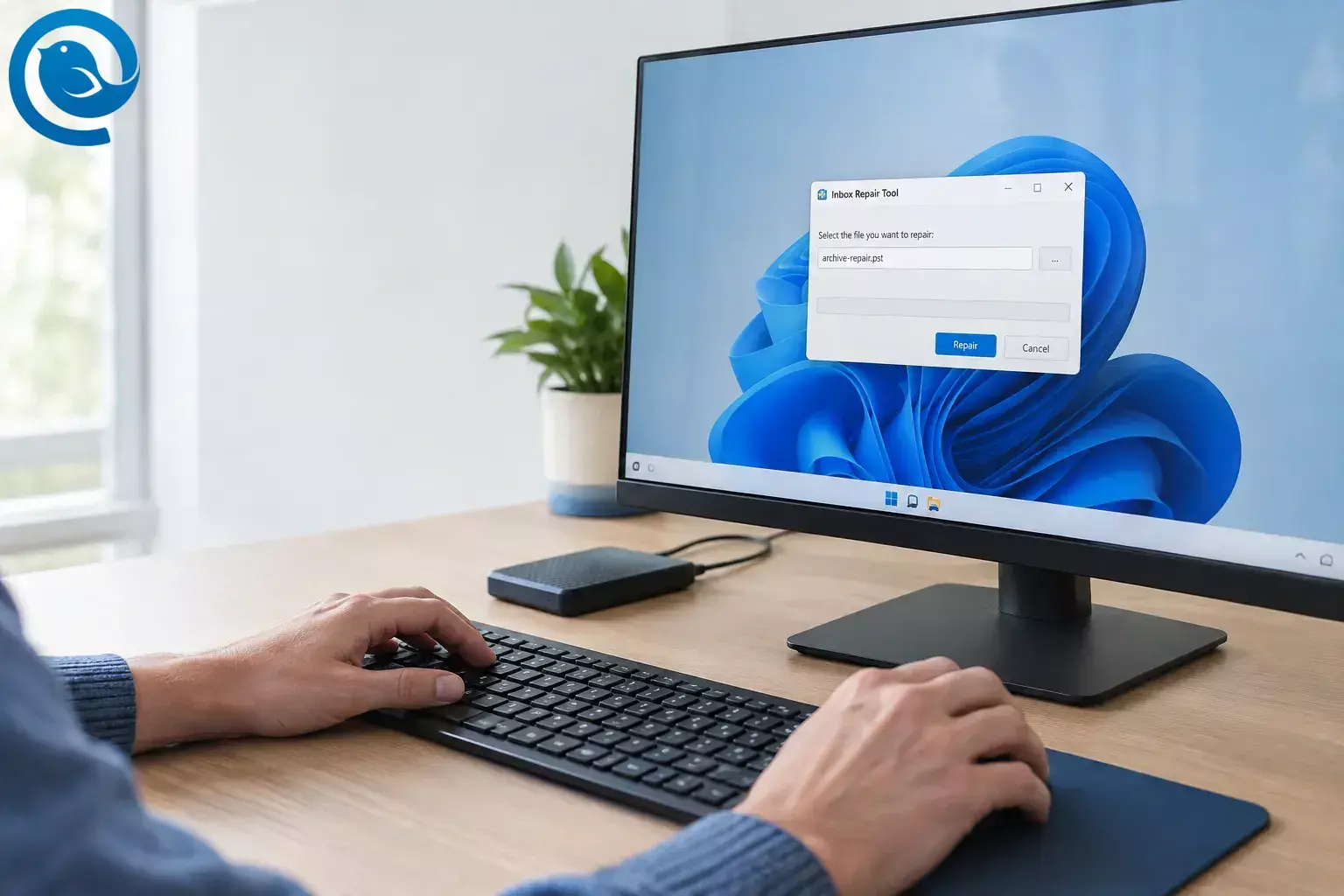
To repair an Outlook PST file, close Outlook, back up the file, and run Microsoft’s Inbox Repair Tool—ScanPST.exe—on a separate copy. Then open the repaired copy in classic Outlook and check what it recovered. ScanPST can fix file errors, but it cannot guarantee that every missing item will return. [2]
Quick checklist
-
☐ Confirm the file is a
.pstand note its exact path. - ☐ Close Outlook; keep the original and make a separate backup.
-
☐ Run
SCANPST.EXEon a local working copy. -
☐ If errors are found, select
Repair
and retain the
.bakfile. - ☐ Scan again if needed, then open the repaired copy in classic Outlook.
- ☐ Check important folders, attachments, contacts, calendar, and Lost and Found .
- ☐ Keep every backup until the recovered items are confirmed at their destination.
Before you start
- You need: a Windows PC with classic Outlook installed, the PST file, File Explorer, and enough local storage for a separate copy and repair backup. ScanPST.exe comes with classic Outlook; you do not need a separate repair-tool download. [1]
- Time and cost: scan and repair time varies with the file’s size and condition. The built-in tool requires no separate purchase.
- Safety: close Outlook before copying the PST. Keep an untouched original, and repair a second copy in a local folder that is not actively syncing to cloud storage. Do not delete any copy until you have checked your messages, contacts, calendar, and attachments.
-
Check the extension:
these steps are for a
.pstfile. An.ostis generally a synchronized offline copy; see the OST guidance below before changing one. [3]
Repair the PST with ScanPST.exe
- Confirm that you have classic Outlook. Open Outlook and look for File at the upper left. If you use new Outlook, switch to an installed copy of classic Outlook for the repair. ScanPST.exe is installed with classic Outlook, not accessed from new Outlook’s PST import screen. [1]
-
Find the exact data file.
In classic Outlook, select
File > Account Settings > Account Settings > Data Files
. Note the path and confirm that the file ends in
.pst, not.ost. If Outlook will not open, use the file path shown in its error message or look inDocuments\Outlook Files; the Data Files list is more reliable when available. [2] - Exit Outlook. Close its windows and wait for it to finish closing. In File Explorer, navigate to the PST path you noted and confirm the file is there. Do not run a repair while Outlook is using it. [2]
-
Make two copies.
Copy the PST to a safe backup location, then put another copy in a local, non-syncing folder as your working file. Give the working copy a clear name, such as
archive-repair.pst. Leave the original untouched. Check that both copies exist before continuing; Microsoft recommends backing up the file before running the tool. [2] -
Find ScanPST.exe.
In File Explorer, check the installation folder for your classic Outlook version. The locations below are common, not guaranteed. Check both
Program FilesandProgram Files (x86); if you still cannot find it, search This PC forSCANPST.EXE. [1]Classic Outlook version Folder to check on C: Microsoft 365, 2024, 2021, 2019, or 2016 C:\Program Files\Microsoft Office\root\Office16or the correspondingProgram Files (x86)folder; some installations useMicrosoft Office\Office16withoutroot2013 Microsoft Office 15\root\office15orMicrosoft Office\Office15under either Program Files folder2010 or 2007 Microsoft Office\Office14orMicrosoft Office\Office12, respectively, under either Program Files folder- Classic Outlook version
- Microsoft 365, 2024, 2021, 2019, or 2016
- Folder to check on C:
-
C:\Program Files\Microsoft Office\root\Office16or the correspondingProgram Files (x86)folder; some installations useMicrosoft Office\Office16withoutroot
- Classic Outlook version
- 2013
- Folder to check on C:
-
Microsoft Office 15\root\office15orMicrosoft Office\Office15under either Program Files folder
- Classic Outlook version
- 2010 or 2007
- Folder to check on C:
-
Microsoft Office\Office14orMicrosoft Office\Office12, respectively, under either Program Files folder
The
Office16folder name does not, by itself, mean that your installed Outlook is the 2016 release. [1] -
Open the tool and select your working copy.
Double-click
SCANPST.EXE, choose Browse , and selectarchive-repair.pst—not the original or your safe backup. Confirm that the path shown in the tool points to the working folder. [2] - Run the scan. Select Start and read the result. If it reports errors, continue to the next step. If it reports no errors, do not force a repair: open the working copy in Outlook and check whether the problem lies elsewhere. [2]
-
Repair reported errors.
Leave the option to create a backup selected, check the backup filename and location, and choose
Repair
. Wait for the completion message before closing the tool. Keep the
.bakfile ScanPST creates alongside your other copies. [2] - Check the result again. Reopen ScanPST, select the same working copy, and choose Start . If errors remain, you can run another repair on that copy. Stop and preserve all copies if repeated attempts make no progress. Microsoft notes that some PSTs need more than one pass and that some damage cannot be repaired. [2]
- Open and inspect the repaired copy. Start classic Outlook, then select File > Open & Export > Open Outlook Data File and choose the working PST. Expand its folders. Open a few important messages and attachments, and check contacts and calendar items if the file should contain them. Look for Recovered Personal Folders and Lost and Found ; items the tool could not return to their original folders may be there. [2]
-
Save recovered items separately.
If you find items in
Lost and Found
, create a new PST with
New Items > More Items > Outlook Data File
and move the recovered items into it. If important items are still missing, make a
copy
of ScanPST’s
.bakfile, rename that copy so its extension is.pst, and try opening or importing it in classic Outlook. It is a copy of the damaged file, so further recovery is possible but not guaranteed. [2]
What ScanPST can fix—and when to try an alternative
ScanPST checks and repairs errors in a PST’s internal file structure. It does not retrieve mail from a server or guarantee that every damaged or permanently deleted item will return. That is why the separate backup, the Lost and Found check, and a manual inspection matter as much as the “repair complete” message. [1]
When is a third-party tool worth considering? Consider one if ScanPST and your backups do not recover items you need. Before paying, check whether a trial can preview the specific missing items, whether it works on a copy without changing it, where it processes your mail, and what exporting recovered data costs. No tool can promise to reconstruct data that is no longer present in any usable copy.
Troubleshooting
-
ScanPST.exe is missing →
You may be using only new Outlook or looking in the wrong Office folder. Search
This PC
for
SCANPST.EXE. If classic Outlook is installed but the tool still cannot start, repair the Office installation through Windows Installed apps > Microsoft 365 or Office > Modify . [4] - You cannot find the PST → You may be looking at the default archive folder rather than the file Outlook uses. Check File > Account Settings > Account Settings > Data Files for its actual path and extension. [2]
- The file is in use or the copy fails → Outlook may still have it open. Exit Outlook fully, then copy the PST again before scanning the copy.
- The scan finds no errors, but Outlook still fails → The problem may not be PST corruption. Try opening the working copy through File > Open & Export > Open Outlook Data File . If Outlook itself will not start, try repairing the Office installation. [4]
- Errors appear on another scan → One pass may not have fixed the file. Keep your backups and repeat the scan and repair on the working copy; stop if there is no progress. [2]
-
Folders open but messages are missing →
The tool may have placed recoverable items in
Lost and Found
. Check that folder, then try a copy of the
.bakfile if needed. Some items cannot be recovered. [2] - You selected an OST, not a PST → An OST is usually a server-synchronized offline copy. First check that the missing items exist in the online mailbox. Do not assume an unsynced local item can be downloaded again. [3]
- New Outlook will not open the repaired PST → This may be an account or installation requirement, not a failed repair. Microsoft lists a Microsoft 365 subscription, installed classic Outlook of matching architecture, and no ARM-version support among the requirements for opening PSTs in new Outlook. Test the repaired file in classic Outlook first. [5]
Variations
If you use new Outlook for Windows
Repair and inspect the PST using classic Outlook first. To put items from the repaired file into a mailbox in new Outlook, check Settings > Data files > Import ; to attach the file without importing, check Settings > Data files > Outlook Data Files > Add file . Opening a PST in new Outlook has additional requirements, including an installed copy of classic Outlook. [6]
If the file is an OST
For an Exchange account, Microsoft says Outlook can recreate its offline OST from the server. Confirm that the items you need are available in the online mailbox before removing or rebuilding a local copy. If they are not, preserve the OST and ask your organization’s administrator for help instead. [2]
If you are moving mail to another desktop client
Repair the PST before trying to export messages . Mailbird is an email client, not a PST repair tool. Its documented PST message import is for an existing POP3 account; importing offline PST folders into an IMAP account is not supported. In Mailbird, the documented POP3 path is Settings > Accounts > your POP3 account > Import messages . [7]
If you have only a backup PST
Keep the backup unchanged. Make a local working copy and start with the ScanPST location table above. If the backup opens normally in classic Outlook, check its contents before running a repair you may not need.
Keep your copies until you have checked the result
Store the untouched original, the pre-repair backup, and the repaired PST under distinct names. After checking that the repaired file opens and contains the items you need, make a fresh backup of it. If you are transferring mail, compare a few folders and attachments at the destination before removing any old copies.
What can change: New Outlook’s PST menus and availability may change with app updates or account requirements. If an option described here is missing, check Microsoft’s current import instructions and test the file in classic Outlook rather than assuming the PST is corrupt. [6]
Switching desktop email clients? Repair your PST first, then check whether your account supports the transfer.
Frequently asked questions
Where is ScanPST.exe?
Look in your classic Outlook installation folder—commonly
Microsoft Office\root\Office16
under
Program Files
or
Program Files (x86)
. If it is not there, search This PC for
SCANPST.EXE
.
Is the Outlook PST repair tool free?
Yes. ScanPST.exe comes with an installed copy of classic Outlook; there is no separate repair-tool purchase.
Can I repair a PST without opening Outlook?
Yes. Close Outlook, make your copies in File Explorer, and run ScanPST.exe directly. Open Outlook afterward to inspect what was recovered.
Does ScanPST.exe recover deleted emails?
Do not count on it. The tool repairs file errors, and permanently deleted or badly damaged items may not be recoverable. Check Lost and Found and your backups.
Should I repair the original PST or a copy?
Repair a local working copy. Keep the original and a separate pre-repair backup unchanged until you have checked the result.
Can I use ScanPST.exe on an OST?
These repair steps are for a PST. An OST is generally a synchronized offline copy. Check the online mailbox and preserve any unsynced data before deciding whether to rebuild it.
Why does new Outlook reject my PST?
Opening PST files in new Outlook has subscription, installation, and device requirements. First confirm that your repaired copy opens in classic Outlook, then check new Outlook’s Data files settings.
Will Mailbird repair or import my damaged PST?
Mailbird does not repair PST files. Repair and check the file first. Mailbird documents PST message import for an existing POP3 account, not offline-folder import into an IMAP account.
Sources
- Microsoft Learn — How to repair an Outlook personal folder file
- Microsoft Support — Repair Outlook Data Files
- Microsoft Support — Create an Outlook Data File
- Microsoft Support — Repair an Office application
- Microsoft Support — Open and find items in an Outlook PST
- Microsoft Support — Import items from an Outlook PST file
- Mailbird Help Center — Import accounts and emails


