How to Attach a Screenshot to an Email
To attach a screenshot to an email, capture the screen, save or locate the image file, open a new message, click the paperclip or Attach button, choose the screenshot, and send. That same basic flow works on Windows, Mac, iPhone, and Android.



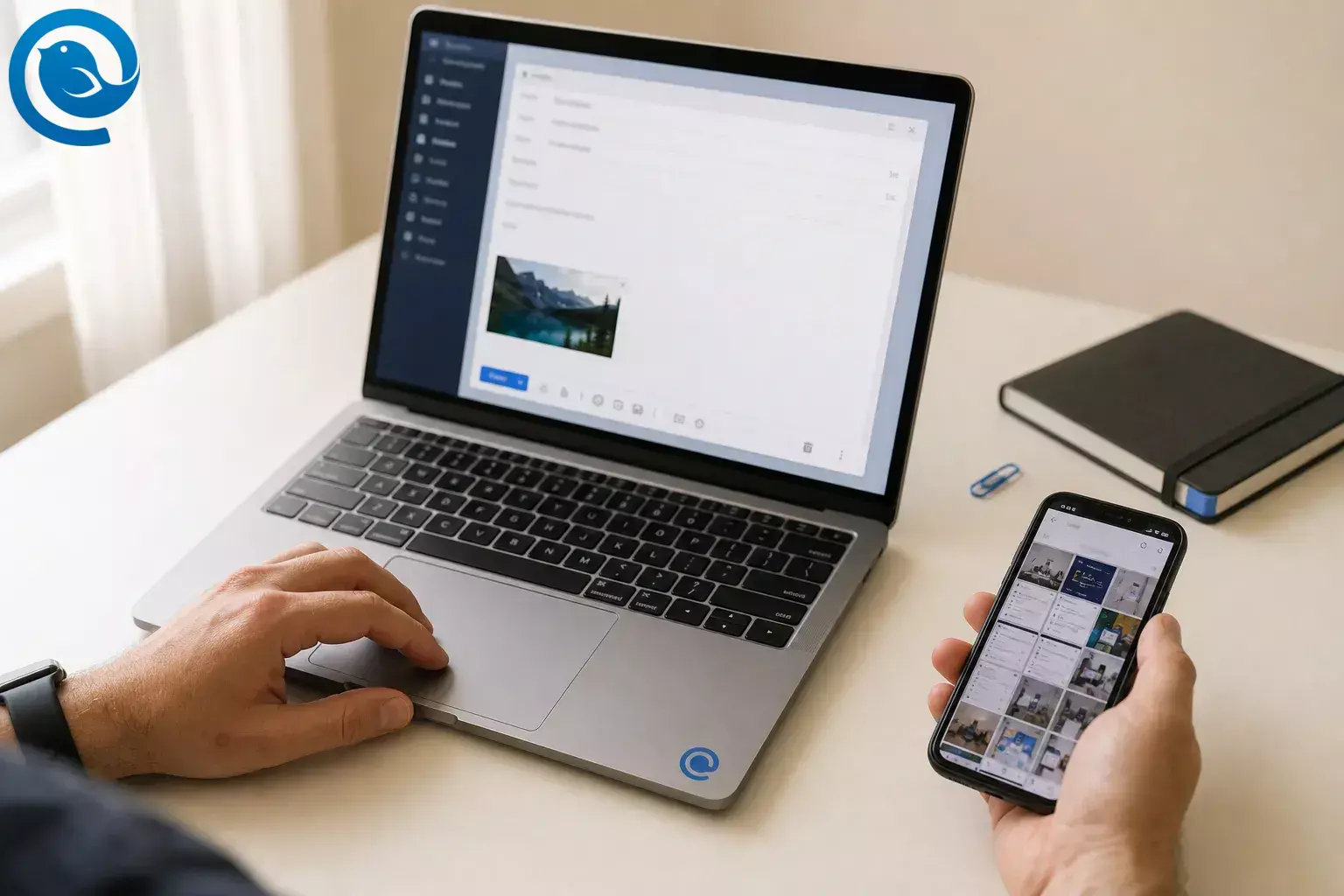
To attach a screenshot to an email, capture the screen, save or locate the image file, open a new message, click the paperclip or Attach button, choose the screenshot, and send. That same basic flow works on Windows, Mac, iPhone, and Android.
If you paste a screenshot in an email instead, it usually appears inline in the message body rather than as a normal attachment, which is fine for quick viewing but less reliable when the recipient needs a downloadable file. If you are not sure which option to use, attach the file.
TL;DR
Short answer
Use a real attachment when the screenshot needs to be saved, uploaded, printed, or forwarded later. Use inline paste only when you want the image to sit inside the message for quick reading. [9] [10] [14] [15]
- Capture the screenshot.
- Save it or find it in your screenshots folder or photo library.
- Open a new email.
- Click the paperclip or Attach button.
- Select the screenshot file and send.
Good default: attach the saved screenshot file unless you specifically want the image to sit inside the message body.
Before you start
Prerequisites
The screen you want to capture and an email app or webmail.
Tools
Snipping Tool on Windows, Screenshot on Mac, Photos or Files on iPhone, and Photos, Files, or Gmail on Android.
Time
Usually a few minutes.
Cost
Usually free.
Privacy check
Crop out passwords, addresses, payment details, private tabs, and notification banners before you send.
Step-by-step: attach a screenshot to an email
How to Attach a Screenshot to an Email
-
Choose between attaching the file and pasting the screenshot in the email body
Use an attachment when the screenshot needs to be saved, uploaded, printed, or forwarded later. Paste it inline only when you want the recipient to see the image directly inside the message as they read. When in doubt, attach the file. [9] [10] [14] [15]
Check: you know whether you want a file attachment or an image sitting in the email body.
-
Open the exact screen you want to capture
Bring the right page, error, photo, or message into view. Zoom in until the important text is readable, then close anything the recipient does not need to see, such as extra tabs, chats, or pop-up notifications.
Check: the screen shows only the information you mean to send.
-
Capture the screenshot on your device
- Windows: press Windows + Shift + S for a selected area, or PrtSc for the full screen.
- Mac: press Shift + Command + 4 for a selected area, or Shift + Command + 3 for the whole screen.
- iPhone: press the side button and volume up together. On older Touch ID models, use the side or top button together with Home.
- Android: press Power and Volume Down together. If that does not work, hold Power and tap Screenshot.
Check: you see a thumbnail, preview, or fresh image in your screenshot gallery. [4] [5] [6] [7]
-
Find or save the screenshot file
- Windows: if the capture is still only in the Snipping Tool window, save it before attaching it. Current Snipping Tool behavior also saves captures to the Screenshots folder unless you changed that setting.
- Mac: screenshots save to the desktop by default unless you changed the location.
- iPhone: open Photos, then go to Collections and tap Screenshots.
- Android: open Photos, then Collections > On this device > Screenshots. On older phones, use the Gallery app’s Screenshots folder.
Check: you can open the screenshot full size before you attach it. [4] [5] [6] [7]
-
Open a new email draft in the app you’re using
Use the same app you plan to send from. On Mailbird , open a compose window. In Gmail on desktop, click Compose . In Apple Mail on Mac, open a new message so the attachment button is available. [1] [3] [8] [9]
Check: you can see the To, Subject, and message body fields before trying to add the screenshot.
-
Attach the screenshot as a file on desktop
In Mailbird, drag the screenshot into the compose window or click the paperclip, and it attaches as a file. In Gmail on desktop , click the paperclip, choose the screenshot, and open it. In Apple Mail on Mac, click Attach , then choose the file or photo. [1] [3] [8] [9]
Check: the filename or attachment preview appears in the draft.
-
Attach the screenshot from iPhone or Android
On iPhone Mail, tap in the message, then use the attachment actions button above the keyboard and choose Attach File or Photo Library . In Gmail on iPhone or iPad, tap Compose , then Attach , and choose Photos, Camera, Files, Google Photos, or Drive. In Gmail on Android, tap Compose , then Attach , and choose Photos, Camera, Files, or Drive. [10] [11] [12]
Check: the screenshot appears as a preview or named file in the draft.
-
Paste a screenshot in an email only when you want it visible in the message body
If you want the screenshot to appear inside the email itself, copy it and paste it where your cursor sits. Some desktop apps also have picture or screenshot insert tools, but those create inline images rather than normal file attachments. If the recipient needs a dependable downloadable file, attach the saved screenshot too. [9] [10] [14] [15]
Check: you can see the image exactly where you expect it in the body of the message.
Simple rule: if the screenshot must survive forwarding, ticket uploads, or later download, use a file attachment even if you also paste the image inline.
-
Rename, crop, or shrink the file before you send
Rename vague files like Screenshot.png to something useful, such as billing-error-checkout.png . Crop out dead space so the important part is readable. If Gmail converts the screenshot to a Drive link, the total attachment size went over 25 MB . If Apple Mail says the file is too large, follow the Mail Drop prompt. [8] [11] [12] [13]
Check: the filename is clear, the screenshot is readable, and the delivery method still matches what the recipient needs.
-
Do a final send check, then send
Confirm the recipient, subject, and screenshot one last time. Open the preview once if the email matters. Once it is sent, Mailbird lets you pin attachments to the top of a message so they stay easy to find in long threads. [1] [2]
Check: you can point to the exact screenshot that is about to leave your outbox.
Attach vs paste a screenshot in email
Use an attachment
Best when the recipient needs a file they can save, download, print, upload, or forward later.
Use inline paste
Best when you want the screenshot visible right in the message body for quick reading.
Attaching the screenshot sends it as a file. Pasting it puts the image in the body of the message. Apple Mail notes that attachments can appear inline or as an icon depending on file size, and Microsoft separates pictures in the body from attached files or screen clippings. That is why inline screenshots sometimes break for the recipient: they may be easy to view, but not as easy to save or find as a normal attachment. [9] [10] [14] [15]
Common problems and fixes
| Symptom | Likely cause | Fix |
|---|---|---|
| The screenshot landed in the email body instead of the attachments area | You pasted it from the clipboard or used an inline insert option | Delete the inline image, then use the paperclip or Attach button and pick the saved file instead. In Mailbird, dragging the file into the compose window attaches it as a file. [3] [9] [10] [14] [15] |
| The recipient says the image is missing from the attachments area or hard to save | You relied on inline display instead of a file attachment | Re-send the screenshot as a standard attachment. If you still want it visible while reading, keep both versions: one inline and one attached. [9] [10] [14] [15] |
| Gmail turned the screenshot into a Drive link | Your total attachments exceeded Gmail’s size limit | Accept the Drive link, or crop and compress the screenshot before reattaching it. Personal Gmail uses a 25 MB attachment limit. [8] [11] [12] |
| You can’t find the screenshot you just took | It stayed in a preview window or you’re checking the wrong folder | Windows: open the snip and save it if needed. Mac: check the desktop. iPhone: open Photos and go to Screenshots. Android: open Photos or Gallery and find the Screenshots folder. [4] [5] [6] [7] |
| The attachment won’t upload in Gmail | Browser, network, proxy, blocked attachment domain, or storage trouble | Try another browser or network, re-add the file, and if needed ask your admin or ISP about mail-attachment.googleusercontent.com . Gmail also points to storage issues when uploads fail. [8] [11] [12] |
| On Mac, the image keeps dropping into the middle of the message | Apple Mail inserts attachments where the cursor is | Turn on Edit > Attachments > Always Insert Attachments at End of Message , or use the toolbar’s Attach button instead of dropping the file into the body. [9] |
| Apple Mail says the screenshot is too large to send | Your provider’s message size limit is lower than the file size | Use Mail Drop when prompted. Apple says Mail Drop can handle attachments up to 5 GB, and recipients usually have 30 days to download them. [13] |
| Mailbird won’t add the screenshot the way you expect | You dropped the file outside the compose window, or pasted the image instead of attaching the file | Click the paperclip in the compose window and pick the saved screenshot, or drag the file into the compose window again. It attaches automatically when you release it. [1] [3] |
The screenshot landed in the email body instead of the attachments area
Likely cause: You pasted it from the clipboard or used an inline insert option.
Fix: Delete the inline image, then use the paperclip or Attach button and pick the saved file instead. In Mailbird, dragging the file into the compose window attaches it as a file. [3] [9] [10] [14] [15]
The recipient says the image is missing from the attachments area or hard to save
Likely cause: You relied on inline display instead of a file attachment.
Fix: Re-send the screenshot as a standard attachment. If you still want it visible while reading, keep both versions: one inline and one attached. [9] [10] [14] [15]
Gmail turned the screenshot into a Drive link
Likely cause: Your total attachments exceeded Gmail’s size limit.
Fix: Accept the Drive link, or crop and compress the screenshot before reattaching it. Personal Gmail uses a 25 MB attachment limit. [8] [11] [12]
You can’t find the screenshot you just took
Likely cause: It stayed in a preview window or you’re checking the wrong folder.
Fix: Windows: open the snip and save it if needed. Mac: check the desktop. iPhone: open Photos and go to Screenshots. Android: open Photos or Gallery and find the Screenshots folder. [4] [5] [6] [7]
The attachment won’t upload in Gmail
Likely cause: Browser, network, proxy, blocked attachment domain, or storage trouble.
Fix: Try another browser or network, re-add the file, and if needed ask your admin or ISP about mail-attachment.googleusercontent.com . Gmail also points to storage issues when uploads fail. [8] [11] [12]
On Mac, the image keeps dropping into the middle of the message
Likely cause: Apple Mail inserts attachments where the cursor is.
Fix: Turn on Edit > Attachments > Always Insert Attachments at End of Message , or use the toolbar’s Attach button instead of dropping the file into the body. [9]
Apple Mail says the screenshot is too large to send
Likely cause: Your provider’s message size limit is lower than the file size.
Fix: Use Mail Drop when prompted. Apple says Mail Drop can handle attachments up to 5 GB, and recipients usually have 30 days to download them. [13]
Mailbird won’t add the screenshot the way you expect
Likely cause: You dropped the file outside the compose window, or pasted the image instead of attaching the file.
Fix: Click the paperclip in the compose window and pick the saved screenshot, or drag the file into the compose window again. It attaches automatically when you release it. [1] [3]
Best ways to send a screenshot by email
- Fastest desktop method: capture the screen, copy it, and paste it inline. This works best when the image only needs to be seen in the message body. [14] [15]
- Most reliable method: save the screenshot, rename it, and attach the file with the paperclip. This is the safest option for support tickets, forms, billing issues, and anything the recipient may need later. [9] [10] [14] [15]
- Several screenshots: capture everything first, name the files in order, then attach them together. Watch total size, since Gmail switches oversized attachments to Drive links and Apple Mail can offer Mail Drop. [8] [13]
- Long page or chat thread: on supported iPhone content you can take a full-page screenshot, and on many Android 12+ screens you can use Capture more for a longer image. [6] [7]
- Mailbird workflow: if you send screenshots often, use drag-and-drop or the paperclip in Mailbird, and pin important attachments to the top of a message so they are easy to find in long threads. [1] [2] [3]
If you send screenshots often
- Make ahead: take all screenshots first, then rename them in order like 01-login-error , 02-cart-page , and 03-confirmation-screen .
- Storage: keep a Screenshots folder so you can find images quickly, then delete sensitive shots after the issue is resolved or the email thread is complete.
- Size limits: large PNGs can hit email limits faster than you expect. Gmail switches oversized attachments to Drive links after 25 MB, while Apple Mail can hand large files off to Mail Drop, which supports attachments up to 5 GB and keeps them available for download for 30 days. [8] [13]
Quick checklist
- I captured the right screen.
- I cropped out sensitive information.
- I saved or located the screenshot file.
- I chose attachment or inline on purpose.
- The filename is clear.
- The screenshot is readable at normal zoom.
- I can see the attachment or inline image in the draft.
- I checked the recipient and subject before sending.
Frequently Asked Questions
Can I paste a screenshot directly into an email instead of attaching it?
Is it better to attach the screenshot or paste it into the email?
How do I send a screenshot by email on iPhone?
Why did Gmail convert my screenshot into a Drive link?
Why does my screenshot show in the body of the email instead of as an attachment?
Where do screenshots save by default?
What if the screenshot is too large to send?
Menus can look different
Apple, Google, Microsoft, and Mailbird move buttons and rename menus over time. If your screen looks a little different, look for the same actions: Share , Attach , Insert , or a paperclip icon.
Want a simpler way to send screenshots?
Sources
- Mailbird Next Support — Working with Attachments in Mailbird Next
- Mailbird — Mailbird Next Release Notes
- Mailbird Support — How to Attach a File
- Microsoft Support — Use Snipping Tool to capture screenshots
- Apple Support — Take a screenshot on Mac
- Apple Support — Take a screenshot on your iPhone
- Android Help — Take a screenshot or record your screen on your Android device
- Gmail Help — Send attachments with your Gmail message (Computer)
- Apple Support — Send attachments in Mail on Mac
- Apple Support — Add email attachments in Mail on iPhone
- Gmail Help — Send attachments with your Gmail message (iPhone and iPad)
- Gmail Help — Send attachments with your Gmail message (Android)
- Apple Support — Mail Drop limits
- Microsoft Support — Add pictures or attach files to emails in Outlook
- Microsoft Support — Insert a screenshot or screen clipping


