10 Gmail Unified Inbox Alternatives for Managing Multiple Accounts
A practical roundup of Gmail unified inbox alternatives, with quick-fit guidance, migration advice, and side-by-side tradeoffs for people managing multiple email accounts.


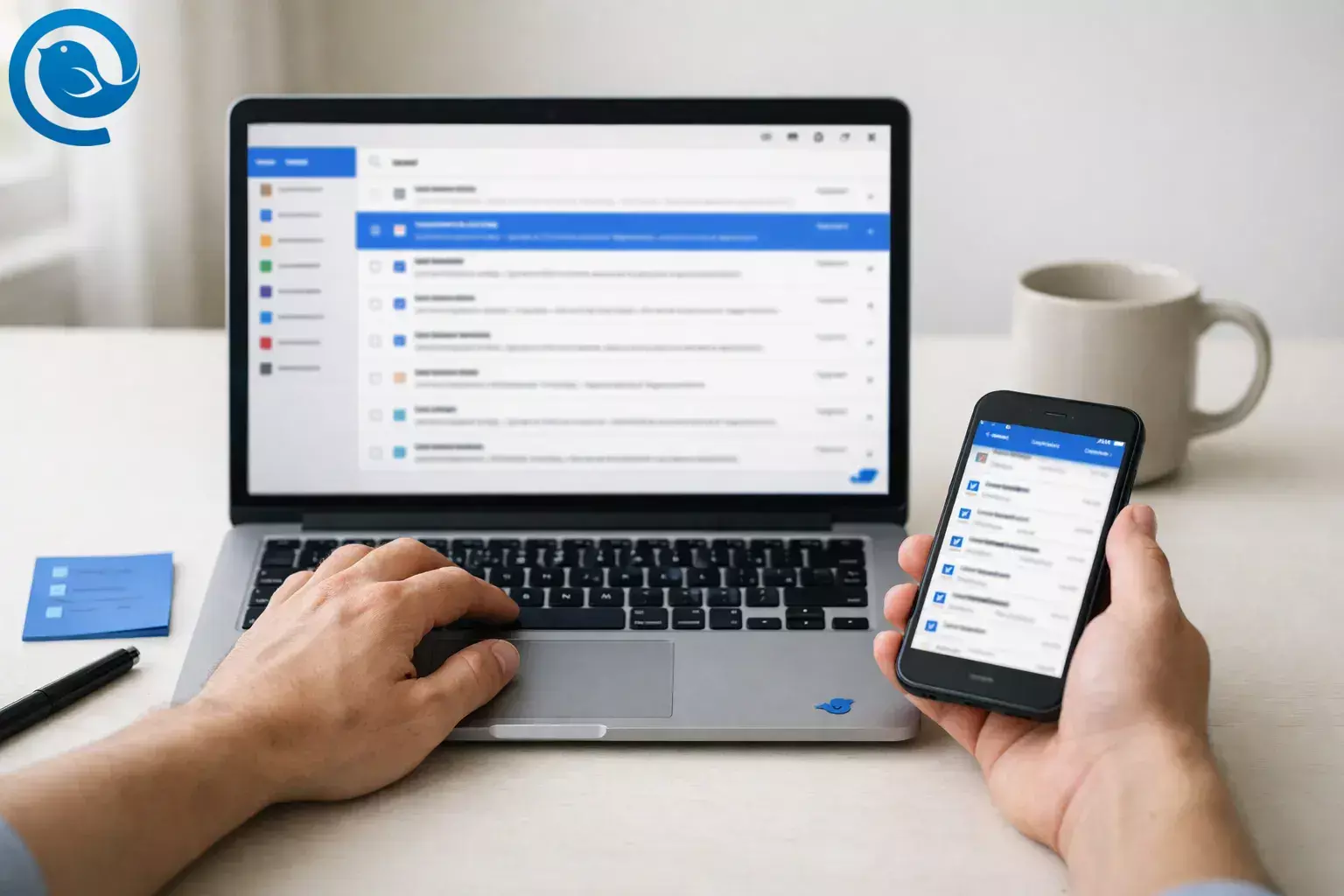
If Gmail has been your unified inbox, you’ll need a replacement as those connections stop working. The best alternative depends on your setup: most people switch to a unified-inbox email client (one app that connects to each mailbox directly), while others choose a new email provider to reduce the number of inboxes they manage. This guide helps you choose the right option based on your workflow.
Short answer: The best Gmail unified inbox alternative is usually a desktop email client that connects all your accounts directly in one place. If you want fewer inboxes long-term, switching to a new email provider can also work—but requires more setup.
Key takeaways
- Gmail unified inbox alternatives usually fall into two categories: a unified-inbox email client or a new email provider.
- Pick tools based on your account types (Gmail, Microsoft 365/Exchange, IMAP/POP, custom domains) and how they authenticate.
- Check how “unified” the unified inbox really is (Inbox vs. Sent/Archive/Search/Notifications).
- Prioritize send-from accuracy (clear “From” selection, default sender rules, per-account signatures) to avoid mis-sends.
- When switching, set up the new tool in parallel and run a two-week overlap to confirm nothing is missing.
- Watch for forwarding loops, duplicate mail, and folder/label mismatch.
- If multiple people need to work the same inbox (assign, comment, track ownership), use a shared inbox platform rather than a personal email client.
At a glance: pick by your setup
Use this quick guide to jump straight to the best Gmail unified inbox alternative based on how you manage your email.
- Desktop unified inbox for many accounts: Mailbird
- Customization and control: Mozilla Thunderbird
- Microsoft 365/Exchange-heavy environments: Microsoft Outlook
- Apple-only simplicity: Apple Mail
- Modern cross-device workflow: Spark
- Mac + Gmail-only: Mimestream
- Privacy-first provider: Proton Mail
- Paid providers if you want to consolidate long-term: Fastmail, Zoho Mail
- Shared inbox for teams: Front
Quick comparison table
| Alternative | Best for | Key strength | Biggest drawback |
|---|---|---|---|
| Mailbird | Desktop users who want a clean, unified inbox across multiple accounts | Multi-account workflow designed around “one place” email | Multi-account use may require a paid plan |
| Mozilla Thunderbird | Power users who want control, customization, and a unified view | Flexible unified views (including “Global Inbox” setups) | Can take time to set up and tune |
| Microsoft Outlook | Microsoft 365 / Exchange-heavy environments | Strong corporate account compatibility | Can feel heavy; unified experience varies by platform/version |
| Apple Mail | Apple-only users who want a simple “all inboxes” view | Built into macOS and iPhone/iPad settings | Not cross-platform |
| Spark | People who want a modern, cross-device inbox with extra workflow features | Modern UI with organization and productivity extras | Less control over local storage and backups |
| Mimestream | Mac users who want to leave the Gmail UI but keep Gmail | Gmail-focused client aiming for a Gmail-native feel outside the browser | Only works with Google (Gmail) accounts |
| Proton Mail | Privacy-first users ready to move away from Google | Privacy-focused email provider and ecosystem | Using third-party clients requires extra setup (Bridge) and typically paid plans |
| Fastmail | People who want a paid email provider instead of using Gmail as a hub | Paid service (trial available) that can be a long-term primary mailbox | Paid service (after trial) |
| Zoho Mail | Small businesses that want email hosting with admin controls | Business-friendly email hosting options | Free plan limitations can block desktop-client workflows |
| Front | Teams handling shared mailboxes (support@, sales@, info@) | Assignment, collaboration, and shared-inbox processes | Priced per seat; usually overkill for solo use |
What can change: pricing, plan limits, supported platforms, and “unified inbox” behavior can shift with major updates. The “watch-out” notes below are based on the official pages linked in Sources—verify your must-haves (Gmail OAuth sign-in, Exchange support, custom IMAP, offline access, shared inbox features) before you commit.
Email client vs email provider: what you’re actually replacing
- Email client: An app that connects to your existing mailboxes (Gmail, Outlook, IMAP/POP, Exchange) and can show a unified inbox. Your mail stays with each provider, making this the easiest way to replace Gmail as a hub without migrating accounts.
- Email provider: Where your mailbox lives. Switching providers can reduce how many inboxes you manage, but it usually involves migration or forwarding.
- Shared inbox platform: Built for teams working out of the same address, with assignment and collaboration features.
Why people switch (top 3 pain points)
- “My other accounts stopped showing up in Gmail.” If Gmail was pulling mail in via POP/Gmailify, you don’t want your multi-account setup to depend on a feature that’s being phased out.
- “I’m losing time switching accounts (and sending from the wrong address).” A unified inbox without strong identity controls can be worse than separate inboxes.
- “Gmail is fine for one account, but it’s not built for my workflow.” Rules, layouts, offline access, and cross-account search can matter more than a web UI once you’re juggling work + personal + side projects.
Which Gmail unified inbox alternative is right for you?
- Account types you need to add (and how they authenticate): Some apps are great with IMAP, others shine with Microsoft 365/Exchange, and a few are Gmail-only. Make sure your exact mix is supported.
- How “unified” the unified inbox really is: Do you get just one combined Inbox, or also unified Sent, Archive, Search, and Notifications? Some tools unify only the Inbox view.
- Send-from accuracy (identity controls): Look for clear per-account “From” selection, default sender rules, and per-account signatures to avoid embarrassing mis-sends.
- Local vs. cloud handling: If you want maximum privacy/offline control, prefer clients that keep more local. If you want cross-device syncing and team features, expect more cloud involvement.
- Workflow power you’ll actually use: Filters/rules, keyboard shortcuts, snooze, templates, “undo send,” and quick actions separate basic inboxes from serious multi-account tools.
- Solo vs. team needs: If you need assignment, internal comments, and shared accountability, you’re shopping for a shared inbox platform—not just an email client.
Alternatives (grouped by use case)
For desktop-focused, multi-account power users (closest replacement for “Gmail as a hub”)
Mailbird
- Positioning: A Gmail email client built to manage multiple accounts in one place.
- Why people pick it: Unified Inbox brings messages from all your accounts into a single view, so you can triage and reply without bouncing between inboxes.3
- Biggest drawback: Desktop-first workflow; decide what you’ll use on mobile when you’re away from your computer.
- Watch-out: Mailbird’s Free plan supports 1 email account per device; unlimited accounts are listed under Premium (plan details can change).2
Mozilla Thunderbird
- Positioning: A flexible client for people who like to tune their inbox and build a system around it.
- Why people pick it: Offers a “Global Inbox” option that can unify POP accounts when configured that way.6
- Biggest drawback: It can take more setup time than “just sign in and go” apps.
- Watch-out: Thunderbird for iOS is still in development/testing via Apple TestFlight (availability can change).7
If you’re already deep in Microsoft or Apple ecosystems
Microsoft Outlook
- Positioning: A strong option when Microsoft 365 / Exchange is part of your daily life.
- Why people pick it: Solid fit for corporate environments and accounts that revolve around Microsoft services.
- Biggest drawback: Outlook can be heavier than minimalist clients, and “unified inbox” behavior isn’t identical across every platform/version.
- Watch-out: Microsoft documents a unified inbox specifically for Outlook for Mac using “All Accounts” (check your exact app/version).4
Apple Mail
- Positioning: The simplest “all inboxes” experience if you’re fully on iPhone/iPad/Mac.
- Why people pick it: Uses system-level accounts, so adding/removing accounts is consistent across Apple apps and devices.
- Biggest drawback: Not ideal if you need the same experience on Windows or want lots of advanced workflow automation.
- Watch-out: Removing an email account from iPhone can remove it from apps that use it on that device—double-check what else depends on that account before deleting it from Settings.5
For cross-device users who want a modern inbox with extras
Spark
- Positioning: A modern email app that’s popular for organizing and collaborating across devices.
- Why people pick it: Designed around fast triage and organization, with extra workflow features built in.
- Biggest drawback: Not the best fit if your priority is keeping a full local archive (and local backups) you manage independent of servers.
- Watch-out: Spark states it doesn’t back up emails and that emails can’t be stored locally; offline access is based on cached content (details can change).8
For Mac users who want to leave the Gmail UI (but keep Gmail)
Mimestream
- Positioning: A native macOS client built specifically for Gmail accounts.
- Why people pick it: Built for Gmail users who want a fast, desktop-native experience outside the browser.10
- Biggest drawback: It’s not a general-purpose multi-provider hub, so it’s a poor fit if you need Outlook/IMAP accounts in the same unified inbox.
- Watch-out: Mimestream states it only supports adding Google (Gmail) accounts (both personal and Google Workspace).9
For privacy-first switchers who want to move away from Google
Proton Mail
- Positioning: A privacy-focused mail provider for people who want a long-term alternative to Google-hosted email.
- Why people pick it: Built around an encrypted email ecosystem (useful if privacy is your main reason for leaving Gmail).
- Biggest drawback: It’s not “just another IMAP mailbox” in the usual way; some workflows require using Proton’s apps or additional tools.
- Watch-out: Proton states that using another email client requires Proton Mail Bridge, and that Bridge is available with paid Proton plans (terms can change).11
For people who want to consolidate by switching email providers (fewer inboxes long-term)
Fastmail
- Positioning: A paid email provider you can consider if you want an alternative to using Gmail as the hub.
- Why people pick it: A paid service (trial available) that can become a primary mailbox if you’re ready to consolidate over time.
- Biggest drawback: If you want everything in one place, you’ll likely be migrating or forwarding accounts—not just adding them side-by-side.
- Watch-out: Fastmail is positioned as a paid service and advertises a limited free trial period (pricing and trial terms can change).12
Zoho Mail
- Positioning: Business-friendly email hosting, especially if you already use Zoho’s broader suite.
- Why people pick it: A business-oriented option when you want email hosting plus admin controls.
- Biggest drawback: Plan tiers matter a lot; the cheapest/free tiers may not match a desktop unified inbox workflow.
- Watch-out: Zoho’s pricing page lists its free plan as not including IMAP/POP/ActiveSync—important if you plan to use a unified-inbox desktop client (plan details can change).13
For teams (when “unified inbox” really means a shared inbox)
Front
- Positioning: Shared inbox software for teams who need accountability on group mailboxes (support@, sales@, billing@).
- Why people pick it: Collaboration features (like shared inbox processes and ticketing-style workflows) that a personal email client won’t try to replicate.
- Biggest drawback: If you just want one person to read multiple accounts, it’s usually too much tool (and too much cost).
- Watch-out: Front pricing is per seat (per user license) and plan pricing can vary; confirm current pricing before standardizing on it.14
Switching/migration plan: steps, risks, and a quick checklist
If you are here because Notion Mail is shutting down on 22 September 2026, export your mail before access ends — the Notion Mail data export guide covers that first step, then come back to the plan below.
Step-by-step switching plan
- List every account you currently “see” in Gmail. Include work, personal, custom domains, and any “rarely used but important” inboxes.
- Pick your consolidation strategy.
- Unified-inbox client (recommended for most people): connect each mailbox directly and view them together.
- Forward everything to one inbox: simple, but it’s easier to create duplicates, loops, and organization issues if it’s not done carefully.
- Move providers: migrate your email hosting to a new provider and keep fewer separate inboxes long-term.
- Decide what “success” looks like. Example: “One combined Inbox + always reply from the right address + separate notifications for work.”
- Set up the new tool in parallel. Add accounts, confirm new mail arrives, and verify you can send from each identity before changing anything in Gmail.
- Rebuild your sorting system. Recreate the essentials first (folders, labels, rules, VIPs, snooze) rather than trying to copy every filter on day one.
- Run a two-week overlap. Keep Gmail accessible while you confirm nothing is missing, especially billing, password resets, and client or customer mail.
- Only then, retire the old Gmail-based consolidation. Turn off old forwarding or fetching rules one by one and re-test after each change.
Risks to watch (so you don’t lose mail)
- Forwarding loops (Account A forwards to B, and B forwards back to A).
- Duplicate mail (using both forwarding and direct client access without clear rules).
- Wrong “From” address (especially when replying from a unified inbox view).
- Folder or label mismatch (Gmail labels don’t always map cleanly to folders in other apps).
- Provider lock-in surprises (some providers require bridge tools or specific apps for certain workflows).
- Deliverability dips after domain moves (if you migrate hosting and don’t update SPF, DKIM, or DMARC correctly).
Quick switching checklist
- I have a written list of every email address or account I need to manage.
- I can receive new mail in the new app or provider for every account.
- I can send mail from every identity or address I use, and replies use the correct “From”.
- My signatures are correct for each account (work vs personal).
- My must-have folders or labels exist and my top rules are recreated.
- Notifications are set so I don’t miss urgent mail and don’t get spammed.
- I’m keeping the old setup available during a short overlap window.
- If I manage multiple email accounts, I’ve tested my new workflow across all of them before shutting anything off.
Common mistakes when switching (and how to avoid them)
- Picking a tool that can’t add your real mix of accounts. Before you commit, verify it supports Gmail + Microsoft 365/Exchange + any custom domains you have.
- Assuming “unified inbox” also means unified Sent/Archive. Test your exact workflow: read, reply, search, and find Sent mail across accounts.
- Not testing identity behavior. Send test emails to a secondary address and confirm reply-from logic is correct from the unified view.
- Switching off the old setup too early. Keep overlap until you’ve seen a full work cycle (invoices, weekly reports, recurring client threads).
- Ignoring domain/DNS if you migrate hosting. Email deliverability depends on correct DNS records; don’t “flip and pray.”
If you’re still unsure, answer these 3 questions
- Are you keeping Gmail as your mailbox provider, or moving away from Google entirely? If you’re keeping Gmail, an email client (Mailbird, Thunderbird, Spark, Mimestream) may be enough. If you’re leaving Google, consider a new provider (Proton, Fastmail, Zoho) plus a client.
- Is this just for you, or do you need teammates to share and assign messages? If it’s a team inbox, jump straight to a shared inbox platform like Front.
- Do you need “simple and familiar,” or “maximum control”? Simple usually means Apple Mail/Outlook-style setups; maximum control usually means Thunderbird-style setups or a dedicated desktop client workflow.
Frequently Asked Questions
What changed with Gmail’s “Check mail from other accounts” and Gmailify?
Google announced it’s removing support for Gmailify and POP-based fetching of third-party accounts in Gmail. If you relied on Gmail to pull other providers into one inbox, you’ll need a different approach, such as a unified-inbox client or forwarding.1
Can I keep my Gmail address but stop using the Gmail interface?
Yes. You can keep Gmail as your mailbox and use a desktop or mobile email client to connect to it alongside your other accounts.
Is forwarding everything to one inbox a good replacement?
It can work for simple setups, but it’s easier to create duplicates, loops, and “where did that message go?” problems. A unified-inbox client that connects to each mailbox directly is often more reliable.
Will I lose old emails if I switch away from Gmail as my unified inbox?
Usually not. If you connect directly to each mailbox, your mail stays where it is. If you migrate providers, export and import tools can preserve history, but labels and folders may not map perfectly.
Do unified inbox apps also combine Sent mail across accounts?
Sometimes. Many tools can show a combined Inbox, but combined Sent, Archive, and Search varies a lot. Test your exact workflow before committing.
How do I avoid sending from the wrong email address?
Choose a client with clear sender identity controls, set a default sender per inbox, and create per-account signatures. Always do a short test period before switching off your old setup.
Do I need a client or a new email provider to replace Gmail as a hub?
If you want to keep your current addresses where they are, use a unified-inbox email client and add each account directly. If you want fewer inboxes long-term, switch providers or forward and migrate over time so you have one main mailbox.
What’s best for managing multiple custom domains in one place?
If you want fewer inboxes long-term, consider consolidating your hosting with a provider that supports custom domains and aliases. If you want to keep providers separate, use a unified-inbox client and add each domain mailbox directly.
What should a team use instead of a shared Gmail mailbox?
If multiple people need to work the same inbox, assign messages, comment internally, and track ownership, use a shared inbox platform designed for teams rather than a personal email client.
Sources
- Google Gmail Help — “Learn about upcoming changes to Gmailify & POP in Gmail”
- Mailbird — Pricing and plans
- Mailbird — Unified Inbox (feature overview)
- Microsoft Support — Unified inbox in Outlook for Mac
- Apple Support — Add and remove email accounts on iPhone
- Mozilla Support — Unify your POP email accounts with a global inbox (Thunderbird)
- Thunderbird Blog — “Thunderbird 2025 Review” (mentions iOS TestFlight development)
- Spark Knowledge Base — Email Storage and Backups
- Mimestream Help — Supported Accounts
- Mimestream — A native macOS email client for Gmail
- Proton — Proton Mail pricing (Bridge requirement for third-party clients)
- Fastmail — Pricing
- Zoho — Zoho Mail pricing (plan comparison)
- Front — Pricing and plans


