Gmail POP Replacement: What to Use If Gmail POP Stops Working
If Gmail stops pulling mail from other accounts, replace Gmail’s POP fetching with direct IMAP connections in Mailbird and manage everything through Unified Inbox.


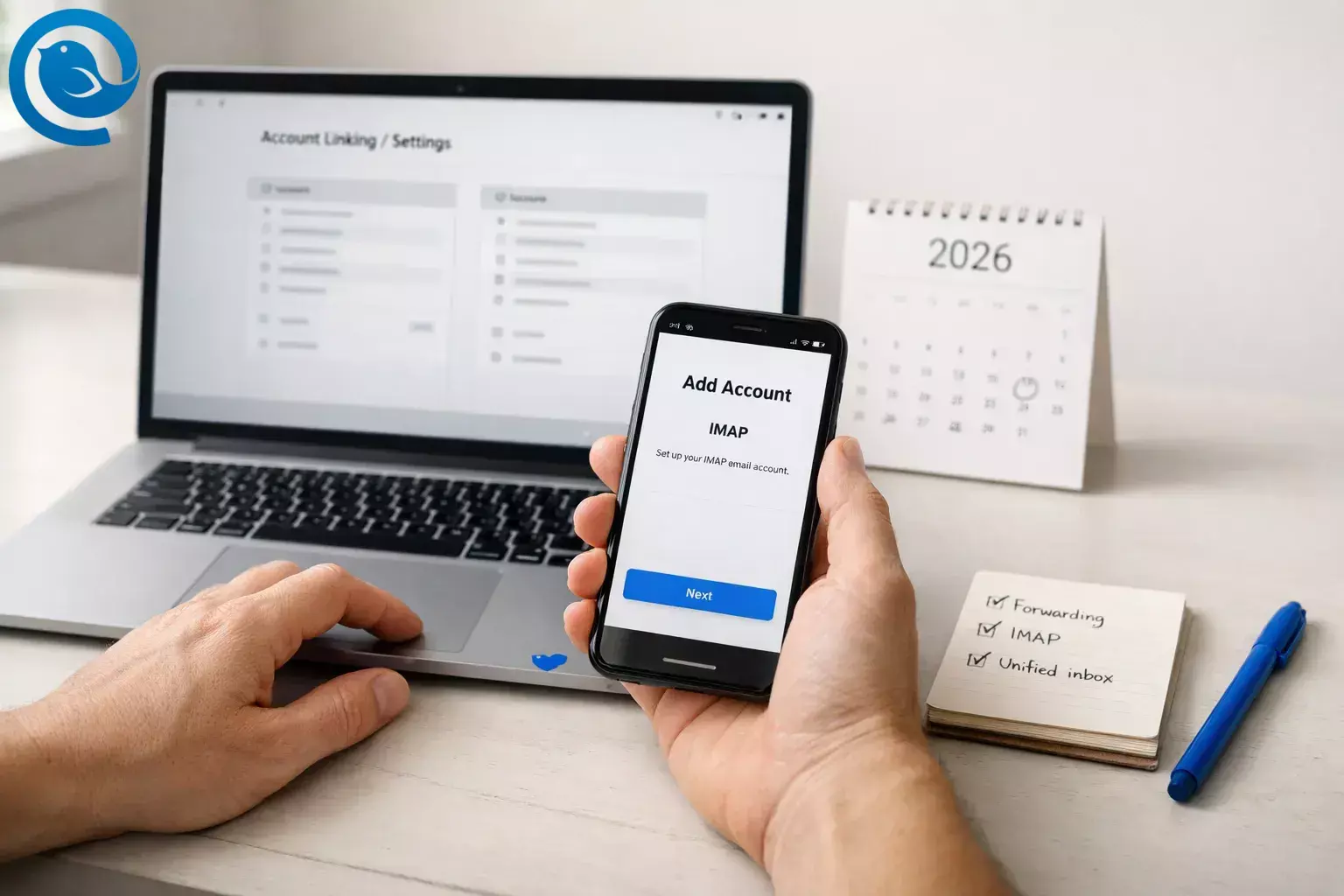
If Gmail suddenly stopped pulling new messages from another mailbox, you were likely using Gmail’s “Check mail from other accounts” (POP fetching) as your hub. When that server-side importer is removed, new mail from your other address can stop arriving—especially if you manage multiple email accounts in one place.
This change is about Gmail importing mail from other providers into Gmail. Google says third-party apps can still connect to your Gmail mailbox directly using POP or IMAP.1
Table of contents
Key takeaways
- Google says it’s removing support for Gmailify and Gmail’s POP-based “Check mail from other accounts.”1
- Support for new users ends by the first quarter of 2026, and existing users keep access until the features are turned down later in 2026.1
- This affects Gmail importing mail from other providers into Gmail—not third-party apps connecting directly to Gmail via POP or IMAP.1
- A dependable replacement is to connect each mailbox directly via IMAP in a desktop email client, then use a unified inbox view for managing multiple email accounts.
- For Gmail accounts, enable IMAP and make sure the labels you use are visible to IMAP.3
- After switching, send a test email to each address and remove any old POP fetching entries (if still visible) so Gmail stops trying to fetch in the background.1
- Optional safety steps include creating a Google Takeout archive and using provider-side forwarding as a temporary bridge.51
- If you’re on a work/school account, confirm what your admin allows (IMAP access and forwarding rules can be restricted).1
Before you start
- Prerequisites: You can sign in to every email account you want to keep (including any 2-step verification prompts). If you’re using a work/school account, confirm what your admin allows (IMAP access and forwarding rules can be restricted).
- Tools: A Windows or Mac computer, a modern web browser, and Mailbird installed.
- Time: One focused setup session, plus extra background time if you have large mailboxes syncing for the first time.
- Cost range: Free to paid (depends on the email client and any paid email services you use).
- Safety notes: Prefer “Sign in with Google/Microsoft” style logins when offered (OAuth). Store any app passwords and downloaded archives in a secure place, and avoid setting up auto-forwarding for sensitive work email unless it’s approved.
The problem: Gmailify sunset + Gmail’s POP fetching is being discontinued
Two related changes can break the “Gmail as a hub” setup:1
- Gmailify sunset: Gmailify was the feature that let Gmail apply Gmail-only perks—like spam protection and inbox organization—to a third-party email address you added. Google is removing support for Gmailify, so those enhancements won’t be available for linked third-party accounts going forward.
- POP fetching removal: Gmail is also removing “Check mail from other accounts,” the POP tool that fetched new mail from another provider into your Gmail inbox. Google notes that messages already synced before the deprecation stay in Gmail (it’s the ongoing “keep fetching” part that changes).
If you’re searching “Gmail POP discontinued,” this is the part being discontinued: Gmail’s POP-based importing of other providers into Gmail—not your ability to use IMAP or POP to access Gmail from a desktop email client.1
Step-by-step: Gmail POP replacement with IMAP + Mailbird Unified Inbox
This workflow replaces Gmail’s POP fetching with direct IMAP connections in a desktop email client, then gives you a single unified inbox view for daily work.
- Confirm which “POP” setup is failing. On a computer, open Gmail and go to
Settings(gear icon) →See all settings→Accounts and Import. If the address you’re missing is listed underCheck mail from other accounts, you’re dealing with the POP fetching change. - Inventory your inboxes (don’t skip this). Write down each address you want in your one-inbox view and note: (a) provider (Gmail/Google Workspace, Microsoft, Yahoo/AOL, custom domain), and (b) whether you must send from that exact address.
- Optional: back up your Gmail data before changing anything. Use Google Takeout to create an archive (select Gmail, create export, then download the archive). Store the file somewhere private (not a shared folder).5
- Install and open Mailbird. Once Mailbird launches, keep it open—your next steps will switch between Gmail settings and Mailbird setup.
- Add your main Gmail account to Mailbird (as your primary desktop setup). In Mailbird, go to
Settings→Accounts→Add, choose Gmail, then complete the “Sign in with Google” flow. Confirm you can open your Inbox and read a message. - Enable IMAP in Gmail so your mail and labels sync properly. In Gmail on the web:
Settings→See all settings→Forwarding and POP/IMAP→ selectEnable IMAP→Save Changes. Then go toSettings→Labelsand ensure the system labels you use are set toShow in IMAP.3 - Add your other Gmail accounts (multiple Gmail accounts, one app). Repeat the previous step for each additional Gmail/Google Workspace account you want in Mailbird (personal, work, side projects). Confirm you see each account listed under Mailbird’s
Accounts. - Add non-Gmail accounts directly to Mailbird using IMAP. In Mailbird, go to
Settings→Accounts→Addand add each non-Gmail address. If you’re prompted for manual settings, use your provider’s published IMAP (incoming) and SMTP (outgoing) settings. For a Gmail address, common IMAP/SMTP server settings areimap.gmail.com(993, SSL) andsmtp.gmail.com(587, TLS).4 - Turn on Mailbird’s Unified Inbox. After you’ve added at least two accounts, click
Unified Inbox(top-left). If it doesn’t appear, go toSettings→Accountsand enableEnable unified account. Then choose which accounts you want included in that unified view.2 - Lock in a simple “Gmail workflow” for daily processing. In Unified Inbox, pick three recent messages from three different accounts: reply to one, archive one, and move one into a folder/label you actually use. Confirm each action happened in the correct account (right “From” address, right folder/label).
- Remove (or stop relying on) Gmail’s POP fetching. In Gmail on the web, go back to
Settings→Accounts and Import. If you still see anything underCheck mail from other accounts, remove it so Gmail stops trying to fetch via POP. Messages already synced into Gmail stay there, but new mail won’t keep syncing through that POP tool.1 - Verify new mail delivery with a test. Send a test email to each address (or ask someone to). Once each message arrives in Mailbird, your Gmail POP replacement is working. If you also want copies to appear inside Gmail, set up automatic forwarding at the other provider as a temporary safety net (Google lists forwarding as an option).1
Why this works
Gmail’s old POP approach worked because Gmail’s servers logged into your other mailbox and pulled messages in on Gmail’s schedule. When that POP fetching is removed, the dependable replacement is to connect to each mailbox directly via IMAP in a desktop email client. A unified inbox gives you the “all accounts in one place” view without depending on Gmail to fetch anything for you.
Troubleshooting
| Symptom | Likely cause | Fix |
|---|---|---|
| “Check mail from other accounts” is missing in Gmail. | Gmail is removing the POP fetching feature. | Connect the outside mailbox directly in Mailbird via IMAP, or use forwarding as a fallback. |
| Mailbird can’t finish Gmail sign-in (authorization hangs or fails). | The authorization flow is getting blocked or stuck. | Retry “Sign in with Google,” then try clearing browser cache/cookies or signing in from a private/incognito window.6 |
| Gmail works on the web, but Mailbird shows missing folders/labels. | IMAP is disabled, or key labels aren’t visible to IMAP. | Enable IMAP in Gmail and set important labels to “Show in IMAP,” then resync. |
| Unified Inbox isn’t available. | Only one account is added, or the unified account option isn’t enabled. | Add at least two accounts, then enable Unified Inbox in Mailbird’s account settings.2 |
| Non-Gmail account adds, but keeps asking for a password. | Credentials are being rejected, or the provider requires a different sign-in method. | Confirm the password is correct, check the provider’s IMAP settings, and re-add the account. |
| Mail downloads, but sending fails or messages stay in Drafts. | SMTP settings/authentication aren’t correct, or the provider blocks SMTP access. | Re-check SMTP server/encryption settings, confirm “requires authentication,” and use the provider’s recommended SMTP port. |
| Replies sometimes send from the wrong address in Unified Inbox. | The wrong “From” account was selected when composing. | Before sending, confirm the “From” address matches the account you intend (especially when replying from the unified view). |
| You see duplicate messages. | You’re receiving the same mail via forwarding and IMAP, or POP download is enabled somewhere else. | Pick one delivery path per account (IMAP-only is simplest). Disable forwarding or stop POP downloads to prevent duplicates. |
| Initial sync is very slow. | Large mailbox history or provider throttling. | Leave Mailbird running to complete the first sync, and close other email apps connected to the same account. |
Variations
- Forward-to-Gmail fallback: Set up forwarding at the outside provider so new mail lands in Gmail, then use Mailbird for the unified desktop view and replies (best when you need a temporary bridge).
- Mobile-first setup: If you mainly read email on your phone, add the outside account in the Gmail mobile app, and use Mailbird on desktop for your unified inbox.
- Mailbird-only (no forwarding): Connect every account directly via IMAP in Mailbird and keep Gmail webmail only as an archive/search option.
- Split by role: Use Unified Inbox for personal accounts, but keep work accounts separate if you need stricter boundaries.
Google lists automatic forwarding and adding accounts in the Gmail mobile app as ways to keep accessing mail from other providers when POP fetching is removed.1
Backup, storage, and scaling
- Make-ahead backup: Create a Google Takeout archive before you remove old POP fetch entries or change a lot of settings. Downloading your data doesn’t delete it from Google’s servers.5
- Storage: Keep exports, app passwords, and server settings in a secure location (a password manager + an encrypted drive is ideal).
- Scaling to many inboxes: Add accounts one at a time, and after each add, send one test message in and one test message out. Only then move to the next account.
- For work/school setups: If this affects an organization account, check with your administrator about allowed access methods and whether they prefer an official migration path for legacy mail flows.1
Frequently Asked Questions
Is Gmail POP discontinued? — POP-based “Check mail”
What’s being removed is Gmail’s POP-based “Check mail from other accounts” (Gmail pulling mail from other providers into your Gmail inbox). Google says third-party apps can still connect to Gmail directly using POP or IMAP.1
Will I lose emails that were already imported into Gmail? — No, stays in
No. Google notes that mail synced into Gmail before the shutdown stays in Gmail. The change affects continuous fetching of new mail from other providers.1
What is Gmailify, and what changes when it sunsets? — Gmail-only enhancements
Gmailify was a way to apply Gmail features (like spam protection and inbox organization) to certain third-party accounts. With Gmailify support being removed, those Gmail-only enhancements won’t apply to linked third-party accounts going forward.1
Can I still use a desktop email client to access my Gmail account? — Yes, POP or IMAP
Yes. Google says third-party apps can still connect to Gmail servers using POP or IMAP. In practice, most users switch to an IMAP-based workflow in a desktop client for better syncing across devices.1
What’s the best Gmail POP replacement for multiple accounts on desktop? — Connect via IMAP
Connect each mailbox directly via IMAP in a desktop email client, then use a unified inbox view to read and reply in one place. That avoids relying on Gmail’s server-side POP fetching and works better for managing multiple email accounts.
Do I need to enable IMAP in Gmail? — Enable IMAP
If you want your Gmail folders/labels to sync in a desktop app, enable IMAP in Gmail settings and make sure the labels you use are visible to IMAP.3
What are the Gmail IMAP/SMTP server settings if I need to enter them manually? — imap.gmail.com port 993
Common settings are IMAP: imap.gmail.com (port 993, SSL) and SMTP: smtp.gmail.com (port 587, TLS). Use “Sign in with Google” when available.4
Why did Gmail POP stop working for me, but my friend’s still works? — Phasing features out
Google is phasing these features out. If your account still shows POP fetching today, treat it as temporary and switch to an IMAP-based workflow in a desktop client or unified inbox setup.1
Quick checklist (screenshot this)
- Checked Gmail
Accounts and Importto confirm I was using “Check mail from other accounts” (POP fetching) - Listed every address I need (and which ones I must send from)
- (Optional) Created a Google Takeout archive backup
- Installed and opened Mailbird
- Added my Gmail account(s) using “Sign in with Google”
- Enabled IMAP in Gmail and set key labels to “Show in IMAP”
- Added non-Gmail accounts to Mailbird via IMAP
- Enabled Unified Inbox and selected the accounts I want in that view
- Sent a test email to each address and confirmed delivery
- Removed old POP fetching entries in Gmail (if still visible) to prevent background failures
- (Optional) Set up provider-side forwarding as a temporary safety net
Sources
Sources
- Google Gmail Help: Learn about upcoming changes to Gmailify & POP in Gmail
- Mailbird Support: Unified Inbox
- Mailbird Support: Enabling IMAP for Gmail
- Mailbird Setup: Access your Gmail.com account with IMAP, SMTP or POP3 (server settings)
- Google Account Help: How to download your Google data (Google Takeout)
- Mailbird Support: Gmail authorizing issue when adding the account to Mailbird


