Gmail Labels vs Folders: Labels Explained + Best Setup
In about 25 minutes, you'll choose the best way to organize Gmail — label-first, folder-style labels, or a hybrid — and set it up with a small label list, a few filters, and a clean inbox workflow.



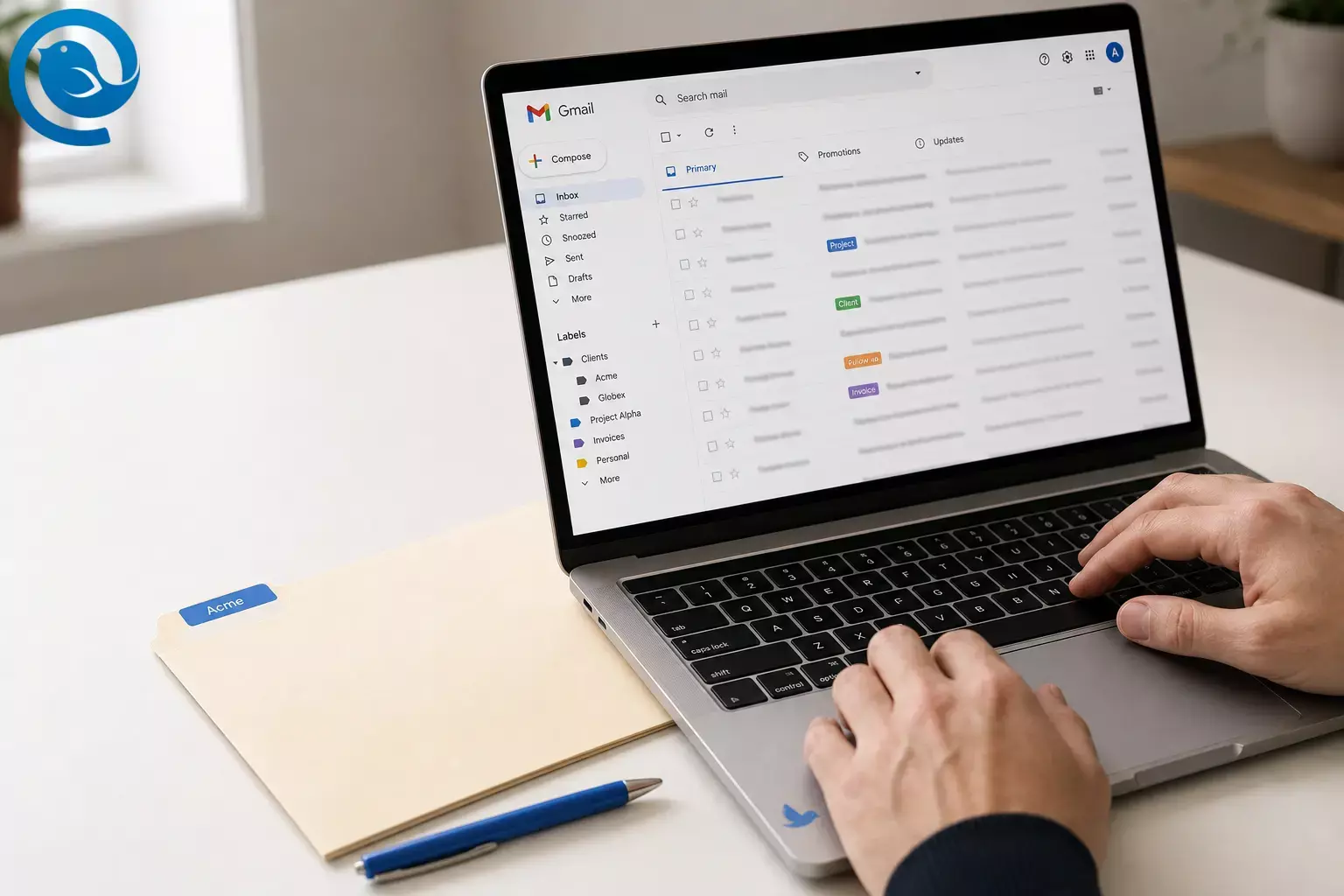
Promise: In about 25 minutes , you’ll choose the best way to organize Gmail (label-first, folder-style labels, or a hybrid) and set it up with a small label list, a few filters, and a clean inbox workflow. Difficulty: easy .
Gmail labels explained: Gmail’s label system lets you attach one or more labels to the same message, create nested labels that look like folders, and (via IMAP) view those labels as folders in desktop email clients like Mailbird. [2] [3] [7]
What’s new
Mobile note: In February 2026, Google began rolling out the ability to create new labels directly in the Gmail app for Android (not just on the web), and it’s rolling out account-by-account. [1]
Key takeaways
- Gmail uses labels, and a message can have more than one label at the same time.
-
Nested labels can mimic a folder tree (for example,
Clients/Acme). - In IMAP email apps, labels can appear as folders; Show in IMAP controls what appears in the folder list.
- Pick one model to start: label-first, folder-style labels (one “home”), or a hybrid.
- Start small: plan 6–12 labels max , then expand only if you need to.
- Filters that auto-apply labels (receipts, newsletters, key senders) make the system stick.
- In real life, Label as , Move to , and Archive determine whether it feels like labels or folders.
- On Android, creating labels in the Gmail app may be available depending on your account rollout.
Quick decision: labels vs folders (in Gmail, it’s labels vs folder-style labels)
-
Label-first (tagging):
choose this if emails regularly belong to more than one category (example:
Client+Project+Status). - Folder-style labels: choose this for classic Gmail folder organization—one clear “home” for each email, and you default to Move to .
-
Hybrid:
choose this if you want one home label plus one small set of status labels (like
ActionandWaiting).
Gmail labels explained: how they differ from folders
Traditional folders push you to pick one location for an email. Gmail labels are more flexible: a message can have multiple labels, and you can create nested labels to mimic a folder tree. [2] [3]
In IMAP email apps, Gmail maps labels into a folder-style view. That’s why labels can look like folders in Mailbird, and why Gmail’s “Show in IMAP” setting controls what appears in your folder list. [3] [7]
| Question | Labels (Gmail) | Folders (classic model) |
|---|---|---|
| Can one email show up in multiple places? | Yes—apply more than one label. [3] | Usually no—one folder at a time. |
| Can I build a folder tree? | Yes—use nested labels. [2] | Yes—use subfolders. |
| What happens in IMAP apps? | Labels can appear as folders (if shown in IMAP). [7] | Folders appear as folders. |
Before you start
- Prerequisites: A Gmail account, and access to Gmail on the web (recommended for setup).
- Optional tool: Mailbird installed if you want your Gmail labels to appear as folders in a desktop client.
- If you want Mailbird syncing: You’ll need IMAP enabled in Gmail, plus “Show in IMAP” turned on for any labels you want to see. [5] [7]
- Time: 25 minutes for a clean baseline; 45–60 minutes if you also label old mail.
- Cost: No extra cost in Gmail to set up labels and filters. (Mailbird plans vary if you choose paid features.)
- Safety notes: When creating filters, avoid “Delete it” until you’ve tested on a few emails. If you’re unsure, label first and archive later.
Step-by-step: organize Gmail with labels (labels vs folders setup)
Organize Gmail with labels (labels vs folders setup)
-
Pick your model in 2 minutes (write it down): Gmail’s label system supports multiple labels on the same message—so you can organize by more than one “dimension” (like
Client+Project+Status). [3] Choose one approach:- Label-first (tagging): you want one email to show up in multiple places.
- Folder-style (single home label): you want one “home” for each email.
- Hybrid: you want one main home plus one or two tags (usually a status label).
Check: You can say “I’m using label-first / folder-style / hybrid” out loud.
Tip: If you’re moving from a traditional folder mindset, folder-style labels are usually the fastest start. You can add overlap later.
-
Create a tiny label plan (don’t open Gmail yet): Open a notes app and write 6–12 labels max . Use this simple template (edit the names to match your life):
-
Contexts (2–5):
Clients,Projects,Finance,Personal -
Status (2–4):
Action,Waiting,Read Later,Reference
Check: Your plan fits on one screen and has 12 labels or fewer.
-
Contexts (2–5):
-
Create your labels on Gmail web: In Gmail, open Settings (gear) → See all settings → Labels , then create the labels from your plan. You can also nested labels (folder-style) such as
Clients/AcmeandClients/Globex. [2]Check: You can click each label in the left sidebar and it opens (even if it’s empty).
-
Choose which labels should appear in IMAP apps: Still in Gmail web settings → Labels , enable Show in IMAP for any label you want to see as a “folder” in Mailbird (and disable it for labels you don’t need in your desktop folder list). [7]
Check: Every label you want in Mailbird has “Show in IMAP” enabled.
-
Practice the 3 actions that decide “labels vs folders” in real life: Pick one email in your inbox and do each action once:
- Label as → adds a label (the message may still remain in Inbox).
- Move to → files it under another label (folder-style behavior).
- Archive → removes it from Inbox without deleting it.
Check: You can find the test message by clicking your label in the left sidebar.
If you want one email to have one home, use Move to . If you want overlap, use Label as and archive later when you’re done.
-
Build 3 “auto-label” rules (filters) you’ll actually keep: In Gmail web, click the search options (sliders icon), create a filter, then choose Apply the label . Start with these common wins:
-
Receipts:
label
Finance/Receipts -
Newsletters:
label
Read Later(optionally skip Inbox) -
One important sender/domain:
label
Clients/AcmeorProjects/Launch
Check: Send yourself a test email that matches one filter and confirm the label appears.
-
Receipts:
label
-
Make your choice “official” with one default rule: Pick one:
- Label-first: keep most labeled mail in Inbox until you archive it manually.
- Folder-style: when you label something, immediately Move to that label (so it leaves Inbox).
-
Hybrid:
Move to one “home” label (
Clients/Acme) and add one status label (Waiting).
Check: You can describe your rule in one sentence (example: “Everything gets moved to a home label, then I add one status label if needed.”).
-
Backfill just one label (10-minute cleanup): Search for a simple batch like
from:amazonorsubject:invoice, select the results, then apply one label. Stop after one label—don’t try to reorganize your whole history today.Check: That label now has older conversations in it (not just new ones).
-
Set up mobile so you can keep the system going: On Android, open Gmail → Menu (☰) and look for Create label . If you don’t see it yet, update Gmail and try again later (rollouts can differ by account), or create labels on the web for now. [1]
Check: You can apply an existing label from your phone to one message.
-
If you use Mailbird, make Gmail labels show up correctly: In Gmail web, go to Settings → See all settings → Forwarding and POP/IMAP and enable IMAP. Then go to Labels and set key labels (including the ones you need, plus important system labels like Sent and Drafts) to Show in IMAP . Add your Gmail account in Mailbird and let the first sync finish. [5] [7]
Check: In Mailbird, you can see Inbox, Sent, Drafts, and at least one custom label as a folder.
If your folder list is cluttered, you can also reorganize and manage folders from within Mailbird after syncing. [6]
-
Run a 5-minute “did I pick the right system?” test: Take one real email and do your normal filing routine. Then answer:
- Did you hesitate because it “belongs” in two places? (That’s a sign to lean label-first.)
- Did you feel calmer once it had one clear home? (That’s a sign to stay folder-style.)
Check: You changed (or confirmed) your model based on what felt easy—not what sounded ideal.
Why this works (quickly)
Folders force a single decision: “Where does this live?” Gmail’s label system supports overlapping categories, so one message can be organized by context (
Client
) and by state (
Waiting
) at the same time.
[3]
If you also use an IMAP email client, Gmail exposes labels in a folder-like structure—so the same plan can work as “labels” on the web and as “folders” in a desktop app like Mailbird. [3]
Troubleshooting
- Symptom: “I labeled an email, but it’s still in Inbox.” Likely cause: A label doesn’t automatically remove the message from your Inbox view. Fix: Use Archive (to remove it from Inbox) or Move to (to file under one home label). [2]
- Symptom: “My Gmail labels don’t show up in Mailbird.” Likely cause: IMAP isn’t enabled, or the label isn’t set to Show in IMAP . Fix: Enable IMAP and turn on Show in IMAP for that label, then sync again in Mailbird. [5] [7]
- Symptom: “I see the same email in multiple ‘folders’ in my email app.” Likely cause: The message has multiple Gmail labels (IMAP shows labels as folders). Fix: If you want folder-style behavior, keep one “home” label per email and remove extra labels (or reserve extra labels for status only). [3]
- Symptom: “I can’t create a new label on the Gmail Android app.” Likely cause: The feature hasn’t reached your account yet, or your app is outdated. Fix: Update Gmail, check the menu for Create label , or create labels on Gmail web until it appears. [1]
- Symptom: “My filter is grabbing the wrong emails.” Likely cause: The filter condition is too broad. Fix: Edit the filter and tighten it: add a specific sender, domain, or exact subject phrase. Then send yourself one test email to confirm.
-
Symptom:
“Nested labels look messy (like Clients/Acme) in my email app.”
Likely cause:
Some apps show the full nested path as the folder name.
Fix:
Keep nesting shallow (1 level), or rename labels to a flat style like
Client - Acme. - Symptom: “Sent/Drafts/All Mail are missing or behave strangely in my desktop app.” Likely cause: Gmail system labels aren’t visible via IMAP. Fix: In Gmail web settings → Labels, set those system labels to Show in IMAP , then sync again. [5] [7]
- Symptom: “Deleting an email from one label deleted it everywhere.” Likely cause: Gmail doesn’t store separate copies per label. Fix: If you meant “remove it from this category,” remove the label instead of deleting the message. [3]
Variations (pick one)
-
The “Folder Convert” setup:
Create nested labels like
Clients/Acme, then always use Move to so each email has one home. -
The “Two-Label” hybrid:
One context label (
Project/Website) + one status label (Waiting). No more than two labels per email unless it’s truly needed. -
The “Minimalist” setup:
Use only 3 labels:
Action,Waiting,Reference. Rely on Gmail search for everything else. -
The “Read Later without clutter” setup:
Create
Read Laterand a filter for newsletters; set it to skip Inbox. Check that label once a day.
Make-ahead / maintenance / scaling
Make-ahead (10 minutes once)
- Save your label plan in a note titled “My Gmail labels” so you can recreate it in another account later.
- Write one rule for yourself: “If it’s not Action/Waiting/Reference, it doesn’t get a label.”
Maintenance (10 minutes weekly)
-
Open
Action, clear it (reply, schedule, or archive). -
Open
Waiting, send follow-ups, then archive anything resolved. - Hide or delete labels you haven’t clicked in 30 days.
Scaling (multiple devices and apps)
- Only enable Show in IMAP for labels you truly need in Mailbird—this keeps your folder list shorter and easier to scan. [7]
- If you want folder-style organization on desktop, treat your Gmail labels as folders in Mailbird and stick to one “home” label per message (plus optional status labels). [3] [7]
What can change: Gmail mobile features roll out gradually, and menu labels can move. If a step doesn’t match your screen, use Gmail on the web for setup and return to mobile for day-to-day labeling.
Frequently Asked Questions
Does Gmail have folders, or only labels?
Gmail organizes email with labels. If you like a folder tree, you can use nested labels to mimic folders. [2]
Can one email have more than one Gmail label?
Yes. A single message can have multiple labels, which is why one conversation can show up in more than one place in Gmail (and in IMAP clients). [3]
What’s the difference between “Label as” and “Move to” in Gmail?
“Label as” adds a label, while “Move to” is the folder-style action that files a message under a label. [2]
Why do Gmail labels show up as folders in some email clients?
Why are my Gmail labels missing in Mailbird?
Can I create nested labels (like subfolders) in Gmail?
Yes. Nested labels let you build a folder-style tree (for example,
Clients/Acme
) while still keeping the option to add status labels like
Waiting
.
[2]
Do I need to turn on “Show in IMAP” for every label?
No. Turn it on only for the labels you want to see as folders in IMAP apps. Keeping it selective makes your folder list easier to scan. [7]
Quick checklist (screenshot this)
- I chose one model: label-first / folder-style / hybrid
- I wrote a label plan with 12 labels or fewer
- I created the labels (and nested labels if needed) in Gmail web
- I enabled “Show in IMAP” for labels I want to see in Mailbird
- I practiced: Label as vs Move to vs Archive
- I created 3 filters that auto-apply labels
- I backfilled one label on old mail (10 minutes max)
- (Optional) I enabled IMAP in Gmail and synced Mailbird
- I tested one message across web + phone + Mailbird
Sources
- 9to5Google — “Gmail for Android finally lets you create new labels” (Feb 11, 2026)
- Google Gmail Help — Create & manage labels in Gmail
- Google for Developers — Gmail IMAP Extensions (X-GM-LABELS)
- Google for Developers — Gmail API Guide: Manage labels
- Mailbird Support — Enabling IMAP for Gmail (and showing system labels in IMAP): https://support.getmailbird.com/hc/en-us/articles/220106527-Enabling-IMAP-for-Gmail
- Mailbird Support — How to organize folders from within Mailbird: https://support.getmailbird.com/hc/en-us/articles/220107107-How-to-organize-folders-from-within-Mailbird
- Microsoft Support — How to show or hide folders for IMAP in Google Settings (“Show in IMAP”)


