Outlook Focused Inbox: Focused vs. Other and How to Turn It Off
Focused Inbox splits messages in your Outlook Inbox between Focused and Other. To see them in one list, turn off Focused Inbox in the Outlook version you use. This does not delete messages in Other or change your Junk Email folder.



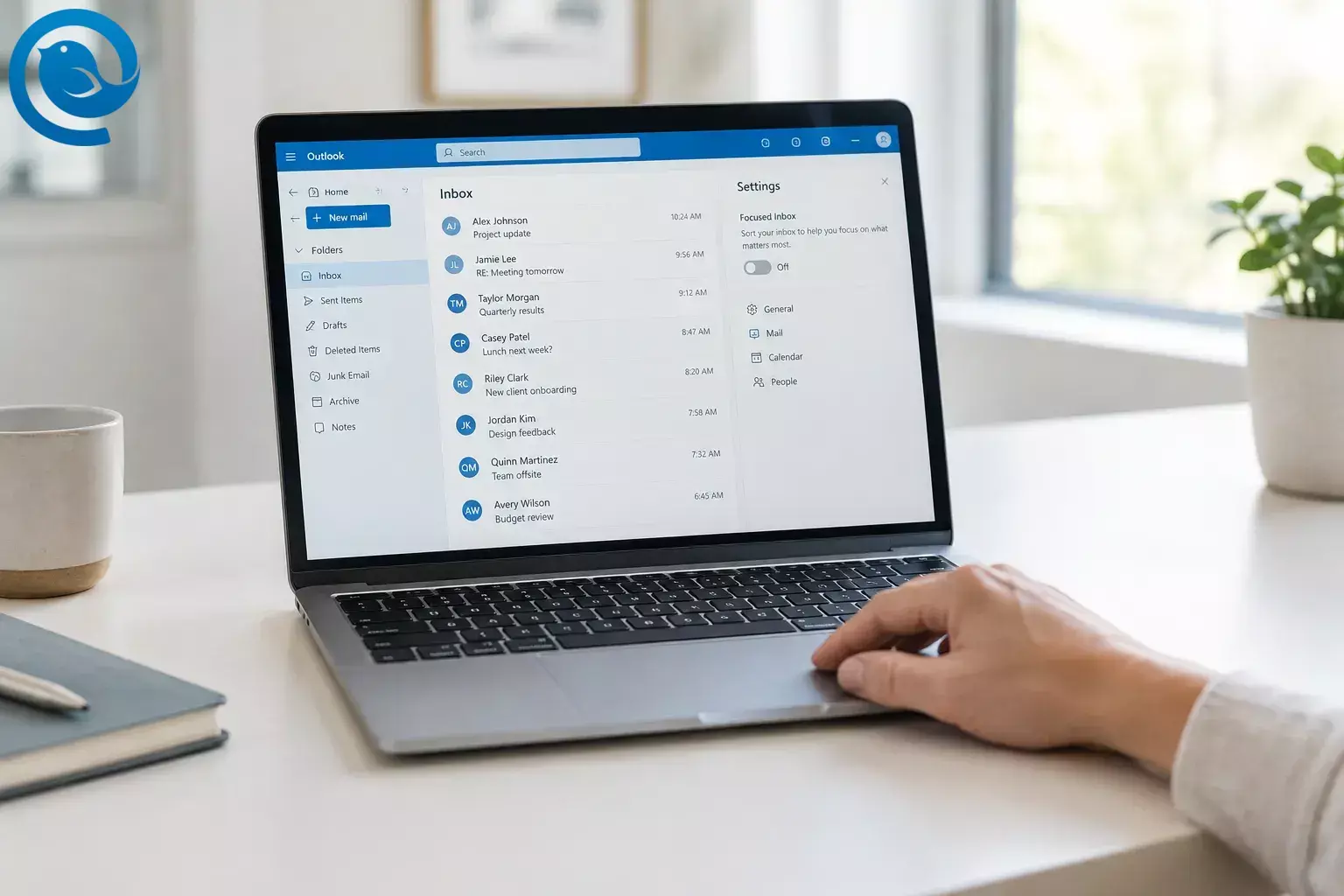
Focused Inbox splits messages in your Outlook Inbox between Focused and Other. To see them in one list, turn off Focused Inbox in the Outlook version you use. This does not delete messages in Other or change your Junk Email folder. [1]
At a glance
- Other is an Inbox tab, not the Junk Email folder.
- Use the steps for the Outlook version and account where you see the two tabs.
- In new Outlook or on the web, look under Mail → Message List or Mail → Layout.
- In classic Outlook, use View → Show Focused Inbox.
- In the iPhone or Android app, turn off Focused Inbox in Settings → Mail, or directly in Settings if the toggle appears there.
- Turning off the split does not bring messages back from Junk Email, Archive, or other folders.
Before you start
Open Other and check for messages you need. Other is an Inbox tab, not a separate folder. If you use multiple Outlook accounts or apps, start with the Inbox where you see the two tabs and check your other Inboxes afterward. [1]
How to turn off Focused Inbox in Outlook
Use the instructions for your version. On Windows, a File tab points to classic Outlook; new Outlook has a Settings gear. If you read mail in a browser, use the web instructions. [4]
New Outlook for Windows
- Inbox.
- View → View Settings → Mail → Message List. You can also open settings using the gear at the top. If an account selector appears, choose the affected account. [1]
- Sort messages into Focused and Other and select Save. If your settings instead show Mail → Layout → Focused Inbox, choose Don’t sort my messages and save. [1, 7]
Classic Outlook for Windows
- Open the affected account’s Inbox.
- Select View → Show Focused Inbox to switch it off. The Focused and Other tabs should disappear. [1]
Outlook on the web
Outlook app for iPhone or Android
- Open the app menu from your profile picture, Home, or the menu icon.
- Tap Settings → Mail and turn off Focused Inbox. If the toggle appears directly under Settings, use it there instead. [3, 5]
Return to the affected Inbox and check that Focused and Other no longer appear. If you still see the tabs in another app or account, check its setting too.
Focused vs. Other: why does mail land in Other?
Outlook uses your interactions with senders and contacts, among other signals, to sort Inbox messages. Messages it places in Focused appear in one tab; the remaining Inbox messages appear in Other. An important message can land in Other, so it is worth checking both tabs while the feature is on. [1]
Other is not the same as Junk Email. Turning off Focused Inbox puts the messages from both Inbox tabs into one view, but it does not bring mail back from Junk Email, Archive, or other folders. [1, 2]
Prefer to keep Focused Inbox? Teach Outlook where mail belongs
- Move one message: In new Outlook, classic Outlook, or Outlook on the web, open Other, right-click the message, and choose Move to Focused or Move → Move to Focused inbox. You can also move a message from Focused to Other. See our guide to organize emails in Outlook. [1]
- Set a preference for a sender: Right-click a message and choose Always move to Focused inbox or Always move to Other inbox. The wording may be shorter in classic Outlook. [1]
- Move a message in the phone app: Open it, tap More options, and choose Move to Focused inbox or Move to Other. [3]
If the tabs are still there
- The tabs remain after you save: Check that you changed the setting for the account whose Inbox has the tabs. Then reopen that Inbox. [1]
- You cannot find Message List: Look under Mail → Layout → Focused Inbox for Don’t sort my messages. Outlook’s settings paths can differ by version. [1, 2]
- You cannot find Show Focused Inbox: Check whether you are using classic Outlook, new Outlook, or the web before following the corresponding steps. [1, 4]
- A message still seems missing: Check Junk Email, Archive, Deleted Items, folders used by rules, and any message-list filter. Turning off Focused Inbox only changes the Inbox split. [1, 2]
- Your phone still alerts you to only some mail: Check Settings → Notifications in the Outlook app. On iPhone, check Badge count too. [3]
Frequently asked questions
Does turning off Focused Inbox delete messages in Other?
No. Other is an Inbox tab. Turning off Focused Inbox shows those messages together with the rest of your Inbox. [1]
Is Other the same as Junk Email?
Why did an important email go to Other?
Outlook’s sorting can place it there based on how you interact with mail and contacts. You can move it to Focused or choose Always move to Focused inbox for future messages from that sender. [1]
Can I turn off Focused Inbox in the Outlook iPhone or Android app?
How do I get Focused and Other back?
Return to the same setting and turn Focused Inbox on. In classic Outlook, select View → Show Focused Inbox again. [1]
Quick checklist
- ☐ Open the affected account’s Inbox and check Other.
- ☐ Follow the instructions for new Outlook, classic Outlook, the web, or the phone app.
- ☐ Turn off Focused Inbox and save if prompted.
- ☐ Check that the two tabs are gone. Repeat in any other app or account that still shows them.
Want a different desktop email app?
If you would rather manage your email accounts in a desktop app, try Mailbird Next for Windows or Mac. It is free to download; switching apps is optional and does not change Outlook’s Focused Inbox setting. [6] Learn how to migrate from Outlook to Mailbird.
Sources
- Microsoft Support — Focused Inbox for Outlook
- Microsoft Support — Change the look of your mailbox on the web
- Microsoft Support — Focused Inbox on iPhone and Android
- Microsoft Support — What version of Outlook do I have?
- Microsoft Support — Disable Focused Inbox in Outlook mobile
- Mailbird — Mailbird Next for Windows and Mac
- Microsoft Support — Change how the Outlook message list is displayed


