How to BCC in Outlook
To add a BCC recipient, open an Outlook draft, show the Bcc field using the steps for your version, and enter the address before sending. You can also keep the field visible and check who you BCC’d in Sent Items.



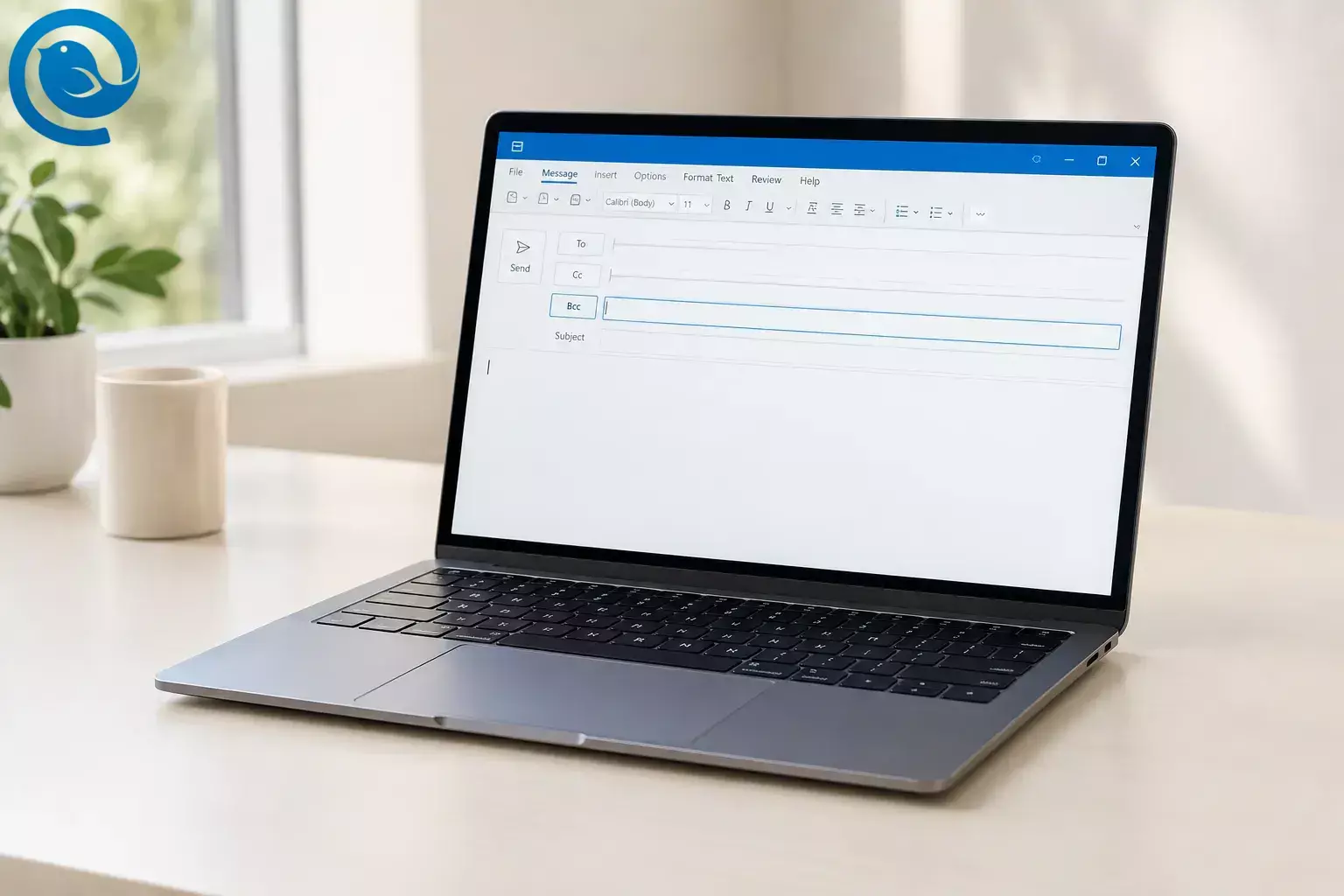
To add a BCC recipient, open an Outlook draft, show the Bcc field using the steps for your version, and enter the address before sending. You can also keep the field visible and check who you BCC’d in Sent Items.
Key takeaways
- Bcc sends someone a copy without showing their address to the other recipients.
- How you show the Bcc field depends on the Outlook version you’re using.
- Keeping the field visible does not add a recipient automatically.
- Review the addresses in To, Cc, and Bcc before sending.
- Check the Bcc list in your sent copy; other recipients cannot see it in their copies.
What does BCC mean in Outlook?
Bcc means “blind carbon copy.” It sends someone a copy without showing their address to the other recipients.
How to add BCC to an Outlook email
Start a new message, reply, or forward, then follow the instructions for the Outlook version you’re using. Once the Bcc field appears, continue with the sending steps below.
New Outlook for Windows
- In the draft, select Options → Show fields → Show Bcc.
- Check that the Bcc line appears with the recipient fields.
Classic Outlook for Windows
- If the draft is in its own window, select Options → Bcc.
- If you’re replying in the Reading Pane, select Bcc on the ribbon instead.
- Check that the Bcc line appears.
Outlook on the web or Outlook.com
- Select Bcc at the right end of the To line.
- Check that the Bcc line opens.
Outlook for Mac
- Select Bcc at the end of the To line.
- Check that a Bcc box appears.
Outlook for iPhone or Android
- Expand the recipient fields beside To if they’re collapsed. On iPhone, the control is labeled Show Cc and Bcc.
- Tap the Bcc field. If you use a screen reader, move through the recipient controls until it announces the field.
Finish and send
- Enter the hidden recipient’s address in Bcc and confirm that it appears there—not in To or Cc.
- Add the intended visible recipient to To, then write your subject and message.
- Send.
How to keep BCC visible in Outlook
- New Outlook for Windows and Outlook on the web: Go to Settings → Mail → Compose and reply, turn on Always show Bcc, and select Save if offered.
- Classic Outlook for Windows: Turn on Options → Bcc in a message window. The field stays visible for future messages until you turn it off.
- Outlook for Mac: Choose Outlook → Settings → Composing → Show BCC field by default.
- Outlook for iPhone or Android: Expand the recipient fields while composing whenever Bcc is hidden.
How to see who you BCC’d in Sent Items
- Open Sent Items, which may be labeled Sent.
- Open the message from the account you used to send it.
- Inspect the recipient header. If it’s shortened, expand it to look for the full Bcc list.
You can check Bcc recipients in your sent copy; other recipients cannot view your Bcc list in the copies they received. If Bcc names are missing from a sent message in Outlook for Mac, some IMAP providers may not include them in the sent copy Outlook displays. Check the sent copy with your email provider.
If you can’t find the BCC field
- No “Show fields” under Options? You may be using classic Outlook. Try Options → Bcc instead.
- Replying in classic Outlook? Look for Bcc on the Reading Pane ribbon, or open the reply in its own window and select Options → Bcc.
- Using a browser? Start a draft and select Bcc at the right of To.
- Using a phone? Expand the recipient fields beside To.
- Bcc seems hidden on a reply in new Outlook? Expand the reply’s recipient row and inspect it before sending, even if Always show Bcc is on.
Frequently asked questions
Where is BCC in new Outlook?
Open a draft and select Options → Show fields → Show Bcc.
Can recipients see who I BCC’d?
No. Other recipients cannot see the Bcc recipients in their copies of the message.
How do I check BCC recipients after sending?
Open the message in Sent Items and expand its recipient header if the list is shortened.
Prefer a different desktop email app?
- Microsoft Support: Show, hide, and view Bcc in Outlook for Windows
- Microsoft Support: Create and respond to messages in Outlook on the web
- Microsoft Support: Show, hide, and view Bcc in Outlook for Mac
- Microsoft Support: Basic email tasks in Outlook for iOS and Android
- Microsoft Q&A: Show Bcc by default in new Outlook
- Microsoft Q&A: Recipient fields on replies in new Outlook
- Microsoft Support: IMAP Sent Items and missing Bcc recipients on Mac


