How to Zoom In or Out in Outlook
To make an email easier to read, select it and use your version of Outlook’s reading-pane zoom control. To make sender names and subject lines bigger, change the message-list text size instead. The steps below cover new Outlook, classic Outlook, Outlook on the web, and Outlook for Mac.



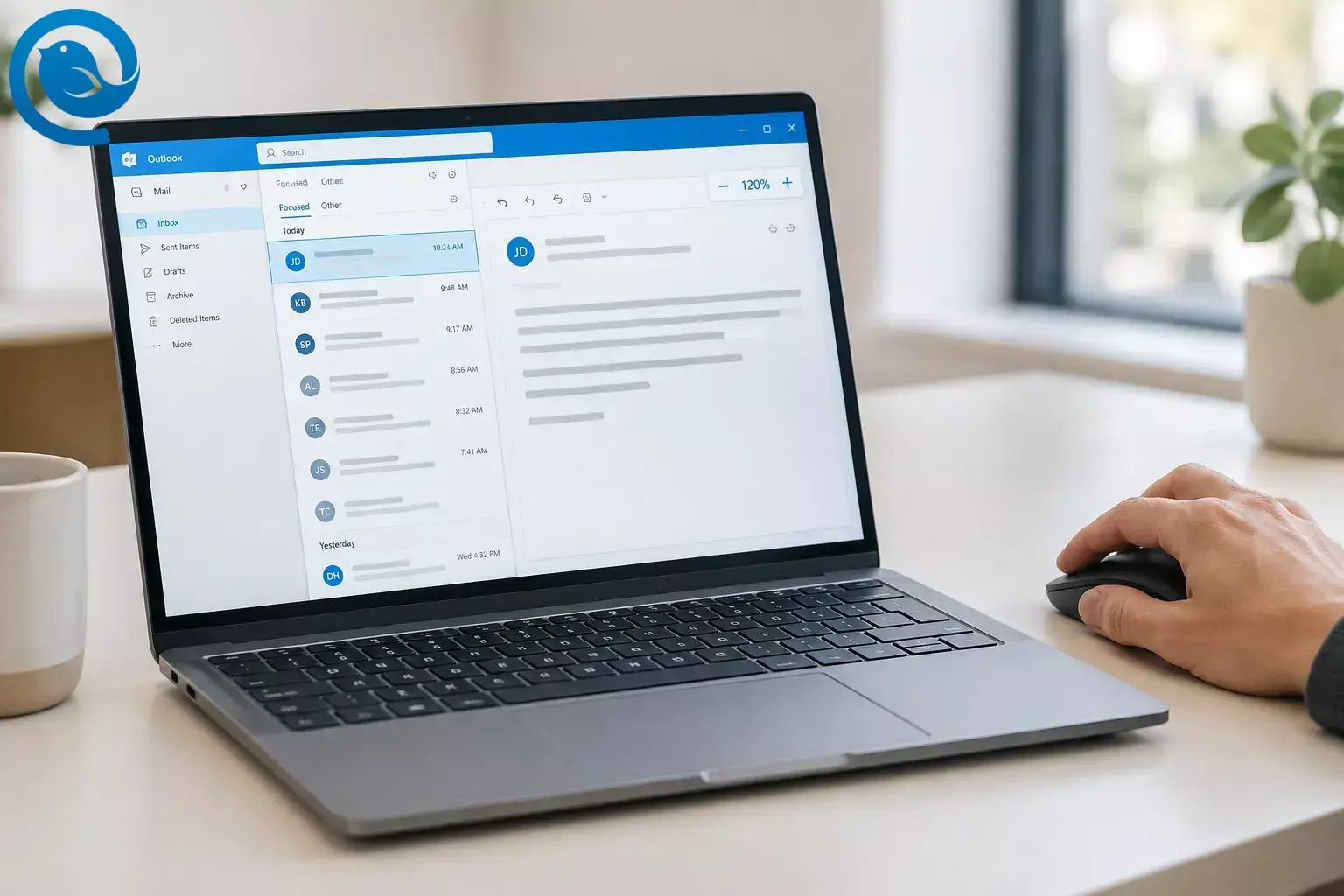
To make an email easier to read, select it and use your version of Outlook’s reading-pane zoom control. To make sender names and subject lines bigger, change the message-list text size instead. The steps below cover new Outlook, classic Outlook, Outlook on the web, and Outlook for Mac.
Key takeaways
- Reading-pane zoom changes how large an email looks while you read it. [1]
- Message-list text settings change sender names and subjects in the inbox. [2]
- In new Outlook or Outlook on the web, select View > Zoom > Reset to return an email to its default size. [4]
- In classic Outlook, click inside the reading pane, hold Ctrl, and roll the wheel. [1]
- Unlike message zoom, browser zoom changes the size of the whole Outlook page. [5]
First, choose your Outlook version
On Windows, an Outlook app with File on the ribbon is classic Outlook. Use the new Outlook steps for the newer Windows app. If Outlook is open in a browser tab, use the web steps; if it is an app on your Mac, use the Mac steps. Menu names can vary by version, so follow the controls you see on your screen. [1]
Zoom in new Outlook for Windows
Make the email in the reading pane bigger
- Select an email so you can see its contents in the reading pane.
- Choose View > Zoom, then select + to zoom in or − to zoom out.
- Select Reset to return the message to its default size. [1]
This changes the email you are viewing, not the inbox list. If the next message appears at its default size, zoom that message separately. [1]
Make the message list bigger
- Choose View > View settings > Mail > Layout.
- Under Text size and spacing, select Large to enlarge sender names and subjects, or Small to fit more on screen.
- Save. [2]
Zoom in classic Outlook for Windows
Zoom the reading pane
Select an email and move the zoom slider at the bottom right of the Outlook window. You can also click inside the reading pane, hold Ctrl, and roll your mouse wheel away from you to zoom in or toward you to zoom out. Neither method enlarges the inbox list. [1]
Try to keep your reading zoom level
- Click the zoom percentage beside the slider.
- Choose a zoom level. If Remember my preference appears, select it and click OK.
- Open another email to check whether the level stays the same.
If you do not see that option, try opening an email in its own window and choosing Zoom on the ribbon. The option to save a reading zoom preference may depend on your Outlook subscription and version; otherwise, you may need to zoom each message separately. [1]
Enlarge the message list
- In Mail, choose View > View Settings > Other Settings > Row Font.
- Pick a larger font size and confirm the dialogs with OK.
- If the column headings also need to be bigger, return to Other Settings and adjust Column Font. [2] [3]
Check the inbox view for larger sender names and subjects. This setting is separate from reading-pane zoom.
Zoom in Outlook on the web
Enlarge one email
Select an email in the reading pane, choose View > Zoom, and use the zoom-in or zoom-out control. Choose Reset to return to the default. [4]
Enlarge the inbox, folders, and buttons too
Use your browser’s page zoom. In Microsoft Edge on Windows, press Ctrl + Plus to zoom in, Ctrl + Minus to zoom out, or Ctrl + 0 to reset. On a Mac in Edge, use Command instead of Ctrl. You can also adjust Zoom from the browser menu. Unlike message zoom, browser zoom changes the size of the whole Outlook page. [5]
Make Outlook text bigger on a Mac
Enlarge an email you are reading
Select the message and try Format > Increase Font Size or Decrease Font Size. With the message open or selected in the reading pane, you can also try Command + Plus or Command + Minus. These controls change how you view the message, not the font you send to someone else. [6] [7]
Check the text display settings
In the current Outlook for Mac, open Outlook > Settings > Reading and look for Preview font for message. If your version instead has Outlook > Settings > Fonts > Text display size, use its slider to adjust the sidebar and message list. Use the setting your version shows. [6]
If Outlook’s controls are still too small on Windows
As a last resort, open Start > Settings > System > Display and choose a larger available option under Scale. This makes other apps larger too. If you only need larger text across Windows, try Settings > Accessibility > Text size instead. [8]
Troubleshooting Outlook zoom
- Zoom is grayed out: Select an email in the reading pane, then try View > Zoom again. [1]
- The email gets bigger, but the inbox does not: Change Text size and spacing in new Outlook or Row Font in classic Outlook. [2]
- The next email is small again: In classic Outlook, look for Remember my preference if your version offers it. In new Outlook, zoom the next message as needed. [1]
- You cannot find the zoom slider: You may be using new Outlook. Select an email and try View > Zoom instead. [1]
- You cannot see a reading pane: In new Outlook, choose View > Reading Pane and show it on the right or bottom. In classic Outlook, choose View > Reading Pane > Right or Bottom. [1]
- Changing the compose font does not enlarge incoming mail: Compose settings affect text you write. Use reading-pane zoom or message-list settings for mail you receive. [9]
Frequently asked questions
How do I reset Outlook zoom to normal?
Can I zoom Outlook with a mouse wheel?
In classic Outlook, click inside the reading pane, hold Ctrl, and roll the wheel. If that does not work in your version, use its zoom control instead. [1]
Want another desktop email option?
If you would prefer a different inbox layout, Mailbird for desktop is a desktop email client for Windows and Mac. You do not need to switch apps to use any of the Outlook fixes above. [10]
Sources
- Microsoft Support: Use and configure the Reading Pane in Outlook
- Microsoft Support: Change the font or font size in the message list
- Microsoft Support: Create, change, or customize a view in Outlook
- Microsoft Support: Change font size in Outlook on the web
- Microsoft Support: Keyboard shortcuts in Microsoft Edge
- Microsoft Support: Change font sizes in Outlook for Mac
- Microsoft Support: Keyboard shortcuts in Outlook for Mac
- Microsoft Support: Change the size of text in Windows
- Microsoft Support: Change the default font for Outlook email messages
- Mailbird: Mailbird Next for Windows and Mac


