How to Switch Back to Classic Outlook
Quick answer: To go back to classic Outlook, open new Outlook on Windows, click the top-right toggle, choose Switch back to classic Outlook, and wait for Outlook (classic) to open. If the toggle is missing, classic Outlook may not be installed, or your IT team may have hidden it on a work PC.



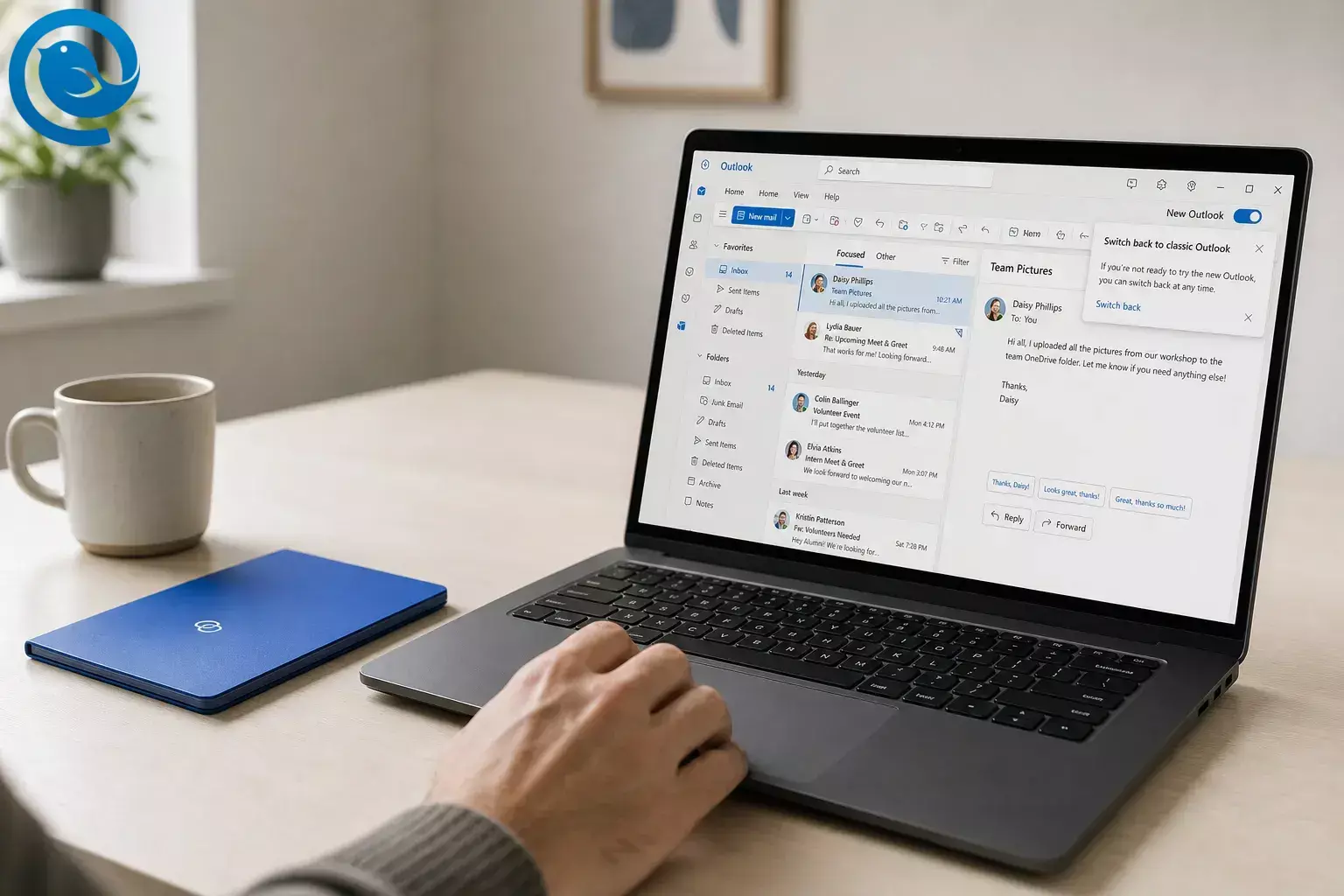
Quick answer: To go back to classic Outlook, open new Outlook on Windows, click the top-right toggle, choose Switch back to classic Outlook , and wait for Outlook (classic) to open. If the toggle is missing, classic Outlook may not be installed, or your IT team may have hidden it on a work PC. 1 5 8
Windows only This guide covers the Outlook app, not Outlook on the web. Save any draft you care about before you switch. 1 2
What’s new
What triggers the automatic move to new Outlook
Microsoft says eligible classic Outlook users started being automatically moved to new Outlook in two waves: some personal account users from , and some small and medium business users on Current Channel with a Business plan from . On work PCs, IT can also hide the toggle or manage migration by policy. Microsoft’s migration guide also says users can still revert during the opt-out stage. 2 4 8
TL;DR
- Use the top-right toggle in new Outlook, or Help > Go to classic Outlook , to switch back. 1 2
- Choose Switch back to classic Outlook for a full return, or Use classic Outlook this time if you only need the old app once. 1
- If Outlook (classic) is missing, install it first; Microsoft says many devices starting in 2024 shipped with only new Outlook preinstalled. 5
- To stop future switching, clear Automatically switch me to new Outlook if that option appears in classic Outlook. 2
-
If classic Outlook opens and throws you back into the newer app, set
UseNewOutlookto0. 1 - On work PCs, IT may have hidden the toggle or enabled admin-controlled migration. 8
- Keep classic Outlook installed if you rely on PST files , COM add-ins, VBA macros, or offline-heavy work. 3 6 7
Quick steps to go back to classic Outlook
- Open new Outlook on your Windows PC.
- Click the toggle at the top right. If you see Help > Go to classic Outlook , that works too.
- Choose Switch back to classic Outlook .
- If you only need old Outlook for one task, choose Use classic Outlook this time instead.
- Wait for Outlook (classic) to open. If nothing happens, use the detailed fix below.
This is the fastest path when classic Outlook is still installed on the PC. 1 2 5 10
Step-by-step: how to switch back to old Outlook
Start at Step 1 and stop as soon as classic Outlook opens and the feature you need works again.
How to Switch Back to Classic Outlook
- Open the Outlook desktop app that changed on you. Press the Windows key, type Outlook , and open the app. If both versions appear in Start, the old one is labeled Outlook (classic) . 1 2
- Find the switch. In new Outlook, click the toggle at the top right. If you can see Help > Go to classic Outlook , you can use that instead. 1 2
- Pick the right option. Choose Switch back to classic Outlook for a full return. Choose Use classic Outlook this time if you only need the old app once right now. 1
- Let new Outlook close. You may see a feedback prompt. Classic Outlook should open next. 1
- If classic Outlook does not open, launch it yourself. Open Start, search for Outlook (classic) , and run it manually. 1
- If Outlook (classic) is missing, install it. Microsoft says many devices starting in 2024 shipped with only new Outlook preinstalled. Use Microsoft’s install or reinstall page for classic Outlook, finish setup, then open Outlook (classic) from Start. 5
- Turn off future auto-switching if you can. In classic Outlook, go to File > Options > General > New Outlook options and clear Automatically switch me to new Outlook . If that setting is missing, Microsoft says you are not currently eligible for that specific user option. 2
-
Fix the “keeps bouncing back” problem.
Open Registry Editor and go to
Computer\HKEY_CURRENT_USER\Software\Microsoft\Office\16.0\Outlook\Preferences. OpenUseNewOutlook, set it to0, close Registry Editor, and launch Outlook (classic) again. 1 - If this is a work PC, ask IT two direct questions. Ask whether the new Outlook toggle is hidden and whether automatic or admin-controlled migration is enabled. 8
- Pin the version you actually want. In Start, right-click Outlook (classic) and choose Pin to taskbar or Pin to Start . If you still need both versions, pin both apps. 9
- Test the exact feature that broke in new Outlook. Open the add-in, macro, PST archive, rules export, or offline task that pushed you back to classic Outlook in the first place. 3 6 7
If the toggle is missing or nothing happens
- Search Start for Outlook (classic). If it is there, open it manually. 1
- If Outlook (classic) is missing, install it first. Microsoft says many newer PCs came with only new Outlook preinstalled. 5
- If classic Outlook opens and then throws you back into new Outlook, set UseNewOutlook to 0 . 1
- If this is a work PC, ask whether IT hid the toggle or is managing migration centrally. 8
How to stop Outlook from auto-switching you again
Once classic Outlook is open again, do these next.
- Clear the auto-switch setting in classic Outlook if you can see File > Options > General > New Outlook options . 2
- Pin Outlook (classic) to your taskbar or Start so you do not open the wrong version by accident. If you use both, pin both. 9
- Keep classic Outlook installed if you rely on PST files. Microsoft says PST access in new Outlook still requires classic Outlook to also be installed. 3 6
- If you are helping a team, let IT do it once centrally instead of repeating the same manual fix on every PC. 8
The toggle and its limits
- Switch back to classic Outlook is the full return option. New Outlook closes and classic Outlook should open. 1
- Use classic Outlook this time is a one-time return. A later launch can still send you back to new Outlook. 1
- The switch is not always available. If classic Outlook is not installed, or if your IT team hid the toggle, you may not see it. 5 8
- The setting that stops future automatic switching only appears for eligible users. 2
Troubleshooting
Outlook (classic) opens for a second, then I land back in new Outlook
Likely cause:
The
UseNewOutlook
value is still set to
1
.
Fix:
Set
UseNewOutlook
to
0
in the Preferences path, then relaunch classic Outlook.
1
My brand-new PC has only new Outlook, or classic Outlook is not available in the Microsoft Store
Likely cause: Microsoft says many devices starting in 2024 shipped without the classic app.
Fix: Use Microsoft’s classic Outlook install or reinstall page, then launch Outlook (classic) from Start. 5
My add-in, macro, or CRM button disappeared in new Outlook
Likely cause: COM add-ins, VBA macros, Outlook Object Model, and MAPI are not supported in new Outlook.
Fix: Stay in classic Outlook for that task, or ask the vendor whether a web add-in replacement exists. 3
My PST archive or offline setup feels broken in new Outlook
Likely cause: PST support and offline support are still partial in new Outlook, and PST access in new Outlook currently requires classic Outlook to also be installed.
Fix: Use classic Outlook for archive-heavy or offline-heavy work, or keep both apps available. 3 6 7
My work computer ignores every change I make
Likely cause: Your organization may be hiding the toggle or enforcing automatic or admin-controlled migration.
Fix: Send IT the exact problem and ask whether the toggle or migration policy is being managed centrally. 8
New Outlook missing features that still send people back to classic Outlook
If you switched back because something disappeared, Microsoft’s own feature comparison still lists several gaps, partial features, and upcoming items in new Outlook. 3
Add-ins and automation
COM add-ins, VBA macros, Outlook Object Model, and MAPI are not supported in new Outlook. If your work depends on a plug-in, macro, or desktop integration, classic Outlook is still the practical choice. 3
Rules and mail controls
Rules are only partially available, rules import and export are not supported, Quick Steps are only partially available, and voting buttons are not supported. 3
PST and archive work
New Outlook can open and search PST files, move or copy items, and export to PST, but Microsoft still marks PST support as partial and says opening PST files in new Outlook requires classic Outlook to also be installed. 3 6
Offline behavior
Microsoft marks offline support as partial, and some actions and views still are not available when you are disconnected. 3 7
Legacy and enterprise features
Public folders and search folders are only partially available, multiple mail profiles are still marked upcoming, access to files on network shares is not supported, and SharePoint calendar sync is not supported. 3
On-prem Exchange
Microsoft lists Exchange on-prem and on-prem ADFS as only partially available in new Outlook, supported via IMAP with limited functionality. 3
How long classic Outlook is supported
Microsoft says existing classic Outlook installations under perpetual and subscription licensing are supported until at least 2029. Its migration guide also says users can still revert during the opt-out stage, and IT administrators in managed enterprise plans will get at least 12 months of notice before cutover. 4
Frequently Asked Questions
Can I go back to classic Outlook after Microsoft switched me automatically?
Where is the button to go back to classic Outlook?
Why is the toggle missing?
Why did Outlook switch me to the new version?
How do I stop Outlook from switching me back to the new version?
Can I keep both new Outlook and classic Outlook installed?
Yes. Microsoft supports running new Outlook and classic Outlook side by side during the transition. 9
How long will classic Outlook be supported?
Microsoft says existing classic Outlook installations under perpetual and subscription licensing are supported until at least 2029. 4
What features are still missing in new Outlook?
Do I need classic Outlook installed to use PST files in new Outlook?
Yes, for now. Microsoft says opening PST files in new Outlook requires classic Outlook to also be installed, and the two apps need matching 32-bit or 64-bit architecture. 6
Quick checklist
Screenshot this before you close the page.
- Opened the Windows Outlook app, not a browser tab
- Clicked the top-right toggle or used Help > Go to classic Outlook
- Chosen Switch back to classic Outlook or Use classic Outlook this time
- Confirmed Outlook (classic) opens
- Installed classic Outlook if it was missing
- Cleared Automatically switch me to new Outlook if the option appeared
-
Set
UseNewOutlookto0if classic kept bouncing back - Asked IT about a hidden toggle or migration policy if this is a work PC
- Pinned the Outlook version you actually want
Done fighting Outlook version drama?
If you want a calmer desktop email setup after things are stable again, try Mailbird .
Sources
- Microsoft Support — Toggle out of the new Outlook for Windows
- Microsoft Support — Switch to new Outlook for Windows
- Microsoft Support — Feature comparison between new Outlook and classic Outlook
- Microsoft Learn — Stages of migration to new Outlook for Windows
- Microsoft Support — Install or reinstall classic Outlook on a Windows PC
- Microsoft Support — Open and find items in an Outlook Data File (.pst)
- Microsoft Support — How to work offline in Outlook for Windows
- Microsoft Learn — Control installing and using new Outlook
- Microsoft Support — Run new Outlook and classic Outlook side-by-side
- Microsoft Support — Go back to classic Outlook button not working correctly in new Outlook


