Outlook View Changed? How to Reset Your Inbox Layout
If your Outlook inbox suddenly looks different, check the reading pane, message previews, spacing, conversation grouping, and sorting before changing anything else. This guide changes the view within Outlook; it does not cover switching between new and classic Outlook.



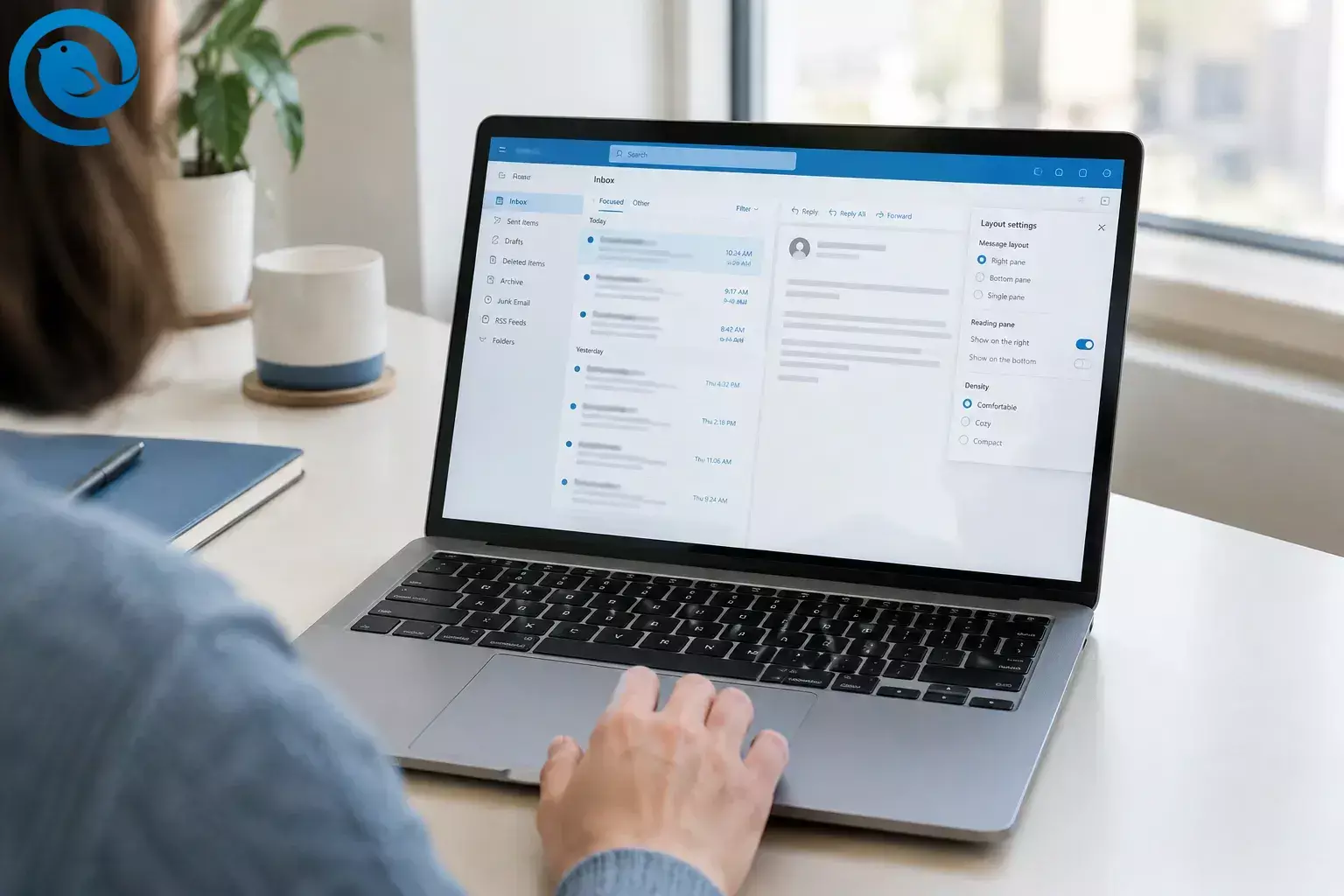
If your Outlook inbox suddenly looks different, check the reading pane, message previews, spacing, conversation grouping, and sorting before changing anything else. This guide changes the view within Outlook; it does not cover switching between new and classic Outlook .
Quick fix
In classic Outlook, open the affected folder and select View > Reset View . If you want the familiar Compact inbox first, select View > Change View > Compact . In new Outlook or Outlook on the web, open Settings > Mail > Layout and change the settings that look wrong. [2] [3]
Before you change the view
- Open the right folder. Select the Inbox for the affected account, or open whichever folder looks wrong.
- Identify your Outlook version. If it is open in a browser tab, use the web instructions. In a Windows app, the upper-right Settings gear can help you identify new Outlook. Do not rely on a File tab alone to tell the versions apart. [1]
- Note any customizations you want to keep. Classic Outlook’s Reset View removes view customizations. If you take a screenshot for reference, hide email addresses before sharing it.
How to reset the view in classic Outlook
How to reset the view in classic Outlook
Don’t see Reset View? Check which Outlook version you have open. New Outlook and Outlook on the web do not use this classic Outlook command; adjust their layout settings instead.
Change the settings that make your inbox look different
You do not need to change every setting. Find the symptom you see and use the instructions for your Outlook version.
Reading pane is in the wrong place
In new Outlook or Outlook on the web , open Settings > Mail > Layout > Reading pane and choose Right or Bottom . In classic Outlook , select View > Reading Pane , then choose Right , Bottom , or Off . Select a message to check where it opens. [3] [4]
Preview text beneath subjects is missing
In new Outlook , select View > Message preview > Show preview text . Choose Hide preview text if you prefer a shorter list. In classic Outlook , select View > Message Preview and choose how many lines to show. Preview text in the message list is separate from the reading pane. [4]
Messages look too spread out or cramped
In new Outlook or Outlook on the web , select View > Density . Try Compact to fit more messages on screen, Roomy for more space, or Cozy for a middle ground. In classic Outlook , check the layout under View > Change View ; its view choices are different from the density options in newer versions. [3] [5]
Replies are grouped together—or no longer grouped
To turn Outlook conversation view on or off in new Outlook or Outlook on the web , open Settings > Mail > Layout > Message organization . Choose Group messages by conversation to keep replies together, or Do not group messages to show them separately. In classic Outlook , select View > Show as Conversations and choose the scope if prompted. [6]
Messages are out of order or seem missing
In new Outlook or Outlook on the web , select Filter above the message list and check both the selected filter and sort order. In classic Outlook , check the sorting and filter controls above the message list. Clear an unwanted filter before deciding a message is missing. [7]
If you see Focused and Other tabs, check both. In new Outlook or Outlook on the web , you can change this under Settings > Mail > Layout > Focused Inbox if you prefer one combined inbox. [5]
Buttons and menus still look unfamiliar
In new Outlook , check Settings > General > Appearance . If Enable classic Outlook style appears, you can change that appearance setting. It does not switch the app to classic Outlook. [8]
Check the result
Open a recent message, return to the list, and check its preview, position, and conversation grouping. If another folder also looks wrong, open it and change only the settings it needs.
Frequently asked questions
How do I change my Outlook view back to normal?
In classic Outlook, open the affected folder, choose View > Change View > Compact if that is the layout you want, then select View > Reset View . In new Outlook or Outlook on the web, start at Settings > Mail > Layout and restore the settings that changed.
Will resetting my Inbox view delete emails?
No. Classic Outlook’s Reset View resets view settings, not your messages. It can remove customizations you wanted to keep, so note those first.
Why can’t I see all my emails?
Check for an active filter, look in both Focused and Other , and expand any grouped conversations. These settings can change which messages appear in the current list.
Sources
- Microsoft Support — What version of Outlook do I have?
- Microsoft Q&A — Resetting a classic Outlook inbox layout
- Microsoft Support — Change how the message list is displayed in Outlook
- Microsoft Support — Use and configure the Reading Pane
- Microsoft Support — Change the look of your mailbox
- Microsoft Support — View email messages by conversation
- Microsoft Support — Sort email messages in Outlook
- Microsoft Q&A — Classic Outlook appearance setting in new Outlook


