How to Connect Multiple Gmail Accounts Directly in Mailbird After Gmailify
Gmailify is going away, but managing multiple Gmail accounts is still straightforward. This guide shows how to connect each account directly in Mailbird, enable Unified Inbox selectively, and avoid replying from the wrong address.


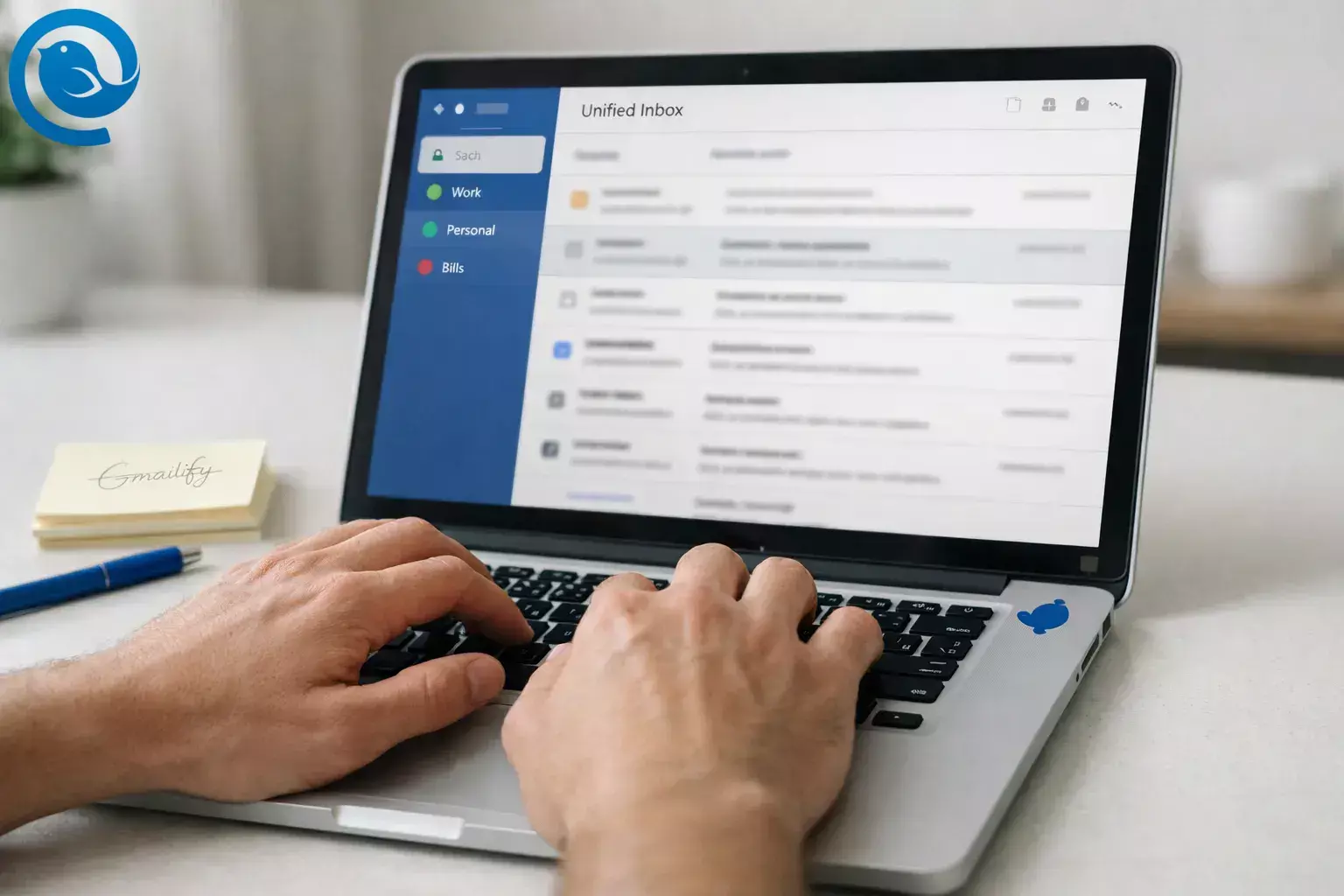
If you searched for “gmailify multiple accounts,” you’re probably trying to get back to a simple setup where all your inboxes are easy to read and safe to reply from. The clean replacement is to connect each mailbox directly in Mailbird instead of relying on Gmail to act as the hub—especially if you manage multiple email accounts.
In about 20–30 minutes, you’ll add multiple Gmail accounts, (optionally) enable Unified Inbox, and set a few guardrails so you don’t send from the wrong address.
What’s new
Why now: Google says it’s removing support for Gmailify and Gmail’s web-based POP fetching (“Check mail from other accounts”), stopping support for new users by Q1 2026 and turning it down for existing users later in 2026. [1][2]
Key takeaways
- Enable IMAP (IMAP vs POP3) in every Gmail/Google Workspace account you want to use in Mailbird.[4]
- Add each account to Mailbird and give it a clear name (Work, Personal, Bills, etc.).[5]
- Mailbird Free supports 1 email account per device; Premium supports unlimited accounts per device.[3]
- Optional: enable a Unified Inbox only for the accounts you actually want grouped, and confirm replies use the right From address.[6]
- Add per-account safeguards (distinct signatures + a quick reply test).
- Set a few filters for triage (newsletters, receipts, automated mail).[7]
- If you used Gmailify for non-Gmail inboxes, add those accounts directly to Mailbird (IMAP is the usual choice) instead of routing everything through Gmail.
Table of contents
Quick plan (replacement for Gmailify)
- Enable IMAP in every Gmail/Google Workspace account you want to use in Mailbird.[4]
- Add each account to Mailbird and give it a clear name (Work, Personal, Bills, etc.).[5]
- Optional: enable Unified Inbox for the accounts you actually want grouped.[6]
- Add per-account safeguards (distinct signatures + a quick reply test).
- Set a few filters for triage (newsletters, receipts, automated mail).[7]
Before you start
- Prerequisites: You can sign in to each Gmail/Google Workspace account in a web browser (and complete any 2-step verification prompts).
- Tools: Mailbird on your computer, plus a modern browser for Google sign-in.
- Time: 20–30 minutes for 2 accounts; add ~5 minutes per additional account.
- Difficulty: Easy (you just need to be able to sign in to each account).
- Cost range: $0 (Mailbird Free) up to a paid plan if you need more than 1 account on the same device.[3]
- Safety notes: Only approve Google sign-in prompts you initiated. If this is a work/school Gmail account, follow your organization’s policies (some admins restrict IMAP or third-party access).
Step-by-step: Manage multiple Gmail accounts in Mailbird (after Gmailify)
Manage multiple Gmail accounts in Mailbird (after Gmailify)
-
1) Make a 2-minute “account map” (so you don’t mix work and personal)
- Write down every address you need to manage (example:
personal@gmail.com,work@company.com,sideproject@gmail.com). - Next to each, note: (a) you must reply from it, (b) you only need to receive it, (c) it should or should not show in your Unified Inbox.
Check: You can sign in to each account in a browser without getting stuck in account recovery. - Write down every address you need to manage (example:
-
2) Confirm you can add more than one account in Mailbird (or choose a fallback)
- If you need 2+ Gmail accounts in Mailbird on the same device, check Mailbird pricing.
- Mailbird Free supports 1 email account; Premium supports unlimited accounts per device.[3]
- Fallback option: If you want to stay on Free for now, add your primary Gmail first, then come back later to add the rest or upgrade when you’re ready.
Check: You know whether you’re adding 1 account today or multiple accounts today. -
3) Open Mailbird and be ready for browser-based Google sign-in
- Open Mailbird.
- Have your default browser ready for Google sign-in (and temporarily allow cookies/pop-ups if your setup blocks login windows).
Check: You can open Mailbird and reach Settings without errors. -
4) In each Gmail account: turn on IMAP
- In a browser, open Gmail for the account you’re about to add.
- Click the gear icon → Settings → open Forwarding and POP/IMAP.
- Select Enable IMAP, then save changes if prompted.
Check: IMAP is enabled for every Gmail account you plan to add.[4] -
5) In each Gmail account: make system labels visible through IMAP (to avoid missing folders)
- In Gmail, go to Settings → Labels.
- Make sure key system labels are set to Show in IMAP (this helps keep folders like Sent and Drafts consistent).
Check: Your system labels (like Sent and Drafts) are set to “Show in IMAP.”[4] -
6) Add your first Gmail account to Mailbird
- In Mailbird, go to Settings → Accounts.
- Click Add and follow the prompts to connect your Gmail account.
Check: You can see the inbox and open a recent email for this account.[5] -
7) Add your other Gmail accounts (and name them clearly)
- Repeat Step 6 for each Gmail address.
- Rename accounts in a way you can recognize at a glance (example: Work, Personal, Bills).
Check: Every Gmail address from your account map appears in Mailbird’s account list. -
8) Turn on Unified Inbox (optional) and verify replies send from the right address
- Go to Settings → Accounts.
- Check Enable unified account.
- Open Unified Inbox and click Reply on a message from Account A, then from Account B.
Check: Unified Inbox appears once you have more than one account, and replies go out from the account that received the message.[6] -
9) Add “wrong address” guardrails (takes 3 minutes, saves real embarrassment)
- Set a distinct signature for each account (see email signature tips; example: “— Alex (Work)” vs “— Alex (Personal)”).
- Before you click Send, confirm the From address in the compose window.
- If you use identities/aliases, set them up and run a test send (send a message to yourself and confirm the sender).[5]
Check: You can send a test email from each Gmail address and confirm it lands correctly. -
10) Create 2–3 rules/filters for triage (newsletters, receipts, clients)
- Go to Settings → Filters.
- Create a simple filter (example: “From contains
no-reply” → mark as read). - If you want a rule to apply to everything, choose Unified Accounts in the filter setup.
- Click Save and Run so it applies to existing emails still in your Inbox (not just new mail).
Check: A test email triggers the action you set, and you understand filters only run when Mailbird is open.[7] -
11) (Optional) Add non-Gmail accounts you used to “Gmailify”
- If you previously linked Yahoo, Outlook, or custom-domain mail into Gmail, add those accounts directly to Mailbird too (IMAP is the usual choice).
- Keep each account separate, then use Unified Inbox only for the accounts you actually want mixed together.
Check: You can receive and reply from each account without relying on Gmail to act as the hub. -
12) Do a final 5-minute end-to-end test
- From Account A, email Account B. Reply from Account B.
- Search Mailbird for the test subject line in Unified Inbox.
- Adjust notifications so you’re not interrupted by low-priority accounts.
Check: You can read, search, and reply from every Gmail account you mapped—confidently.
Why this works
Gmailify and Gmail’s old POP-based “hub” features were ways to consolidate other inboxes inside Gmail. When that setup changes, a Gmail email client that connects to each account directly with IMAP and modern sign-in gives you one place to work without depending on Gmail’s web importer.
What can change
Deprecation timelines can shift. If your setup is mission-critical, check Google’s official guidance for the latest rollout details. [1]
Troubleshooting
-
Symptom: Unified Inbox isn’t visible.
Likely cause: You only added one account, or Unified Inbox is turned off.
Fix: Add a second account, then go to Settings → Accounts and check Enable unified account.[6]
-
Symptom: Gmail sign-in fails or the authorization window errors out.
Likely cause: Browser cache/cookies or a browser handoff problem during OAuth sign-in.
Fix: Clear browser cache/cookies, try an incognito/private window, or temporarily switch your default browser and try adding the account again.[8]
-
Symptom: Gmail folders/labels look incomplete (for example, Sent or Drafts behaves oddly).
Likely cause: Gmail system labels aren’t set to “Show in IMAP.”
Fix: In Gmail: Settings → Labels → enable “Show in IMAP” for the needed system labels, then sync again in Mailbird.[4]
-
Symptom: Filters/rules don’t run consistently.
Likely cause: Mailbird filters aren’t server-synced and only run while Mailbird is open.
Fix: Keep Mailbird running during the day, or create server-side filters in Gmail for mail you must sort even when Mailbird is closed.[7]
-
Symptom: You replied from the wrong Gmail address.
Likely cause: You didn’t double-check the From address in the compose window, or the account names/signatures look too similar.
Fix: Add distinct per-account signatures (Step 9), rename accounts clearly (Step 7), and send yourself a quick test message after any change.
-
Symptom: Duplicate emails show up.
Likely cause: The same account is connected twice, or you’re using forwarding plus another connection that brings the same messages in again.
Fix: Remove the duplicate account connection and keep one “source of truth” (usually IMAP).
-
Symptom: Mail sends fail (messages stick in Drafts/Outbox).
Likely cause: The account needs re-authentication or SMTP settings are out of date after a password/security change.
Fix: Re-authenticate the account, or remove and re-add it, then send a short test email to yourself.
-
Symptom: You’re still tempted to rebuild the old Gmailify setup in Gmail on the web.
Likely cause: Habit—Gmail used to act like a hub.
Fix: Put the “hub” on your desktop instead: connect each mailbox directly in Mailbird, then use Unified Inbox only for the accounts you want grouped.
Variations
- Variation 1: “Triage in Unified Inbox, then process one account at a time.” Use Unified Inbox for a quick scan, then switch into your Work inbox to reply and archive without mixing contexts.
- Variation 2: “Work-only Unified Inbox.” Include only work-related accounts in Unified Inbox, and keep personal Gmail separate so it doesn’t interrupt your day.
- Variation 3: “Rules first.” Create 2–3 filters that handle the boring stuff (newsletters, receipts, automated notifications) so your inbox starts cleaner every morning.
- Variation 4: “Add the accounts you used to Gmailify.” If you were using Gmailify for non-Gmail inboxes, add those mailboxes directly to Mailbird too and manage everything in one place.
Tips for managing 5+ Gmail accounts (naming, recovery, scaling)
- Naming: Create a naming convention now (Work / Personal / Finance / Shared). You’ll make fewer mistakes when replying.
- Account recovery: Store Google recovery codes and backup email addresses in a password manager. If you get locked out, your whole multi-account setup stalls.
- Scaling: Keep Unified Inbox limited to the 2–3 accounts you actively work from daily; check the rest on a schedule (twice a day is a good start).
Quick checklist
- I know which accounts I’m managing (and which belong in Unified Inbox).
- I confirmed my Mailbird plan supports the number of accounts I need.
- IMAP is enabled in every Gmail account I’m adding.
- Gmail system labels are set to “Show in IMAP.”
- All Gmail accounts are added to Mailbird and can sync mail.
- Unified Inbox is enabled (or intentionally left off).
- I tested Reply from two different accounts and confirmed the correct From address.
- Each account has a distinct signature to prevent sending mistakes.
- I created 2–3 filters and verified they run while Mailbird is open.
- I did one final end-to-end test (send, receive, reply, search).
Frequently Asked Questions
What was Gmailify, in plain English? — Gmail-style features
Gmailify let Gmail apply certain Gmail-style features like organization to some third-party inboxes. With it being phased out, you’ll want a setup that connects to each mailbox directly instead of routing everything through Gmail.[1]
When will Gmailify and “Check mail from other accounts” stop working? — first quarter 2026
Google’s stated timeline is: support stops for new users by the first quarter of 2026, and existing users can continue until it’s turned down later in 2026.[1]
Will I lose emails I already imported into Gmail? — remain in Gmail
No—emails that were synced or imported before the deprecation remain in Gmail.[1]
Can I still add Yahoo or Outlook to the Gmail app on my phone? — using IMAP
Yes. You can still add third-party accounts to the Gmail mobile app using IMAP. The main change is the loss of Gmailify-specific perks for those accounts.[1]
Does this change affect connecting a Gmail account to Mailbird? — Desktop clients can
No. These changes are about Gmail acting as the aggregator for other inboxes on the web. Desktop clients can still connect to Gmail directly, which is why many users move to a Gmail email client setup instead.[1]
Can I manage multiple Gmail accounts on Mailbird Free? — 1 email account
Mailbird Free supports 1 email account per device. If you need multiple accounts in the same app, you’ll need a plan that supports it.[3]
Do I have to enable IMAP in Gmail? — enable IMAP
Yes. If IMAP is off, a desktop email client can’t sync your mailbox properly. Turning on “Show in IMAP” for key labels also helps keep folders consistent.[4]
Do I need an app password for Gmail in Mailbird? — Usually, no
Usually, no—modern sign-in methods are preferred when available. Use an app password only if your specific setup requires it.
How do I stop sending from the wrong Gmail address? — Distinct signatures
Give each account a clear name, use distinct signatures, and pause for one second to confirm the From field before sending—especially from a Unified Inbox view.
Sources
- Google Gmail Help: “Learn about upcoming changes to Gmailify & POP in Gmail”
- WIRED (Feb 20, 2026): “Gmail Is Killing POP and Gmailify Access. Here’s What It Means for You”
- Mailbird: Pricing and plans (account limits for Free vs Premium). URL:
https://www.getmailbird.com/pricing/ - Mailbird Support: Enabling IMAP for Gmail (including “Show in IMAP” labels). URL:
https://support.getmailbird.com/hc/en-us/articles/220106527-Enabling-IMAP-for-Gmail - Mailbird Support: Connecting accounts and adding identities in Mailbird. URL:
https://support.getmailbird.com/hc/en-us/articles/220106607-Connecting-Accounts-and-Adding-Identities-in-Mailbird - Mailbird Support: Unified Inbox. URL:
https://support.getmailbird.com/hc/en-us/articles/220108147-Unified-Inbox - Mailbird Support: Setting up Filters and Rules. URL:
https://support.getmailbird.com/hc/en-us/articles/360037803653-Setting-up-Filters-and-Rules - Mailbird Support: Gmail authorizing issue when adding the account to Mailbird. URL:
https://support.getmailbird.com/hc/en-us/articles/360042149193-Gmail-authorizing-issue-when-adding-the-account-to-Mailbird


