How to Export Your Outlook Calendar to ICS, Excel, or Google
Choose the route below that matches your version of Outlook. Check the exported events before you stop using the original calendar.



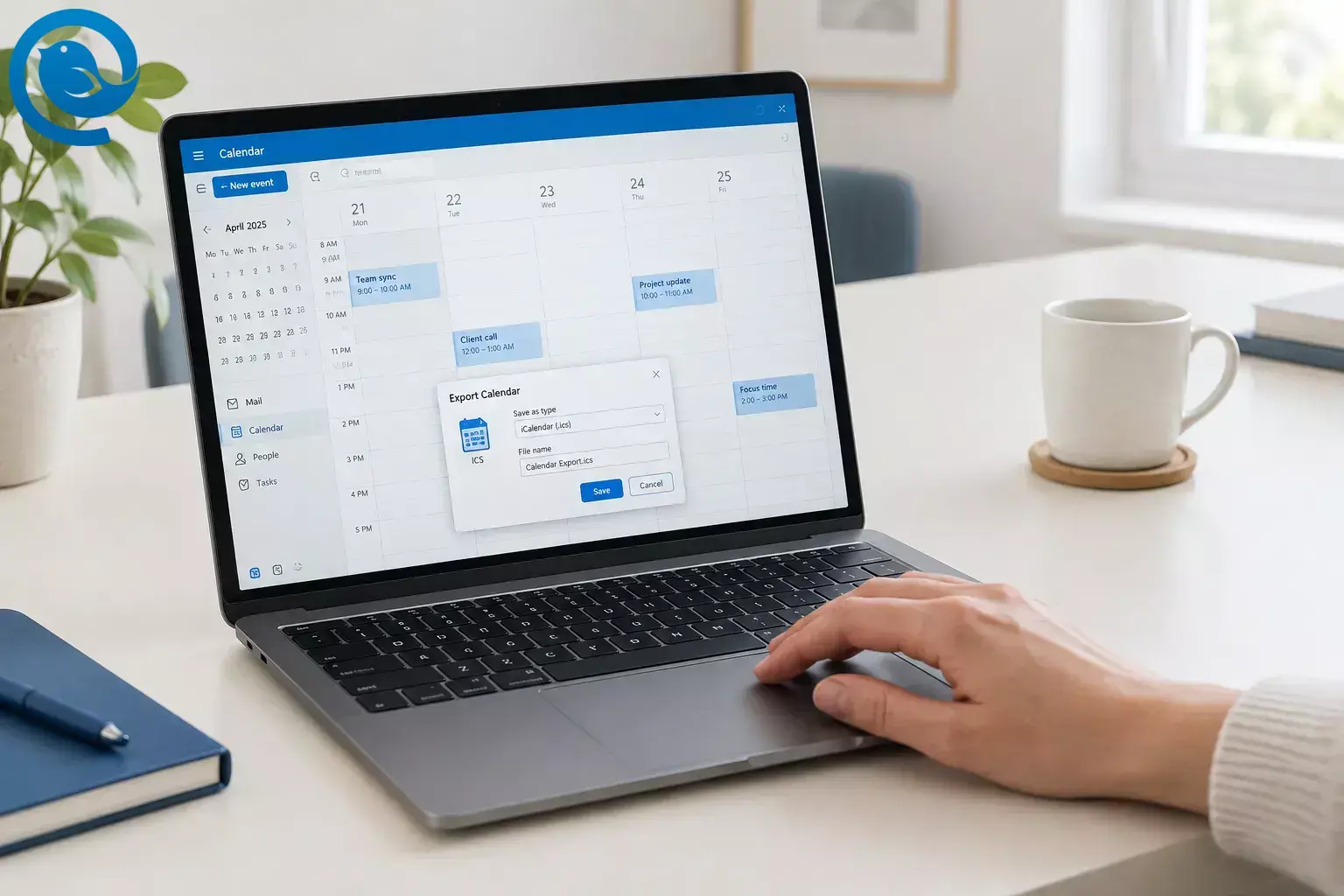
Choose the route below that matches your version of Outlook. Check the exported events before you stop using the original calendar.
Short answer
In classic Outlook for Windows, use File → Save Calendar for an ICS file, or the Import/Export wizard for a CSV file you can open in Excel. In new Outlook or Outlook on the web, you can publish a calendar to get an ICS link if your account allows it. To move events to Google Calendar, import an ICS file; to keep a read-only Outlook calendar visible there, subscribe using its published ICS link.
Before you start
- You need: access to the Outlook calendar you want to move. For a CSV export, you need classic Outlook for Windows; Excel is optional if another app can open CSV files.
- Allow: a few minutes to export and check the result, or longer for a large calendar.
- Privacy: anyone with a published calendar link can view the details you choose to share. Don’t publish a work or private calendar without permission. Unpublish it after a one-time download.
Which export method should you use?
| Outlook version | For another calendar app | For Excel |
|---|---|---|
| Classic Outlook for Windows | Save an ICS file with File → Save Calendar . | Export the Calendar folder as a CSV file. |
| New Outlook or Outlook on the web | Publish the calendar to get an ICS link, if publishing is available for your account. | The classic calendar-to-CSV wizard is not available; use classic Outlook if you have access to it. |
Classic Outlook for Windows
- For another calendar app
- Save an ICS file with File → Save Calendar .
- For Excel
- Export the Calendar folder as a CSV file.
New Outlook or Outlook on the web
- For another calendar app
- Publish the calendar to get an ICS link, if publishing is available for your account.
- For Excel
- The classic calendar-to-CSV wizard is not available; use classic Outlook if you have access to it.
Use an ICS file for a one-time calendar import, a CSV file to inspect events in Excel, or a published ICS link for a read-only subscription that can show later changes. A file import does not stay in sync with Outlook.
Export an Outlook calendar to ICS in classic Outlook
Export an Outlook calendar to ICS in classic Outlook
- Open Calendar in classic Outlook for Windows and select the calendar you want to export. Check its name if you have more than one.
-
Select File → Save Calendar. Enter a recognizable name, such as
personal-calendar.ics. - Select More Options. Set the Date Range to cover the events you need; choose Whole calendar if you want the full calendar. Choose a Detail level, then select OK → Save.
-
Confirm that the
.icsfile appears in the folder you chose. If you need older or future events, check the date range before importing it elsewhere.
See Microsoft’s Outlook calendar export instructions for the classic Outlook controls.
Export an Outlook calendar to Excel in classic Outlook
Outlook exports a
CSV file
, which you can open in Excel. Save a separate
.xlsx
copy if you want an Excel workbook.
- Select File → Open & Export → Import/Export → Export to a file → Next → Comma Separated Values → Next .
-
Select the correct
Calendar
folder, choose
Next
, name the
.csvfile, and select Finish . If Outlook asks for a date range, include the period you need. -
Open the CSV in Excel and check the subject and date columns. To create a workbook, select
File → Save As
in Excel and choose
.xlsx. Keep the original CSV if you may need it elsewhere.
These CSV steps are documented in
Microsoft Q&A’s classic Outlook export guidance
. An Excel workbook is for working with the data; Google Calendar’s event importer accepts ICS and CSV files, not
.xlsx
workbooks.
Get an ICS file from new Outlook or Outlook on the web
- Open Calendar , then go to Settings → Calendar → Shared calendars .
- Under Publish a calendar , choose your calendar and the detail level you’re permitted to share. Select Publish .
-
Use the
ICS
link, not the HTML link. Open the ICS link in a browser to download or save a
.icsfile for a one-time move. Alternatively, copy the link into a calendar app that supports subscriptions. - If you published only to get a file, return to Shared calendars and select Unpublish after checking the download. Leave publishing enabled if you want a subscription to keep working.
The HTML link is for viewing the calendar in a browser. If Publish a calendar is missing, your account or organization may not allow it; ask your administrator if it’s a work account, or use classic Outlook if available. See Microsoft’s calendar publishing instructions .
Move your Outlook calendar to Google Calendar
Import events for a one-time move
- On a computer, open Google Calendar and select Settings → Import & export → Select file from your computer .
-
Choose your
.icsfile or a compatible.csvfile, select the destination calendar, and click Import . - Check an older event, an upcoming event, and a repeating event against Outlook. An import is a snapshot: later Outlook edits will not update those imported events.
Google Calendar accepts ICS and CSV imports, but its import instructions note format requirements and limitations. If repeating events matter, check them closely after a CSV import; Google may treat them as separate, one-time events.
Subscribe for read-only updates instead
In Google Calendar, select Other calendars → + → From URL and paste your published Outlook ICS link. This adds a separate, read-only calendar; it does not move editable events into your Google calendar. Keep the link private and leave Outlook publishing enabled while you use the subscription. See Google’s instructions for adding a calendar from a URL .
Troubleshooting
- No “Save Calendar” or CSV export command? Check whether you’re in new Outlook or a browser. Use calendar publishing for an ICS link, or open classic Outlook for a CSV export.
- No “Publish a calendar” option? Check that you selected your own calendar. For a work account, ask your administrator whether publishing is allowed. Use classic Outlook if it’s available.
- Too few events in the ICS file? Repeat File → Save Calendar → More Options and expand the date range. Check the detail level too.
- Expected appointments missing from the CSV? Rerun the wizard, confirm the Calendar folder, and check any requested date range.
- Google processed zero events? First check whether the events are already in the destination calendar. If not, inspect the file and export it again. See Google’s import troubleshooting guide .
- Repeating events became separate appointments? This can happen with CSV imports. Try importing an ICS export instead, then check the series.
- Guests or conference details are missing in Google? Google’s event import does not bring those details over. Check important meetings individually and recreate details you still need.
- Google events don’t update after an Outlook edit? A file import is a one-time copy. For read-only updates, subscribe using a published ICS URL instead.
Other ways to use your export
Move to another calendar app
Save an ICS file, then look for Import or Add from file in the destination app. Check several events there before removing your Outlook calendar. To bring the file into another Outlook account, see how to add a calendar to Outlook.
Back up for another Outlook installation
If you’re staying with Outlook, an Outlook data file (
.pst
) may be more suitable than a calendar-only export. Don’t choose PST for Google Calendar: its event importer accepts ICS and CSV files. See
Microsoft’s PST export guidance
.
Use Mailbird without moving the calendar
If you’re changing email clients but keeping your Microsoft account, Mailbird’s Outlook Calendar app lets eligible users access that calendar inside Mailbird. It is not an ICS-import shortcut, and it is not included in Mailbird’s Free plan. Check Mailbird’s Outlook Calendar app guidance for availability.
Keep and check your export
Store downloaded ICS and CSV files in a private folder; they may contain meeting titles, locations, and notes. Export each Outlook calendar separately and label its file clearly. If events change after a one-time export, make a new file and check the destination before importing again.
Menus can differ: Outlook’s available commands depend on the version and account. If a command doesn’t match your screen, confirm whether you’re using classic Outlook, new Outlook, or Outlook on the web before switching methods.
Changing your desktop email client?
You can keep your Outlook account while trying Mailbird for email . If you want your calendar beside your inbox, check which calendar integrations your Mailbird plan includes ; exporting an ICS file does not itself add events to Mailbird.
Quick checklist
- ☐ Identify classic Outlook, new Outlook, or Outlook on the web.
- ☐ Choose ICS for a calendar app or CSV for Excel.
- ☐ Select the correct calendar, date range, and detail level.
- ☐ Save the file—or copy the published ICS link for a subscription.
- ☐ Check older, upcoming, and repeating events in the destination.
- ☐ Store the file privately; unpublish a one-time link.
Frequently asked questions
How do I export my entire Outlook calendar to an ICS file?
In classic Outlook, open the calendar and choose File → Save Calendar → More Options . Set Date Range to Whole calendar , choose the detail level, and save the file.
Can I export an Outlook calendar directly to Excel?
In classic Outlook for Windows, export the Calendar folder as a CSV file. Open the CSV in Excel and save it as an Excel workbook if needed.
How do I export a calendar from new Outlook?
If publishing is available for your account, go to Calendar → Settings → Calendar → Shared calendars and publish the calendar. Use its ICS link to download a file or set up a subscription.
Can I export my Outlook calendar from a browser?
Outlook on the web can provide a published ICS link if your account allows calendar publishing. It does not offer the classic Windows CSV export wizard.
Will an Outlook calendar imported into Google stay in sync?
No. Importing a file is a one-time copy. To see later Outlook changes in a separate, read-only calendar, subscribe in Google Calendar using a published ICS URL.
Why are some events missing after I import a CSV into Google Calendar?
Check the Outlook export date range, the destination calendar, and whether the CSV meets Google’s format requirements. If recurring meetings do not import as expected, try an ICS export and check the resulting series.
- Microsoft Support: Export an Outlook calendar to Google Calendar
- Microsoft Support: Share an Outlook calendar as view-only with others
- Microsoft Q&A: Export a calendar to CSV in classic Outlook
- Google Calendar Help: Import events to Google Calendar
- Google Calendar Help: Add a calendar from a URL
- Google Calendar Help: Fix problems importing events
- Microsoft Support: Export Outlook items to a PST file
- Mailbird Support: Outlook Calendar app


