How to Change Your Profile Picture in Outlook
To change your Outlook profile picture, update the photo on the account you use in Outlook: your personal Microsoft account or your work or school account. Then reopen Outlook to check it. If you use Outlook on iPhone or Android, make the change in your phone’s browser—the mobile app cannot edit your profile information directly.



To change your Outlook profile picture, update the photo on the account you use in Outlook: your personal Microsoft account or your work or school account. Then reopen Outlook to check it. If you use Outlook on iPhone or Android, make the change in your phone’s browser—the mobile app cannot edit your profile information directly. [1] [2] [4]
Key takeaways
- Change the picture on the account you use in Outlook, then reopen Outlook.
- On iPhone or Android, make the change in your phone’s browser, not the Outlook app.
- Check which email address is signed in before changing a picture, especially if you have more than one account.
- For a work or school account, your organization may control whether you can change your photo.
- A personal account photo may take up to 24 hours to update everywhere; a change made through classic Outlook can take up to 48 hours.
Before you start
Check the email address shown when you select your picture or initials in Outlook, especially if you have more than one account. Have that account’s sign-in details and a photo saved on your device. Choose a picture you’re comfortable showing to others.
Change your picture for Outlook.com or a personal Microsoft account
How to Change Your Profile Picture in Outlook
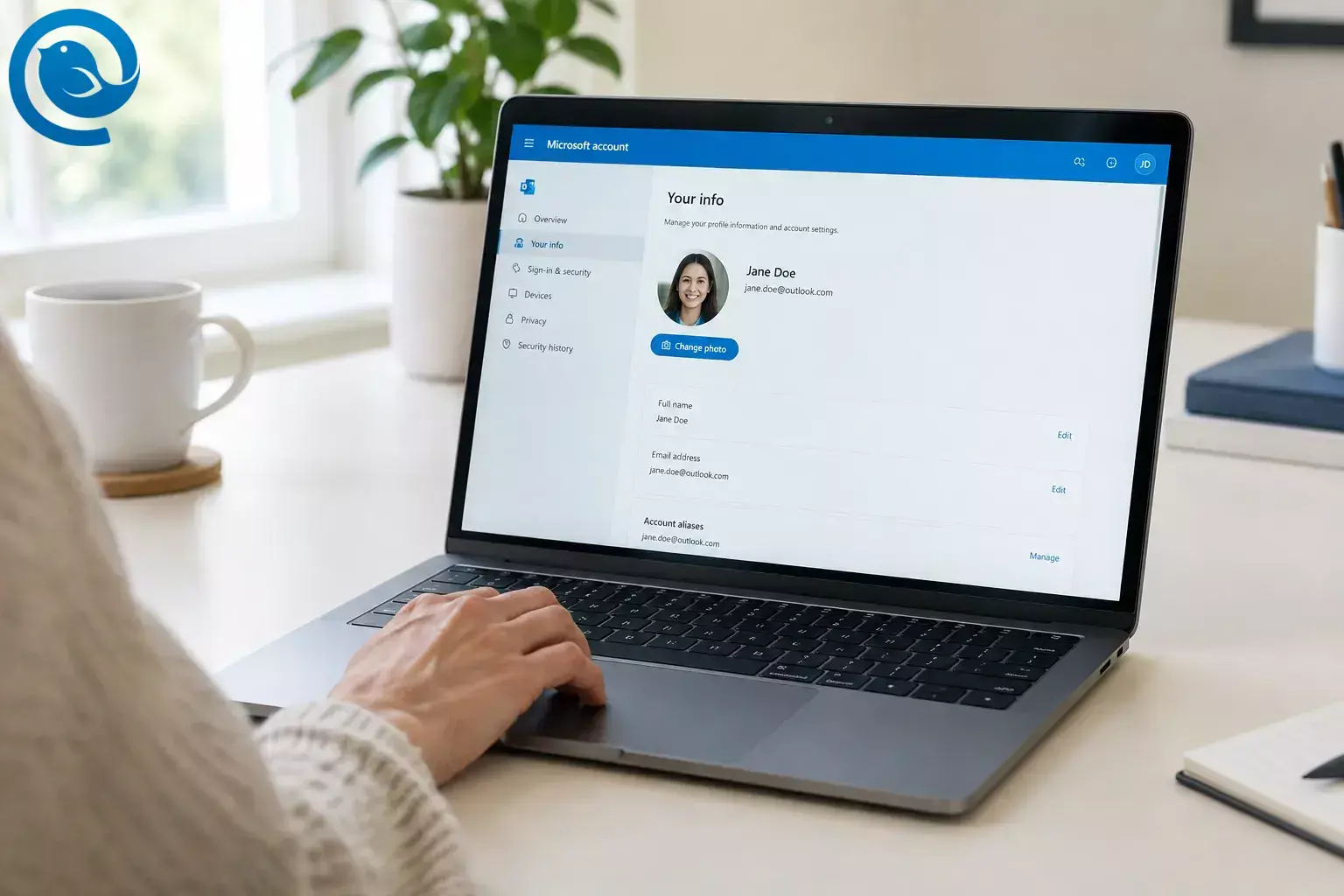
- Open your Microsoft account in a browser and sign in with the email address you use in Outlook.
- Select Your info, then Add a photo or Change photo.
- Choose a picture from your device, adjust it if prompted, and save the change.
- Confirm that the new picture appears on your Microsoft account page, then reopen Outlook.
If you’re already in Outlook.com, you can select your account icon in the upper-right corner, then select your picture to reach the account photo page. [1]
Change your picture for a work or school account
- Open My Account and sign in with your work or school email address.
- Select the edit icon on your current picture or initials.
- Choose your photo, resize it if prompted, and select Save.
- Check that the new picture appears on your account page, then reopen Outlook.
If you can’t see the edit icon or the change is blocked, your organization may control profile photos. Ask your IT or HR team whether you can update yours. [2]
Where to find the setting in each Outlook version
New Outlook for Windows and Outlook on the web
Select your picture or initials near the top of the window. If your work or school account offers View account, select it, then select your picture. In Outlook on the web, you may see Upload a new photo followed by Apply. If those options aren’t available, use the matching account page in the steps above. [3]
Classic Outlook for Windows
Select File, then Change under your current picture. Outlook opens a browser where you can select your picture, choose Change photo, and save. If Change is missing, your organization may manage the picture. [5]
Outlook app for iPhone or Android
Open your phone’s browser and follow the personal-account or work-account steps above. Reopen the Outlook app after saving. You don’t need to find a photo-upload button in the mobile app; Microsoft says profile information cannot be edited directly there. [4]
If your Outlook profile photo doesn’t change
- The old picture still appears: Check the account page where you uploaded the photo. If it shows the new picture, reopen Outlook and allow time for the change to appear. A personal Microsoft account photo may take up to 24 hours to update everywhere; a change made through classic Outlook can take up to 48 hours. [1] [5]
- The account page still shows the old picture: Upload the photo again and confirm that you selected Save or Apply.
- There’s no edit control: If it’s a work or school account, ask IT or HR whether your organization restricts photo changes. [2]
- The wrong account’s picture changed: Compare the email address in Outlook with the one on the account page, then sign in with the account you meant to update.
- The file won’t upload or looks cropped: Try a static JPG or PNG and leave some space around your face. Microsoft says its Microsoft account photo uploader does not support HEIC files or animated GIFs. [1]
Frequently asked questions
How do I change my profile picture on the Outlook app?
Why don’t I see a File menu in new Outlook?
How long does an Outlook profile photo take to update?
Is changing a contact photo the same as changing my profile picture?
No. Your profile picture belongs to your account; a contact photo is a picture you assign to someone in your contacts. Microsoft says photos added to contacts in classic Outlook are visible only on your computer. [6]
Sources
- Microsoft Support: Change your Microsoft account picture
- Microsoft Support: Add or update your work or school profile picture
- Microsoft Support: Change your photo in Outlook on the web
- Microsoft Support: Change your picture in Outlook mobile
- Microsoft Support: Change your profile photo in classic Outlook
- Microsoft Support: Add or change a contact picture in Outlook


