How to Block Emails on Android
To block an email address on Android, open a message in the mail app you use and look for its sender-block option. Gmail, Samsung Email, and Outlook put that option in different menus. If you read the same account in multiple apps, check the email provider’s block settings too.



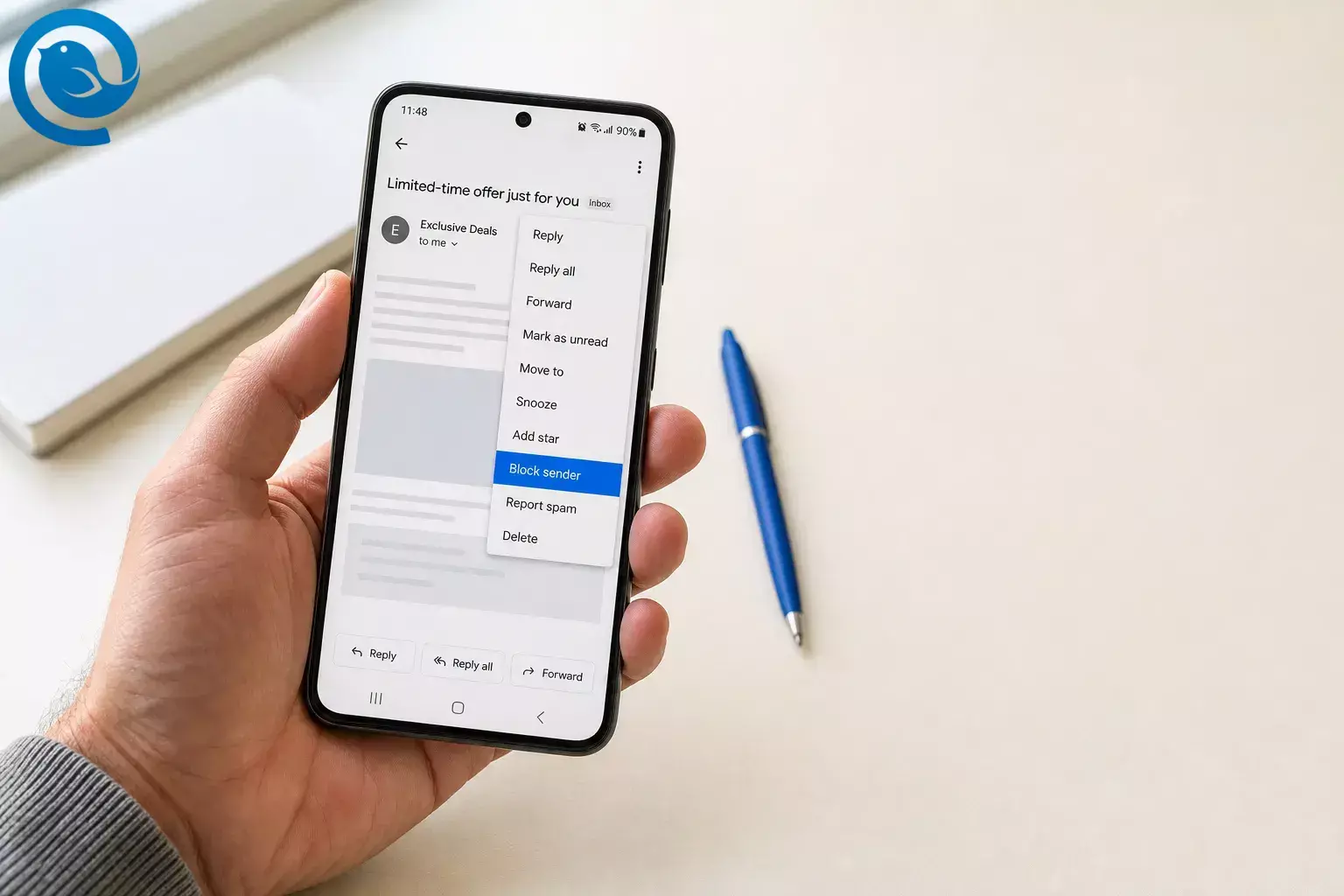
To block an email address on Android, open a message in the mail app you use and look for its sender-block option. Gmail, Samsung Email, and Outlook put that option in different menus. If you read the same account in multiple apps, check the email provider’s block settings too.
Key takeaways
- Use the blocking menu in the app displaying the unwanted message.
- Check the sender’s full email address, not just their display name.
- In Gmail, future messages from a blocked sender go to the receiving account’s Spam folder.
- Samsung Email’s Block sender option may differ by account or app view.
- In Outlook for Android, find Block Sender under Report Junk.
- If you use one address in several apps, check the email provider’s settings.
- Unsubscribe from legitimate newsletters; report suspicious messages instead of interacting with their links.
Before you start
Find a message from the sender and check their full email address, not just their display name. If the message looks fraudulent, don’t tap its links, attachments, or unsubscribe button. Use your app’s spam or report phishing option instead. The FTC’s scam advice explains why it’s safer not to interact with a suspicious message. [1]
Block a sender in the Gmail app on Android
Block a sender in the Gmail app on Android
- Open Gmail and select the account that received the message.
- Open a message from the sender. Tap the three-dot menu beside Reply in the message, not the menu at the top of the screen.
- Tap Block [sender].
Future messages from that sender go to the receiving Gmail account’s Spam folder. See Google’s Android blocking instructions. [2]
Block a sender in Samsung Email
- Open the unwanted message in Samsung Email. If you’re using Gmail on a Samsung phone, follow the Gmail steps above instead.
- Tap the message’s three-dot menu and choose Block sender if it appears.
- Confirm the block if prompted.
If you don’t see Block sender, use the receiving account’s provider app or website. The option may differ by account or app view. These steps are based on guidance from a Samsung Community moderator. [3]
Block a sender in Outlook for Android
- Open the unwanted message in the account that received it.
- Tap ⋮ → Report Junk → Block Sender.
Choose Block Sender from the final menu. Junk and Phishing are different reporting options. See Microsoft’s Outlook instructions. [4]
Make the block part of your email account
If you use one address in several Android mail apps, manage the block with that address’s email provider rather than relying on a control in just one app.
Gmail account
Open the receiving account in the Gmail app and follow the Gmail steps above. Gmail sends future messages from the blocked sender to that account’s Spam folder. If you have more than one Gmail account, check which one received the unwanted mail.
Outlook.com account
- In Chrome on Android, sign in to Outlook.com with the account that received the message.
- Open Settings → Mail → Junk email. If the settings are difficult to reach in the mobile view, try Chrome’s Desktop site option.
- Under Blocked senders, enter the full email address, select Add, then Save. Check that the address appears in the list.
You can add an address here even if it hasn’t emailed you yet. Outlook.com moves future messages from blocked senders to Junk Email. See Microsoft’s blocked-senders instructions. [5]
Another email provider
Sign in to that provider’s website and look for its blocked-senders or spam settings. Available controls depend on the provider, not the Android phone model.
If blocking doesn’t seem to work
- You can’t find Block in Gmail: Open the message and use the three-dot menu beside Reply, rather than the menu at the top of the screen.
- Outlook shows Report Junk but no immediate block: Tap Report Junk and select Block Sender from the next menu.
- Messages still appear in Spam or Junk: That’s where Gmail and Outlook.com direct future messages from blocked senders. Blocking doesn’t necessarily stop the mail from arriving.
- Similar messages reach your inbox: Compare their full sender addresses. If they come from another address, block or report that one too.
- The result differs between apps: Check which account received the message and whether you set the block in that account’s provider settings.
- You blocked someone by mistake: In Gmail, open their message in Spam and choose Unblock [sender]. In Outlook.com, remove the address under Settings → Mail → Junk email.
Block, unsubscribe, or report?
For a legitimate newsletter you signed up for, use Gmail’s Unsubscribe control beside the sender’s name if it’s available. Blocking sends future Gmail messages to Spam; it doesn’t unsubscribe you from the mailing list. See Google’s subscription guidance. [6]
For a suspicious message, don’t use a link inside it to leave the list. In Outlook for Android, choose ⋮ → Report Junk → Phishing. In Gmail, use Report spam or the available phishing-report control. See Google’s spam-reporting instructions. [7]
For instructions beyond Android, see Mailbird’s general guide to blocking emails at getmailbird.com/how-to-block-emails/.
Frequently asked questions
How do I block an email address on a Samsung phone?
Use the steps for the app displaying the message. In Gmail, choose Block [sender] from the message menu beside Reply. In Samsung Email, look for Block sender in the message’s three-dot menu.
Does blocking a sender delete their emails?
Blocking directs future messages to Spam in Gmail or Junk Email in Outlook.com. It isn’t the same as deleting messages you’ve already received.
Can I block an Outlook.com address before it emails me?
Yes. Sign in to Outlook.com in your Android browser and add the address under Settings → Mail → Junk email → Blocked senders.
Will blocking a newsletter unsubscribe me?
No. For a newsletter you trust, use its unsubscribe option instead of blocking it.
Does Mailbird have an Android app?
Yes. Mailbird is on Android and iPhone too. Get it on Google Play and the App Store. The steps in this guide use your Android mail app or your email provider’s settings to block senders on your phone.
Download Mailbird for desktop
Mailbird is an email client for Windows and Mac. Mailbird is on Android and iPhone too. Get it on Google Play and the App Store.


